
Make a script better
Check a script in the Lab, add names from your research, and make it sound like a person talking.
A 4-minute video version of this guide will play here. Everything it shows is written out below.
A first draft often has the habits of AI text: "here's the thing", "the part most people get wrong", colons a narrator can't read, a fact that's only half there. Three tools in Research fix that, and none of them is allowed to add facts. This guide works on Before Refrigerators: How People Kept Food Fresh, a food history script on The Food Archive.
Tool | What it does |
|---|---|
The Lab | Checks the script: the opening, the names from your research it uses, how it compares with videos on YouTube, and the writing. Then it rewrites the flagged paragraphs with its suggestions. |
Entity optimizer | Lists the names a script on this topic could use and works the missing ones in, only where their research fact fits. |
Humanize | Fixes how the script sounds: stock AI phrases, symbols a voice can't read, repeats. Shows a word by word diff and before and after numbers. |
Before you start
A project with a script and research. The names to check and the facts the tools may use come from the project's research (the dossier the script writer builds). A pasted script works too, without the research checks.
An AI model in Settings > AI model. A local Ollama model works; on this PC (qwen3.5:9b) each step took half a minute to a minute and a half.
A YouTube Data API key only for Originality on YouTube. Each check runs a YouTube search, about 100 of your 10,000 free daily units.
1. Check a script in the Lab
Open Research and, under Strategy, click The Lab.
Under Autofill from project, pick the project. Its script fills in.
Leave Subject blank and your AI model works it out from the script, or type it. Then click Check script.
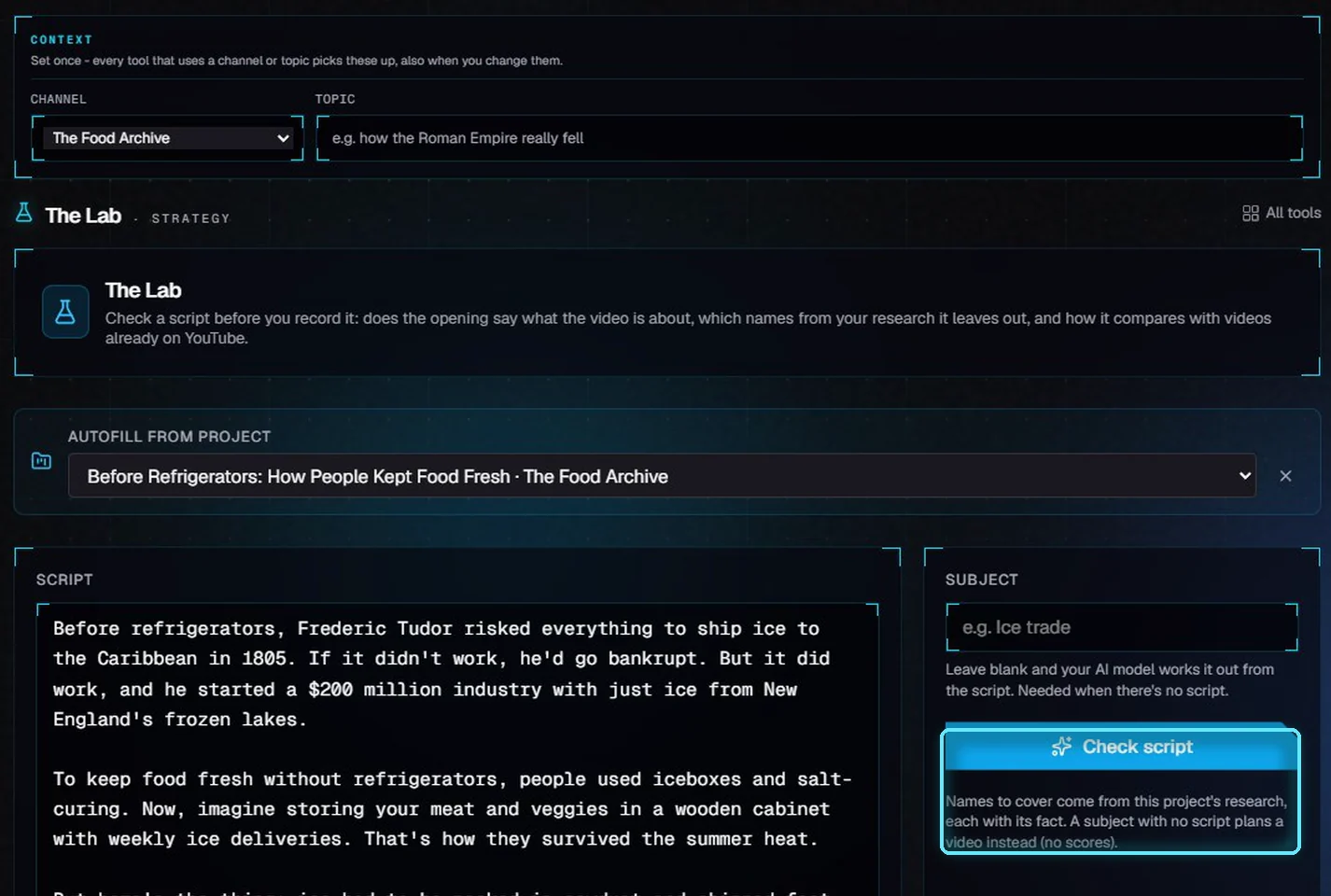
Pick the project, leave the subject blank, and check. The note says where the names come from.
The check found the subject (Frederic Tudor) and says the names come from the project's research:
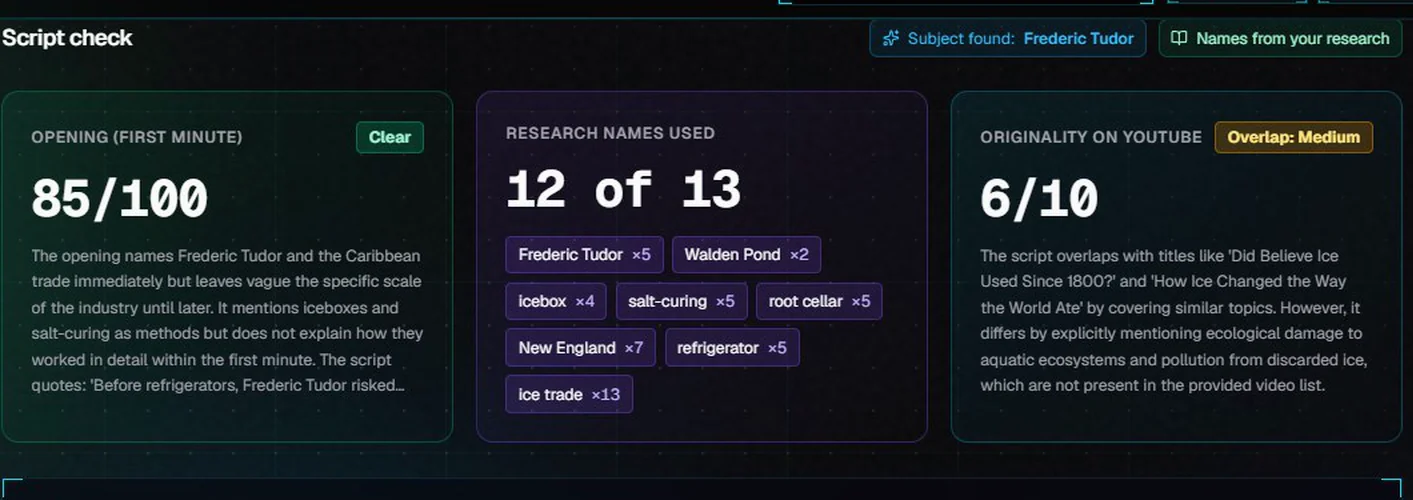
The opening scores 85 out of 100, the script uses 12 of the 13 research names, and the overlap with similar videos is medium.
Card | What it tells you |
|---|---|
Opening (first minute) | 0 to 100: does the first minute (about 150 words) name the subject early, and the people, places and things around it. Clear from 70. |
Research names used | How many of the names in the project's research the script mentions. Without a project, the related names come from Wikidata and have no facts. |
Originality on YouTube | 1 to 10, compared with the videos YouTube's search finds for your script's angle. Needs a YouTube Data API key; without one it says Not checked. |
Writing check | The same rules the script writer follows: stock phrases, sentences over 25 words, symbols, repeats, calls to action before the ending. |
The writing check
For Before Refrigerators it found 56 things to fix in 30 paragraphs: seven "here's the thing", colons and a degree sign a voice reads badly, repeated phrases, a call to watch another video in the middle. Almost half the sentences start with And, But, So or Now. Show all lists every paragraph.
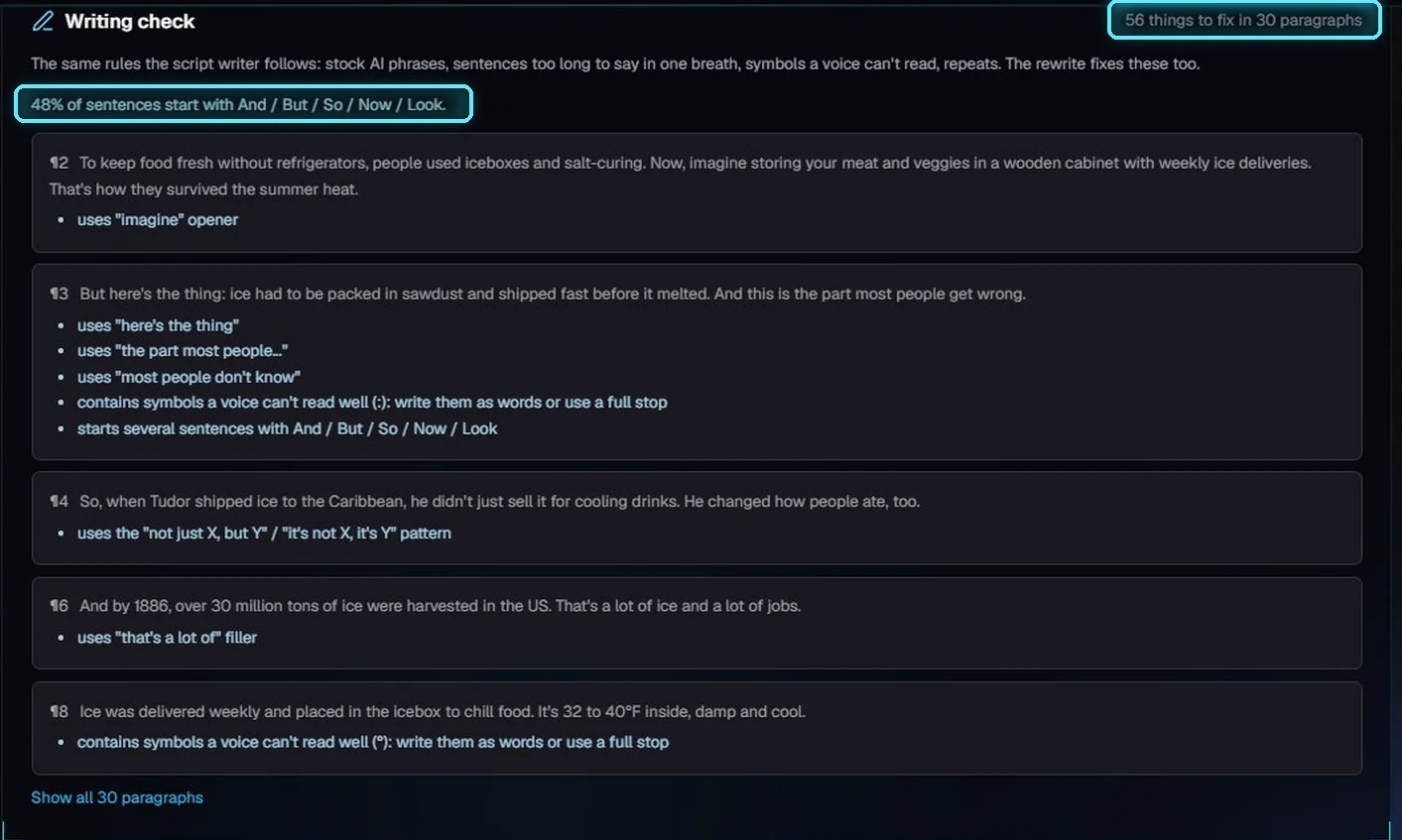
The writing check, paragraph by paragraph.
Missing names and similar videos
Names from your research the script leaves out lists each name with the reason it fits, built from its research fact. A name without a research fact is marked no fact and is never suggested as an addition. Here only the United States is missing. Similar videos on YouTube shows what the search found, with how much each title overlaps your angle.
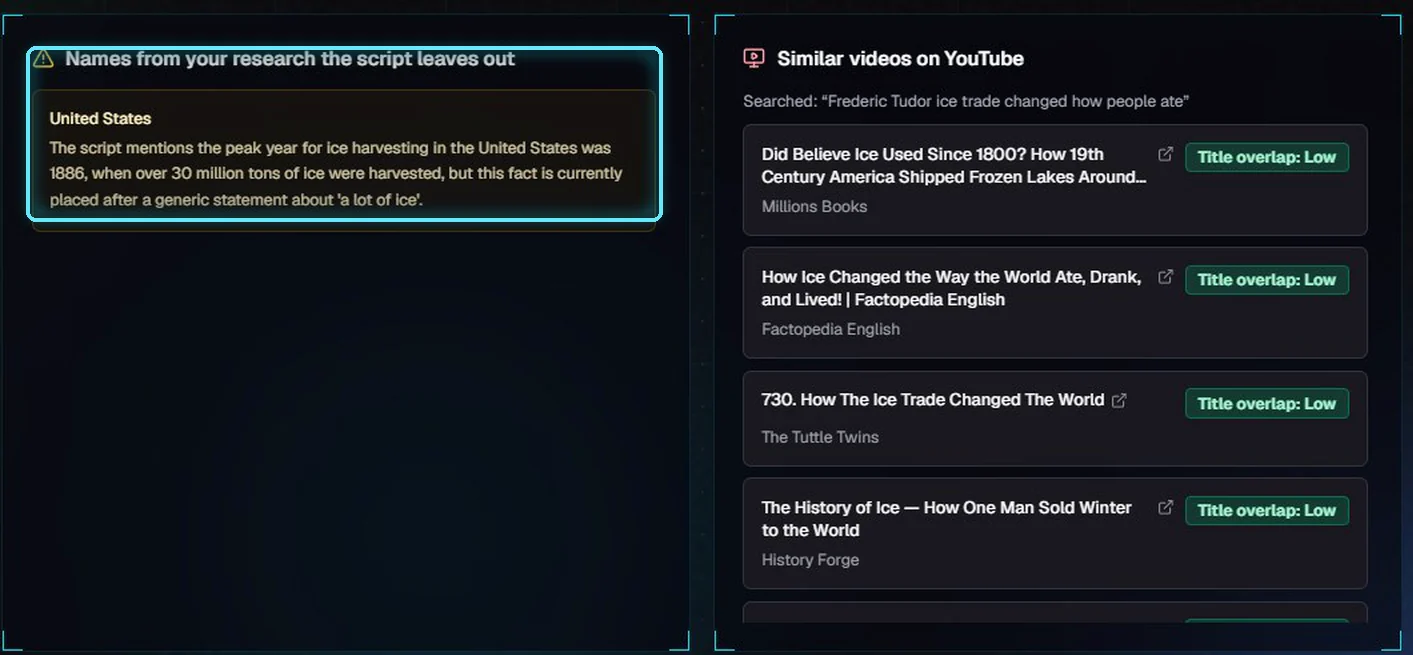
The one missing name, and the videos YouTube's search found for the script's angle.
Suggestions
Each suggestion quotes the current line and gives the new wording. Two warnings can appear under one: a name or number that's in neither your script nor your research, or wording brought in from elsewhere in the script. The rewrite skips a suggestion of the second kind.
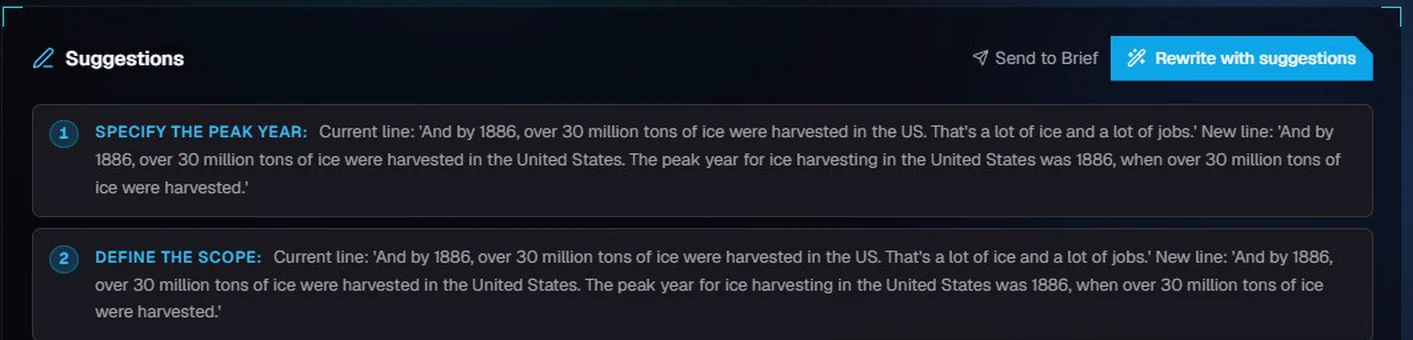
Suggestions quote the line to change and the new wording.
Rewrite with suggestions
Click Rewrite with suggestions.
Simple fixes happen without the AI: "But here's the thing: ice melted" becomes "But ice melted", colons become full stops, 40°F becomes 40 degrees Fahrenheit. Then only the flagged paragraphs go to your AI model, six at a time, each with its own list of problems.
Every edit is checked. It's kept only if it fixes a problem, adds none, loses no number, name or research term, and doesn't add sentences. Otherwise the paragraph stays as you wrote it.
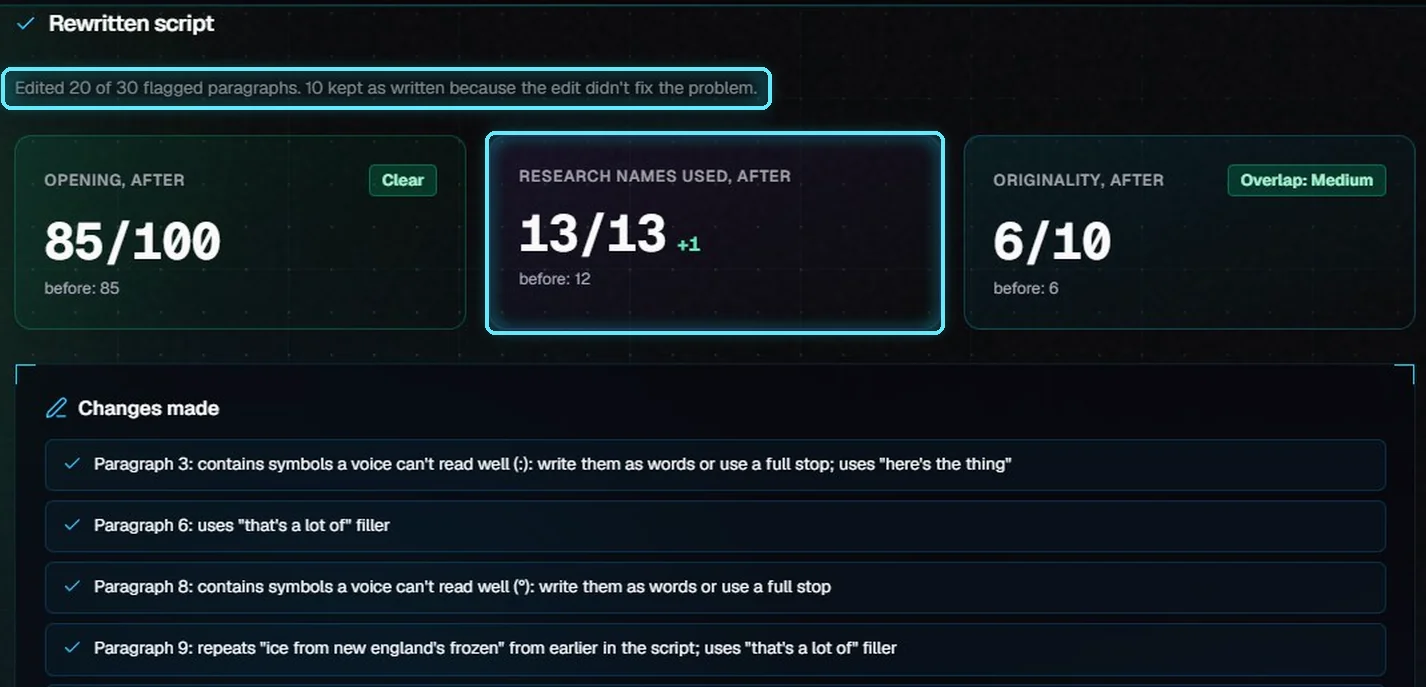
20 of 30 flagged paragraphs edited, 10 kept as written. The script now uses all 13 research names.
Changes made lists what each edit fixed. Still read the rewrite before you use it: here paragraph six now says 1886 twice. Copy script copies it, and Apply to project puts it in the project (see step 3).
2. Add names from your research
Click Entity optimizer and pick the project.
Click Find names. With a project, the names come from its research, each with a fact; hover a name to see it. Without a project, type a topic and the names come from Wikidata. Those have no fact, show dashed, and are never added.
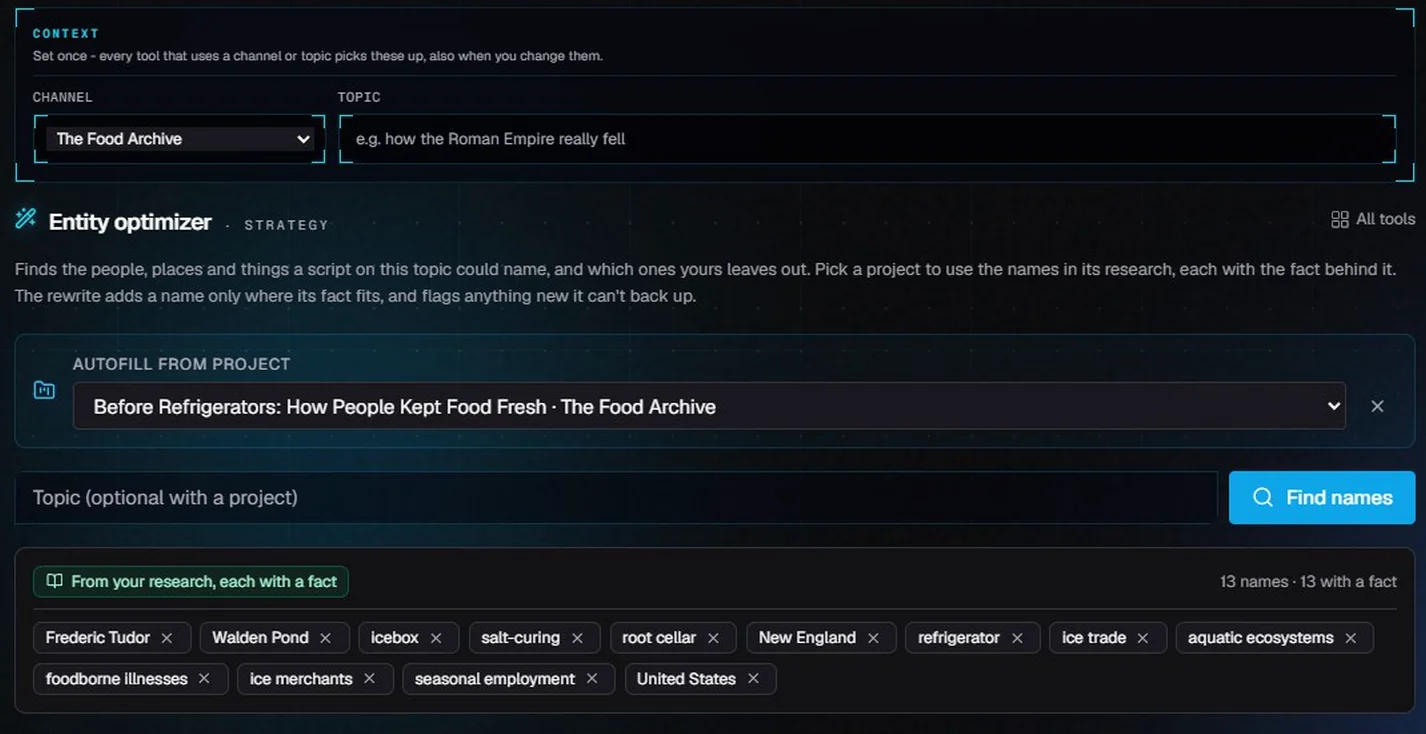
13 names from the research, each with a fact.
Click Check coverage to count them without the AI. The script uses 92 percent; only the United States is missing.
Click Work names in. Your AI model may add a missing name only where its fact fits and say only what the fact says. Each changed paragraph is checked for lost facts and for anything new.
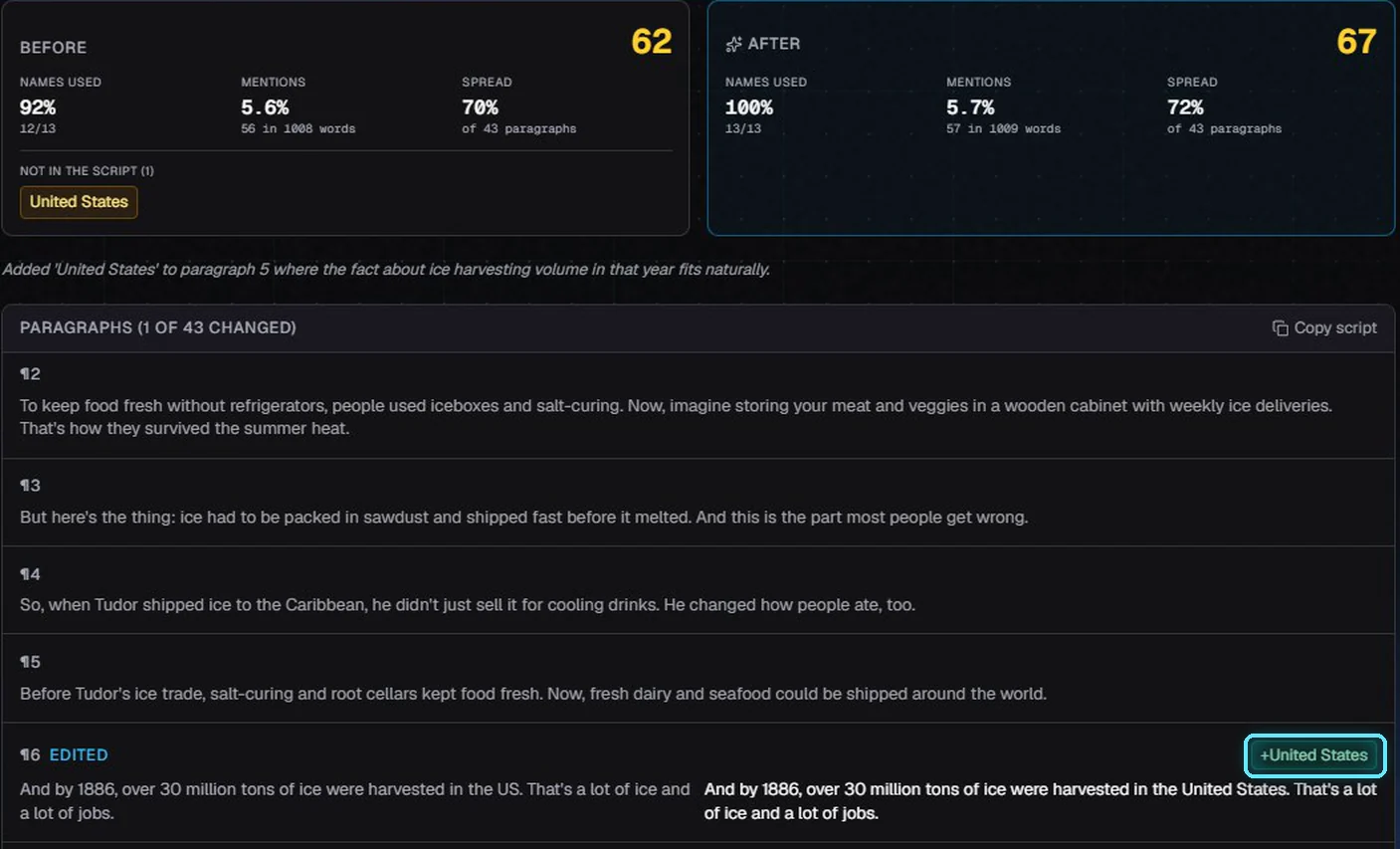
One paragraph of 43 changed: the US became the United States. Coverage 100 percent.
3. Humanize and apply
Click Humanize and pick the project. Add a tone if you like.
Click Humanize. It edits only sentences with a problem, the same way as the Lab's rewrite: no-AI fixes first, then the flagged paragraphs, each edit checked.
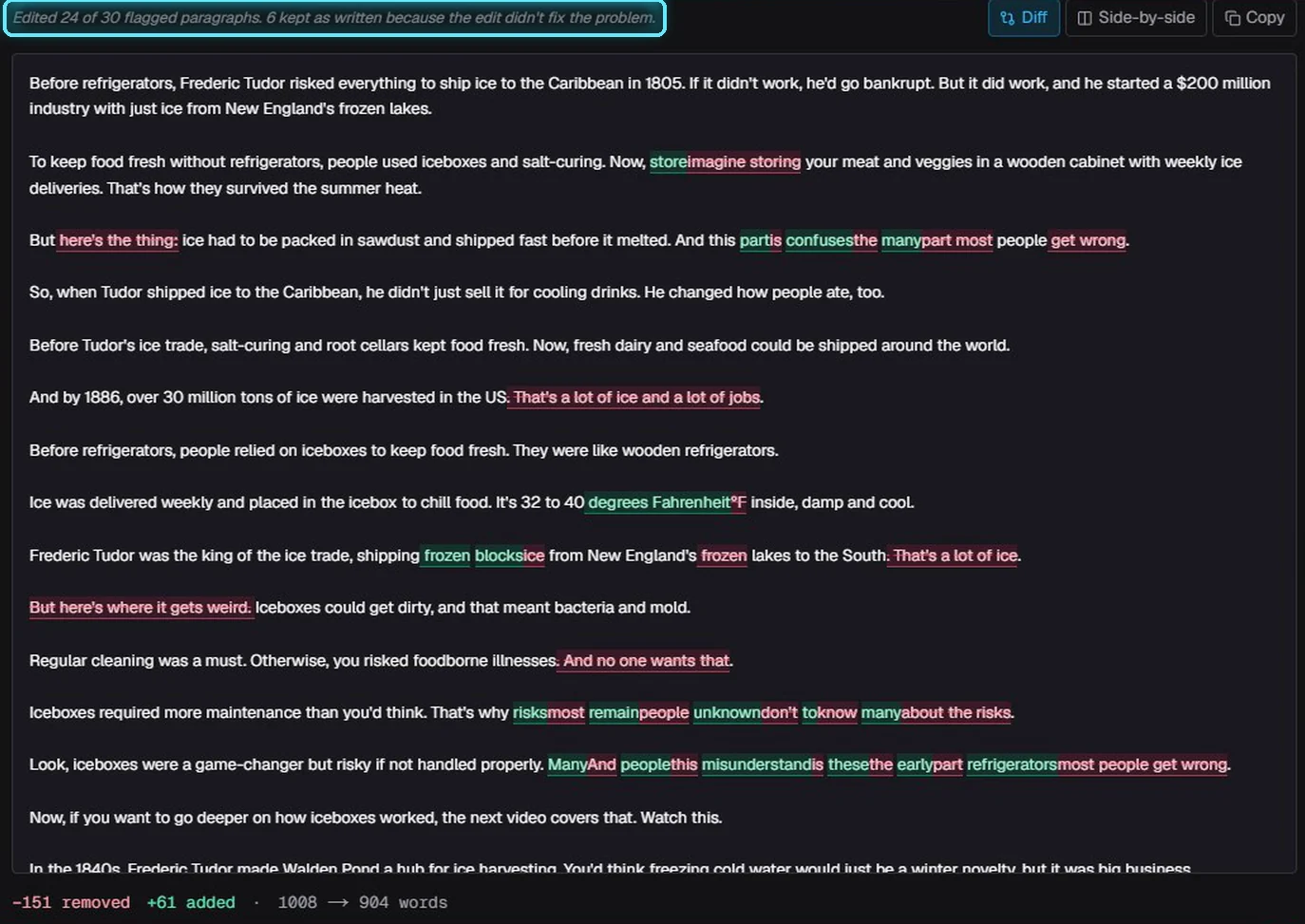
24 of 30 flagged paragraphs edited. Red is removed, green is added.
If the rewrite has a name or number that's in neither your script nor your research, it's listed above the diff under Check before you use this. Side-by-side shows both versions next to each other. When your channel's YouTube history is synced, Humanize also matches the style of your best videos.
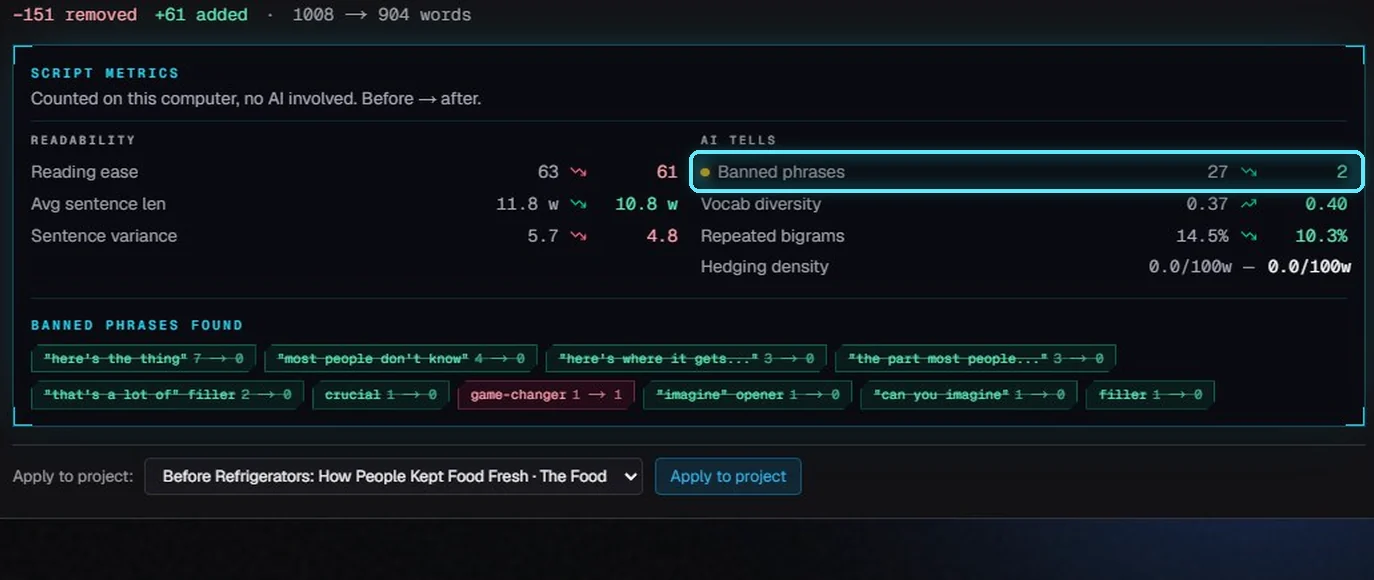
Counted on your PC: stock phrases went from 27 to 2. Crossed out chips are gone.
Apply to project
Pick the project under Apply to project (the one you picked at the top is already chosen) and click Apply to project.
The dialog lists what gets replaced. Click Replace script.
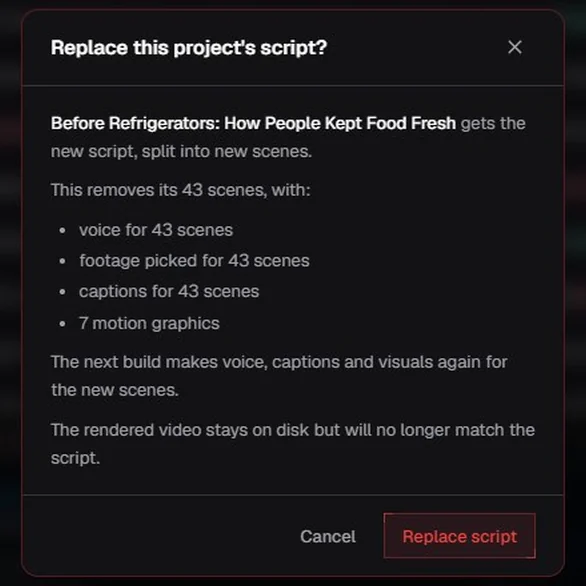
Before anything changes: 43 scenes with their voice, footage, captions and 7 motion graphics.
The project splits the new script into scenes. Voice, captions and visuals are made again on the next build, so applying costs voice credit for the new scenes. Sound effects you placed by hand stay; automatic ones are removed, since they followed the old cuts.
Tips
Run research on the project first. The research is what lets the tools add names truthfully and catch invented ones.
Use the Lab when you want structure and facts checked, Humanize when the facts are fine and only the voice is off. Both use the same checks.
Read every rewrite before you apply it. The checks catch lost and new facts, not every clumsy sentence.
Apply only once you're happy. It replaces the scenes, so voice and visuals are made again.
Troubleshooting
Originality says Not checked. Add a YouTube Data API key in Settings > API keys, or wait for tomorrow's quota if it's used up.
Names say "from Wikidata, no facts". The project has no research yet, or you didn't pick a project. Run research on the project, then pick it.
"Your AI model took too long". Check Settings > AI model and try again. A long script takes longer; the Lab and Humanize send six paragraphs per call.
Many paragraphs were kept as written. The model's edits didn't fix the problem or would have lost a fact. Run it again, or fix those sentences by hand: the writing check says exactly what's wrong.