
Tutorials.
Step-by-step guides with screenshots of the real app. Most also have a short video version, coming to our YouTube channel.
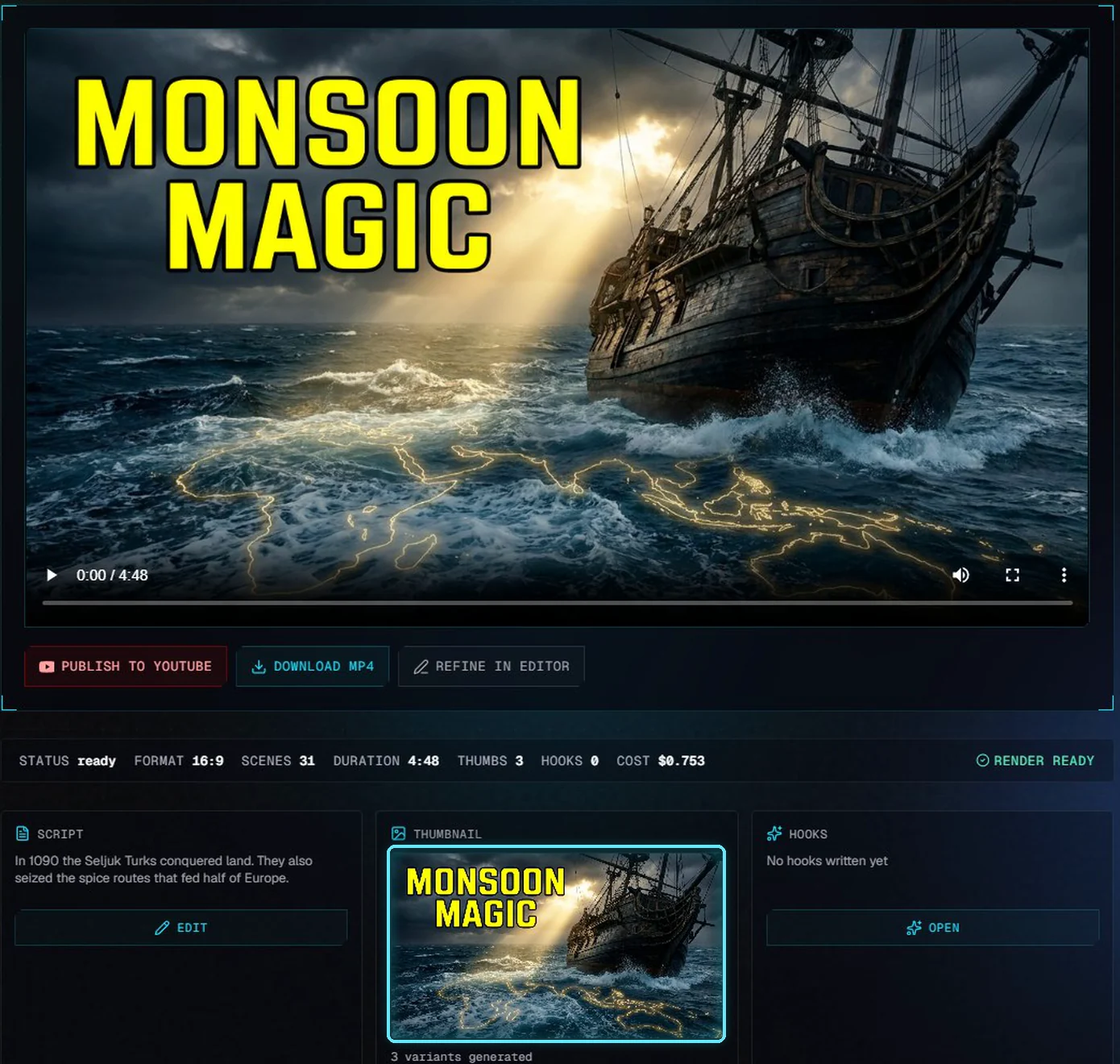
VidNexus, start to finish
From a keyword to a finished video and its thumbnail: research, script, build, edit, render and Pikzels.
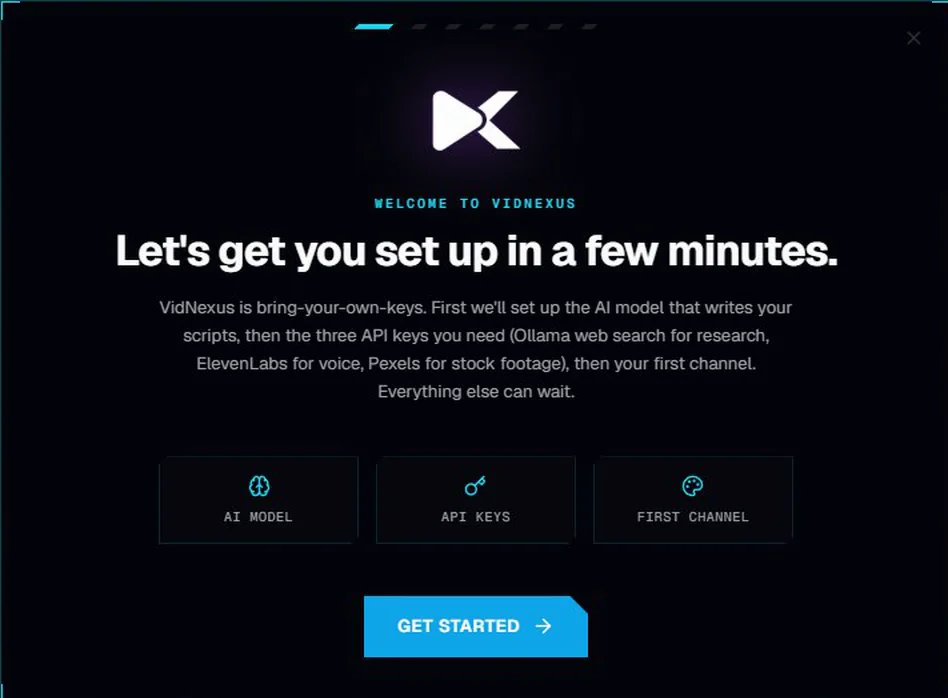
First-time setup
From a fresh install to your first video idea, in about five minutes.
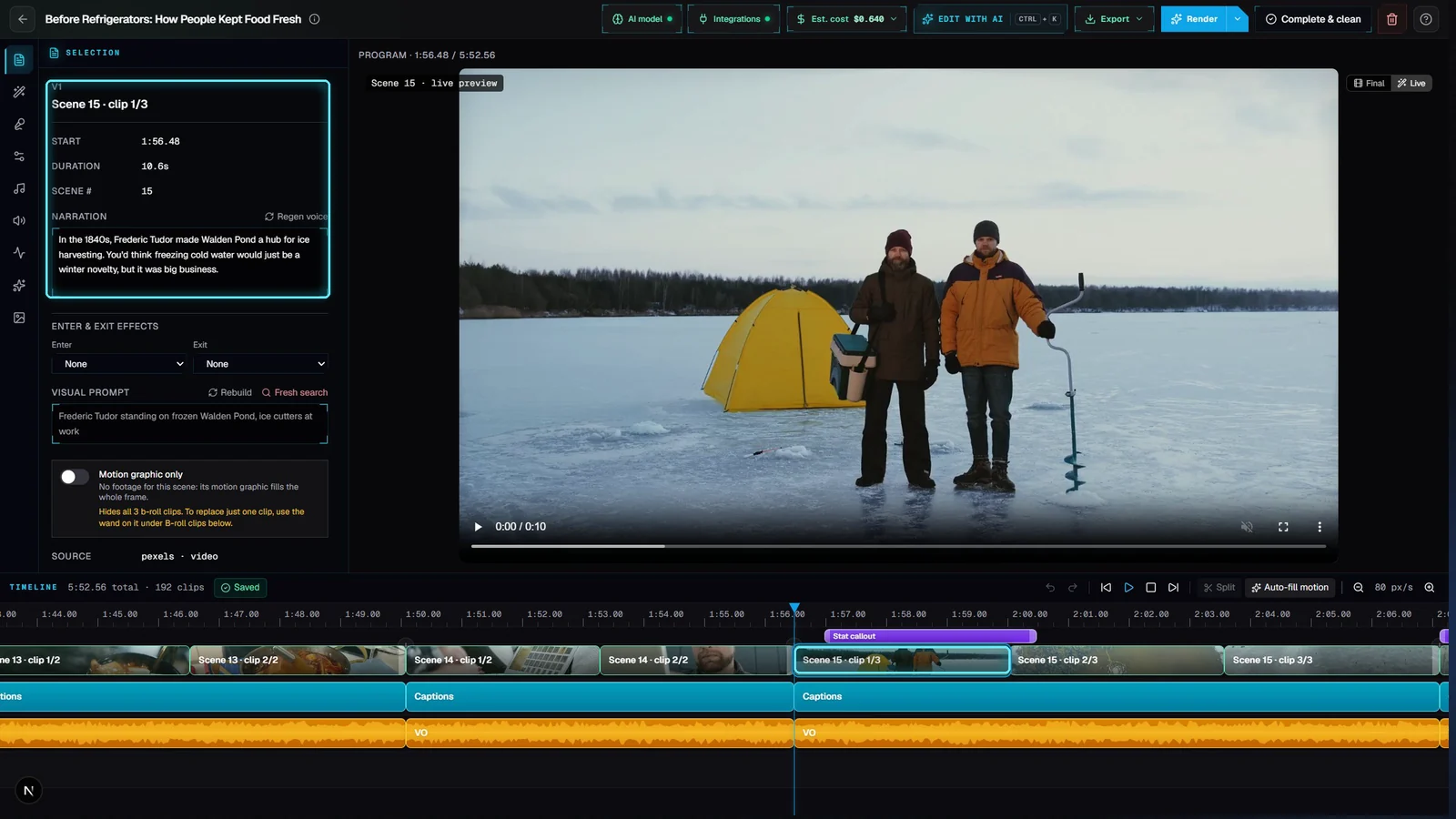
A tour of the app
Where everything is, what the top bar tells you, and where to find help.
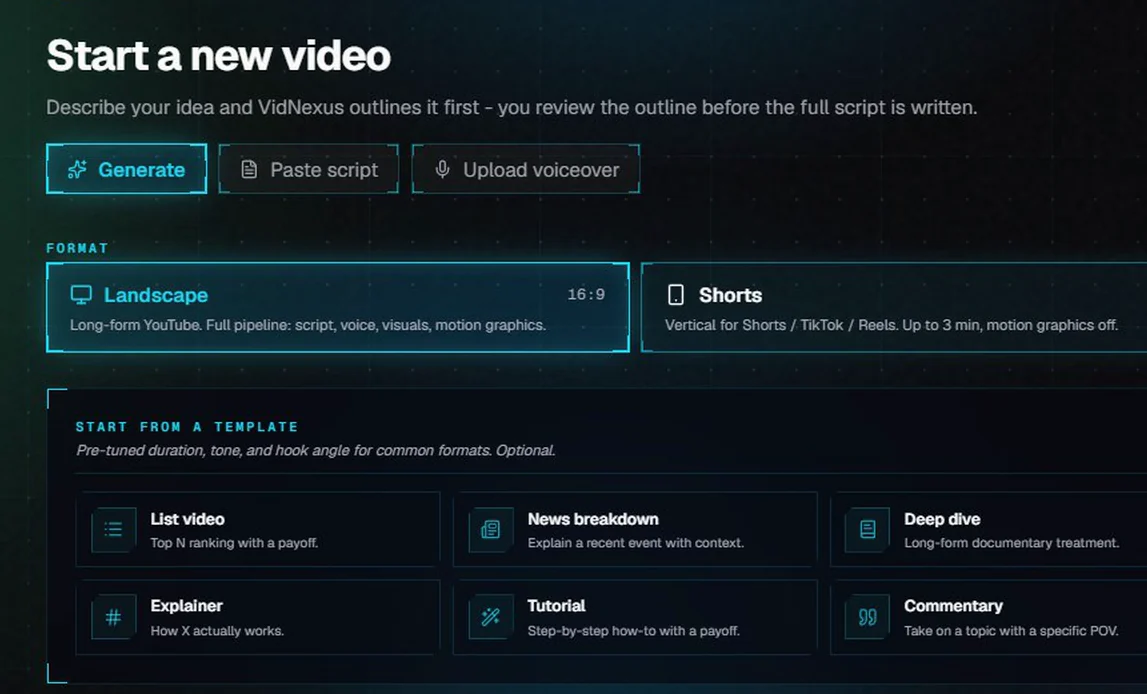
Your first video
From one idea to a finished, captioned video.
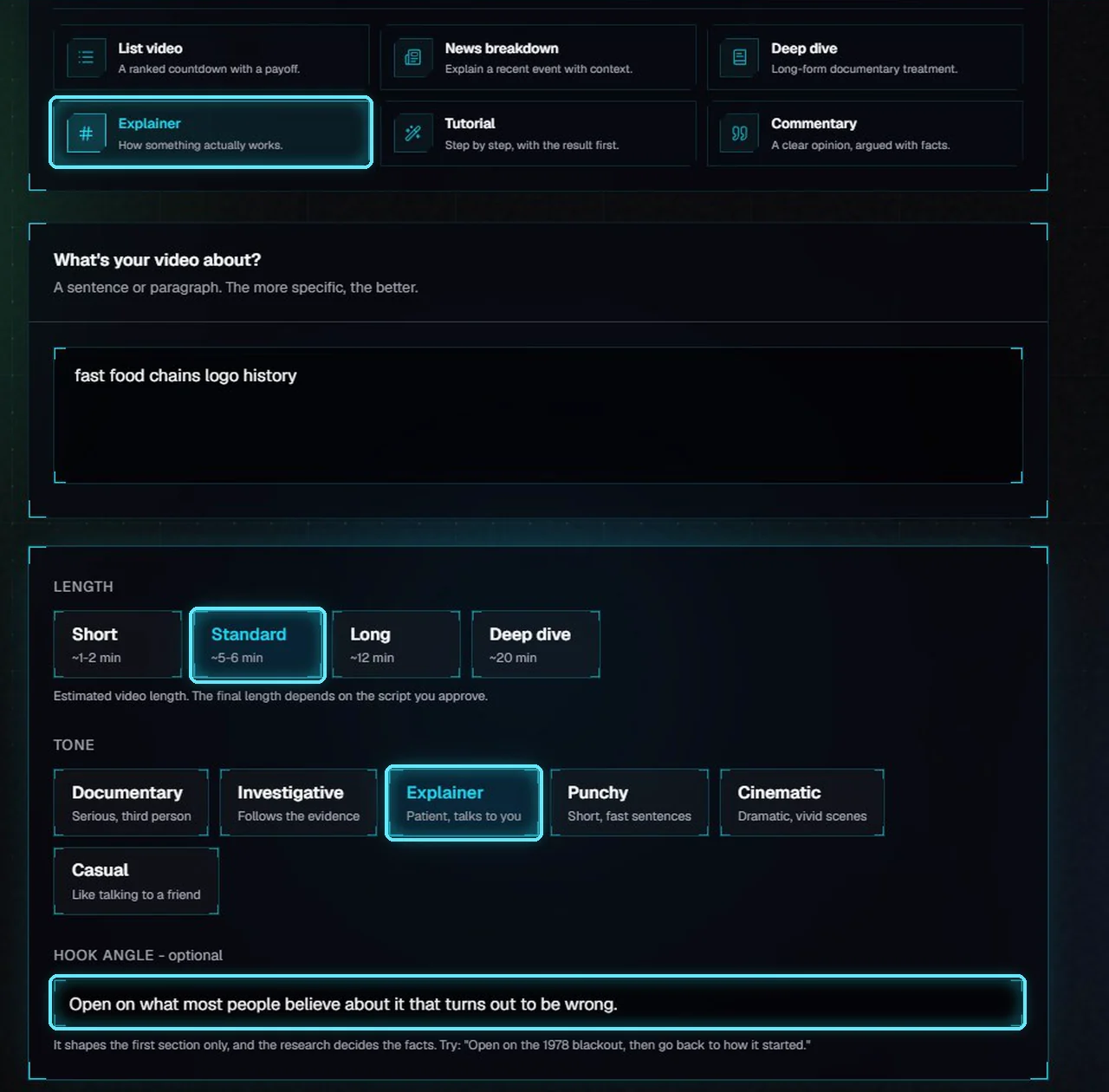
Format, length, tone and hook angle
Set up a new video before anything is written: the format, the length, a template, the tone and how it opens.
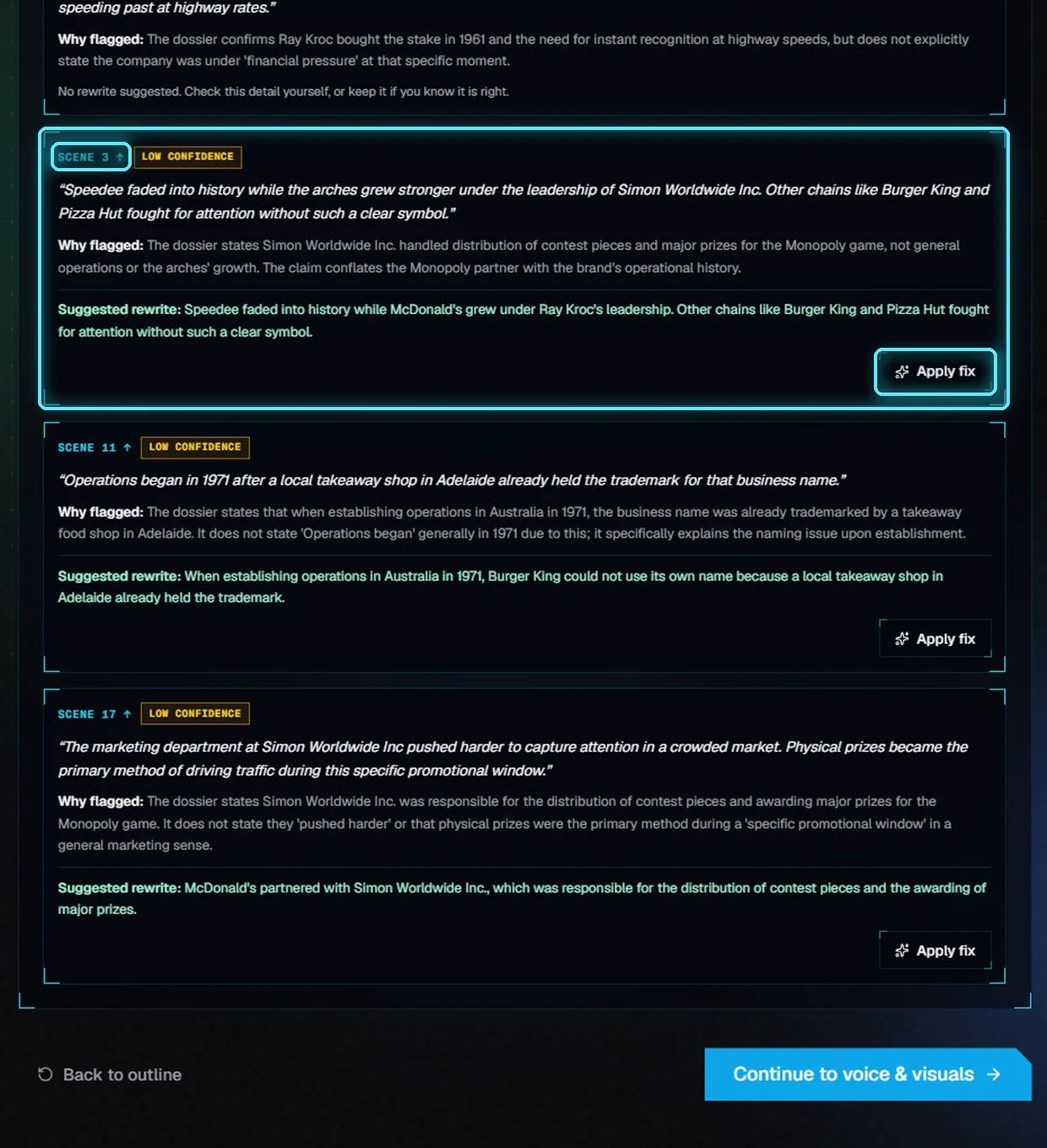
Outline and script review
Fix the outline, write the sections, then check the hook score and the facts before you continue.
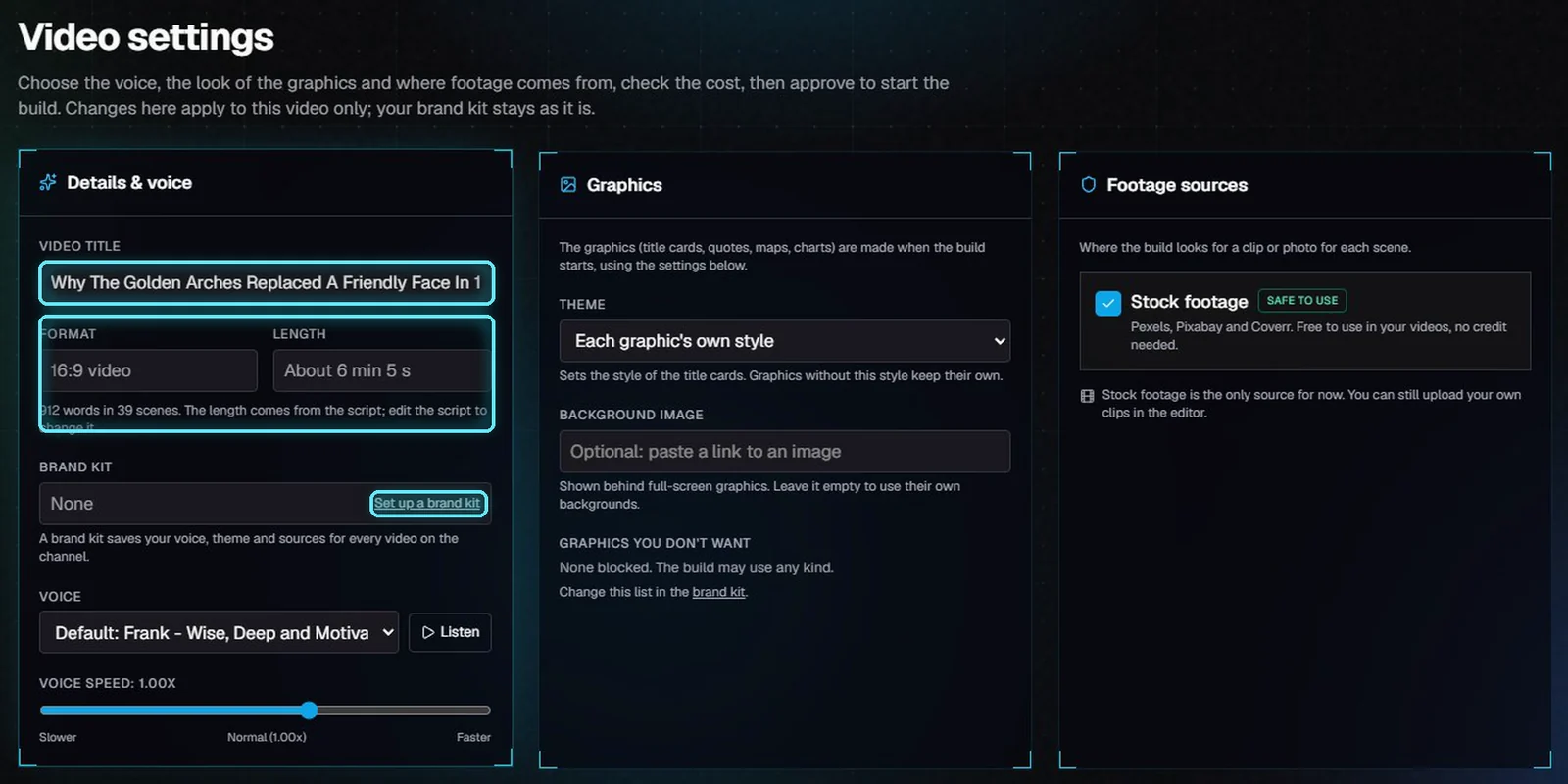
Video settings
Pick the voice, set the graphics and footage sources, check the cost, then start the build.
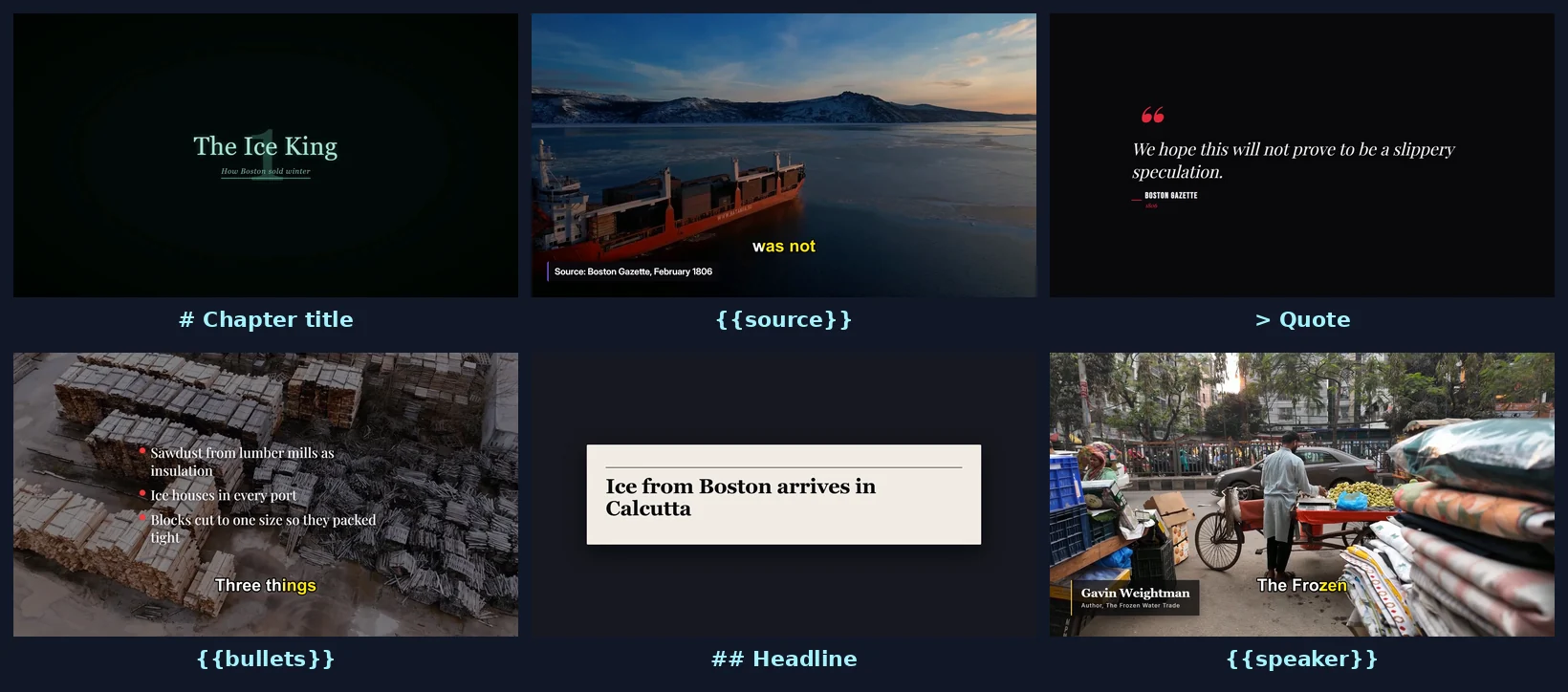
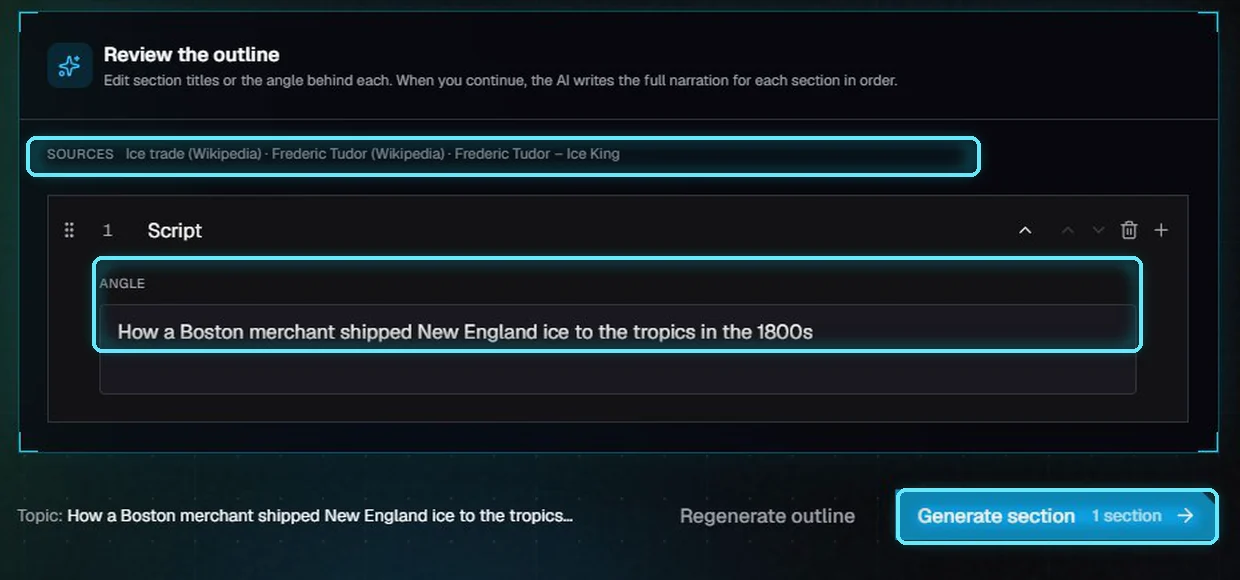
Bring your own script
Paste a script you wrote, mark where the titles, quotes and sources go, and VidNexus builds the video around your words.
Make a YouTube Short
From one idea to a finished vertical Short.
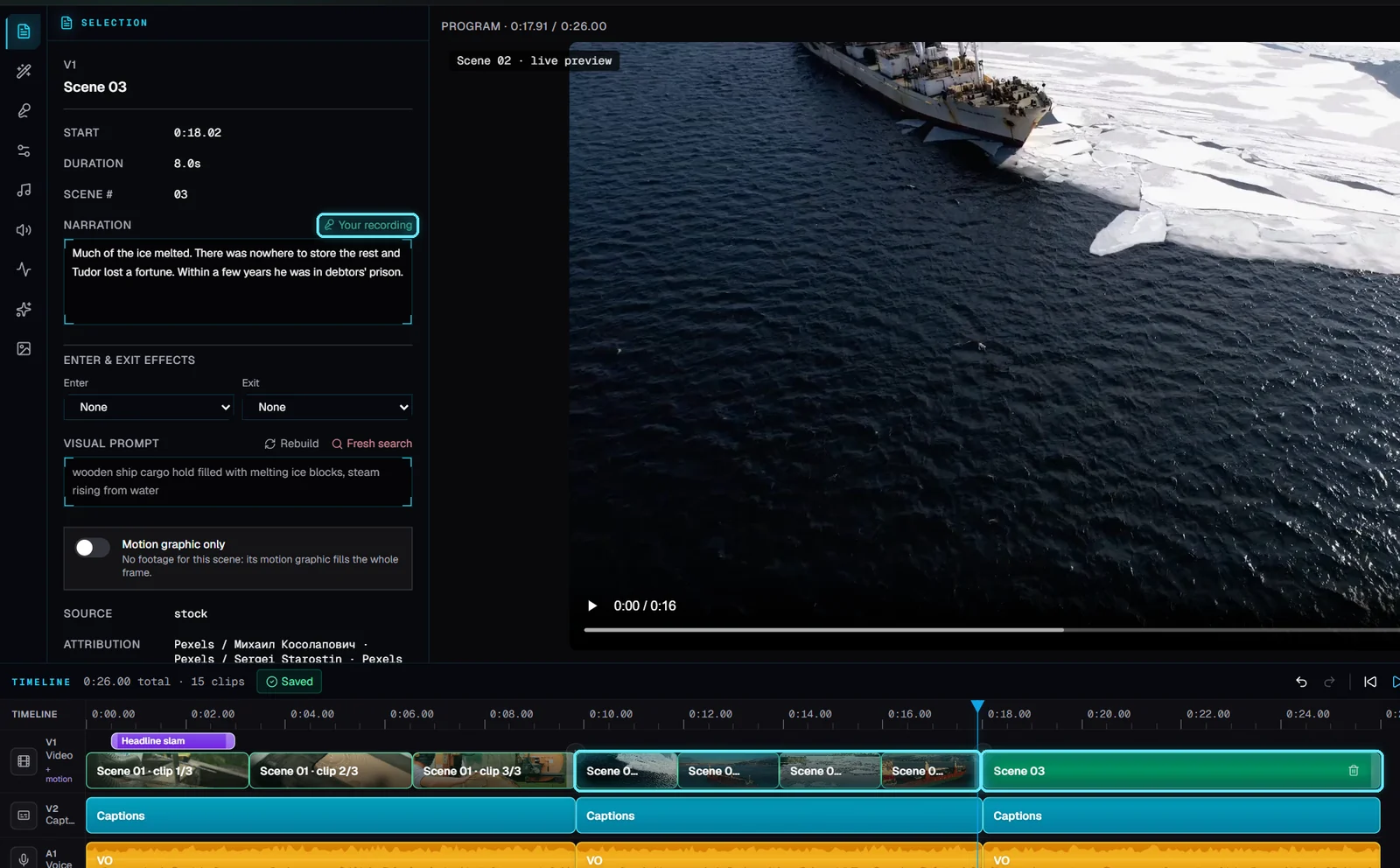
Bring your own voiceover
Make a video from narration you recorded yourself: no AI voice, and nothing to pay for the voice.
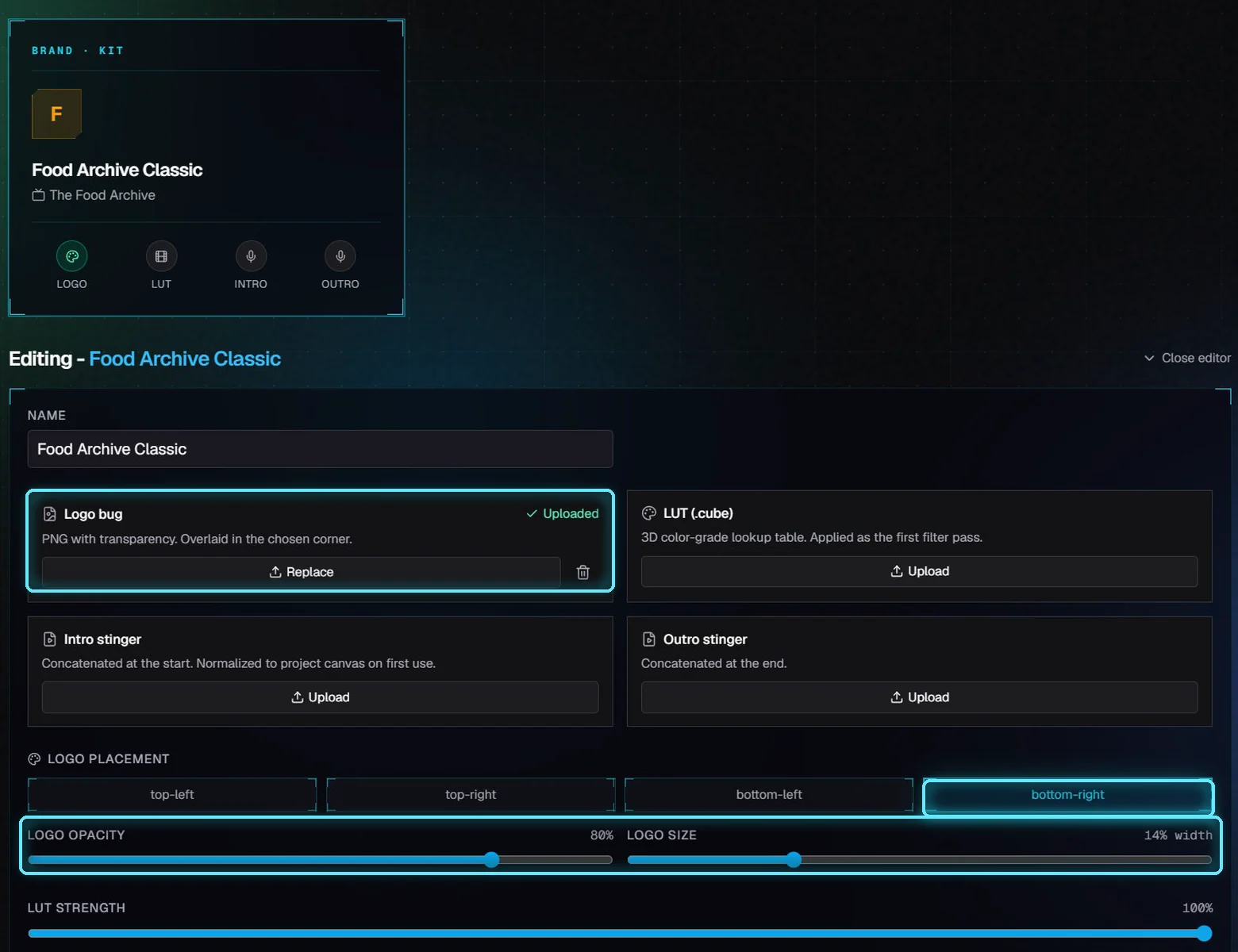
Set up a brand kit
Your logo, voice and sourcing rules, applied to every video on a channel.
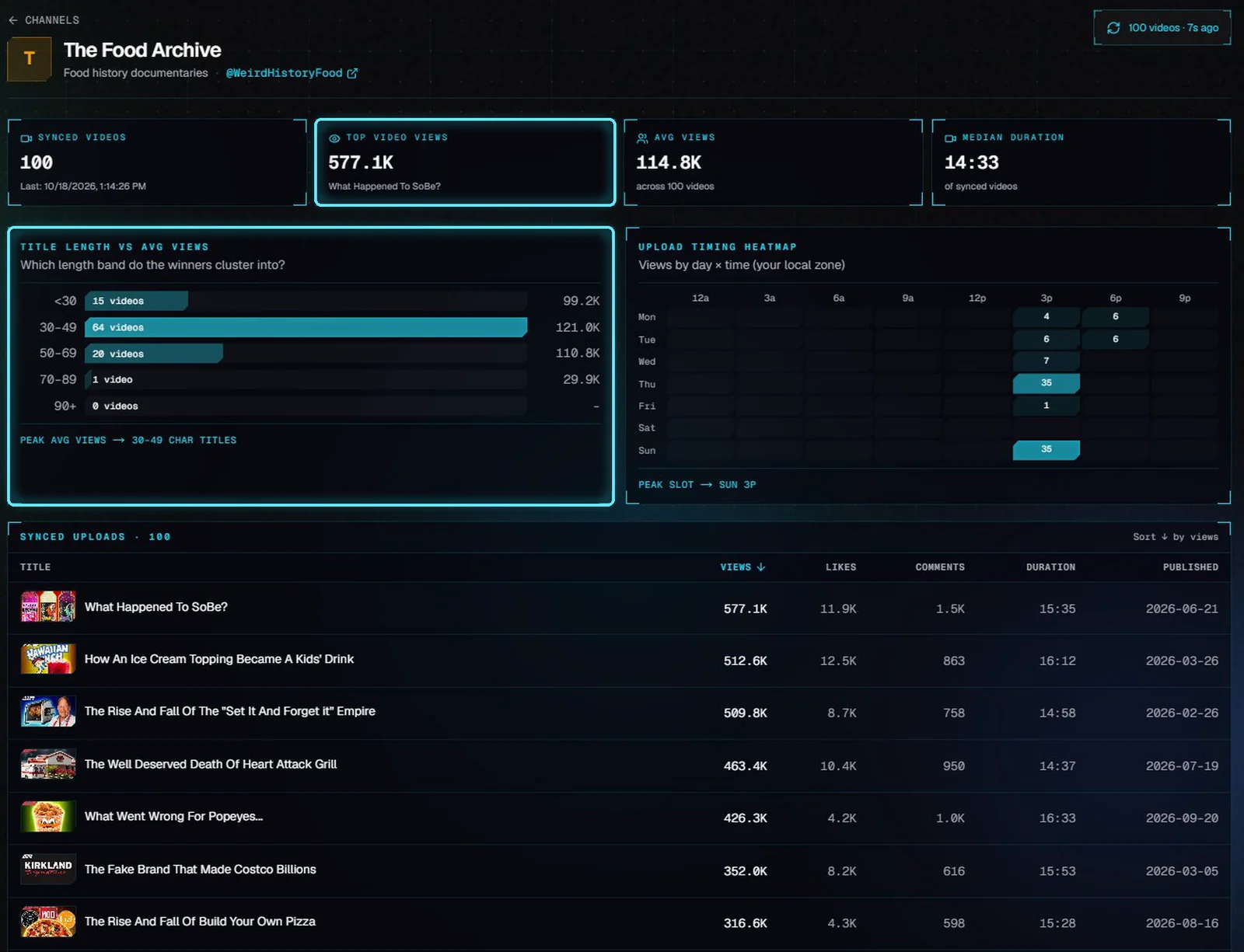
Teach VidNexus your channel's voice
Sync your YouTube channel, write a channel brief, and get titles in your channel's style.
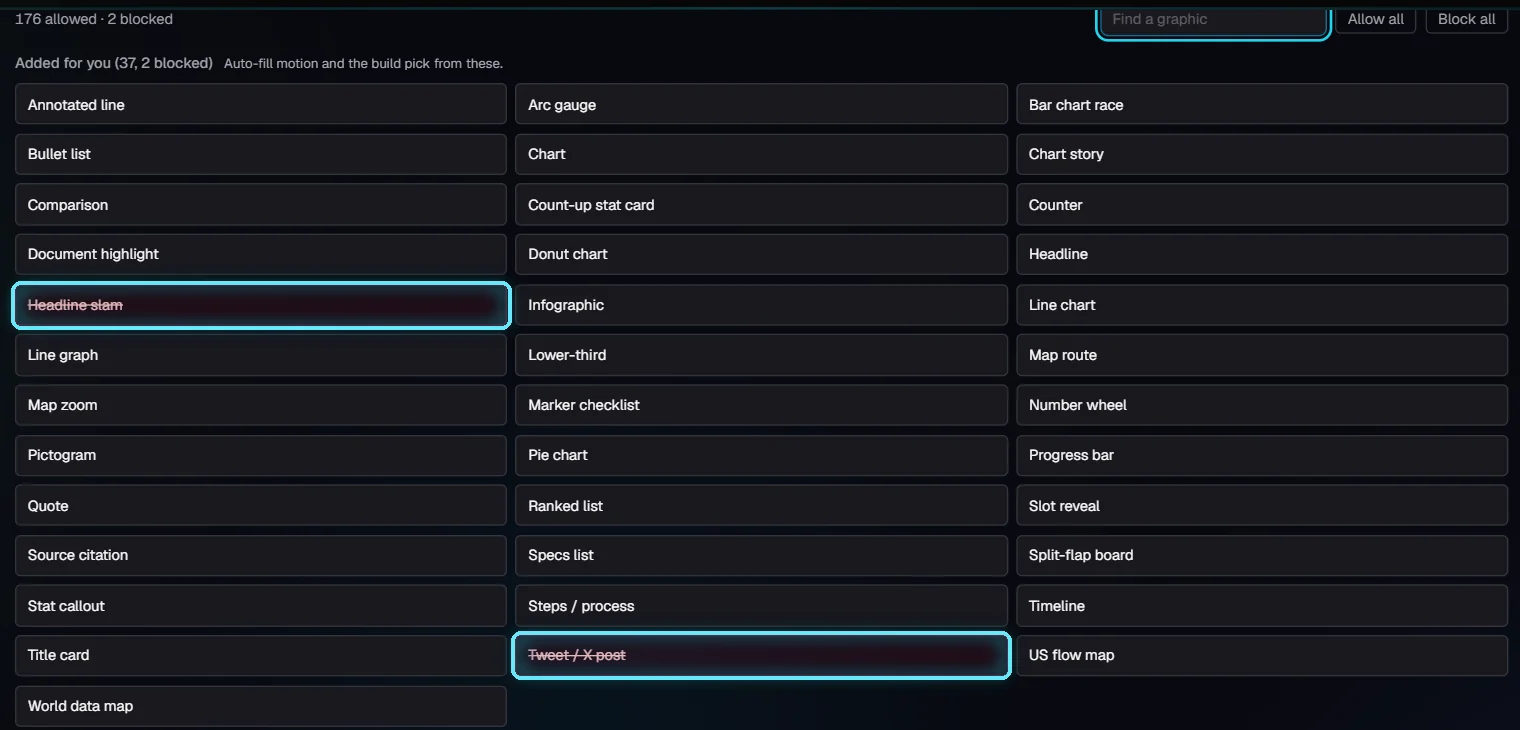
Brand defaults and graphics you don't want
Set the voice and look once for a channel, and keep the graphics you never want out of every video.
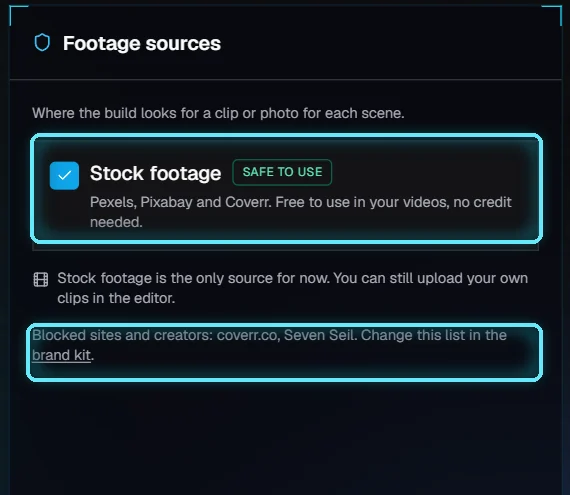
Footage licensing: Compliance & sourcing
Where VidNexus gets footage, what you may do with it, and how to keep a site or a creator out of your videos.
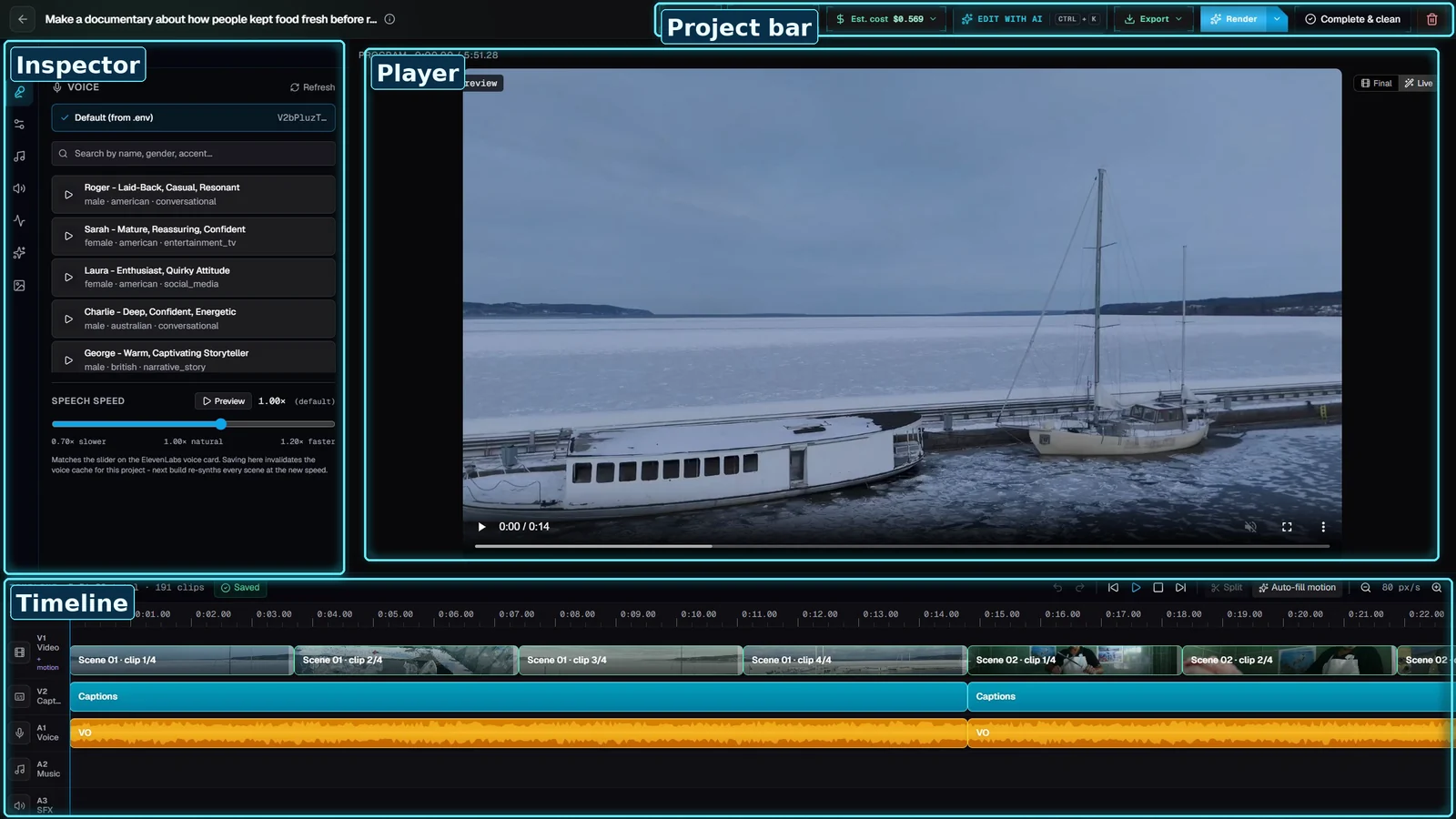
A tour of the editor
Transitions, footage, motion graphics and narration, then render.
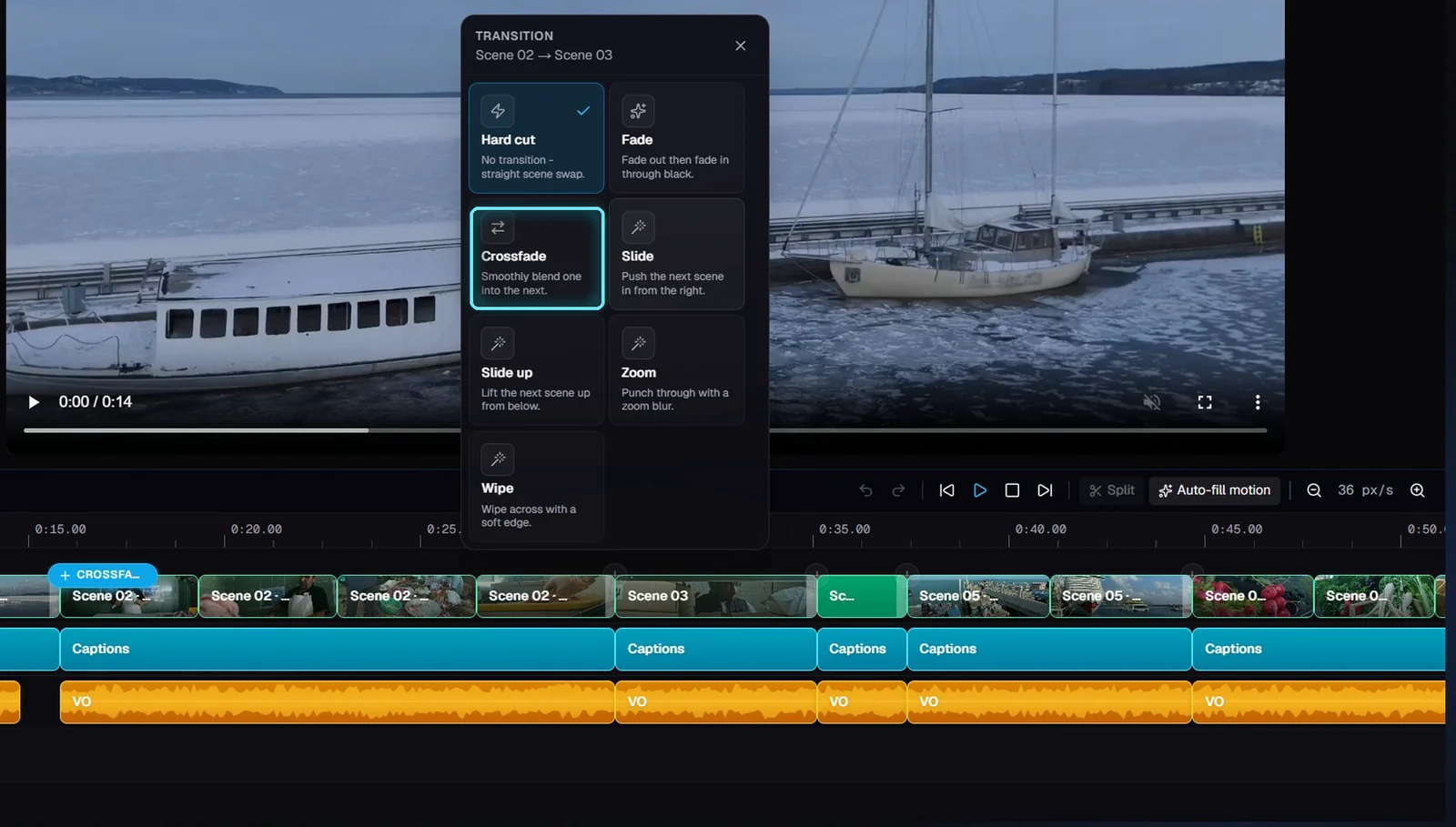
Edit scenes on the timeline
Move, trim, split and delete scenes, add transitions and effects, and undo any step.
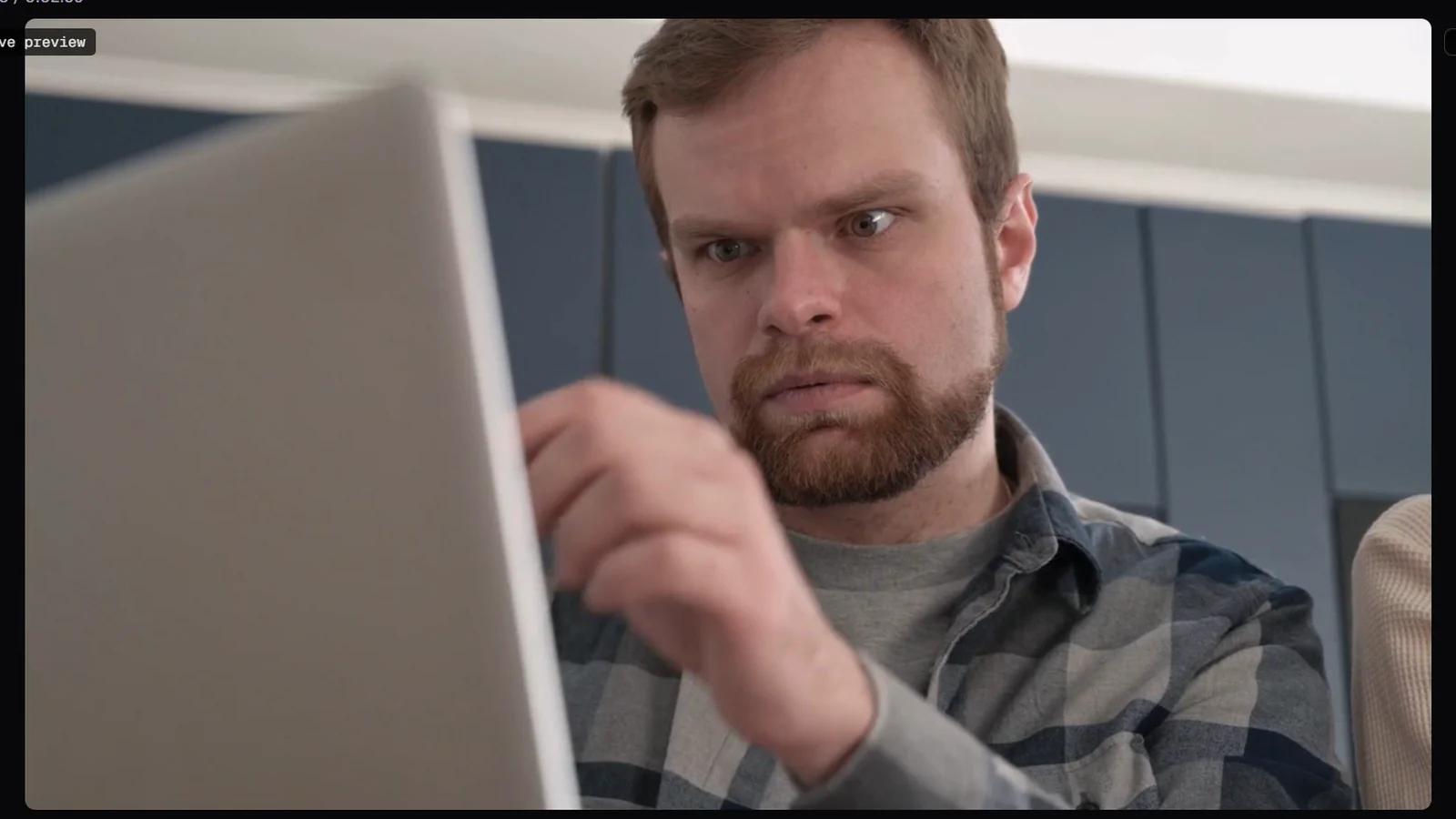
Fix the b-roll
Swap weak shots, search with a better prompt, and add zoom and pan.
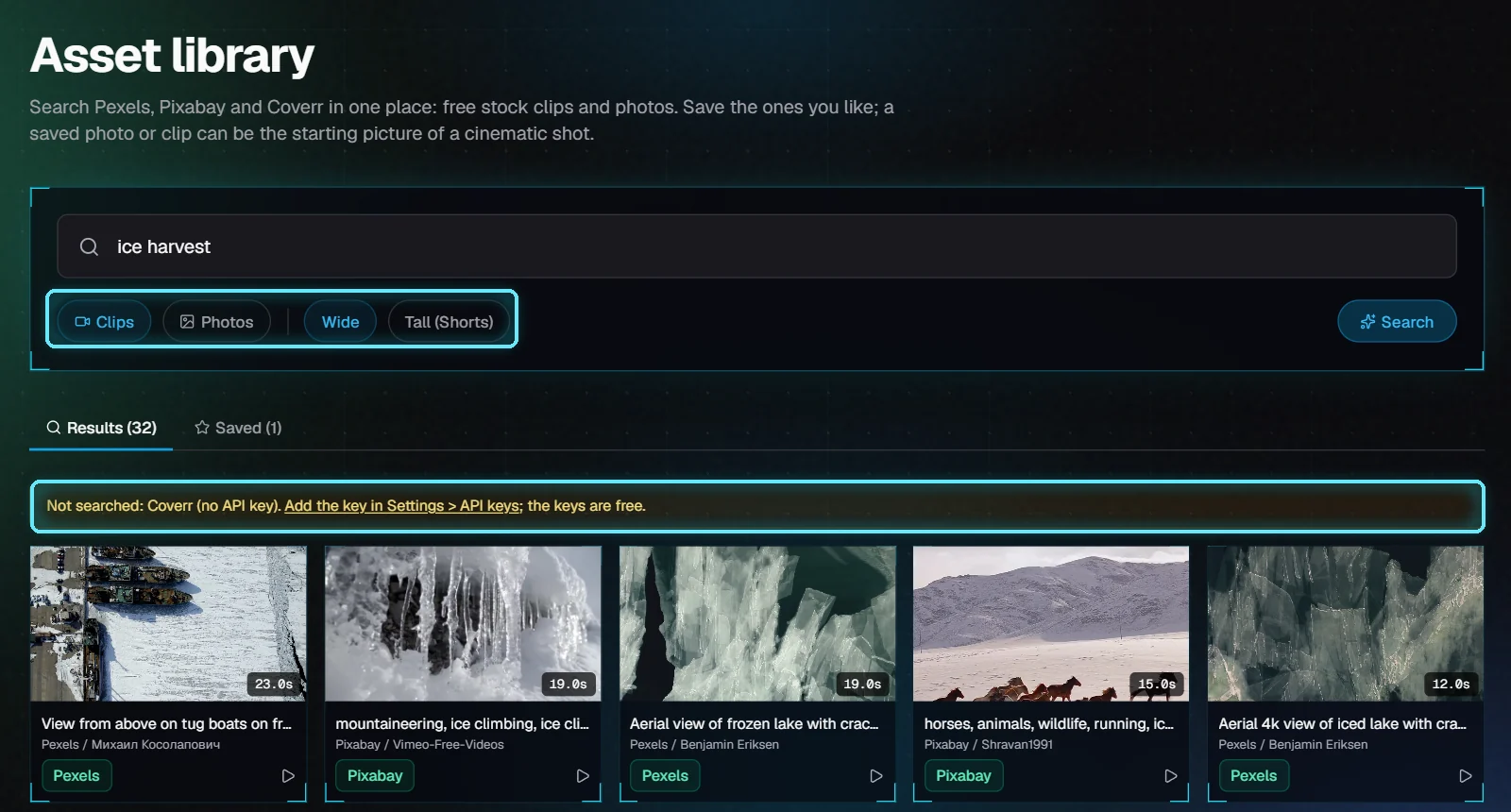
The Asset library
Search free stock clips and photos in one place, save the ones you like, and start a cinematic shot from them.
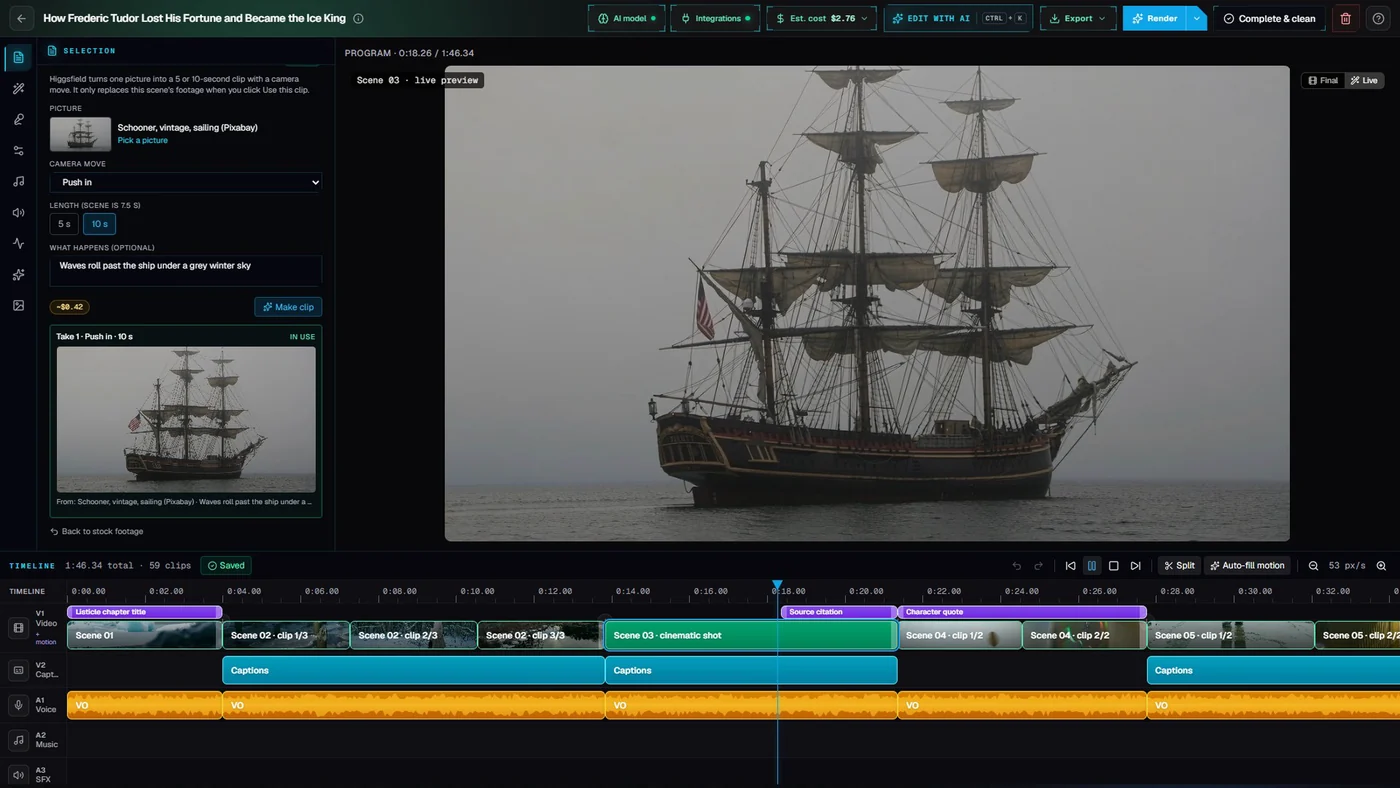
Cinematic shots with Higgsfield
Turn one picture into a short clip with a camera move, preview it, and use it in your video.
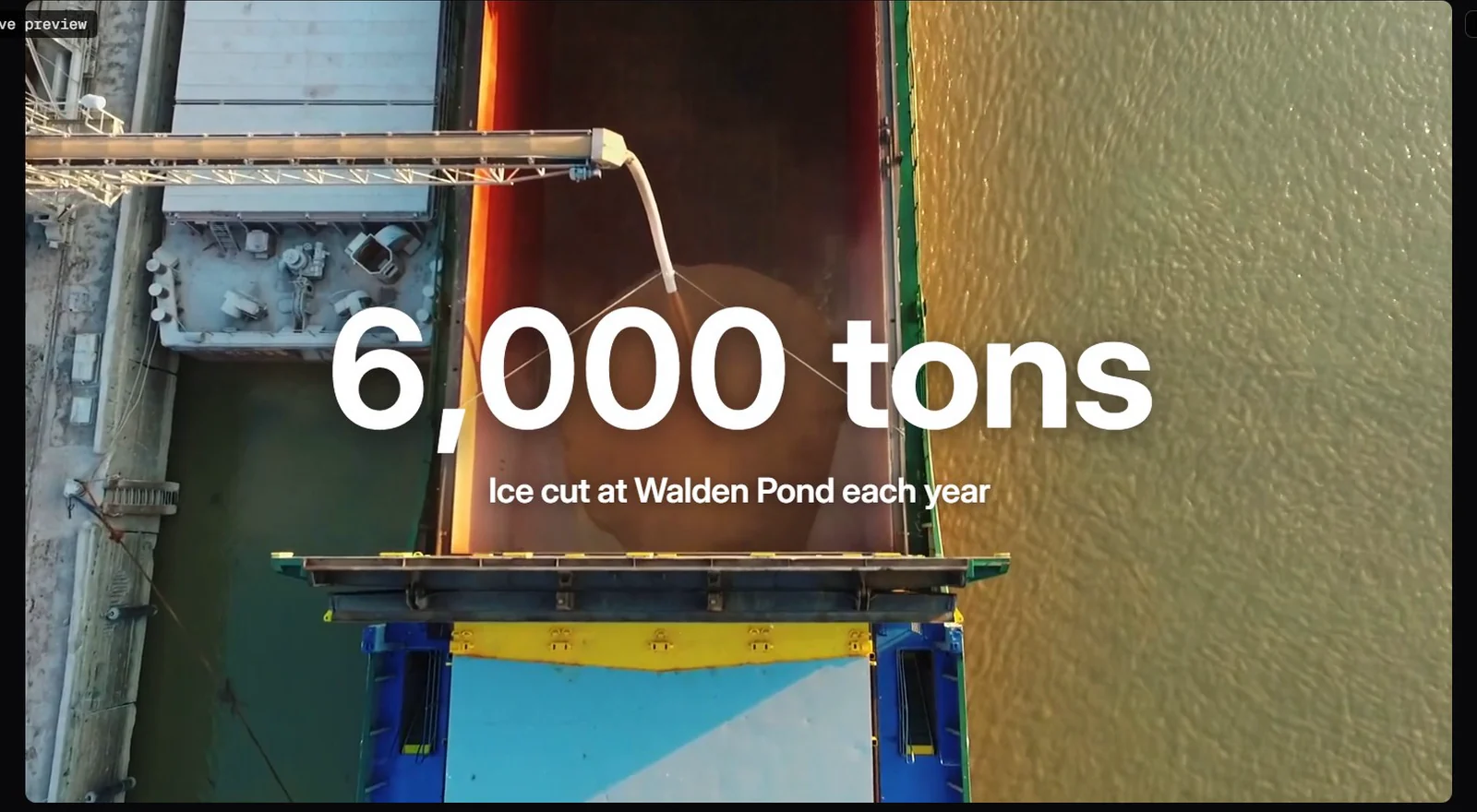
Motion graphics 101
Add, edit, trim, copy and auto-fill animated graphics.
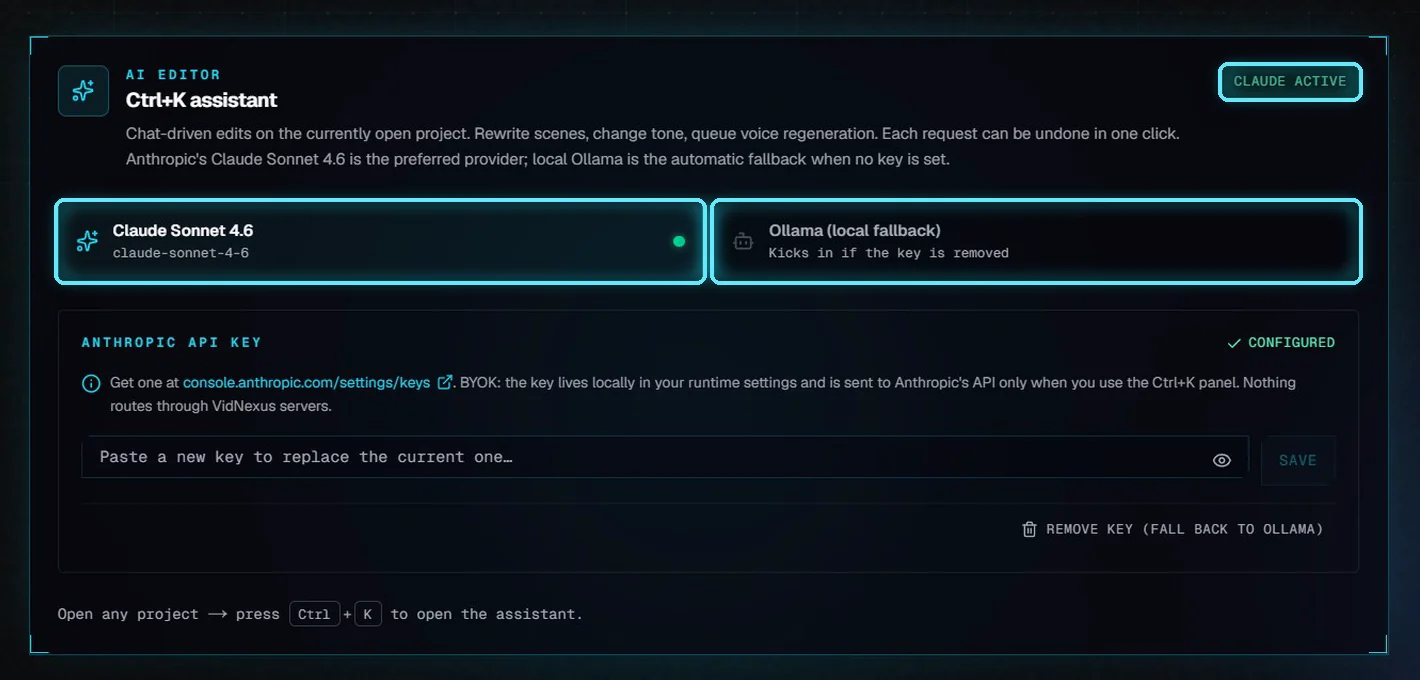
The AI editor
Describe a change in plain words, and let the AI edit your video.
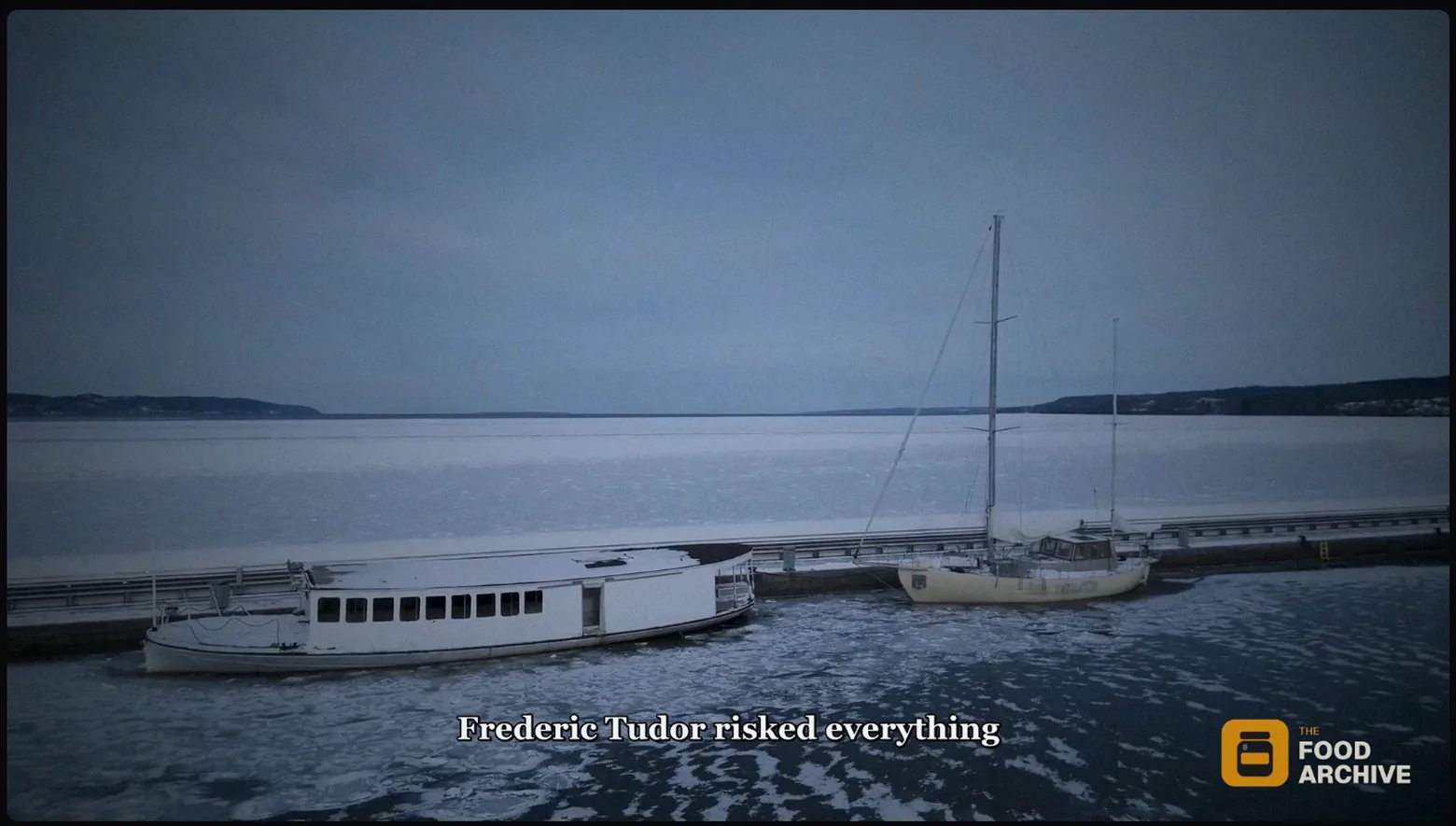
Captions, transitions and film look
Change how the whole video looks from the Settings tab.
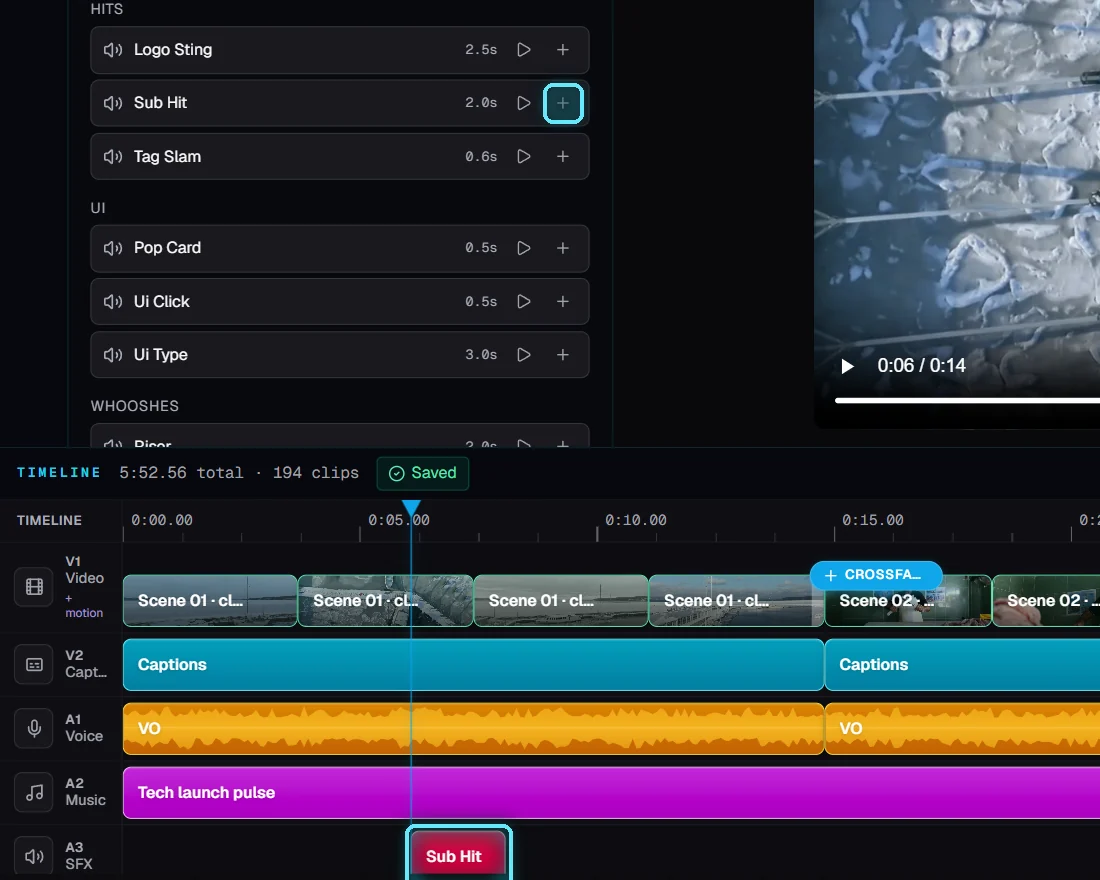
Music and sound effects
Add a music bed and sound effects to a video, and set how they sit under the narration.
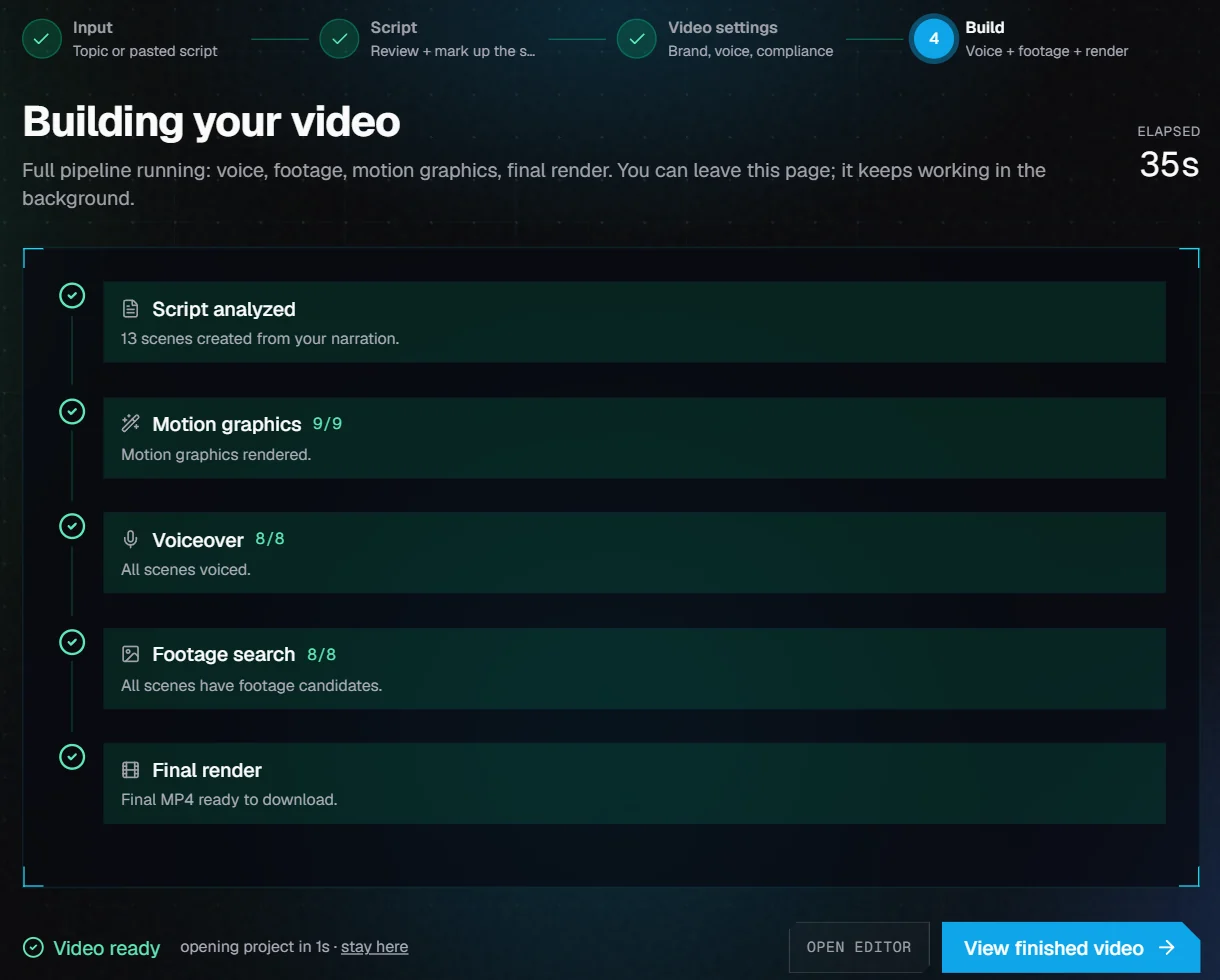
Render, Full rebuild and exports
Make the video file again after you edit, know what a rebuild costs, and take the video, its timeline and its subtitles out of VidNexus.
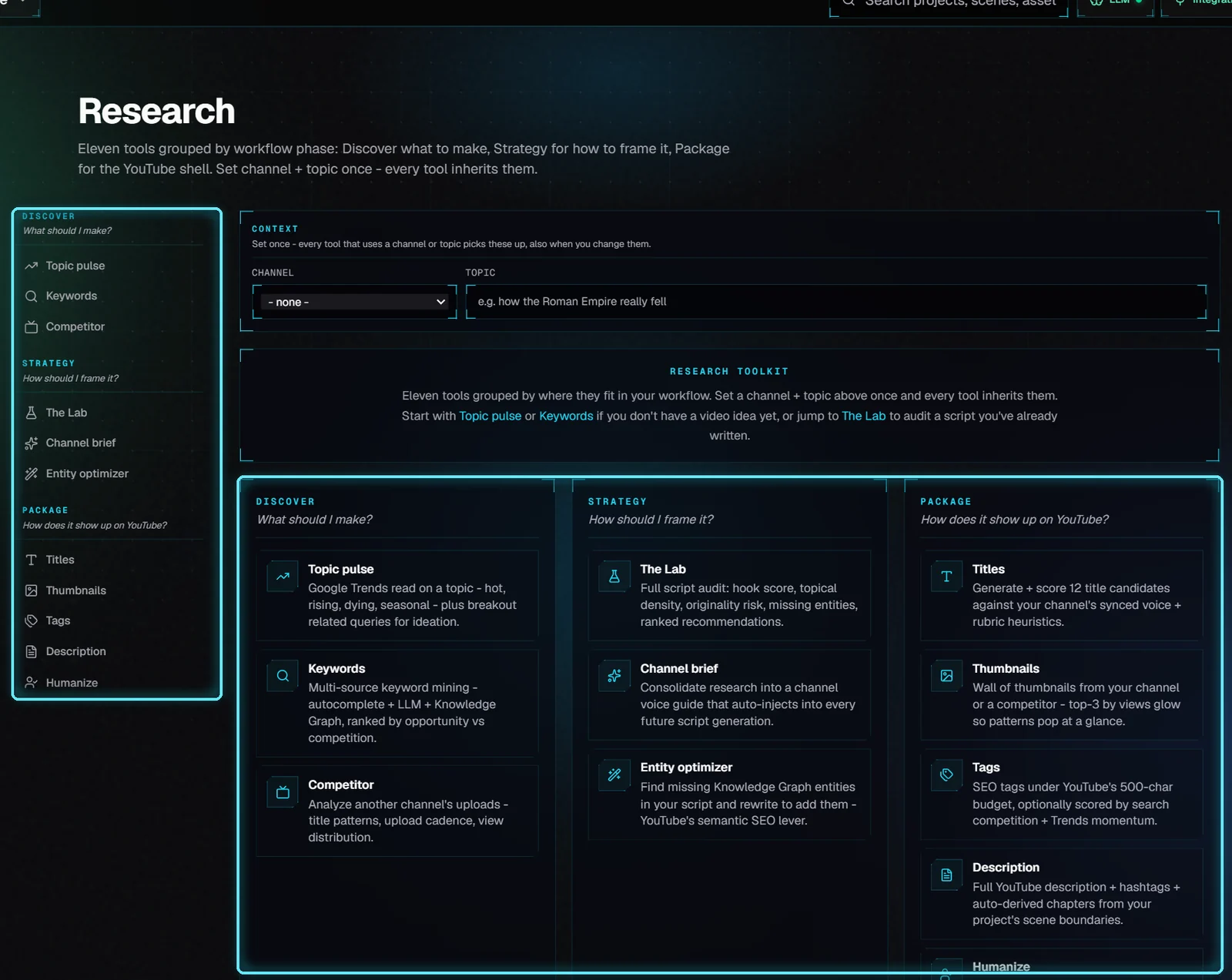
The Research workbench
Find a video idea, decide how to frame it and package it for YouTube, with eleven tools that share one channel and topic.
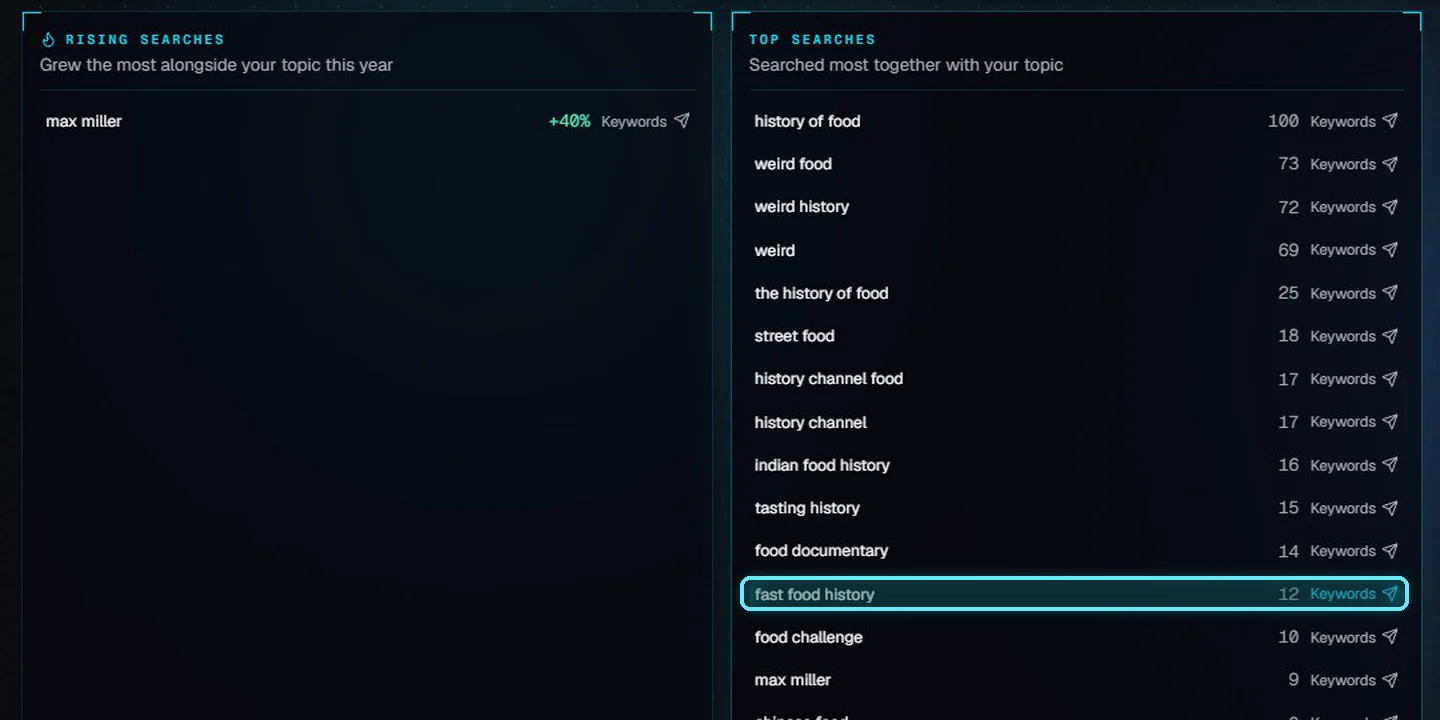
Find your next topic
Check a topic on YouTube search, score keyword ideas, and start a video from the best one.
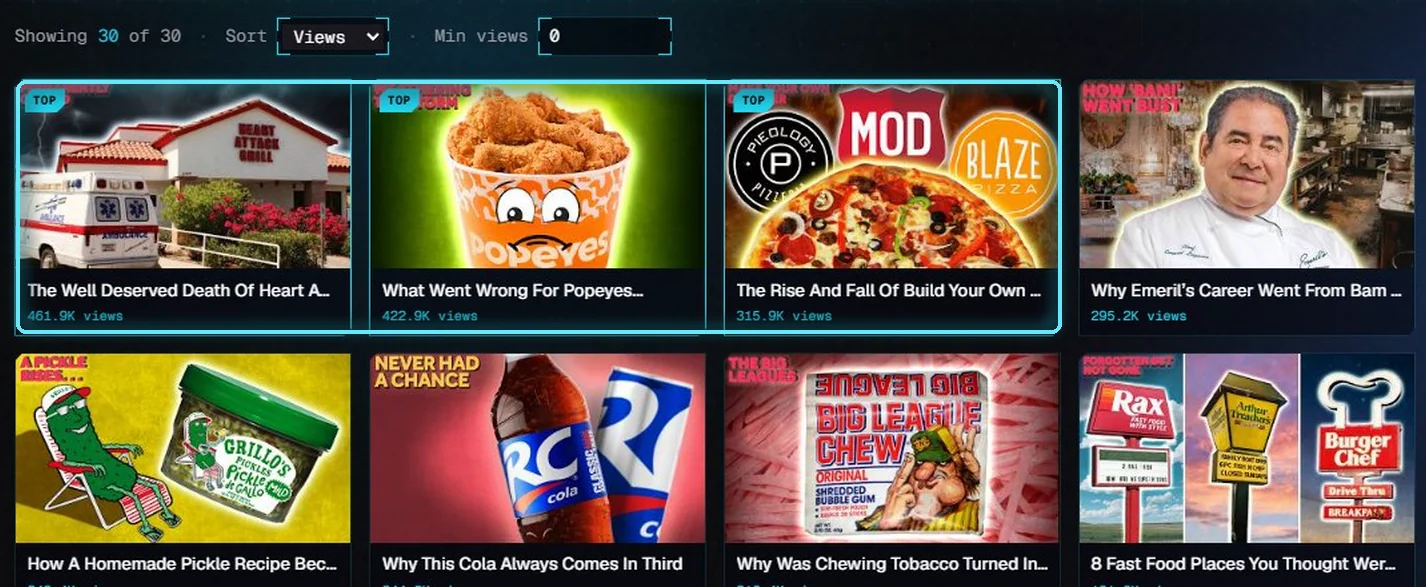
Study the competition
Read a rival's numbers, compare channels, and learn from their thumbnails.
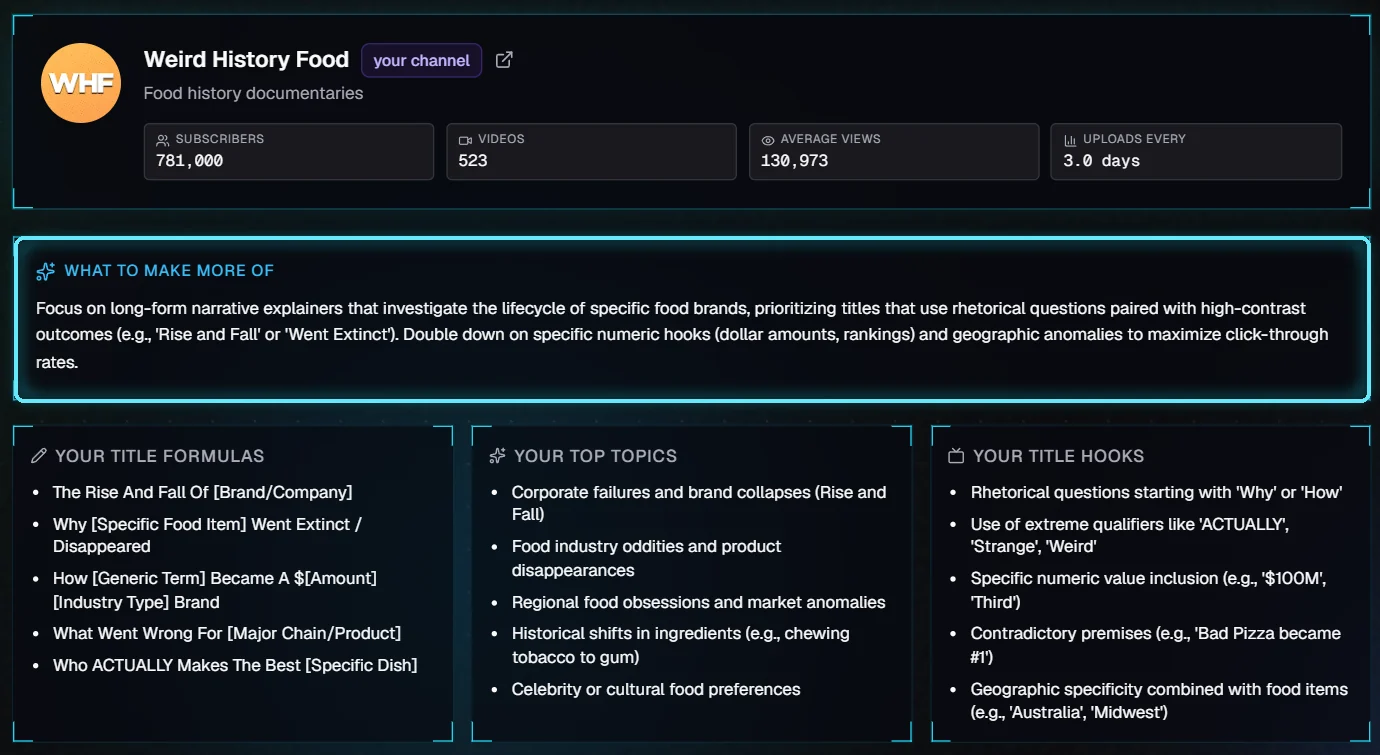
Audit your own channel
See which of your videos work and why, then check your own videos for slow scenes and weak openings.
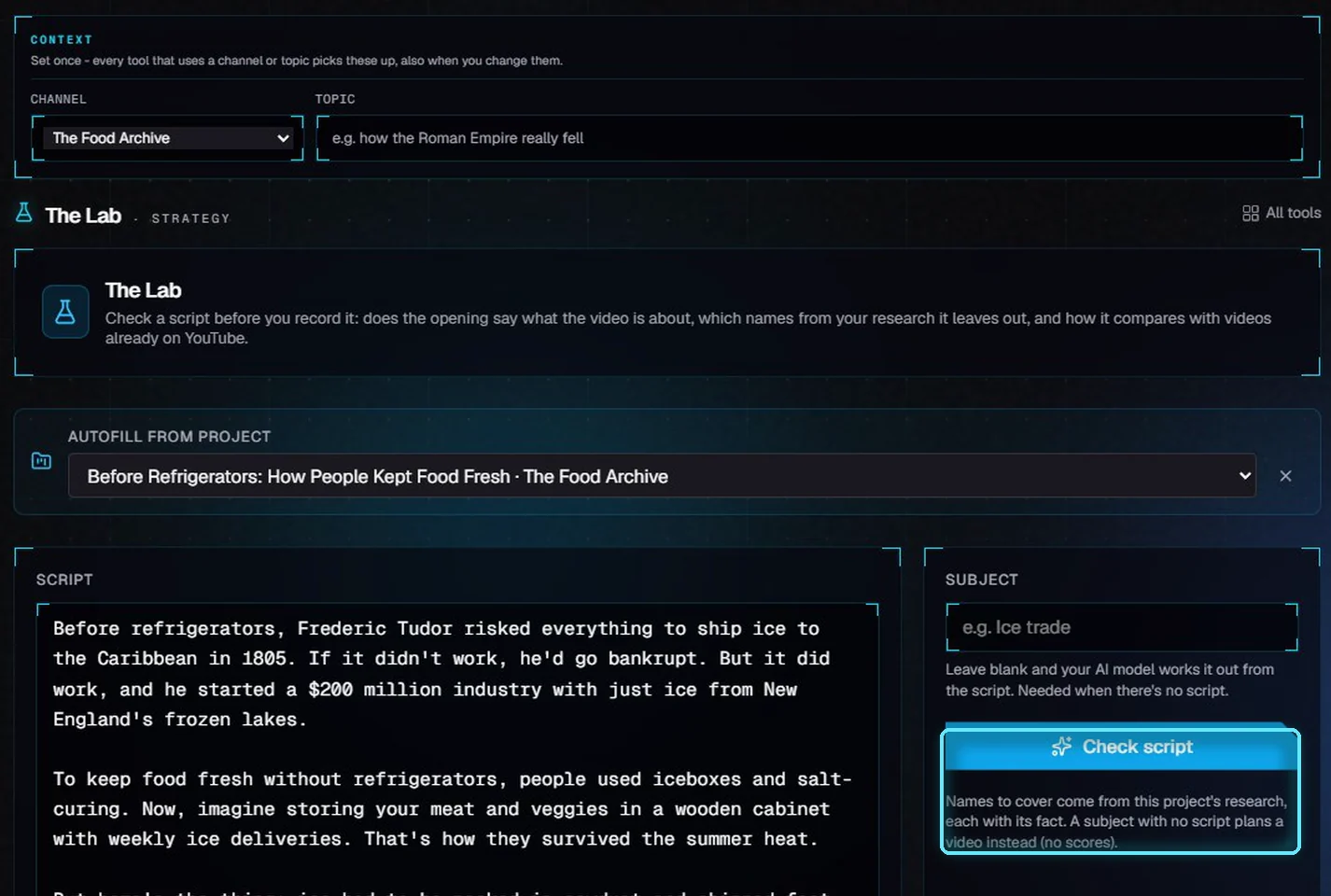
Make a script better
Check a script in the Lab, add names from your research, and make it sound like a person talking.
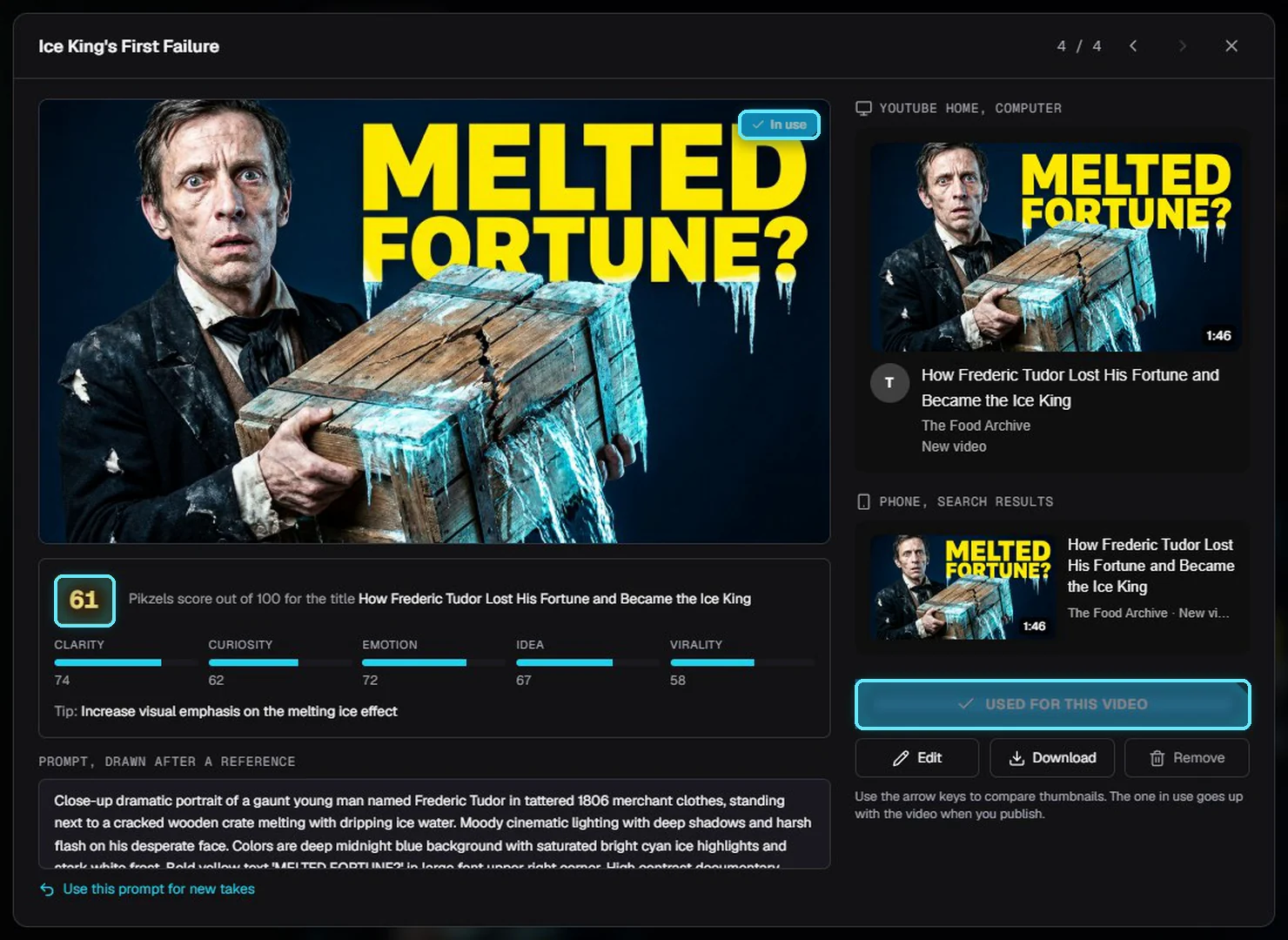
Thumbnails with Pikzels
Make thumbnails from your script, score them, see them on YouTube, and pick a winner.

Hooks, titles, tags and descriptions
Package a video for YouTube: an opening hook, a title, tags and a description with chapters.
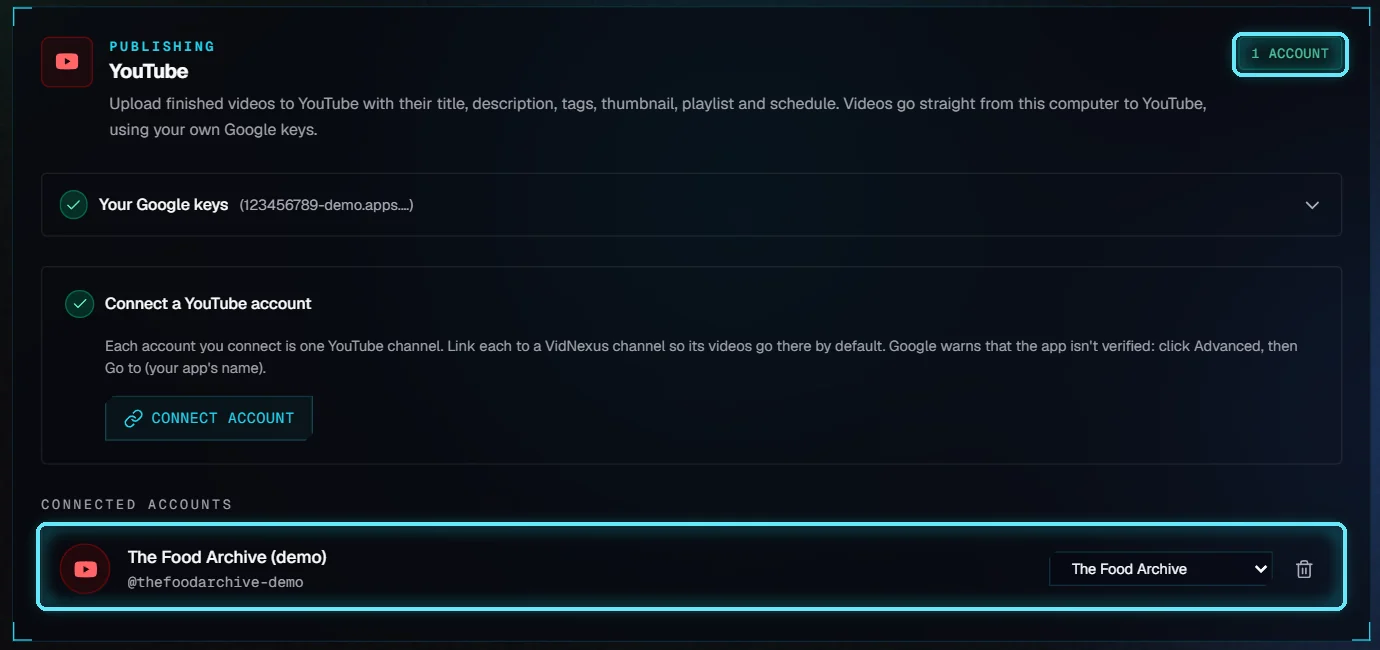
Connect YouTube
Give VidNexus your own Google keys, then connect the YouTube channel your videos go to.
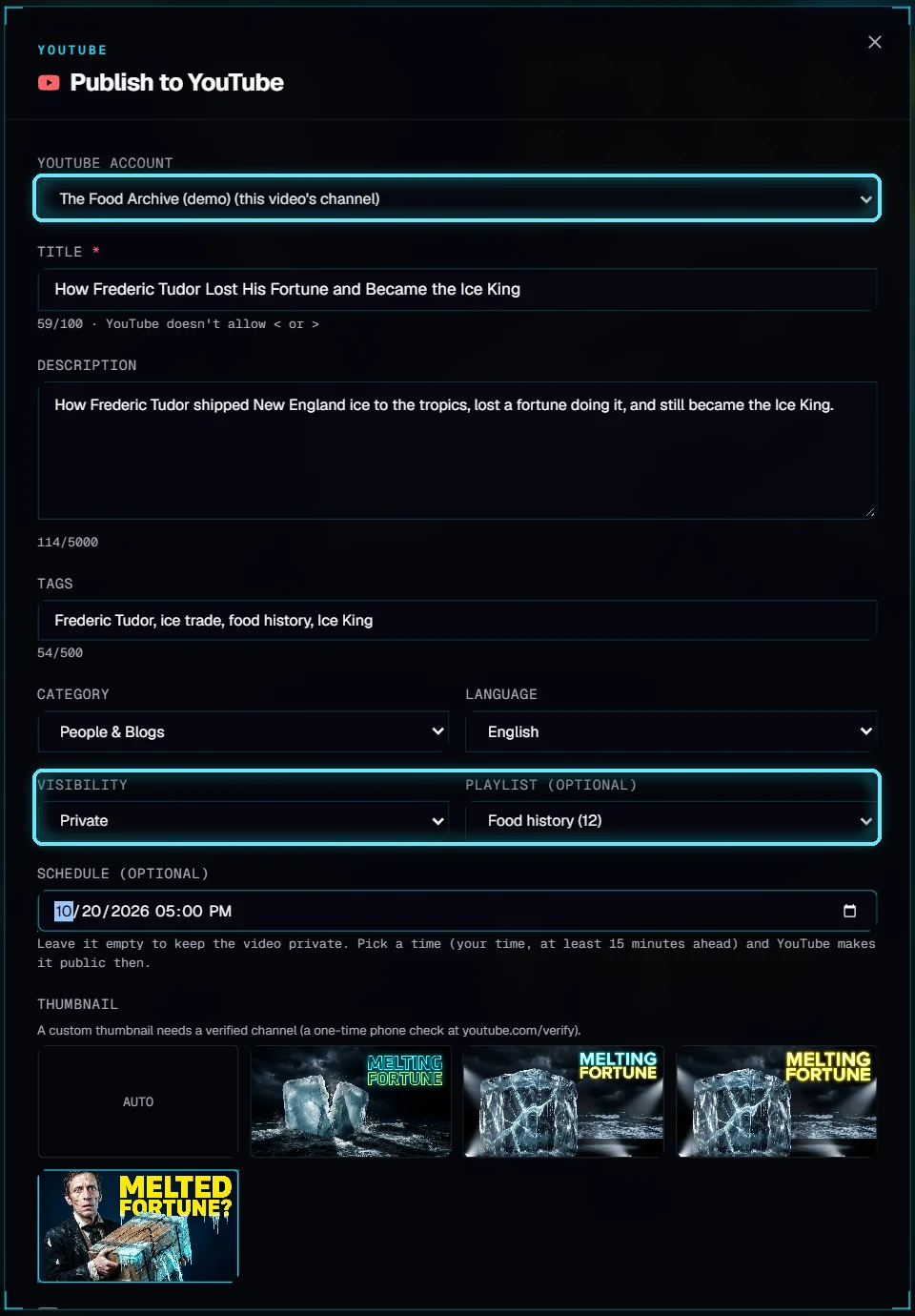
Publish to YouTube
Upload a finished video to your channel with its title, description, tags, thumbnail, playlist and schedule.
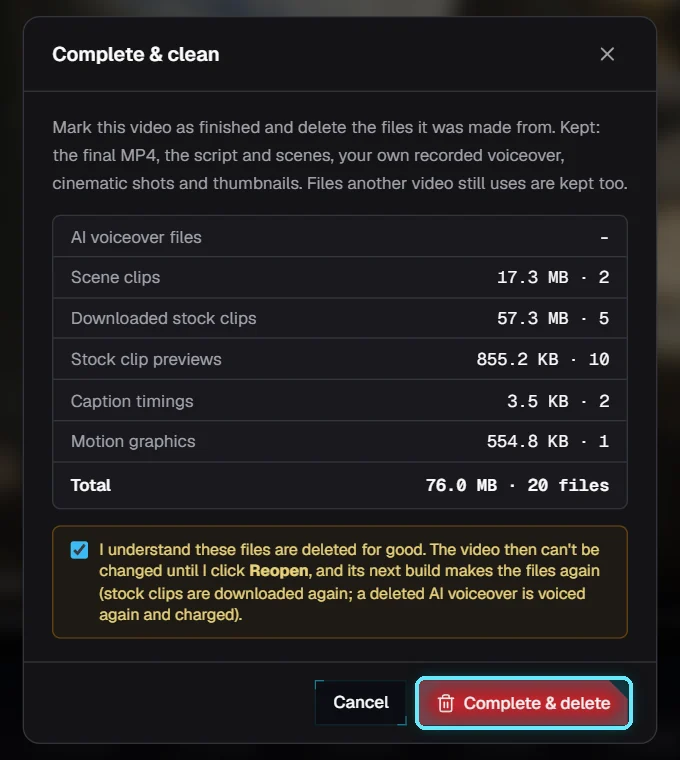
Complete & clean: free disk space
When a video is finished, delete the files it was made from and keep the final MP4.
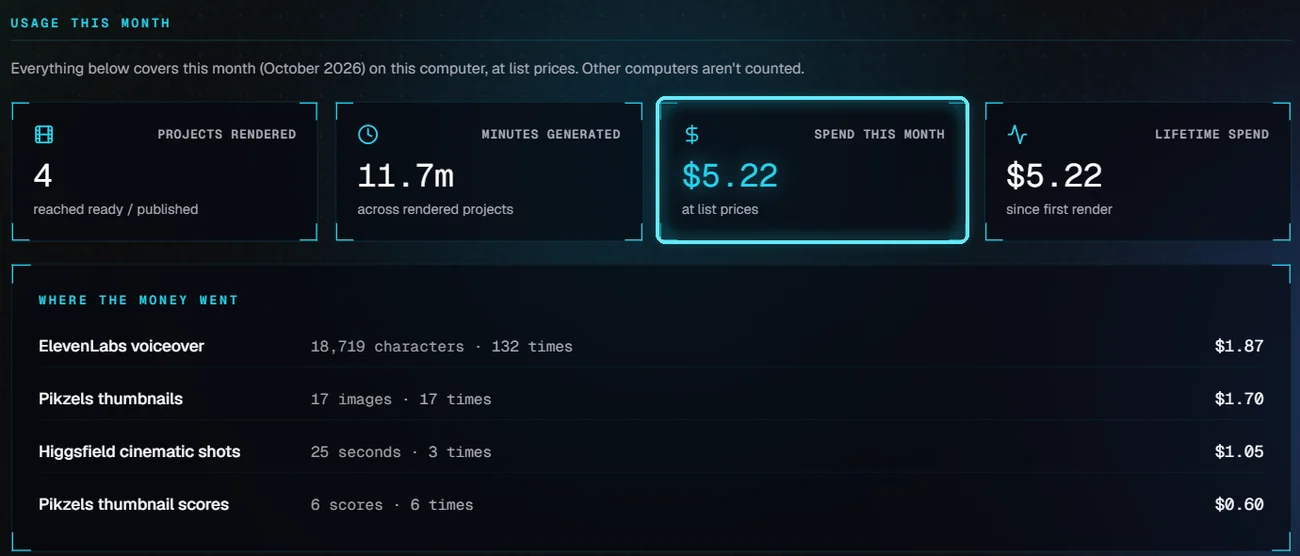
Track your costs
See what a video will cost before you build it, what it has cost so far, and what you spent this month.
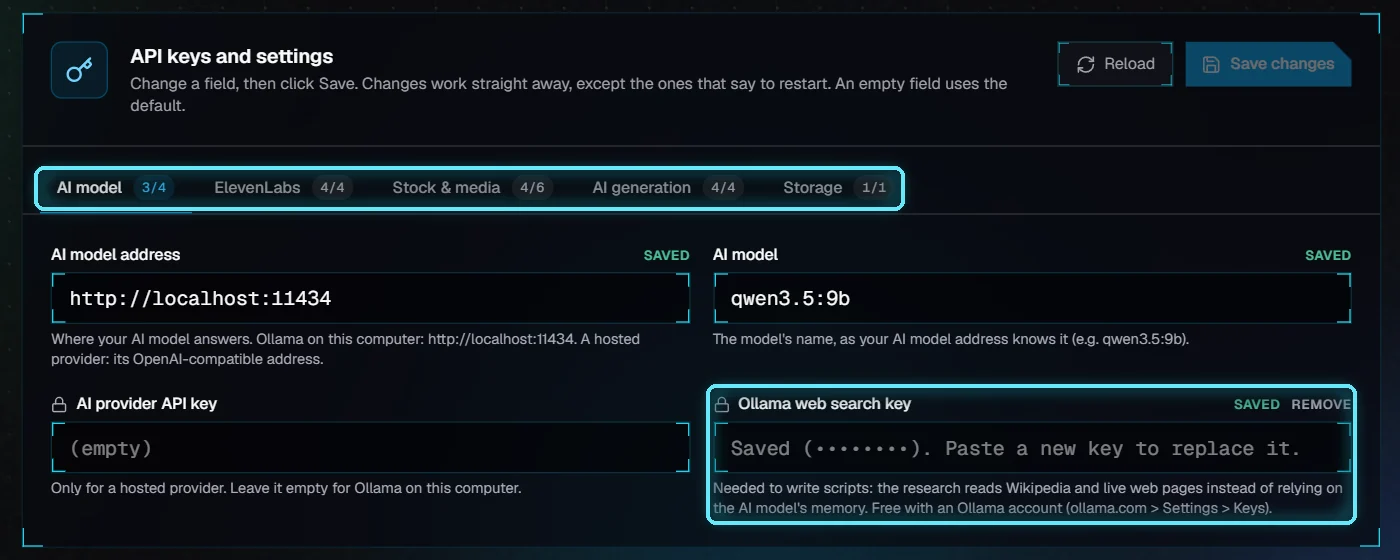
Settings
Your license, API keys, storage folders, the AI model and the connected services, in four tabs.
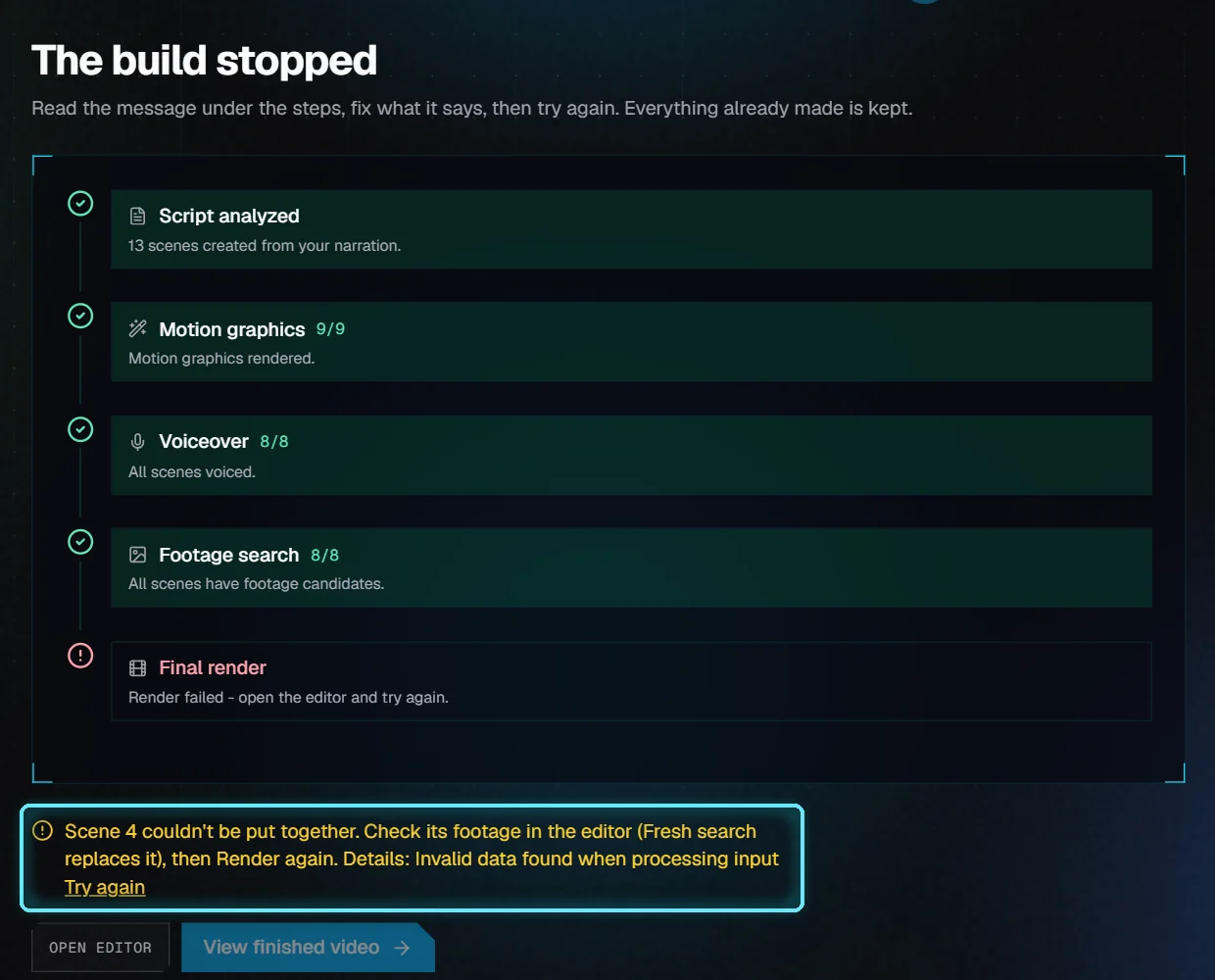
When something goes wrong
What to check when something goes wrong, and how to get going again.