
Settings
Your license, API keys, storage folders, the AI model and the connected services, in four tabs.
Click Settings at the bottom of the sidebar. Most people only come here to add or change a key; the rest is worth a look once.
About these pictures: taken in our demo profile. We hid the API keys, the license key and the computer's name; on your screen a saved key shows its first and last 4 characters so you can tell which one it is.
1. General
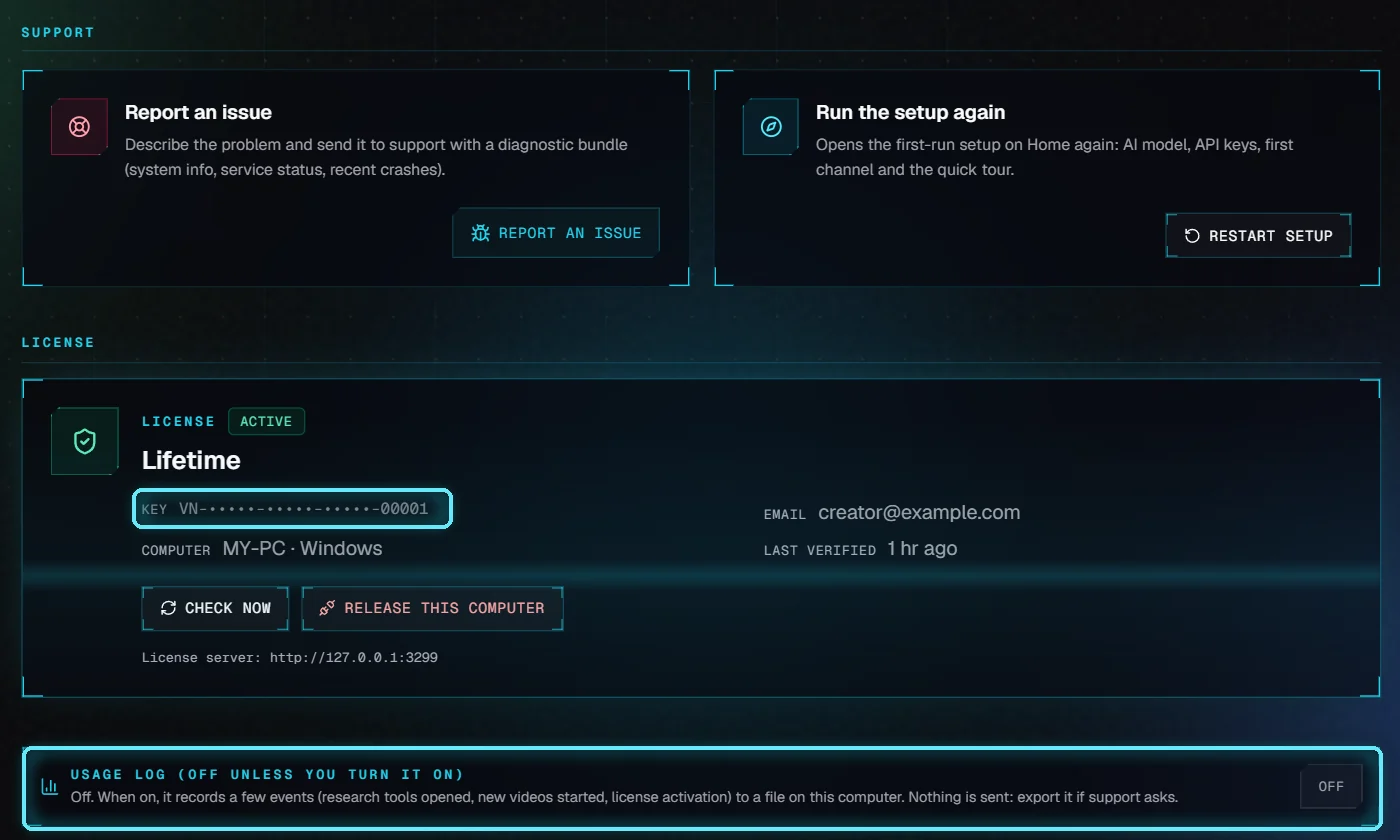
Support, your license and the usage log.
Report an issue: sends a description of the problem to support, with a diagnostic bundle. Tutorial When something goes wrong covers it.
Run the setup again: opens the first-run setup on Home: AI model, API keys, first channel and the tour.
License: your plan, the key (shown as its first and last parts), the email it belongs to and this computer. Check now asks the license server again. Release this computer frees the seat so you can activate VidNexus on another one; to keep using this computer, activate again with your key.
Usage log: off unless you turn it on. When on, it writes a few events (research tools opened, new videos started, license activation) to a file on this computer. Nothing is sent; export it if support asks for it.
2. API keys
Every key and setting VidNexus reads, in five groups. The number on a group says how many of its fields are filled in.
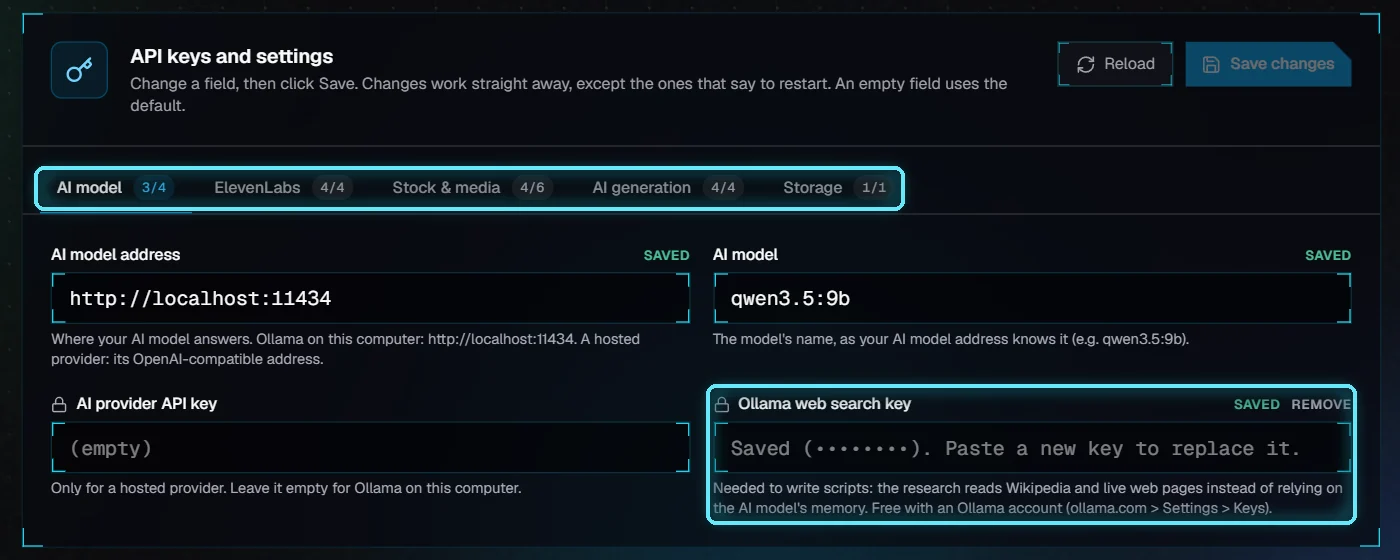
The AI model group. A saved key's field is empty, with "Saved" in grey.
Group | What's in it |
|---|---|
AI model | Where your AI model answers and its name (Ollama on this computer by default), a hosted provider's key, and the Ollama web search key that script research needs. |
ElevenLabs | The voiceover key, the default voice and the voice model. |
Stock & media | Pexels, Pixabay and Coverr (stock clips and photos), the YouTube Data API key (channel sync and research), Artlist and Mapbox. |
AI generation | Pikzels (thumbnails) and Higgsfield (cinematic shots), with their models. |
Storage | A folder of your own clips and pictures for motion graphic backgrounds. Restart VidNexus after changing it. |
Add or change a key
Click the group, then click in the field.
Paste the key. A saved key's field starts empty, so the new key replaces the old one cleanly.
Click Save. Most changes work straight away, and the Integrations tab updates.
Remove (next to saved) deletes a key when you click Save. Undo puts a field back as it was. An empty field uses the default, shown in grey.
3. Storage & Compute
Storage
Where VidNexus keeps its working files (voiceovers, scene clips, stock downloads, motion graphics, thumbnails) and its finished videos. Point them at another drive if this one fills up; files already saved stay where they are, so move them yourself with VidNexus closed.
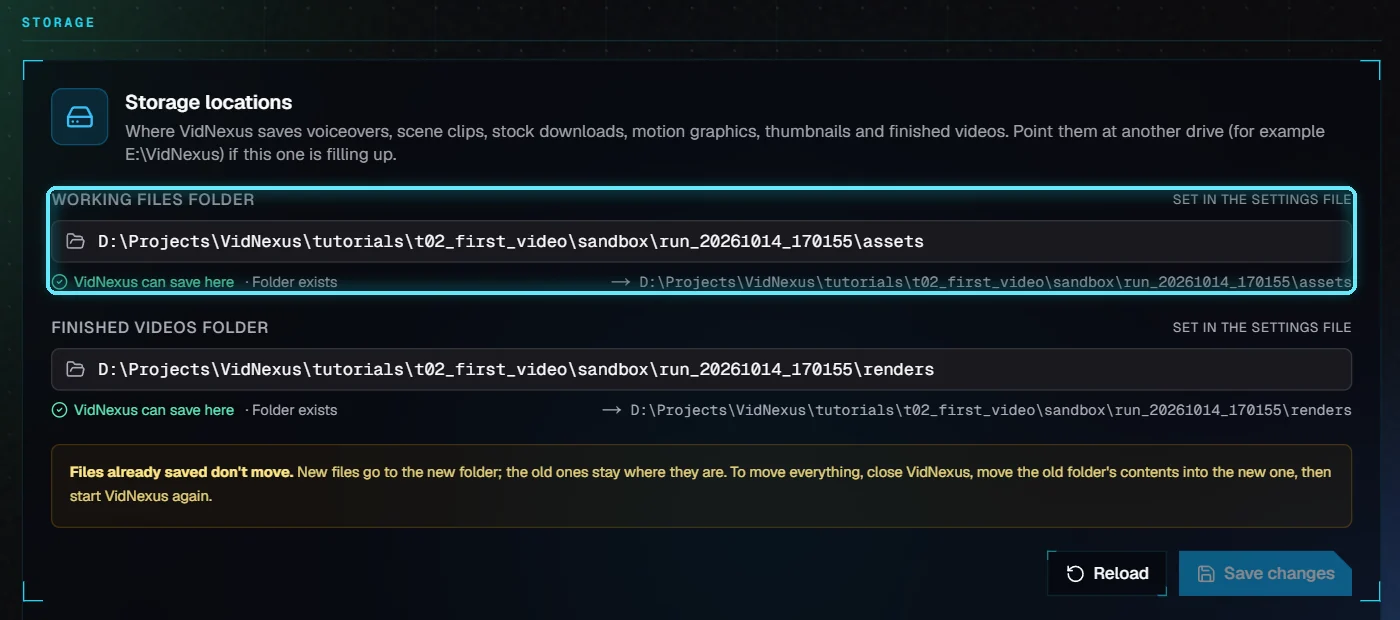
The two folders, and whether VidNexus can save there.
To free space from finished videos, use Complete & clean instead.
Compute
What this computer has and what VidNexus uses it for. Video encode says whether finished videos are made on the graphics chip (fast) or the processor; Transcription, where captions are timed.
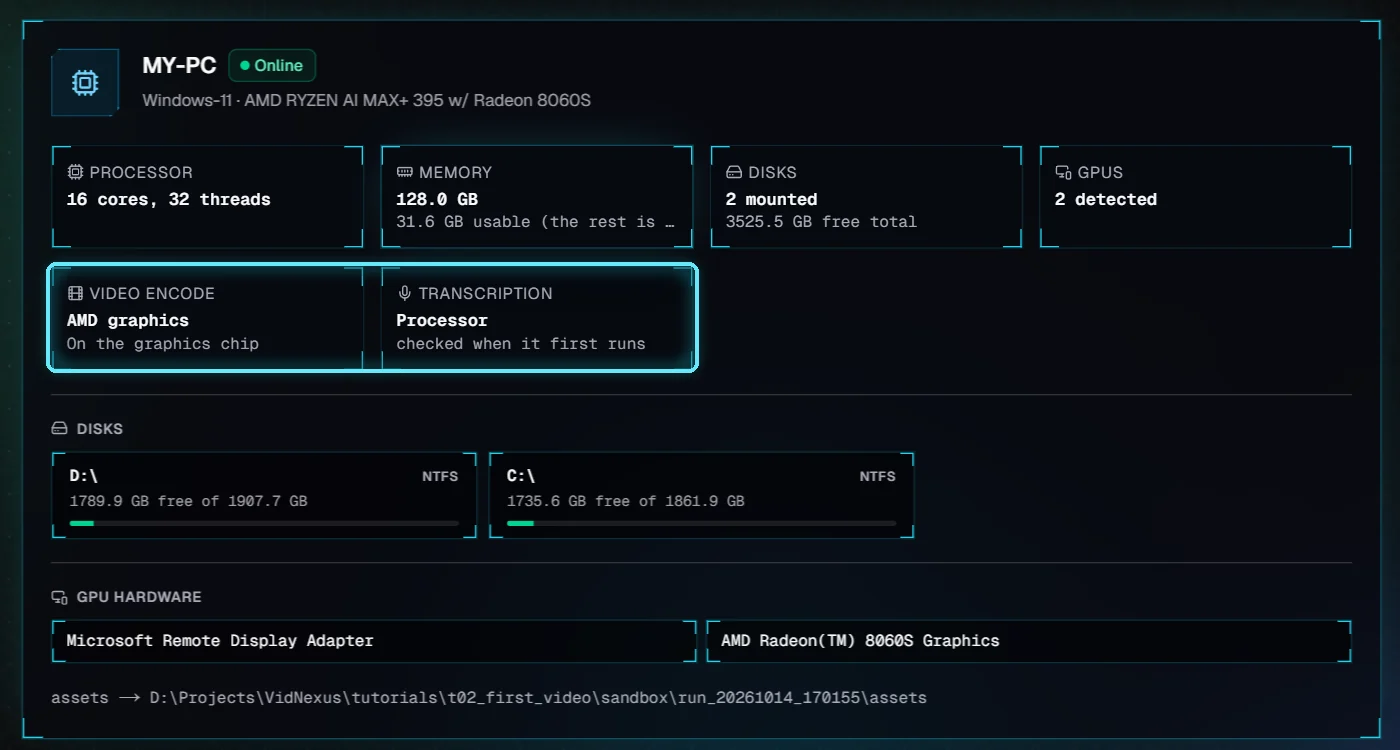
Our computer: videos are encoded on the AMD graphics chip.
On a computer with an NVIDIA card, a Time captions faster with your GPU card offers a one-time download that makes caption timing about 5 times faster.
AI script model
The AI models that fit this computer, best first. The one in use is marked; the others show how to install them. Change the model in API keys > AI model.
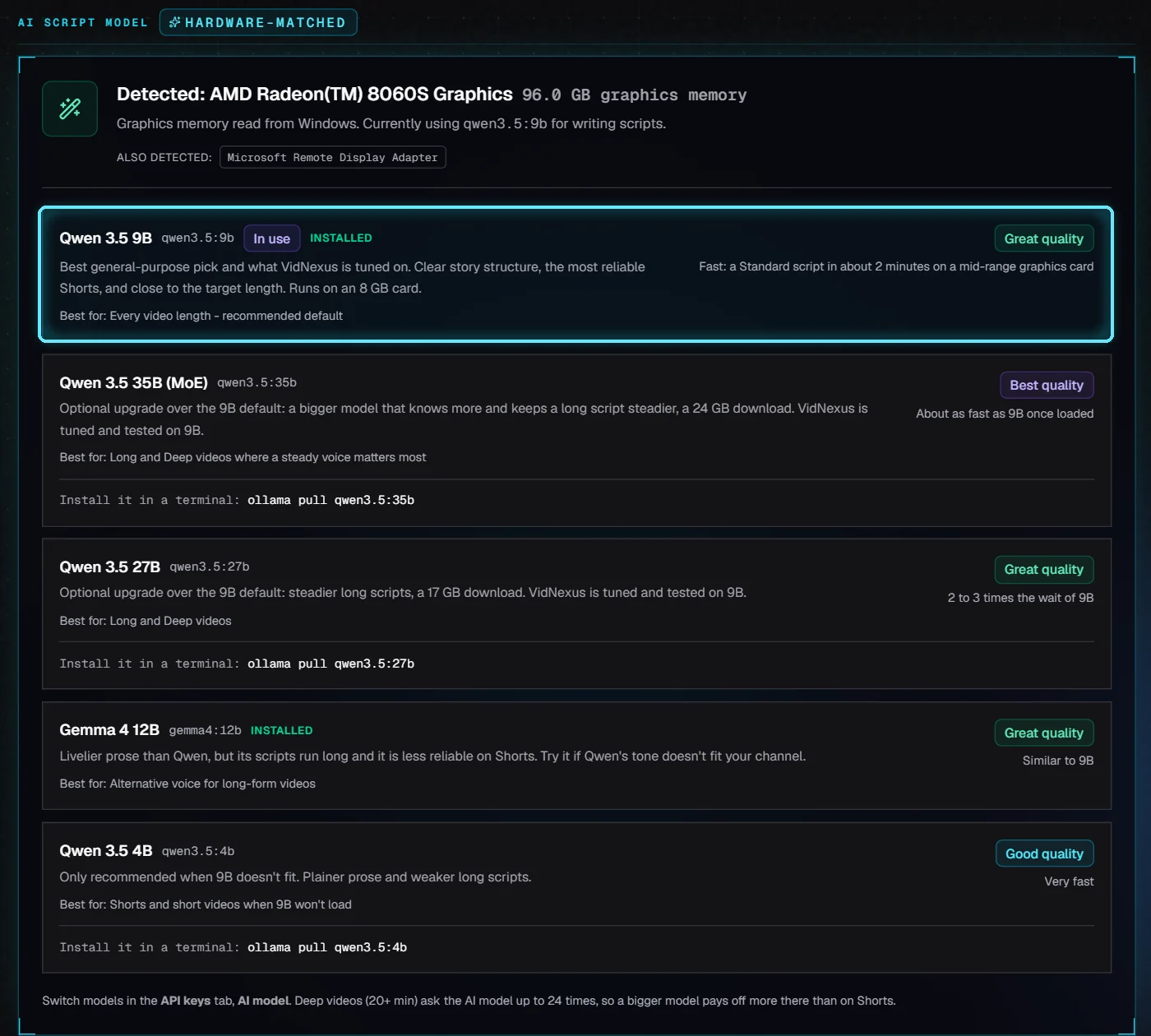
Qwen 3.5 9B, the model VidNexus is tuned on, in use.
Below the picks, Models lists what Ollama has installed. If Ollama isn't running, or the model set in API keys isn't installed, a note there says so and how to fix it.
4. Integrations
Which services have a key: green has one, red doesn't. Click API keys to add one.
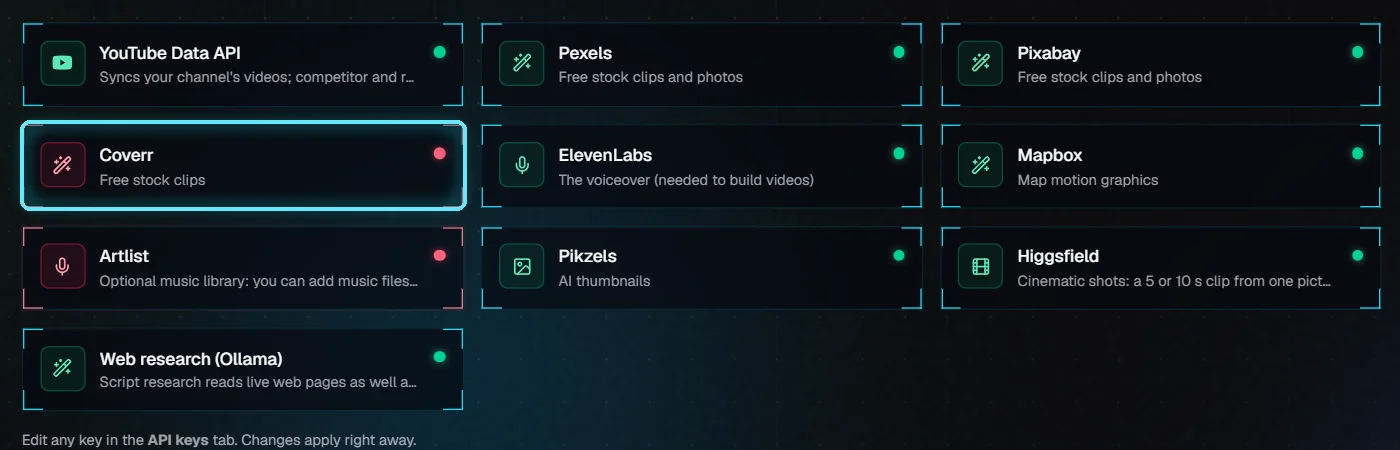
Coverr and Artlist have no key here; both are optional.
Ctrl+K assistant: the AI editor uses Claude Sonnet 4.6 when you add an Anthropic key, and your AI model in Ollama otherwise. The key stays on this computer.
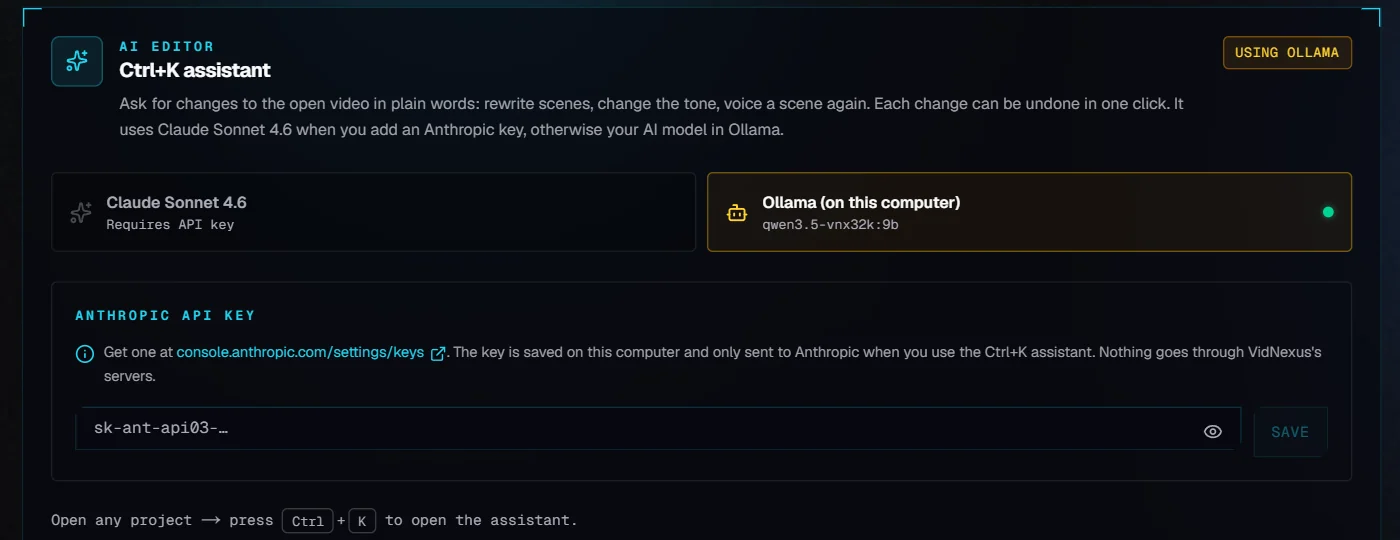
The AI editor's settings.
YouTube: the Google Cloud credentials and the account VidNexus uploads to. Tutorial Connect YouTube goes through it step by step.
Troubleshooting
I pasted a key but nothing changed. Click Save: changes aren't kept until you do.
"... must be from 0.7 to 1.2" or "isn't a number". Fix the value or click Undo; nothing was saved.
A service still says it has no key. Check that the key was saved ("saved" next to the field), then try the feature again: a wrong key only shows up when it is first used.
"Ollama isn't answering". Start Ollama (it runs in the tray), then reload Settings.
"Restart VidNexus to use the new ...". That setting is read when VidNexus starts: close it and open it again.