
When something goes wrong
What to check when something goes wrong, and how to get going again.
When something goes wrong, VidNexus tells you in plain words what happened and what to do. This article shows where those messages appear, the fixes for the common ones, and how to reach support when a fix doesn't work.
1. Look at the status chips
Two chips at the top of every page show how VidNexus is doing. Click one to open it.
AI model is your writing model: scripts, titles, graphics, footage searches. Green means it is running and ready. Red tells you why, for example that Ollama isn't running or the model isn't downloaded yet.
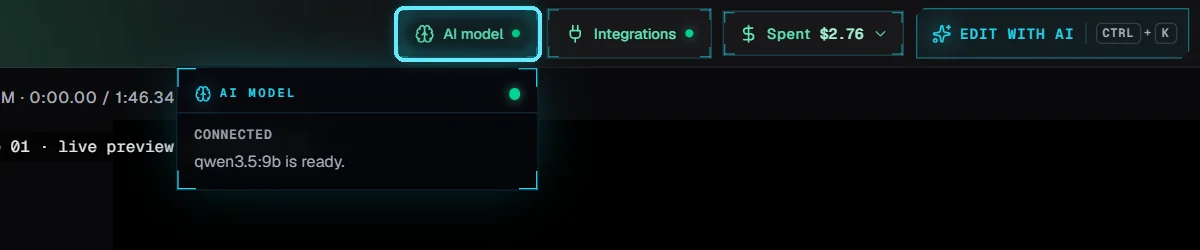
AI model: qwen3.5:9b is ready.
Integrations lists the services you connect, such as ElevenLabs, Pexels, Pikzels and Higgsfield. Key added means a key is saved. VidNexus doesn't call each service every few seconds just to check, so a wrong key only shows up the first time you use that service. The message then tells you which key to fix, for example: ElevenLabs didn't accept the API key. Check it in Settings > API keys.
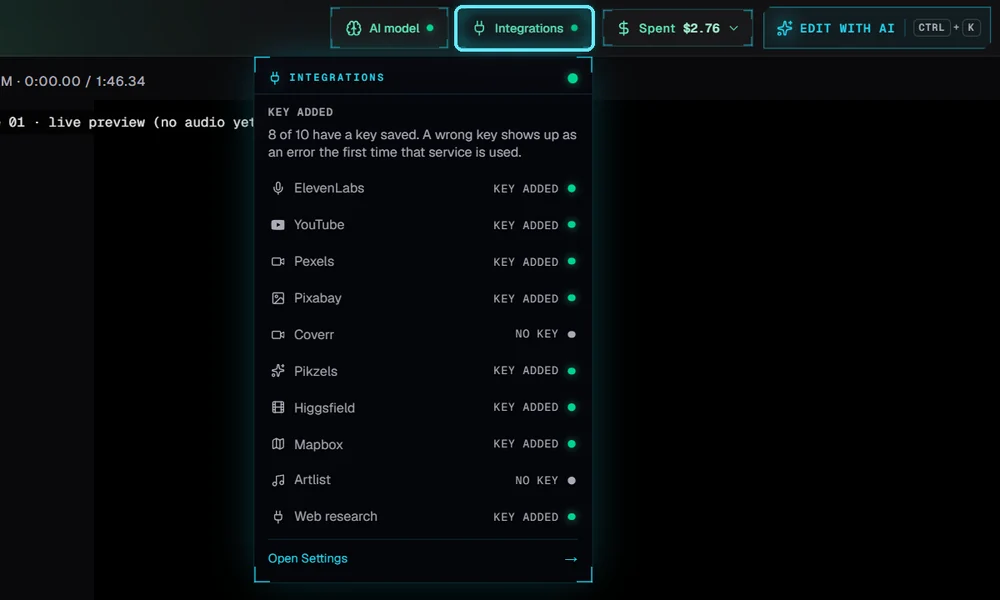
Integrations: 8 of 10 services have a key saved.
2. Test the AI model
Go to Settings > Storage & Compute and click Test the AI model under Models. VidNexus asks your model one short question, the same check the setup uses. It works for Ollama and for hosted AI services.

Test the AI model: qwen3.5:9b answered in 0.6 seconds.
Test the AI model says | What to do |
|---|---|
Nothing answered at http://localhost:11434 | Ollama isn't running. Start it (its icon sits in the taskbar) and test again. |
The AI model ... wasn't found there | The model isn't downloaded. Download it in Ollama, or choose a model you have in Settings > API keys, AI model. |
Your AI provider didn't accept the API key | For a hosted AI model: paste the key again in Settings > API keys. |
Timed out after 3 minutes | A big model loads slowly the first time. Try again, or pick a smaller model. |
3. A build that won't stop
A build runs step by step: voiceover, footage, motion graphics, then the final render. You can stop it at any time.
Stop build stops after the step it is on. Steps usually take seconds, so the build stops soon.
If the build is still running about 12 seconds later, a step is stuck. Force stop appears.
Force stop frees the video right away: the stuck step stops at its next check without changing anything. The button turns into Retry build with the note: Stopped. You can start a new build now.
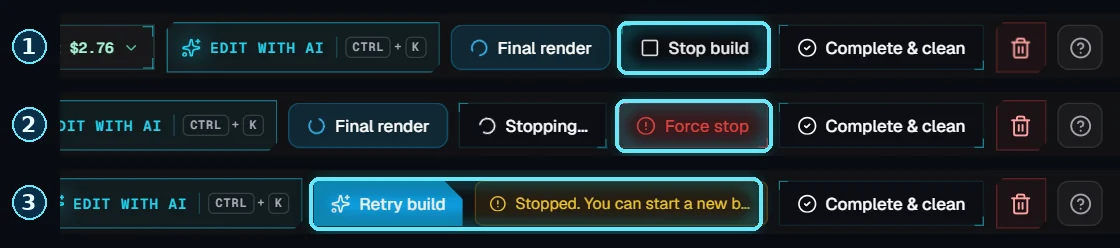
Stop build, then Force stop, then Retry build.
About these pictures: our Ice King video had no stuck step, so for these pictures we marked it as stuck in the demo profile. Force stop then worked as it does on a real stuck build, and the video was put back afterwards.
4. When a build fails
If a step fails, the build page says The build stopped. The message under the steps says what failed and what to do, and everything already made is kept. Fix what it says, then click Try again.
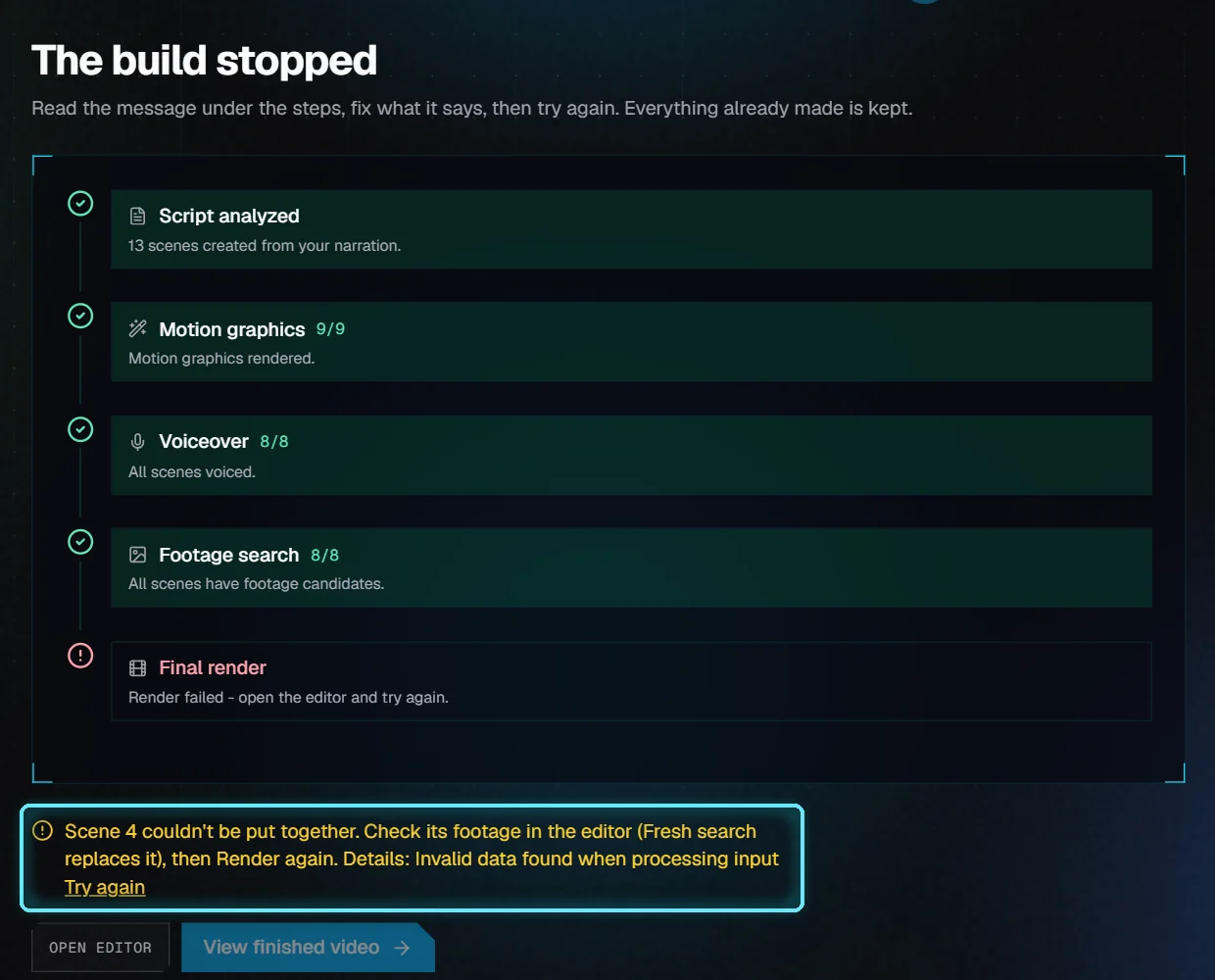
A failed render: scene 4's footage file is damaged.
In the editor, the same message sits next to the Retry build button. Hover over it to read all of it.

The editor: Retry build and the message.
Most messages end with Details: and the technical cause. You don't need it to fix the problem, but support does: copy it into your report.
Common messages
The message starts with | What to do |
|---|---|
No voiceover yet for scenes ... | Click Regen voice on those scenes in the editor, or use Full rebuild. If it fails again, check your ElevenLabs key and credit. |
Scene N couldn't be put together | Its footage file is damaged. Select the scene, click Fresh search to get new footage, then Render. |
The scenes couldn't be joined | Click Render again. If it fails twice, use Report an issue. |
Adding the music failed | Pick another track or turn music off, then Render. |
Adding the sound effects failed | Remove the last sound effect you placed, then Render. |
Adding the brand kit failed | Check the logo, intro and outro files in Brand kits, then Render. |
ElevenLabs didn't accept the API key | Paste the key again in Settings > API keys. |
Your ElevenLabs credit has run out | Top up or upgrade at elevenlabs.io, then click Regen voice. |
ElevenLabs is busy | Wait a minute and try again. |
ElevenLabs doesn't have this voice | Pick another narrator voice in the Voice panel. |
Render is free and takes seconds, so trying again after a fix costs nothing. A Full rebuild only pays again for scenes whose words or voice changed.
5. The license
Your license is in Settings > General. VidNexus checks it online about once an hour. Last verified shows when it last worked, and Check now checks right away.
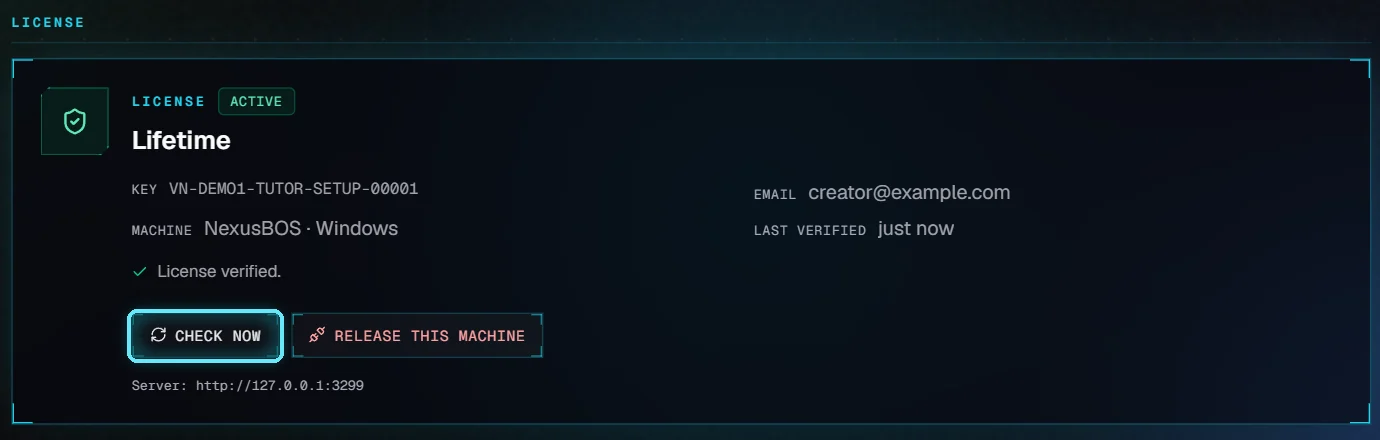
The license card: active, verified just now.
Offline? VidNexus keeps working for up to 14 days without a check. The card then shows how many days are left.
New computer? Click Release this machine on the old one first, so the seat is free. If the license server can't be reached, the card says so: release the old computer from your account on vidnexus.app.
6. Report an issue
When a fix doesn't work, go to Settings > General and click Report an issue. Say what you were doing and what went wrong, and paste the message.
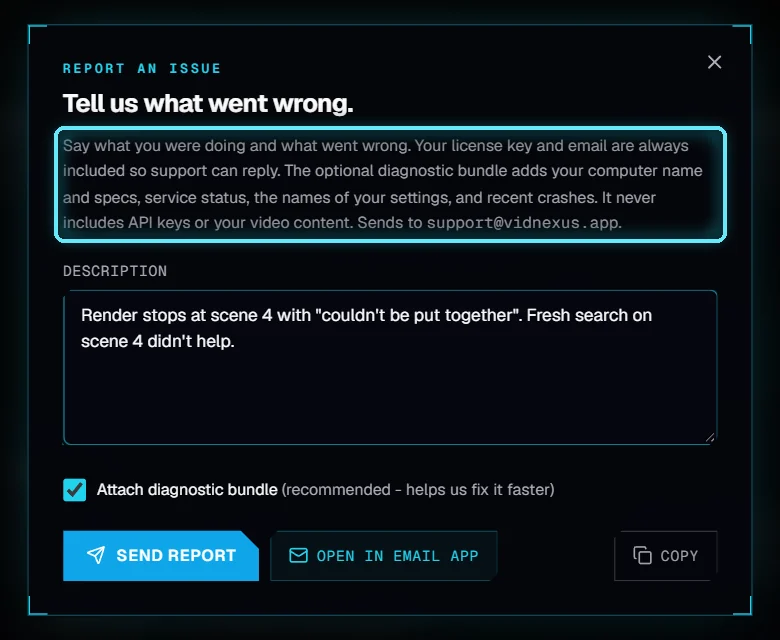
Report an issue (we didn't send this one).
Your license key and email are always included, so support can reply.
The diagnostic bundle (on by default) adds your computer name and specs, service status, the names of your settings and recent crashes. It never includes API keys or your video content.
Send report sends it to support@vidnexus.app. Open in email app and Copy are there if you'd rather send it yourself.
It works even when the license is blocked, so you can always reach support.
Next: Settings tour.
Tips
Read the whole message first: it names the scene, the service or the setting to fix.
Fix one thing at a time and Render again. Render costs nothing.
Keep Ollama running while you work: scripts, titles and footage searches need it.
When you report, say which video, which step and what you clicked.