
Thumbnails with Pikzels
Make thumbnails from your script, score them, see them on YouTube, and pick a winner.
A 3-minute video version of this guide will play here. Everything it shows is written out below.
A thumbnail decides whether people click. VidNexus makes thumbnails with Pikzels, scores each one against your title, and shows how it looks on YouTube before you pick. This guide makes a thumbnail for the Ice King video from the last tutorial, from the first prompt to the one that goes up with the video.
Before you start
A Pikzels key in Settings. Each image is one Pikzels credit.
A project with a script. The title matters too: scores rate the thumbnail against it.
For Suggest from script, your AI model running (see AI model in the top bar).
1. Open the thumbnail tool
On the project page, the Thumbnail card says Not generated until you make one. Click Open: the thumbnail tool opens with this video picked. You can also get there from Tools, then Thumbnails, and pick the project at the top.

The Thumbnail card on the project page.
2. Write the prompt
Click Suggest from script. Your AI model reads the script and writes one prompt: the subject, the framing, the colors and the short bold words in the image. It is free and takes a few seconds. Change any of it before you generate.
Set Variants. We picked 2.
Click Generate. Each image takes about half a minute, two at a time.
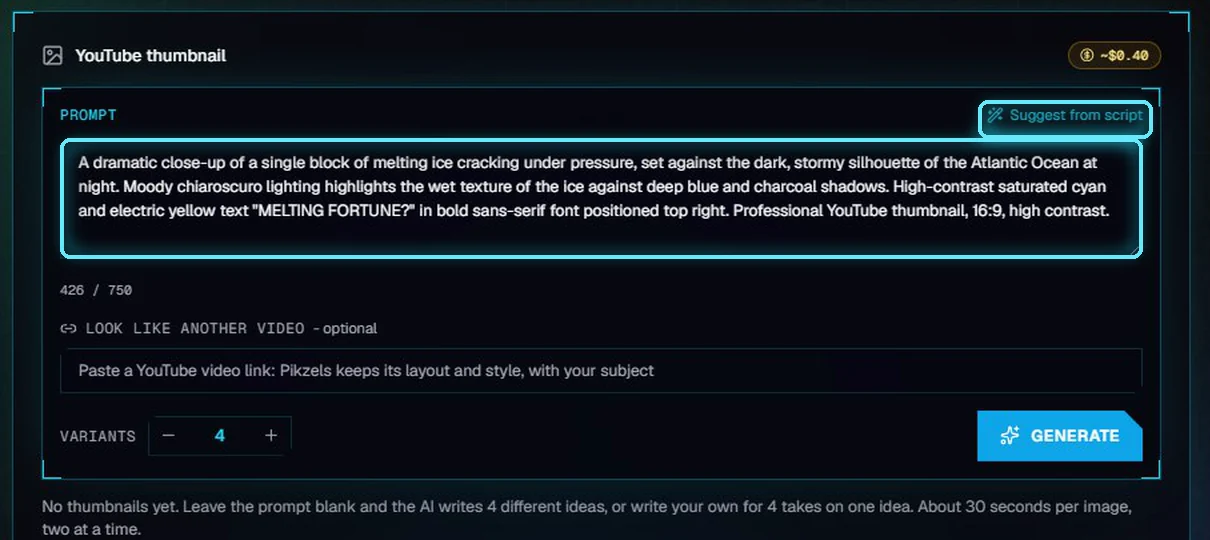
Suggest from script, and the prompt it wrote.
With your own prompt, every variant is a take on that one idea. Leave the prompt empty, and the AI writes a different idea for each variant. The cost badge at the top of the card shows what the next run costs.
3. Score and compare
Click Score all. Pikzels rates how well each thumbnail sells the title, out of 100. The score shows on each tile, and the best one is marked Top. Ours got 53 and 54.
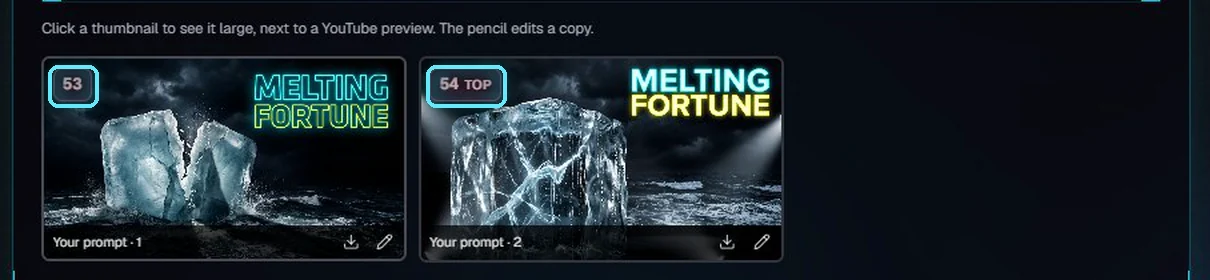
Scores on the tiles. The best one is marked Top.
Click a thumbnail to see it large. Next to it, the big view shows how it looks on YouTube: the home page on a computer, and search results on a phone. The arrow keys flip between thumbnails.
Under the image, the score breaks down into five parts, with a tip. For both of ours, the tip said to add a person.
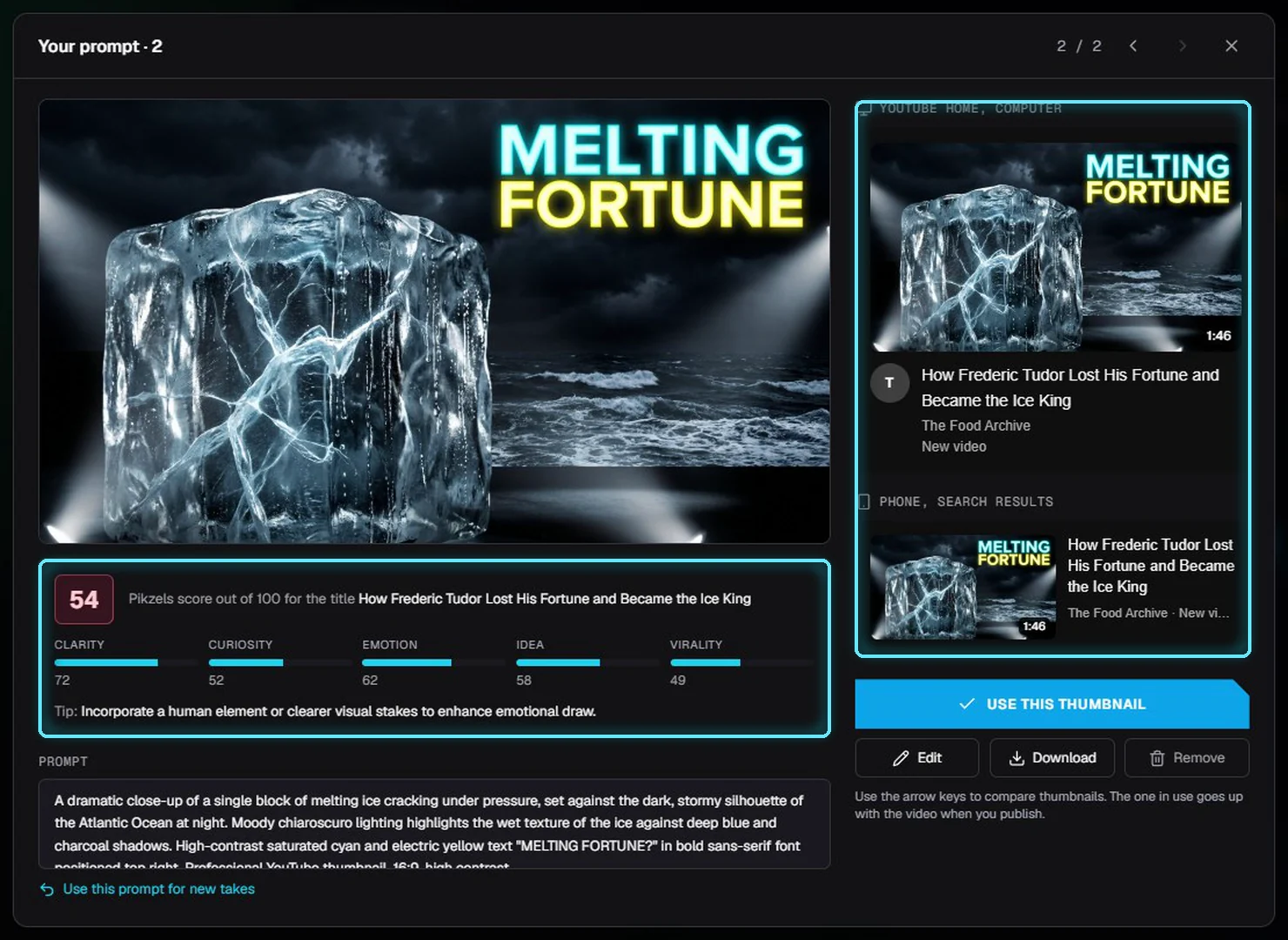
The big view: the score with a tip, and how it looks on YouTube.
Part | What it rates |
|---|---|
Clarity | Can you read the picture and the words at a glance, even small? |
Curiosity | Does it make people want to know more? |
Emotion | Does it make people feel something: a face, a reaction, stakes? |
Idea | Is there one clear idea that fits the title? |
Virality | How likely it is to get clicks next to other videos. |
A score is a guide, not a verdict. Use it to compare takes on the same video; the YouTube previews tell you whether the words are readable at the size people see them.
4. Edit a copy
Click the pencil on a tile, or Edit in the big view. Say what to change, and click Apply. We asked: Make the text bigger and bright yellow.
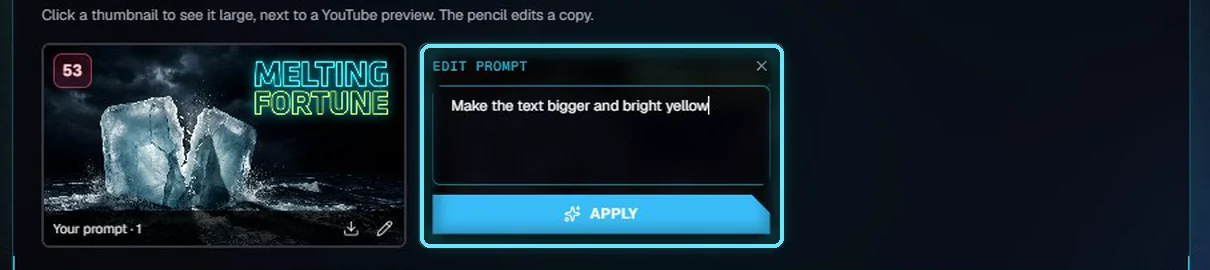
Edit prompt on the second thumbnail.
The edit is a new thumbnail; the original stays, so you can compare them. Only what you asked for changes. In the big view, Made by editing links back to the original. Our edit scored 57, three points up.
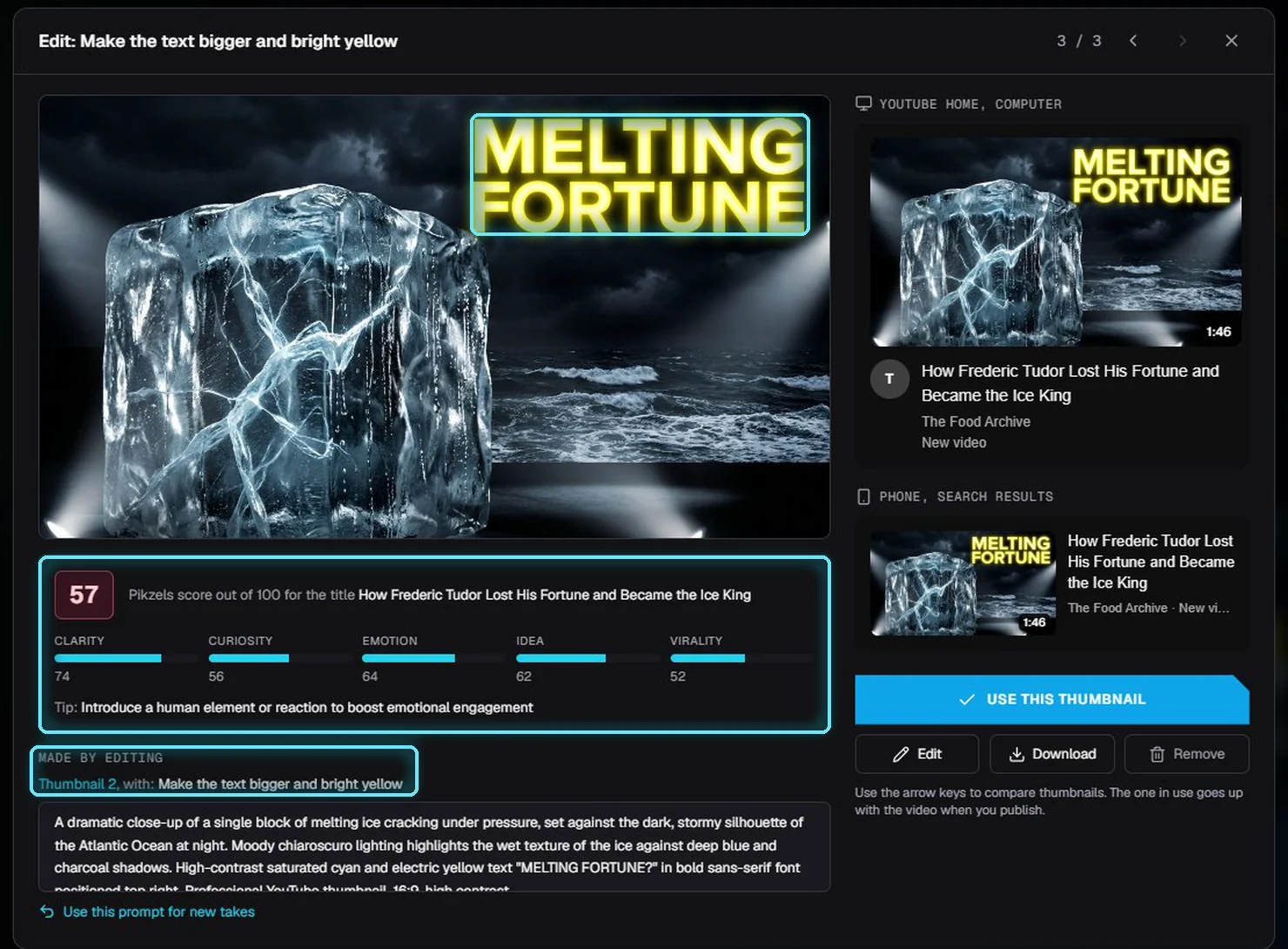
The edited copy: bigger yellow text, 57, and a link to the original.
5. Look like another video
To borrow a look that works, paste a YouTube video link into Look like another video. A small preview shows which thumbnail you picked. We used a popular video from a food history channel.

A YouTube link in Look like another video, with its preview.
Pikzels follows the reference's layout, colors, lighting and text style, with your subject. It doesn't copy its logos, brands, people, products or words. Set Variants and click Generate. Ours has a person in it, as the tips suggested.
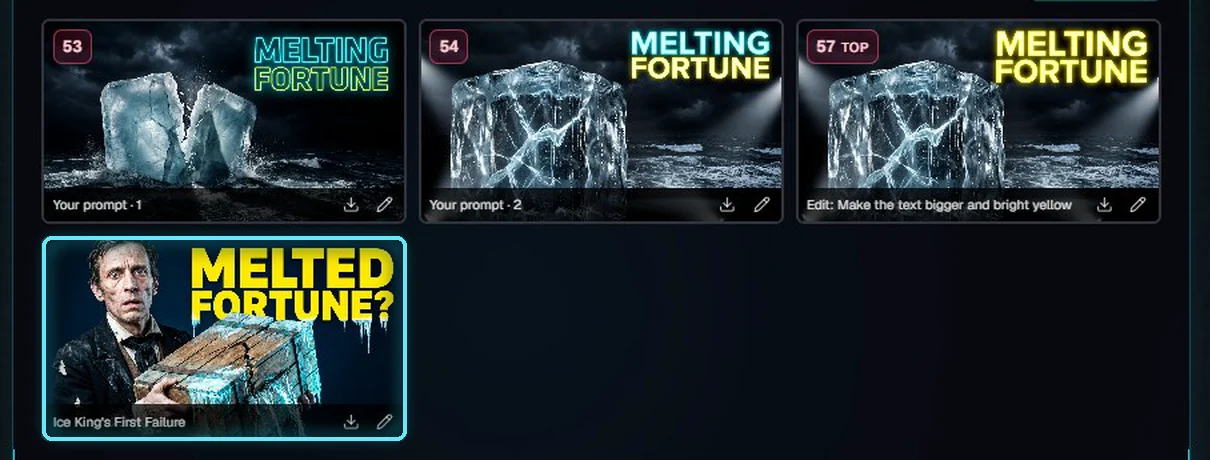
The new thumbnail, drawn after the reference.
In Research, Generate similar on a competitor's thumbnail opens this tool with its link already filled in.
6. Pick the winner
Click Score all again. Only thumbnails without a score are scored. The new one got 61, the best so far.
Open it, and click Use this thumbnail. It gets an In use badge.
Open the project: the Thumbnail card shows it, and it goes up with the video when you publish.
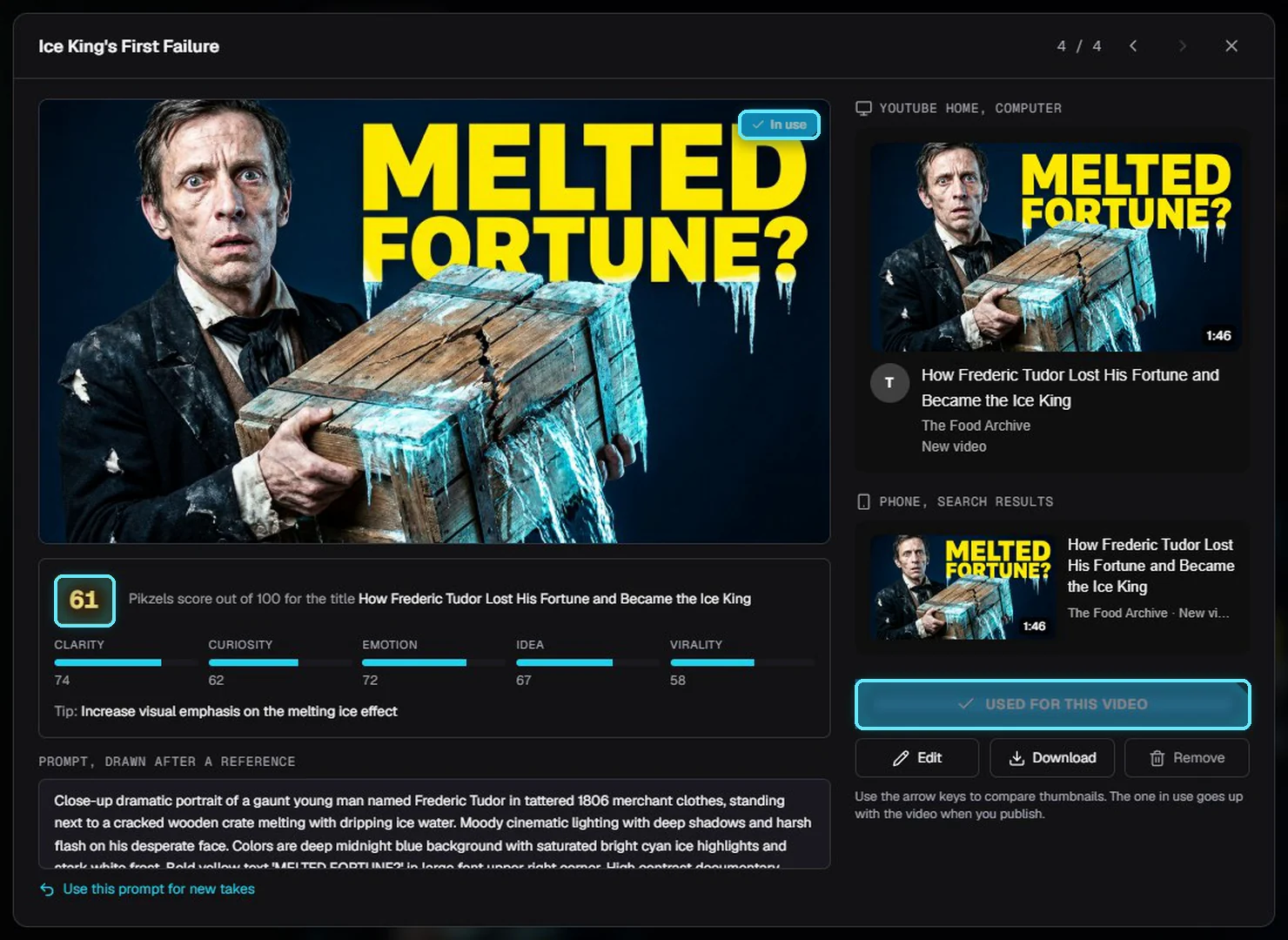
61, In use, and Used for this video.
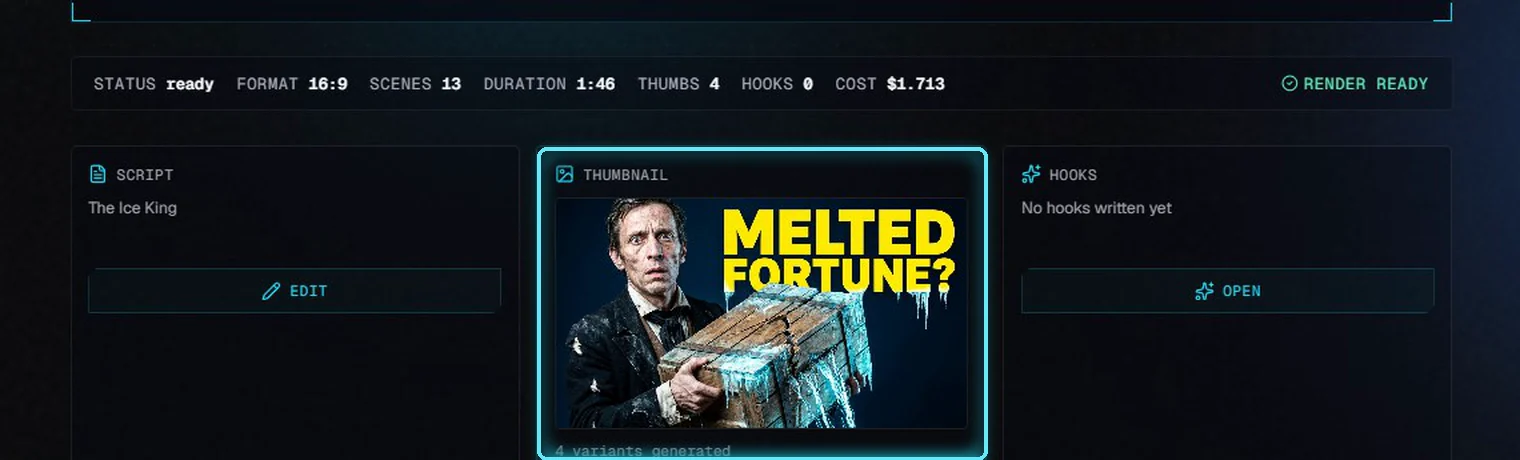
The project page with the picked thumbnail.
Line | Cost | Why |
|---|---|---|
Suggest from script | Free | Your AI model writes the prompt, on your computer. |
4 thumbnails (Pikzels) | About $0.40 | Each image is one Pikzels credit, about 10 cents. Two from the prompt, one edit, one with a reference. |
4 scores (Pikzels) | Your Pikzels plan | Scores use Pikzels credits too. VidNexus adds them to the project cost; check your Pikzels dashboard for the exact price. |
Next: Teach VidNexus your channel's voice.
Tips
Score every take, then edit the best one. Small edits, like bigger text, are cheaper than starting over.
Read the tips. When they keep asking for the same thing, like a person or a reaction, put it in the prompt.
Liked a prompt? Use this prompt for new takes in the big view puts it back in the prompt box, with its reference.
Check the phone preview. Most people see the small one; if the words don't read there, make them bigger or shorter.
Troubleshooting
A tile says Failed. Pikzels couldn't make that image. Click the trash icon to remove it and generate again.
Scoring failed. The error shows in the big view. Click Score it to try again.
"Paste a YouTube video link..." Look like another video takes a YouTube video link, or an https link to an image.
Suggest from script, Generate and Score all are greyed out. Add your Pikzels key in Settings.
"The AI model couldn't write a prompt..." Check that the AI model is running (the dot in the top bar), then try again. Or write the prompt yourself.
Remove asks twice. That's on purpose: a removed thumbnail is gone, with its file.