
Audit your own channel
See which of your videos work and why, then check your own videos for slow scenes and weak openings.
Three places in VidNexus look back at what you made: the channel page (your YouTube videos, with their numbers), the Self-audit (what to make more of) and the Pacing dashboard (which of your VidNexus videos drag).
About these pictures: our demo channel, The Food Archive, has no YouTube videos of its own, so it is linked to the public Weird History Food channel (@WeirdHistoryFood) as a stand-in. The YouTube numbers are theirs. Nothing here costs money; the YouTube reads use about 10 of the 10,000 free daily YouTube Data API units.
1. Your channel page
Click Channels in the sidebar and open your channel. The channel needs its YouTube @handle (Edit on the Channels page); tutorial Teach VidNexus your channel's voice shows how to add it.
The button at the top right says how many videos are synced and when. Click it to sync again: VidNexus reads your latest 100 videos from YouTube, adds new ones and updates the views of the rest. While VidNexus is open it also syncs every channel once a day by itself.

Sync: 1 new video, 99 refreshed, in 7.5 seconds.
Under it: how many videos are synced, the views of the best one, the average views and the usual length.
The two charts
Title length vs avg views: your videos grouped by title length, with their average views. Here, titles of 30 to 49 characters do best.
Upload timing heatmap: each square is a day and a 3-hour slot, in your time zone. The number is how many videos went out then; the brighter the square, the more views per upload. Best slot only counts slots with at least 2 uploads, so one lucky video can't decide it.
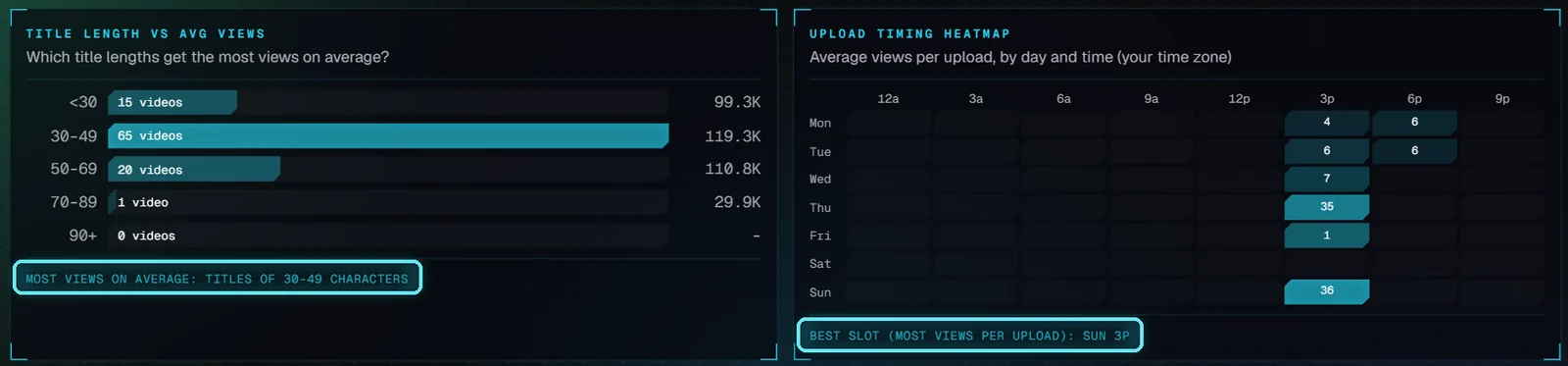
Weird History Food uploads almost always around 3 p.m. (our time); Sunday does a little better.
Read them as hints, not rules: a channel that always uploads at the same time has nothing to compare against.
Your uploads
The table lists every synced video. Click Views, Likes, Comments, Duration or Published to sort by it, and again to reverse; click a title to open the video on YouTube.
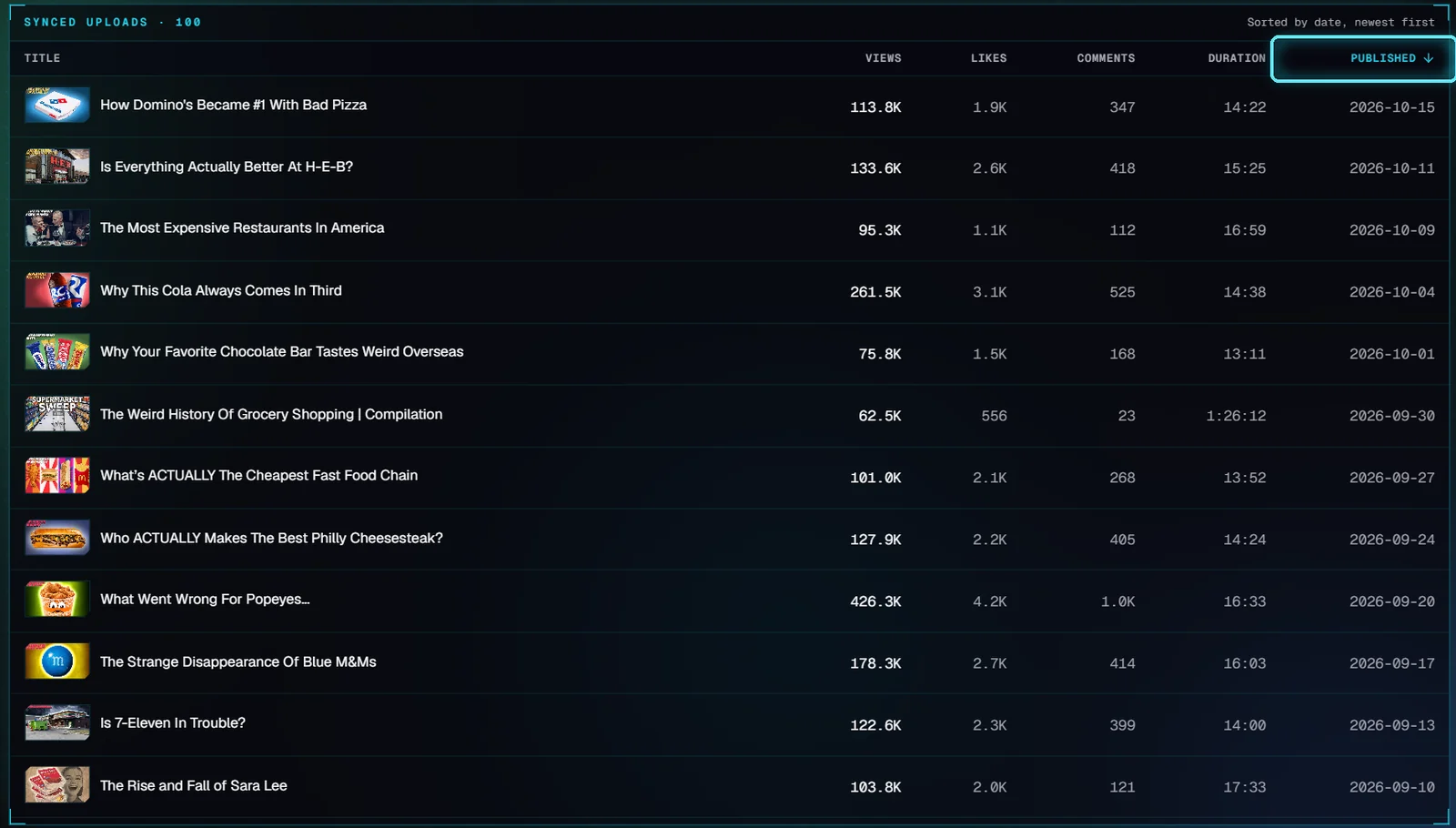
Sorted by date, newest first.
2. The Self-audit
Open Tools and click Self-audit. Pick the channel, choose Long videos, Shorts or All uploads, and click Audit.

Long videos of The Food Archive.
VidNexus reads your latest 25 videos of that kind from YouTube, works out the average views and how often you upload, and your AI model reads the titles. It took 26 seconds here.
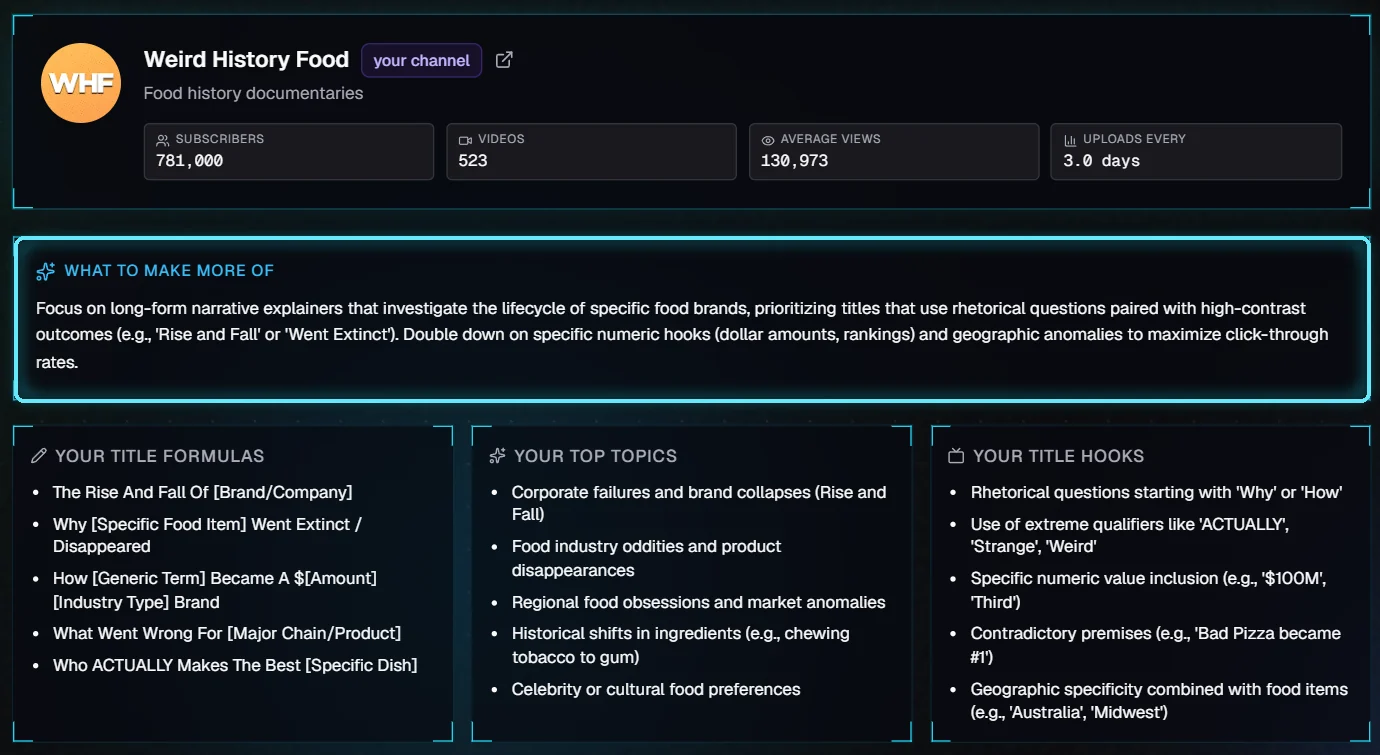
The channel's numbers, what to make more of, and the patterns in your titles.
What to make more of: the AI model's advice, from the titles that got the most views. Treat it as a starting point: it only sees titles and views, not the videos.
Your title formulas, top topics and title hooks: the patterns in your titles. Formulas use [brackets] for the part you change.
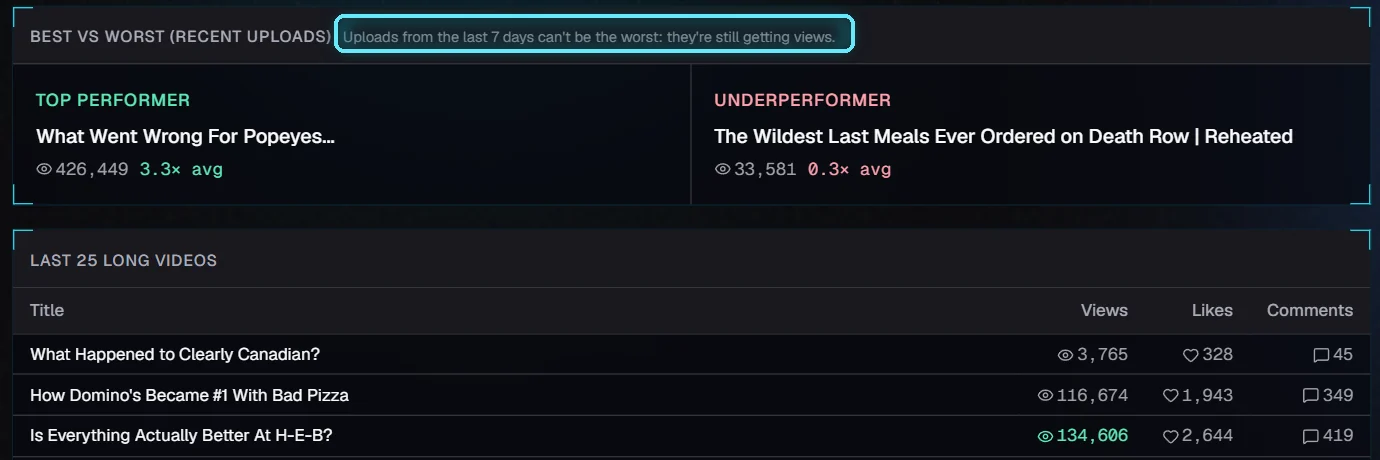
Best vs worst. The newest upload (3,765 views after a few days) isn't called the worst.
Best vs worst compares each video to the average. An upload from the last 7 days can't be the worst: it is still getting views. Below it, the 25 videos are listed; views above the average are green.
To compare yourself with another channel, use Study the competition: same numbers, for any channel.
3. The Pacing dashboard
Open Tools and click Pacing dashboard. It checks every video on the channel whose script is confirmed: how long each scene stays on one picture, how often the picture changes, how fast the voiceover talks and how strong the first 8 seconds are. It runs on your computer and is free.
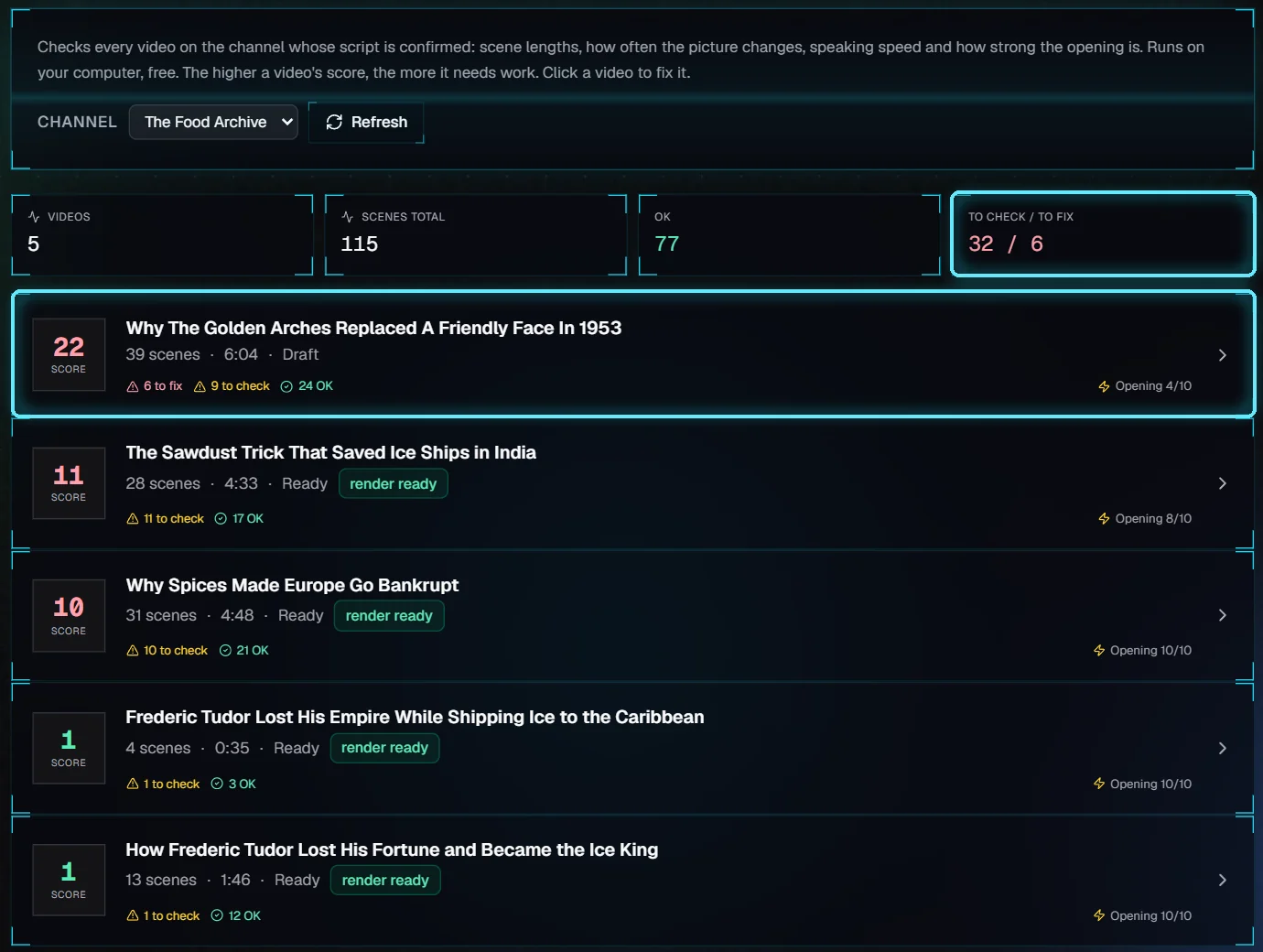
Five videos. The draft at the top needs the most work: 6 scenes to fix, 9 to check, opening 4/10.
The higher the score, the more the video needs work. To check is a small problem, to fix a scene that will likely bore viewers. Opening rates the first 8 seconds out of 10. Click a video to open it in the editor.
4. Fix it in the editor
In the editor, click the Pacing tab (the pulse icon on the right panel's strip). It checks the video when you open it; Refresh checks again after a change.
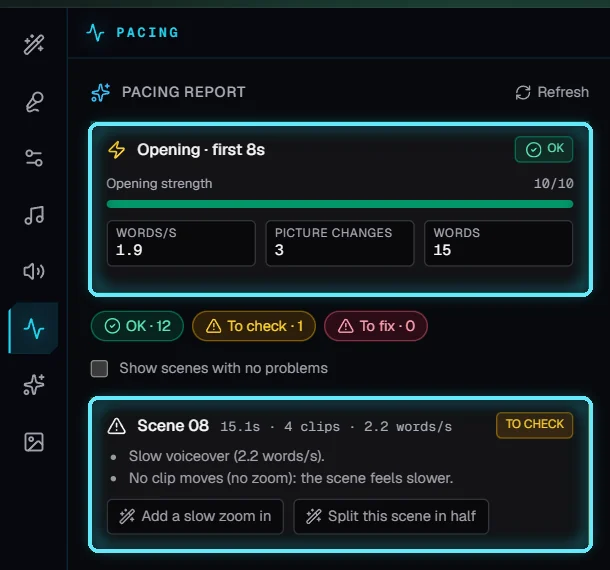
The Ice King video: a strong opening, one scene to check.
The Opening card rates the first 8 seconds. Below it, only the scenes with a problem are listed; tick Show scenes with no problems to see all of them. Each one says what is wrong and offers fixes:
Button | What it does |
|---|---|
Add a slow zoom in | Adds a slow push-in to the scene's clip. Free. |
Split this scene in half | Cuts the scene in two at a word boundary; the voiceover is cut too, nothing is re-voiced. Free. |
Add more clips | Plays more of the scene's stock clips one after another. Free. |
Make scene 1 6s long | Shortens a long first scene that has no voiceover yet. |
Greyed buttons | Advice for another tab (Animations, Hooks, the scene's words). Point at one to see where. |
A fix changes the edit right away. Render the video again to see it in the MP4.
Tips
Sync before an audit you care about: new videos and views come in with the sync.
Run the Self-audit for Long videos and Shorts separately: they work differently.
Check the Pacing dashboard before you render, when fixes are cheapest.
Troubleshooting
"Add the YouTube handle to sync its videos". On the Channels page, click Edit on the channel and paste its @handle or channel link.
"Add a YouTube Data API key in Settings > API keys". The YouTube numbers need a free YouTube Data API key.
"The YouTube API quota for today is used up". The free allowance resets at midnight Pacific time; try again after that.
"YouTube refused the API key". Check the key in Settings > API keys.
The patterns are missing. Your AI model couldn't read the titles; the numbers are still complete. Click Retry next to the note.
A video isn't on the Pacing dashboard. Its script isn't confirmed yet.