
Hooks, titles, tags and descriptions
Package a video for YouTube: an opening hook, a title, tags and a description with chapters.
A 4-minute video version of this guide will play here. Everything it shows is written out below.
A finished video still needs its packaging: the first lines people hear, the title they click, the tags and the description with chapters. VidNexus writes all four from your project, so the facts come from your research and the chapter times come from the video itself. This guide packages The Sawdust Trick That Saved Ice Ships in India, a food history video on The Food Archive.
Before you start
A project with a script. Hooks, tags and the description read the project's script, and hooks also read its research facts.
An AI model in Settings > AI model (a local Ollama model works). Everything here except Score a draft uses it.
An ElevenLabs key for the hook voice previews. Without one, the hooks still appear, just without audio.
A YouTube Data API key only if you want to score tags by competition.
1. Write and hear opening hooks
The first seconds decide whether people keep watching. The Hook A/B generator writes eight different openings so you can compare them before you commit.
Open the project and, on the Hooks card, click Open. You can also find it in Tools > Hook A/B generator and pick the project there.
Click Generate. The chip next to the button shows what the voice previews will cost.
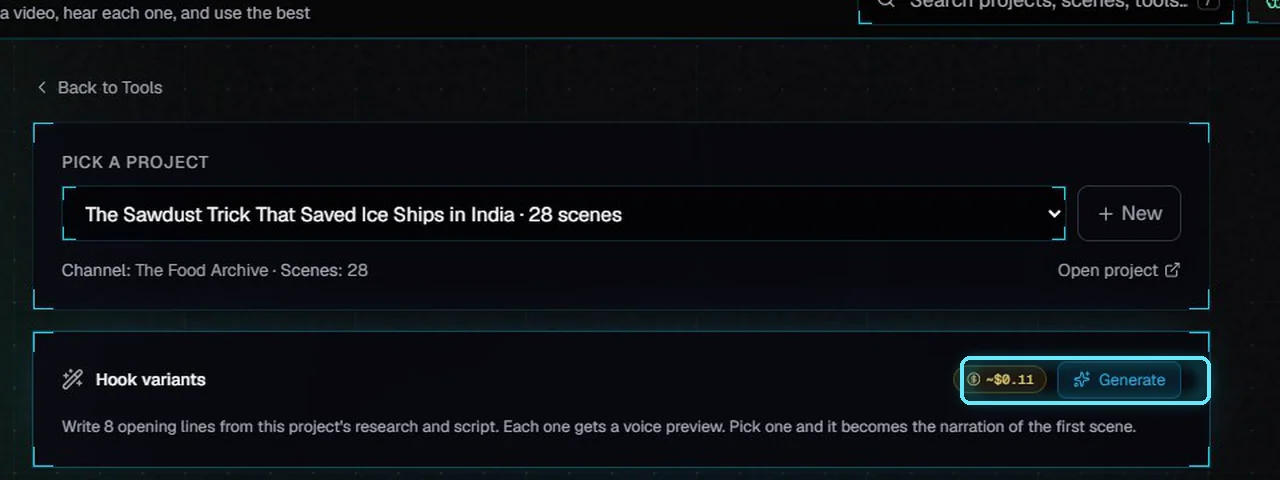
The Hook A/B generator, before the first round. The estimate is for the eight voice previews.
Your AI model writes the eight lines first (about 40 seconds on a mid-range PC with a local model). Then each line gets a voice preview, one by one.

Eight hooks, each in a different style, with a play button for its voice preview.
Each hook tries a different style:
Style | What it does |
|---|---|
Surprising number | Opens on a figure from your research. |
Question | Asks the question the video answers. |
Stakes | Says what could go wrong. |
Vivid scene | Puts the viewer in one concrete moment. |
Contrarian | Turns a common belief around. |
Then and now | Sets the past against today. |
Comparison | Holds two things side by side. |
Cliffhanger | Stops just before the answer. |
Check the facts
The hooks are written from the project's research facts and its script, and every number, date and name is supposed to come from them. A local model can still slip, so read the hooks with your research at hand. In our round, the Then and now hook placed 1805 "two years" before 1833.
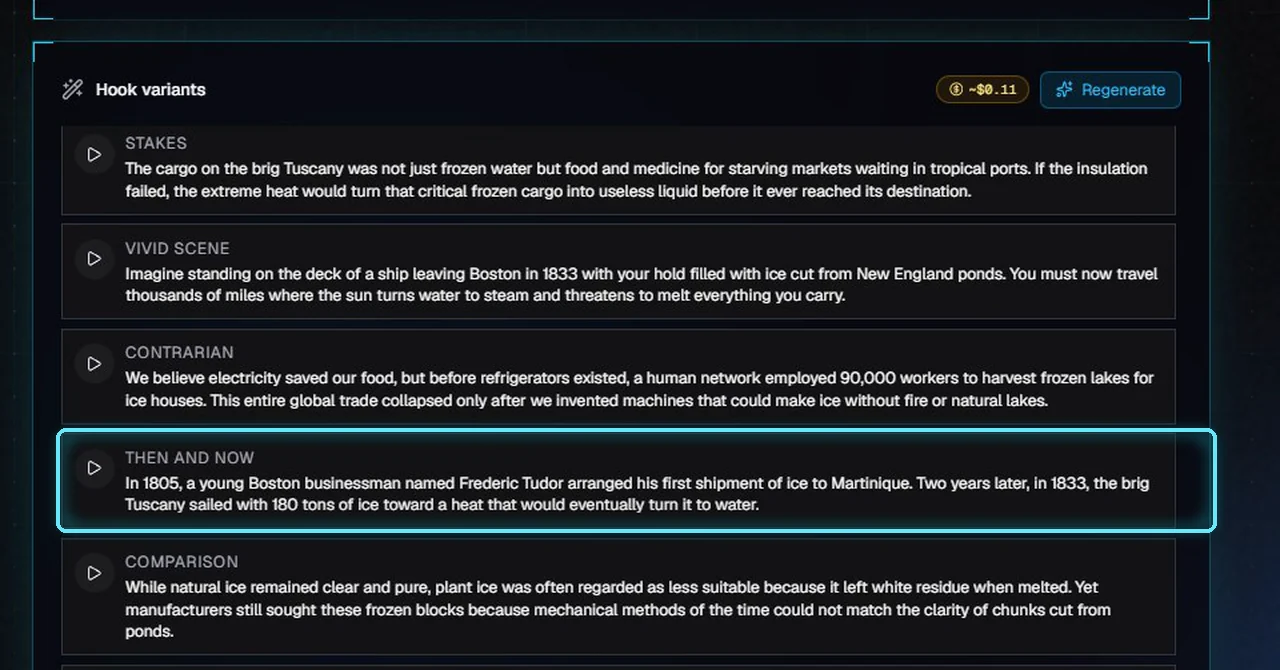
Read every hook before you use it: this one gets the years wrong.
Use a hook
Press the play button to hear a hook.
Click the hook's text to use it. It becomes the narration of the first scene, and a note appears.
Open the editor from the note, select scene 1 and press Regen voice. The old voice was removed, so the render needs the new one.
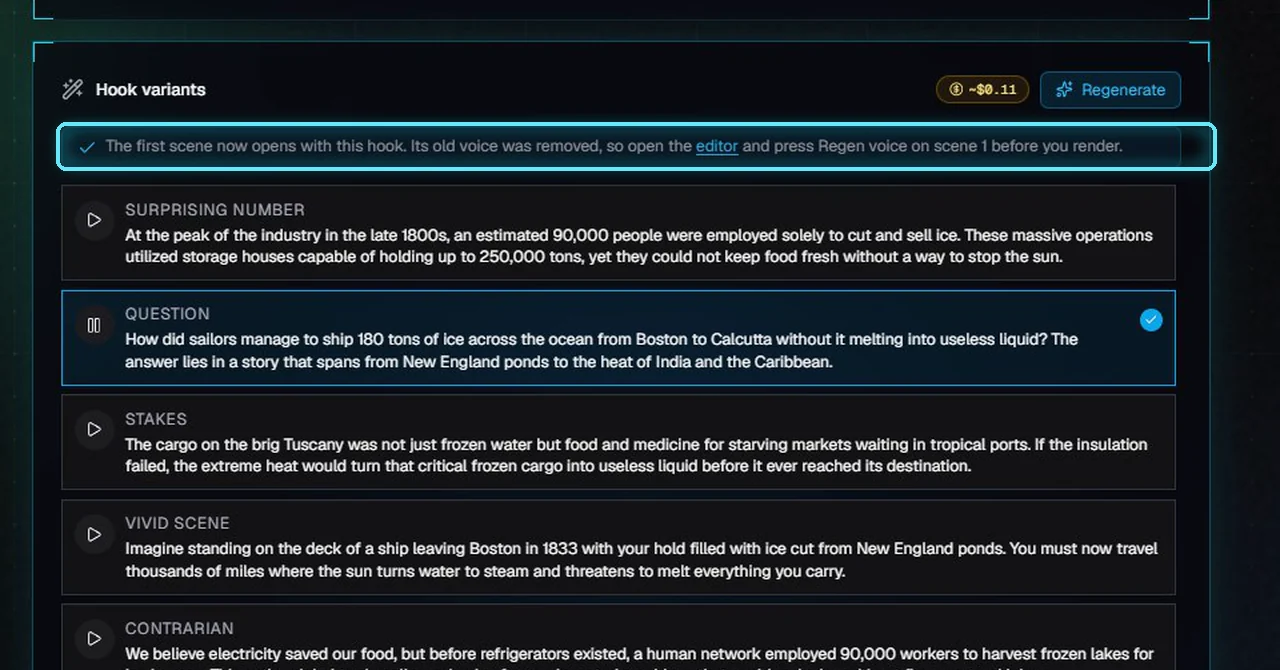
The picked hook is highlighted, and the note says what's left to do.
Regenerate writes a new round of eight and replaces the old ones. Each round makes new voice previews, so it costs again.
2. Score twelve titles
Open Research. At the top, set the Channel and the Topic once; every research tool uses them.
Under Package, click Titles. Add the target keywords you want in the titles, and any competitor title formulas you collected.
Click Generate titles. You get twelve titles, scored from 0 to 100, best first.
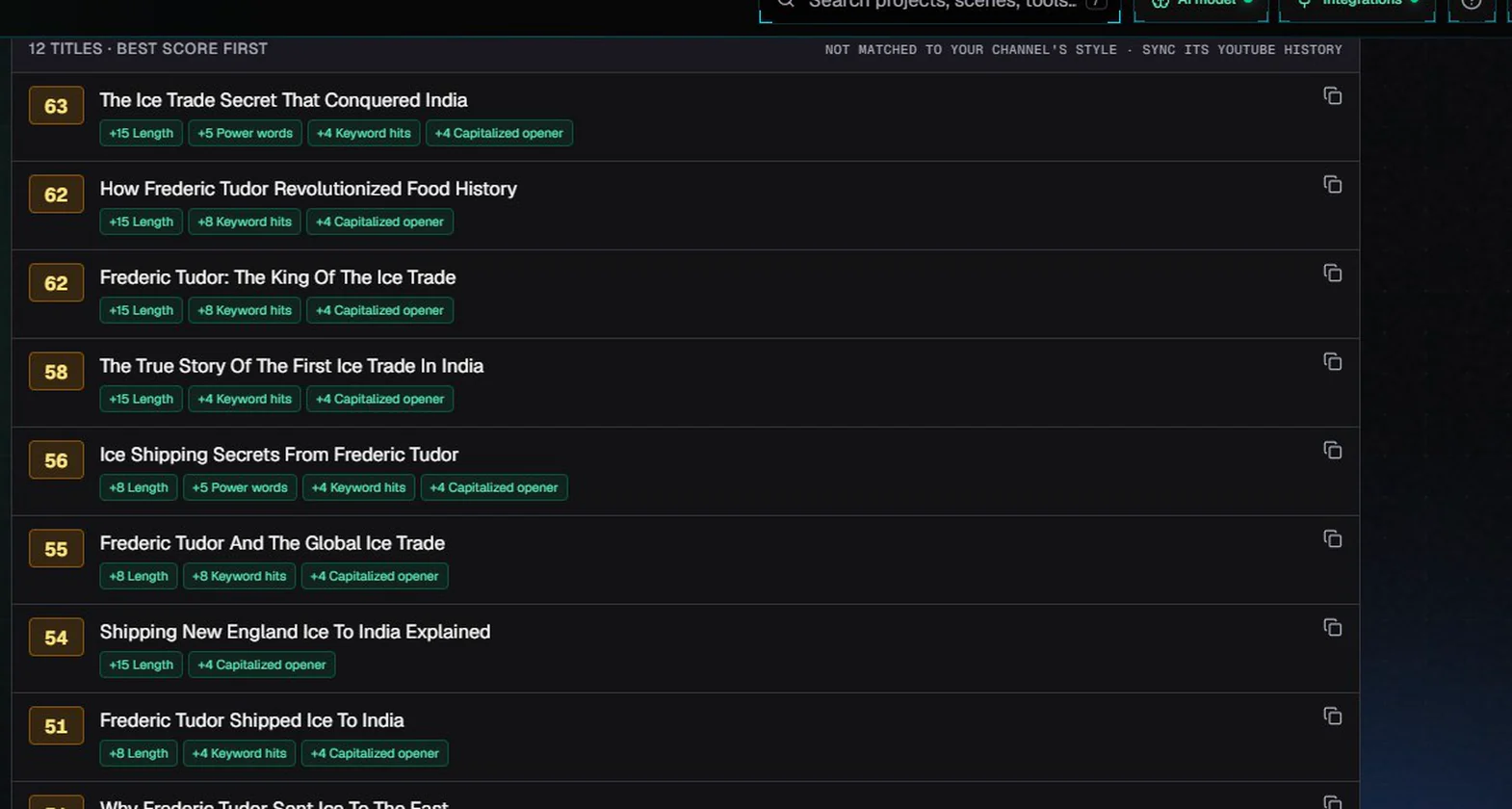
Twelve titles for the Sawdust Trick video. The chips show where each score comes from.
The score adds up simple signals that tend to go with more clicks. It starts at 35:
Signal | Points |
|---|---|
Length | +15 for 41 to 60 characters, +8 for 25 to 40, +6 for 61 to 70, -5 under 25, -8 over 70 (mobile cuts it off). |
Has number | +10 |
Brackets | +8 |
Question | +5 |
Power words | +5 each (secret, truth, saved, collapsed, before...), up to +15 |
Curiosity gap | +4 each ("the real reason", "what happened"...), up to +8. Use sparingly. |
Keyword hits | +4 for each target keyword in the title, up to +12 |
Capitalized opener | +4; more than two ALL-CAPS words cost 8 |
Treat the score as a guide, not a verdict. Pick a title that's true to the video and reads well out loud, then edit it. When your channel's YouTube history is synced (Channels > Sync), the titles also follow the style of your best videos.
Score your own title
Paste any title under Score a draft and click Score. It uses the same signals and doesn't use the AI model, so it's instant. Our current title scores 59: a good length, one power word ("saved") and a capitalized opener.

Score a draft: the same breakdown for a title you wrote.
3. Fill the tag limit
Click Tags and pick the project under Autofill from project. The topic and the script fill in.
Add must-include keywords if you have them; they go first.
Click Generate tags.
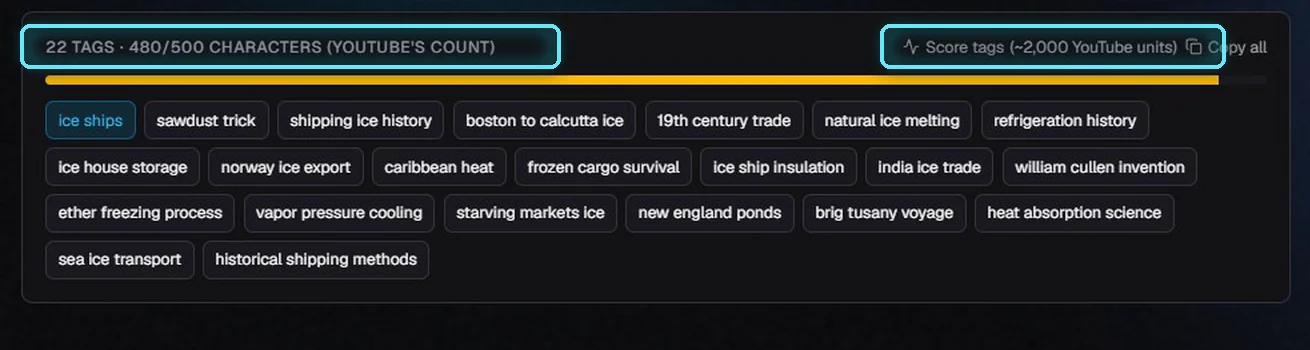
22 tags that use 480 of YouTube's 500 characters. Score tags shows what it costs.
YouTube allows 500 characters of tags and counts them its own way: the commas between tags count, and a tag with a space in it counts as if it had quotes around it, so it costs 2 more. VidNexus counts the same way and keeps only whole tags that fit. The publish form counts the same way too, and leaves out whole tags that don't fit; it never cuts a tag in half.
Score tags looks up how many YouTube videos compete for each tag and its Google Trends direction. Each lookup is a YouTube search that costs 100 API units, so scoring 20 tags uses about 2,000 of the 10,000 units you get each day.
Copy all puts the tags on the clipboard, separated by commas, ready to paste into YouTube Studio.
4. Description and chapters
Click Description and pick the project. Add your target keywords.

Pick the project and the topic and script fill in.
Click Auto-chapters. Chapters come from where each scene really starts in the video.
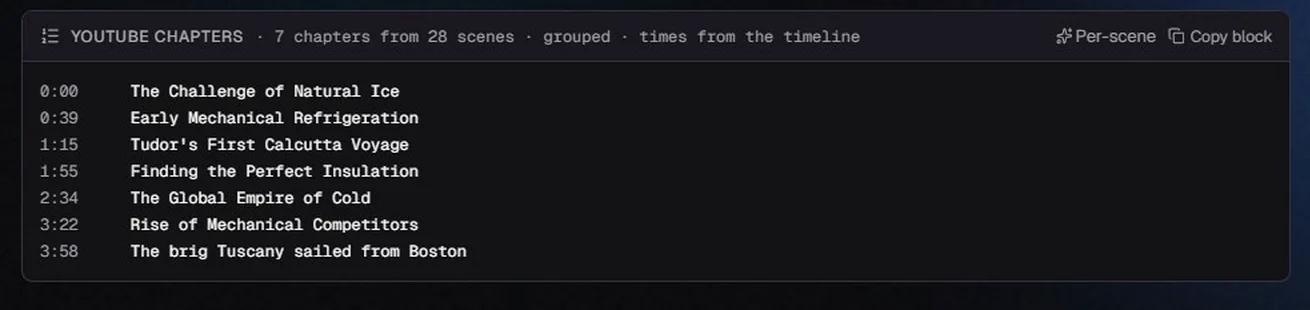
Seven chapters for a 28-scene, 4:33 video.
A video with up to 12 scenes gets one chapter per scene. Longer videos are grouped into 5 to 8 chapters by your AI model, across the whole video; Per-scene switches back to one chapter per scene. Times come from the last render when it still matches the scenes (it knows about crossfades and the intro), otherwise from the timeline. YouTube shows chapters when there are at least three, the first starts at 0:00, and each lasts at least 10 seconds; VidNexus merges anything shorter.
Click Generate description. It writes from the chapters, the project's research facts and the script.
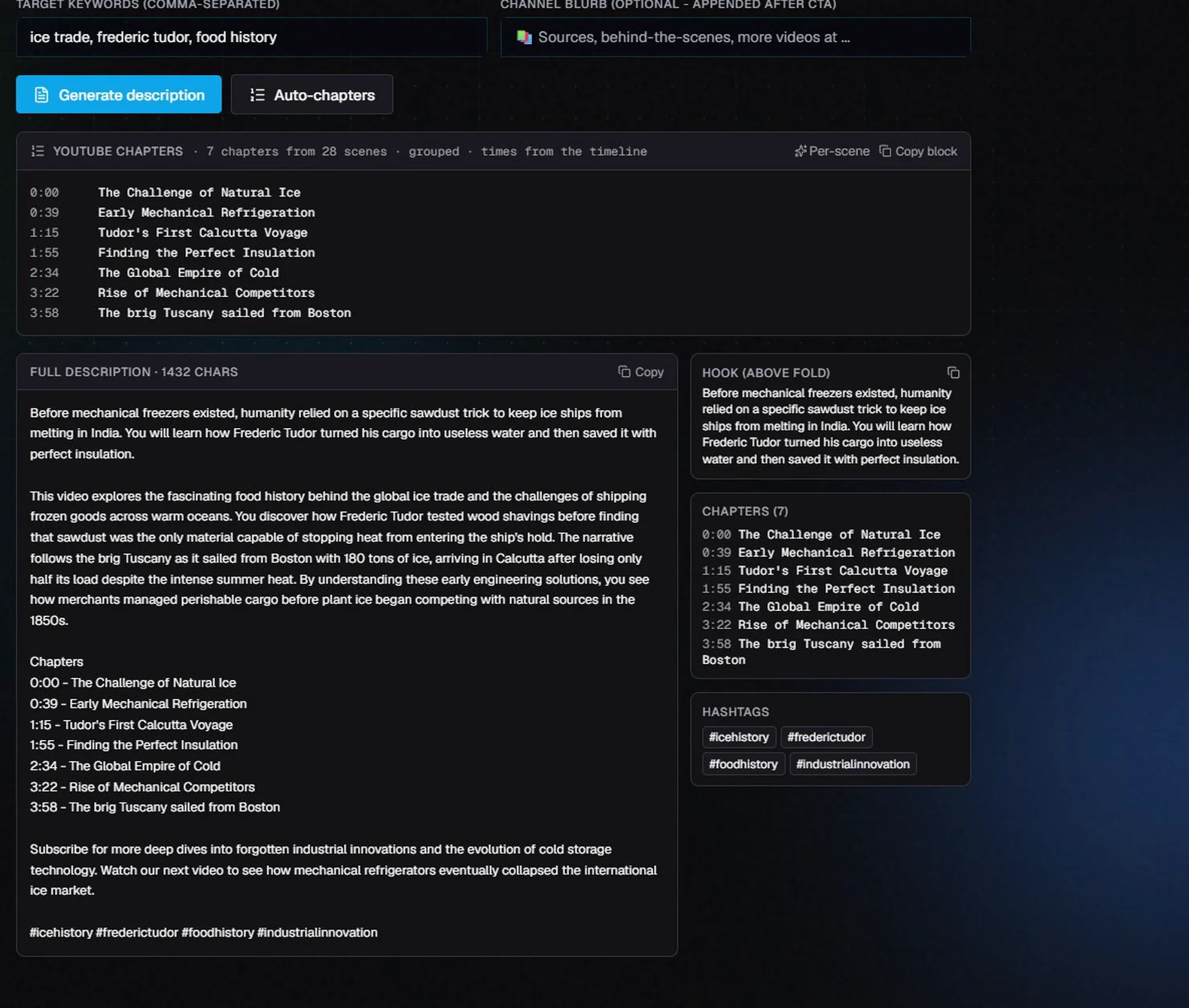
The full description, with the opening, the chapters one per line and the hashtags.
You get an opening for the first lines (what shows before "more"), a short summary, the chapters one per line, a call to subscribe, your channel blurb if you added one, and hashtags. Read it through before you paste it, and fix anything the model got wrong. Copy puts the whole description on the clipboard.
Tips
Write the script and run research first. The hooks and the description are only as good as the facts they're given.
Use the hook you picked as the video's first line on YouTube too: the description's opening works best when it promises the same thing.
Keep the keywords consistent: the same two or three keywords in the title, the first lines of the description and the first tags.
After you change scenes, render again before you copy the chapters, so the times match the new video.
Troubleshooting
"The AI model took too long" or "Couldn't reach the AI model". Check that your AI model is running (Settings > AI model), then try again. A local model can take a minute for eight hooks.
A hook shows an error instead of a play button. The voice preview failed. Check your ElevenLabs key and credit in Settings > API keys. The hook's text still works.
The render says scene 1 has no voice. You picked a hook. Open the editor, select scene 1 and press Regen voice.
"Only 2 chapters of 10 seconds or more". The video is too short or has too few scenes for YouTube chapters. Leave chapters out of the description.