
Connect YouTube
Give VidNexus your own Google keys, then connect the YouTube channel your videos go to.
VidNexus uploads straight from your computer to YouTube. To do that, Google needs two things: a free Google Cloud project of your own (it holds the keys), and your permission for that project to upload to your channel. You set this up once; it takes about 10 minutes.
About these pictures: we used placeholder Google keys and a stand-in account, "The Food Archive (demo)", both removed afterwards. Nothing was uploaded.
Before you start: uploads stay private at first
YouTube keeps every video uploaded from a new Google Cloud project private, whatever visibility you pick, until Google has reviewed the project. To publish as Unlisted or Public from VidNexus, request the review once with Google's YouTube API audit form. It is free; Google answers by email, which can take a few weeks.
Until then you can still upload from VidNexus: the video goes up private, and VidNexus tells you so after the upload.
1. Make your Google keys
Sign in to Google with the account that owns your YouTube channel, then:
Create a project in Google Cloud Console. Name it anything ("VidNexus" works).
In that project, open YouTube Data API v3 and click Enable.
Open Google Auth Platform and click Get started: give an app name and your email, choose the audience External, and finish. Then under Audience, click Publish app. Without this, Google ends the connection after 7 days.
Under Clients, click Create client, pick the application type Desktop app and click Create. Google shows a Client ID and a Client secret: keep the tab open.
This is not the same as the YouTube Data API key in Settings > API keys, which only reads public YouTube data (channel sync, research). Publishing needs the Client ID and secret.
2. Paste them into VidNexus
Open Settings > Integrations and scroll to YouTube. Under Your Google keys, paste the Client ID and the Client secret, then click Save credentials. The same steps are listed there, with links.
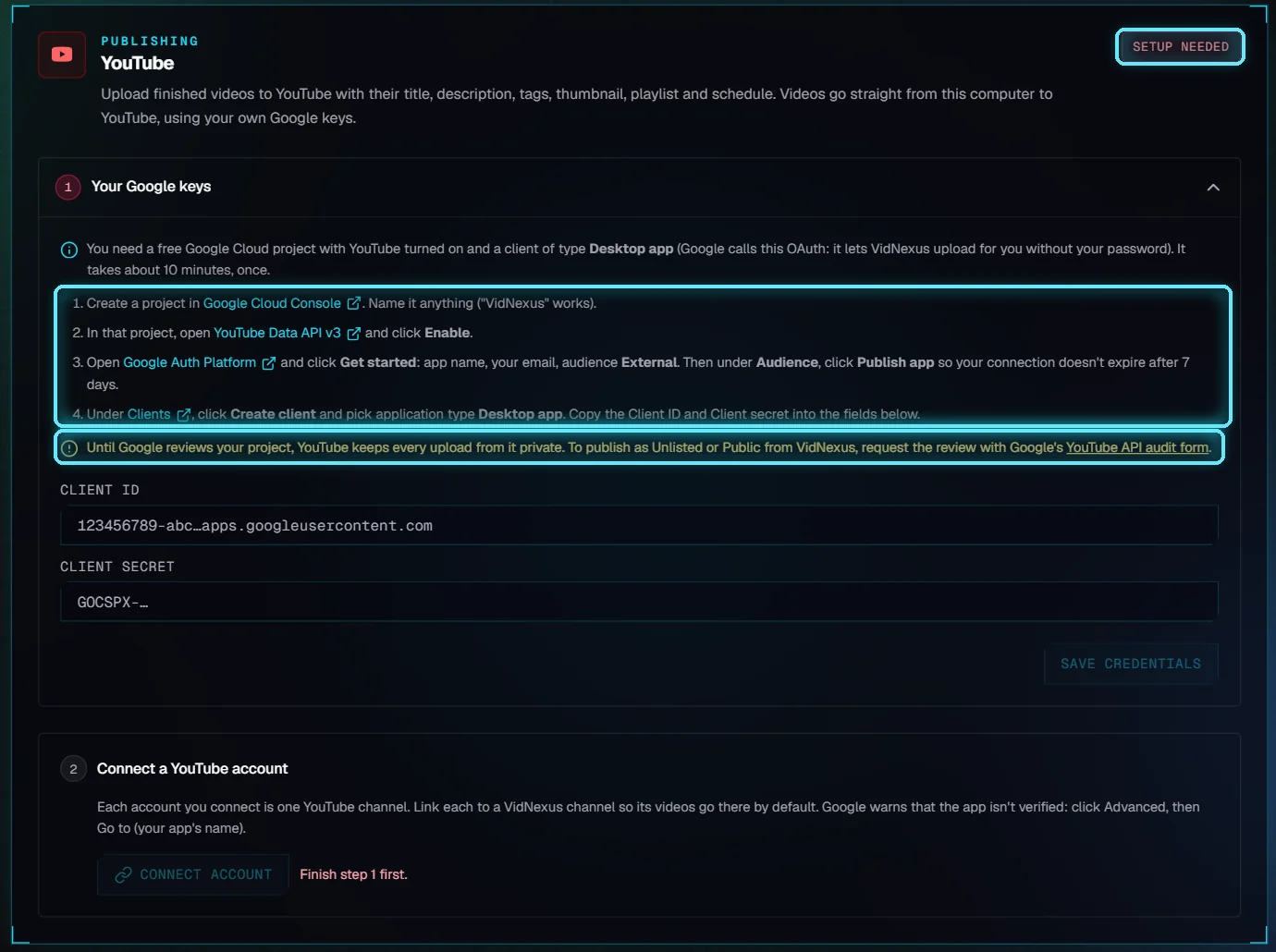
Before the keys: "Setup needed", the four steps and the note about private uploads.
The keys stay on this computer. To change them later, open Your Google keys again; leave the secret empty to keep the saved one.
3. Connect your channel
Click Connect account. Google's sign-in opens in your browser; VidNexus waits for you. If it didn't open, click Open it.
Pick the Google account, or the Brand account, that owns the channel.
Google warns that it hasn't verified the app. It is your own project, so click Advanced, then Go to (your app's name).
Allow access. The tab says Signed in; close it and go back to VidNexus, which says Connected.
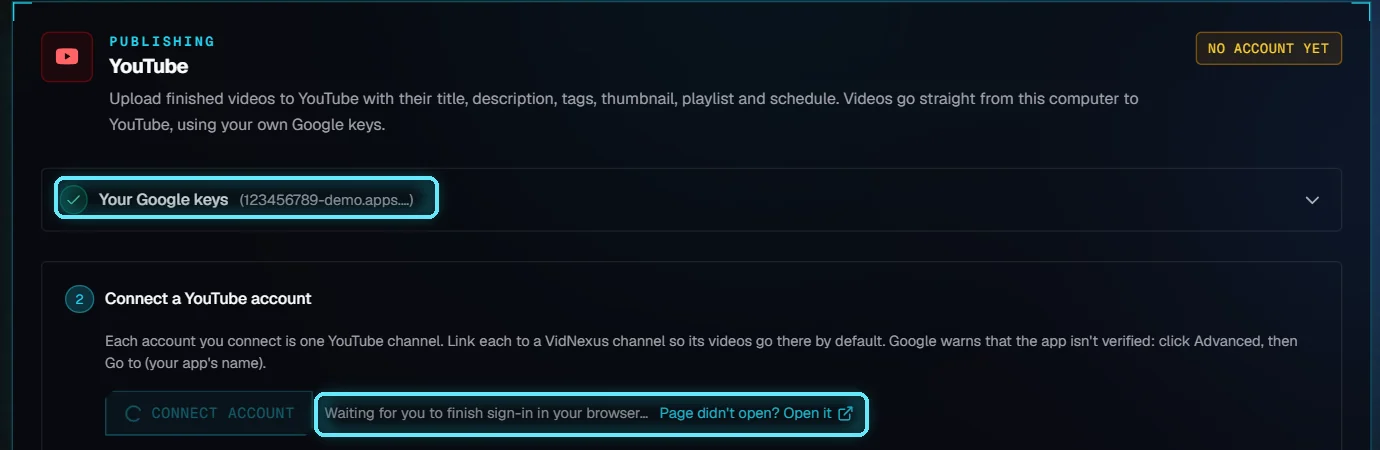
Keys saved, sign-in in progress.
4. Link it to a VidNexus channel
The channel appears under Connected accounts. Pick the VidNexus channel whose videos go there: Publish then chooses this account for them by default. Connect more accounts the same way, one per YouTube channel.
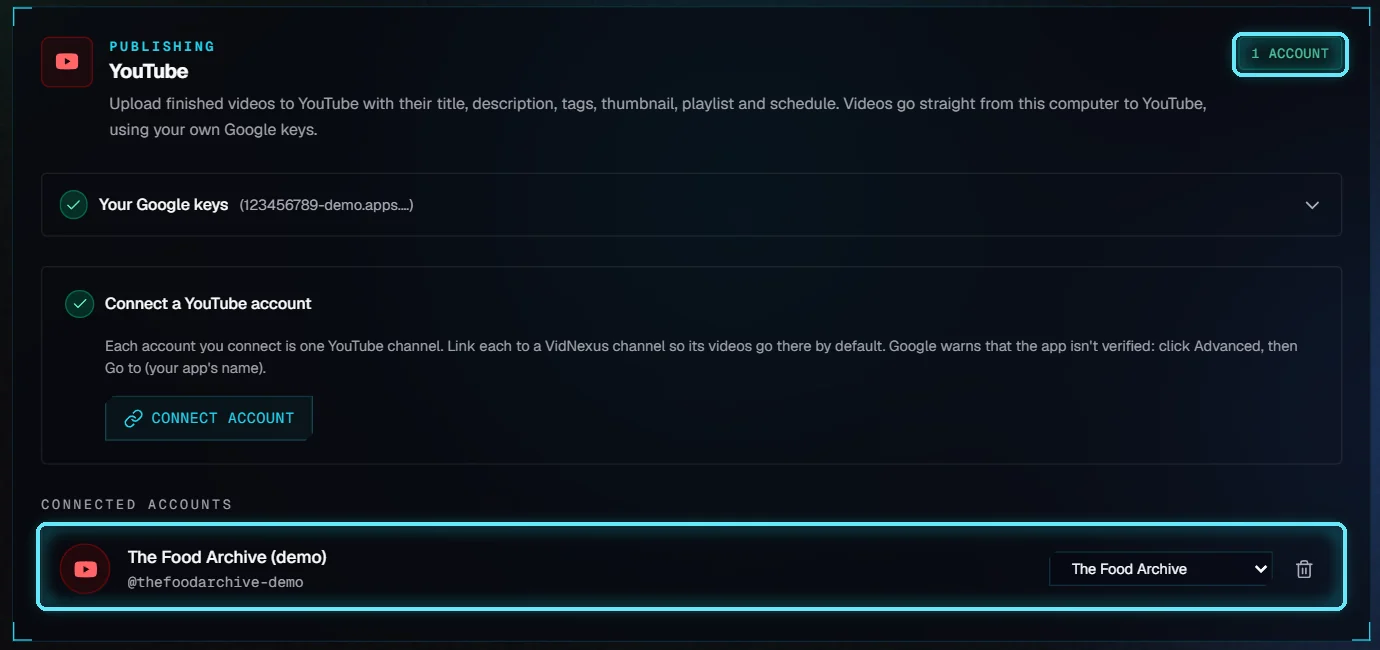
One account, linked to The Food Archive.
The bin icon disconnects an account. VidNexus forgets it and tells Google to remove its access; publish history stays. Next: Publish to YouTube.
Troubleshooting
Google says "Access blocked" or "redirect_uri_mismatch". The client isn't a Desktop app. Create a new client of type Desktop app and paste its keys.
"Google didn't accept the sign-in". The Client ID and secret come from different clients. Copy both from the same one.
"This Google account has no YouTube channel". Sign in with the account, or pick the Brand account, that owns the channel.
"Google ended VidNexus's access". The app was still in Testing (7-day limit), access was removed in your Google account, or the keys changed. Click Connect account and sign in again.
"This sign-in expired" or "took too long". Click Connect account again; the sign-in has to be finished within 10 minutes.