
Publish to YouTube
Upload a finished video to your channel with its title, description, tags, thumbnail, playlist and schedule.
You need a rendered video and a connected YouTube account (Connect YouTube). The title, description and tags can come from Hooks, titles, tags and descriptions.
About these pictures: we filled in the form for the Ice King video with a stand-in account and playlists, and didn't click Publish. Nothing was uploaded.
1. Open Publish to YouTube
Open the video's page (Projects, then the video). Publish to YouTube is there once the video has been rendered.
If YouTube isn't set up yet, the dialog says so and Open Settings takes you to the right place:
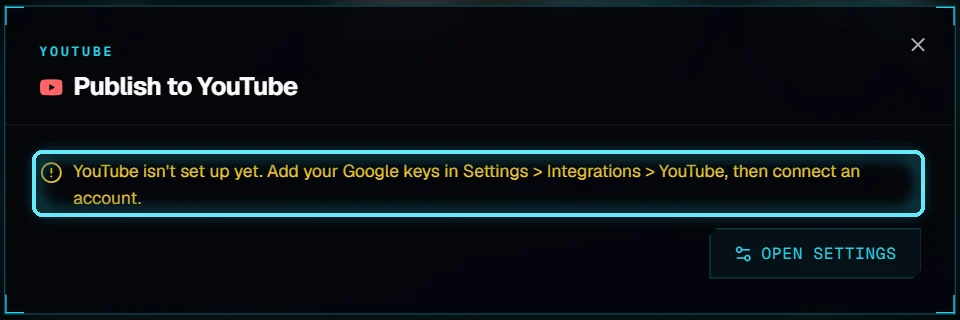
No Google keys yet.
2. Fill in the form
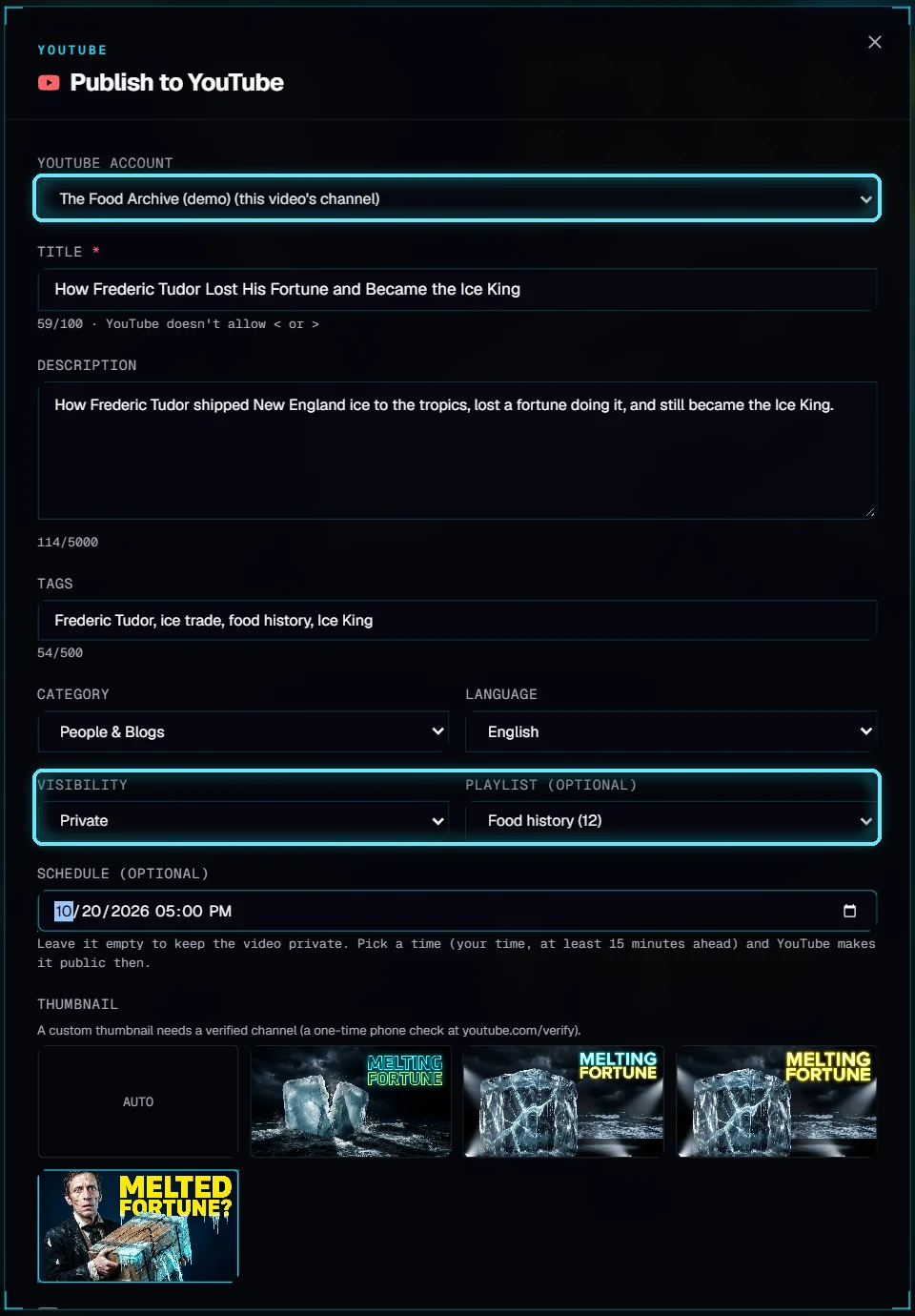
The account linked to the video's channel, Private, and the Food history playlist.
Field | What to know |
|---|---|
YouTube account | Starts on the account linked to this video's channel. |
Title | Starts as the video's title. Up to 100 characters; YouTube doesn't allow < or >. |
Description | Up to 5000 bytes: letters outside English count 2 or 3. Timestamps and links go here. |
Tags | Comma-separated, up to 500 counted the way YouTube counts (a tag with a space counts 2 more). |
Category, Language | Language sets both the video's and the audio's language. |
Visibility | Private, Unlisted or Public. Until Google has reviewed your project, YouTube keeps the upload private anyway. |
Playlist | Optional. The channel's playlists are listed. |
Schedule | Only with Private: pick a time (your time, at least 15 minutes ahead) and YouTube makes the video public then. |
Thumbnail | Auto (YouTube picks a frame) or one of your finished thumbnails. A custom thumbnail needs a verified channel. |
Made for kids | YouTube asks this for every video, by law. Tick it only for videos made for children. |
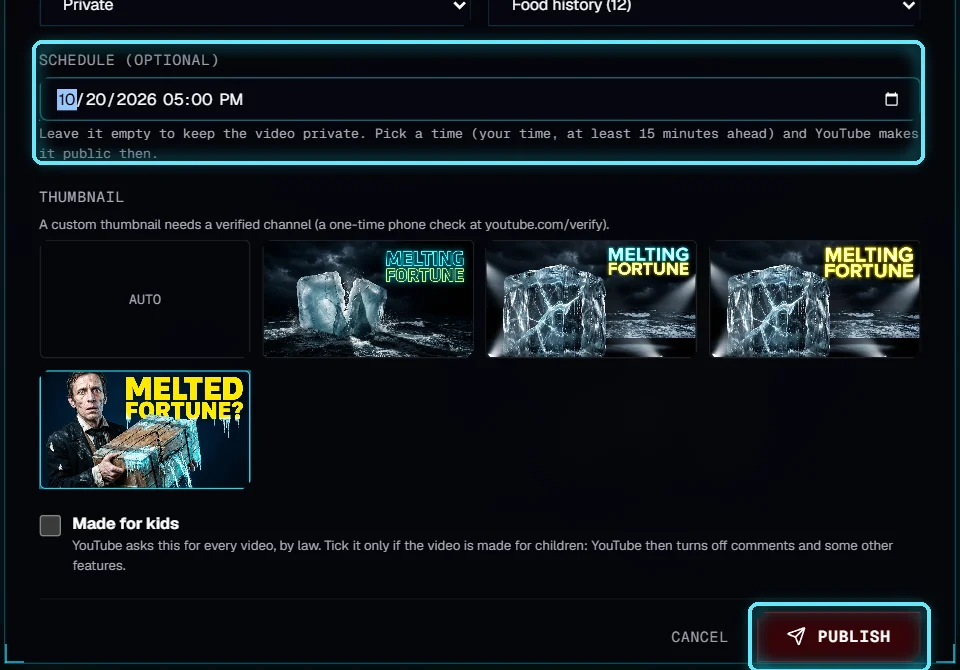
Scheduled for 5 p.m., a custom thumbnail, then Publish.
3. Publish
Click Publish. The dialog shows Uploading with a percentage, then Adding the thumbnail and playlist. You can close it; keep VidNexus open until the upload finishes. Opening the dialog again shows the same upload, so a second click can't upload the video twice.
When it's done, the dialog says what YouTube actually did, with a link to the video and to YouTube Studio:
Uploaded as public / unlisted / private, or YouTube makes it public at the scheduled time.
YouTube kept this video private: your Google project hasn't been reviewed yet (see Connect YouTube). Request the review with the YouTube API audit form.
Thumbnail not added: the channel isn't verified. Verify it once at youtube.com/verify (a phone check), then add the thumbnail in YouTube Studio.
YouTube Studio is where cards, end screens and monetization are set.
4. Publish history
Each upload is listed under Publish history on the video's page, with its views, likes and comments, refreshed every few minutes while the page is open, and links to the video and to Studio.
Troubleshooting
"... used up today's YouTube allowance". Each Google project has a free daily allowance (about 6 uploads). It resets at midnight Pacific time.
"... reached YouTube's daily upload limit". The channel's own limit. Try again tomorrow.
"VidNexus lost access to this YouTube account". Connect it again in Settings > Integrations > YouTube.
"The upload stopped when VidNexus closed". Publish again. Keep VidNexus open while it uploads.
"Render the video first". There is no finished MP4 yet: click Render.