
Complete & clean: free disk space
When a video is finished, delete the files it was made from and keep the final MP4.
A video takes far more disk space than its MP4: the downloaded stock clips, the cut scene clips, voiceover files, previews and motion graphics all stay on your computer so you can keep editing. Once the video is published and you won't change it again, Complete & clean deletes them.
About these pictures: we used a 26-second test video made from two Ice King narration files, and deleted it afterwards. Cleaning it freed 76 MB; a long video frees much more.
1. Open Complete & clean
In the editor (or on the video's page), click Complete & clean at the top right. It works on a rendered video only, and not while a build is running: otherwise the button is greyed out and its tooltip says why.
The dialog adds up what it would delete, by kind, and lists what is kept. Nothing is deleted yet.
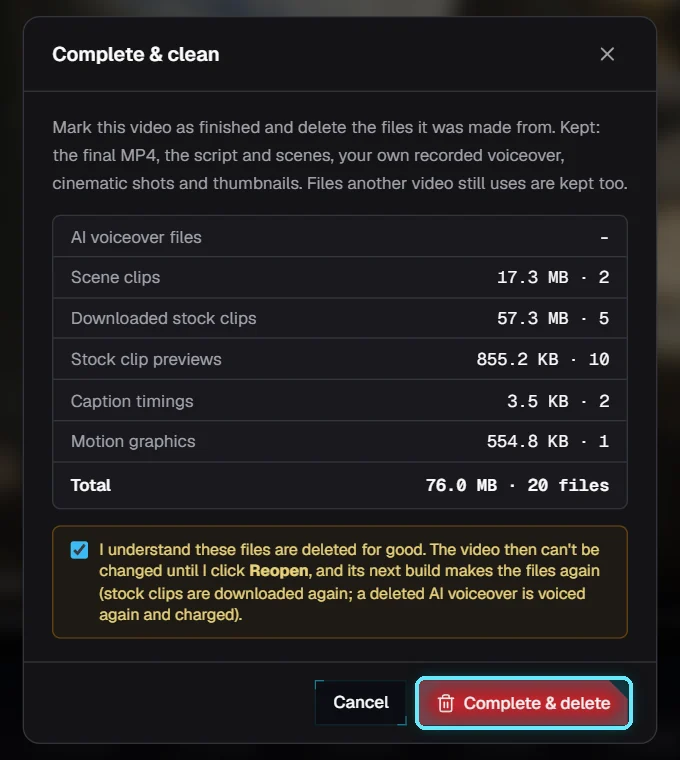
76 MB in 20 files. Tick the box, then Complete & delete.
Deleted | Kept |
|---|---|
Downloaded stock clips and their previews | The final MP4 |
Scene clips (and earlier versions kept for Undo) | The script, scenes, footage picks and settings |
AI voiceover files | Your own recorded voiceover |
Caption timings | Cinematic shots (Higgsfield clips cost money) |
Motion graphic renders | Thumbnails |
Any file another video still uses |
Files are shared when two videos use the same stock clip. Complete & clean never deletes a file another video still uses, so cleaning one video can't break another.
2. Confirm
Tick I understand these files are deleted for good and click Complete & delete. The dialog says how much it freed; it matches the total it showed.
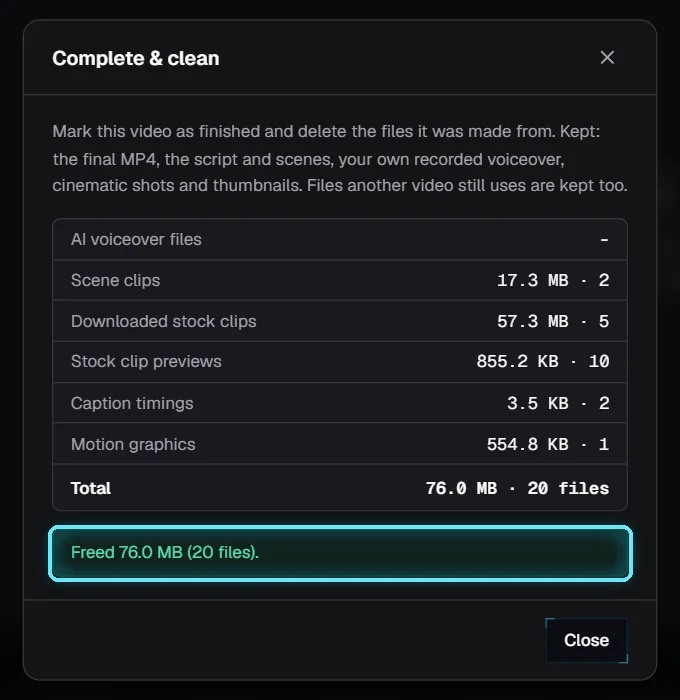
Freed 76.0 MB (20 files).
3. A completed video can't be changed
The video is now Completed. A banner says its source files were deleted, with Reopen and Download MP4.

Completed, with Reopen and Download MP4.
Any change is refused with that message: editing a scene, Regen voice, graphics, the AI editor, Build and Render. Without it, a click on Regen voice could quietly pay for a voiceover you deleted.

Render on a completed video: refused, with the reason next to the button.
Downloading the MP4, exports, publishing and thumbnails still work.
4. Reopen to edit again
Click Reopen. The video can be edited again and the button goes back to Complete & clean.

Reopened.
The deleted files come back with the next Build video: stock clips are downloaded again (free), and a deleted AI voiceover is voiced again, which ElevenLabs charges for. Your own recording was kept, so it costs nothing. Render alone needs the scene clips, so build first.
Tips
Clean a video after it's published and you're happy with it, not before.
Keep a copy of the MP4 somewhere else too if it matters: Download MP4 works on a completed video.
On a completed video the button reads Completed: click it to free space again (files made since the last clean).
Troubleshooting
Complete & clean is greyed out. The video hasn't been rendered yet, or a build is running. Render it, or wait for the build to finish.
"This video is completed... it can't be changed." Click Reopen at the top of the editor.
It freed less than I expected. Files another video still uses are kept, and so are your recordings and cinematic shots.