
Footage licensing: Compliance & sourcing
Where VidNexus gets footage, what you may do with it, and how to keep a site or a creator out of your videos.
Every scene needs a picture: VidNexus searches free stock footage sites for each one and picks the best match. This guide explains what those clips' licenses allow, how to see who made each clip, and the two controls you have over sources: the Stock footage switch and the list of blocked sites and creators.
Not legal advice. This is a summary of each site's license as of October 2026. The licenses on the sites themselves are what count; read them if you are unsure about a use.
1. Where the footage comes from
Stock footage: Pexels, Pixabay and Coverr. The build searches all three for every scene that has no footage yet, and picks the clips that best match the scene's visual prompt. Searches are free.
Your own clips: upload them in the editor. You are responsible for their rights.
Cinematic shots: made by Higgsfield from a picture you choose (tutorial 25). Check Higgsfield's terms, and the rights to the picture you start from.
Motion graphics: title cards, maps, counters and charts are drawn by VidNexus itself.
2. What the stock licenses allow
All three sites let you use their clips for free, in commercial and monetized videos, without credit. What they forbid is mostly the same:
Pexels | Pixabay | Coverr | |
|---|---|---|---|
Use in your videos, monetized too | Yes | Yes | Yes |
Credit the creator | Not required (appreciated) | Not required (appreciated) | Not required (appreciated) |
Not allowed | Selling or sharing the clip on its own; using people in it in an offensive or misleading way; brands and logos on products you sell; using it as a trademark | The same: no standalone sale, no immoral, illegal or misleading use, no trademark use, no branded content on goods | Reselling or redistributing the clip itself as stock |
In practice: a narrated video built from many clips is fine. Uploading a stock clip on its own, putting a stock clip of a branded product on merchandise, or showing a recognizable person in a way that embarrasses or misrepresents them is not.
3. See who made each clip
Select a scene in the editor. Under its visual prompt, Source says where the clip came from and Attribution names the creator of each clip the scene plays.
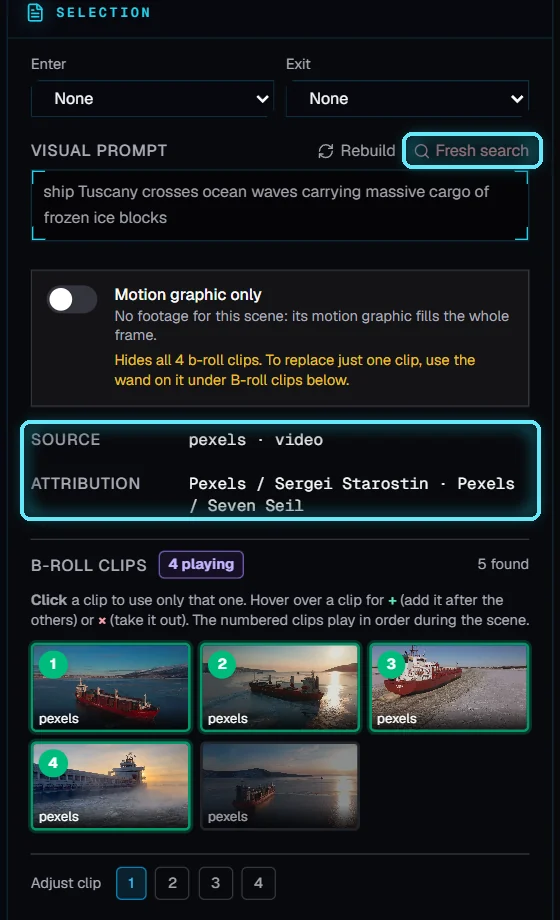
Scene 8: two creators from Pexels. Fresh search finds new clips.
Credit isn't required, but creators appreciate it. Pexels suggests "by [creator] via Pexels": you can copy the names from Attribution into your video's description.
4. The Stock footage switch
Open Brand kits, open your channel's kit, and scroll to Footage sources. The Stock footage switch decides whether the build searches Pexels, Pixabay and Coverr for every video that uses the kit.
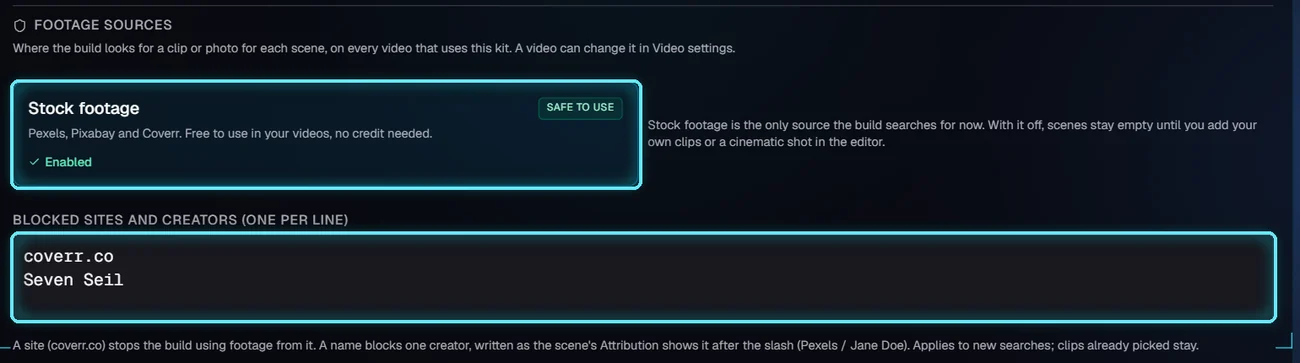
The brand kit: Stock footage and Blocked sites and creators.
Stock footage is the only source the build searches for now. With it off, scenes stay empty until you add your own clips or a cinematic shot in the editor.
One video can differ from its kit: in Video settings, Footage sources, tick or untick Stock footage. The card marks the change this video; click the x on it to go back to the kit's setting.
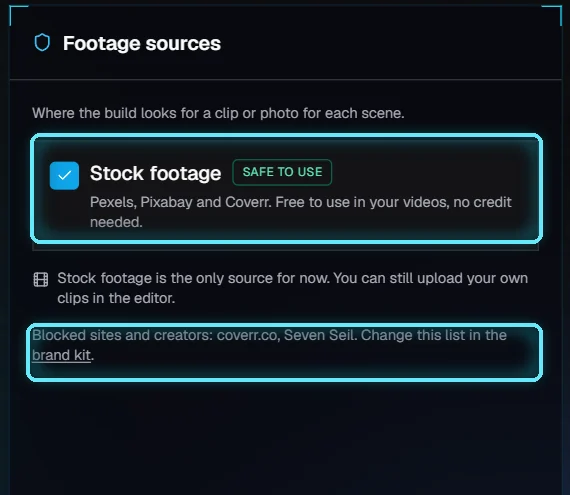
Video settings: this video's sources and the kit's blocked list.
5. Block a site or a creator
In the brand kit, Blocked sites and creators takes one entry per line:
A site: a web address such as
coverr.coorpixabay.com. The build stops using footage from it.A creator: a name, written as Attribution shows it after the slash. For
Pexels / Seven Seil, typeSeven Seil. The build skips that creator's clips.
The list applies to new searches. A clip that's already on a scene stays: select the scene and click Fresh search to replace it with clips the list allows. The list is saved when you click outside the box.
Next: Render, Full rebuild and exports.
Tips
Block a creator whose clips show watermarks, text or logos you don't want in your videos.
Keep the Attribution names somewhere if a video matters to you: they tell you where each clip came from if anyone asks.
Your own clips, music and pictures are not checked by VidNexus. Use only what you have the rights to.
Troubleshooting
YouTube shows a copyright claim on a stock clip. Find the scene, note the creator from Attribution, and dispute the claim with a link to the clip's page on Pexels, Pixabay or Coverr and its license. Or replace the clip with Fresh search and upload a new version.
A blocked creator's clip is still in the video. It was picked before you blocked them. Select the scene and click Fresh search, then Render.
Scenes have no footage. Check that Stock footage is on, for the kit and in Video settings, and that your Pexels and Pixabay keys are in Settings, API keys.