
Make a YouTube Short
From one idea to a finished vertical Short.
A 2-minute video version of this guide will play here. Everything it shows is written out below.
A Short is made with the same steps as a regular video: research, script, voice, footage and render. VidNexus changes a few things for you when you pick the Shorts format. This guide makes a Short about the New England ice trade and points out what's different.
1. Choose Shorts
Click New project in the sidebar. Under Format, choose Shorts.
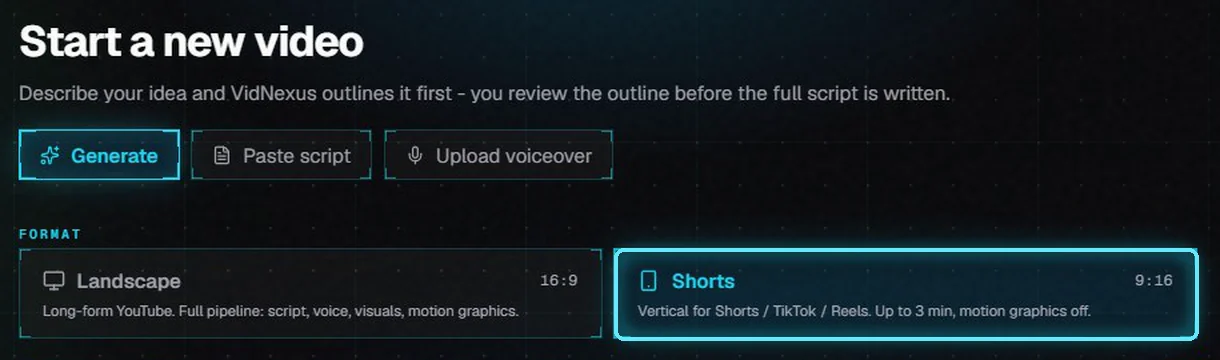
The Shorts format: vertical 9:16.
When you pick Shorts, VidNexus:
builds the video vertical, at 1080 x 1920, and crops the footage to fill the tall frame
uses the Reels chunky pop caption style: bigger words, placed above the Shorts buttons
turns motion graphics off (they're designed for a wide frame)
2. Pick a length, tone and hook
Shorts have their own lengths. The final length depends on the script you approve, so these are estimates:
Length | About | Good for |
|---|---|---|
Micro | 30 seconds | One fact, one twist. |
Standard | 1 minute | Most Shorts: a hook, a short story and a payoff. |
Long | 2 minutes | A story with a few turns. |
Max | 3 minutes | The longest Short YouTube allows. Written in two parts. |
Type your idea. For a Short, keep it to one story, told fast. Then pick a tone (we used Punchy) and add a hook angle: one sentence that tells the writer how to open. On a Short the first line matters most, because viewers decide in a second or two whether to keep watching.
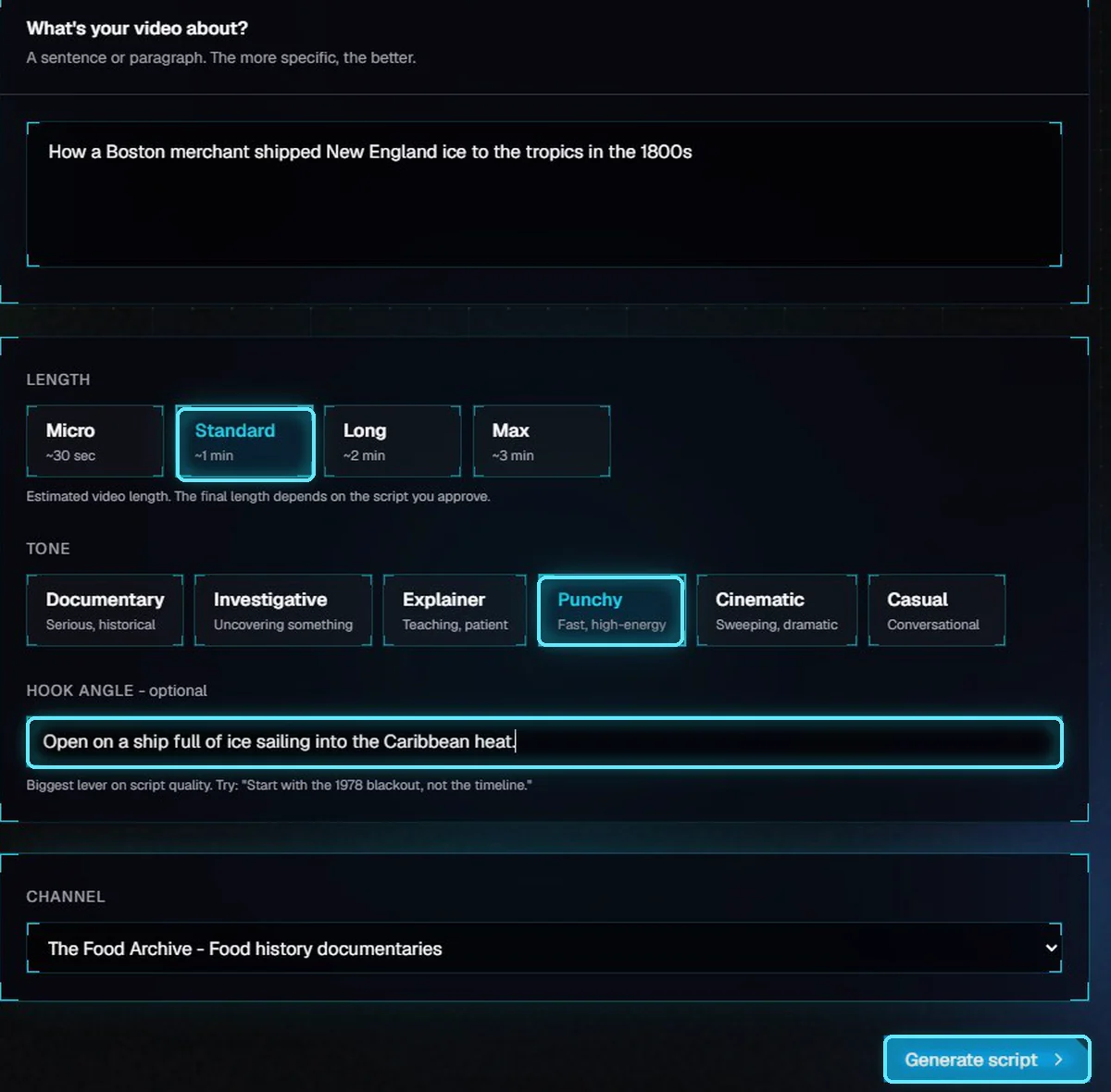
Standard length, Punchy tone, a hook angle, then Generate script.
Click Generate script.
3. Research and the outline
VidNexus researches the topic first, the same as for a long video: it reads Wikipedia and web sources and pulls out the facts, dates and names the writer will use. On a local model this usually takes one to three minutes; ours took about a minute.
Researching the topic.
The outline lists the Sources the research used. A Short gets a single section, called Script. Click it to see its angle; you can edit the angle to steer the script. Then click Generate section.
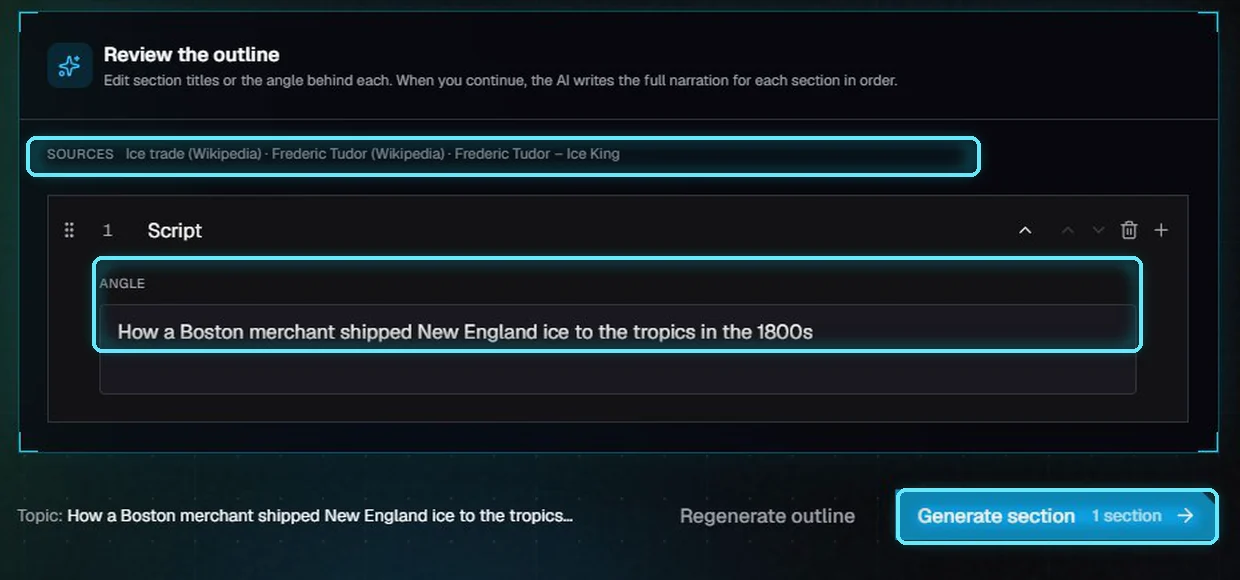
The sources, and one section for a Short. Edit the angle if you like.
4. Review the script
The script is written in one pass. It's told to open on the hook, tell one story and stay close to the length you picked. The word count and an estimated length show above the script. Shorts can come out a little under the target: our Standard Short was 102 words, about 35 seconds.
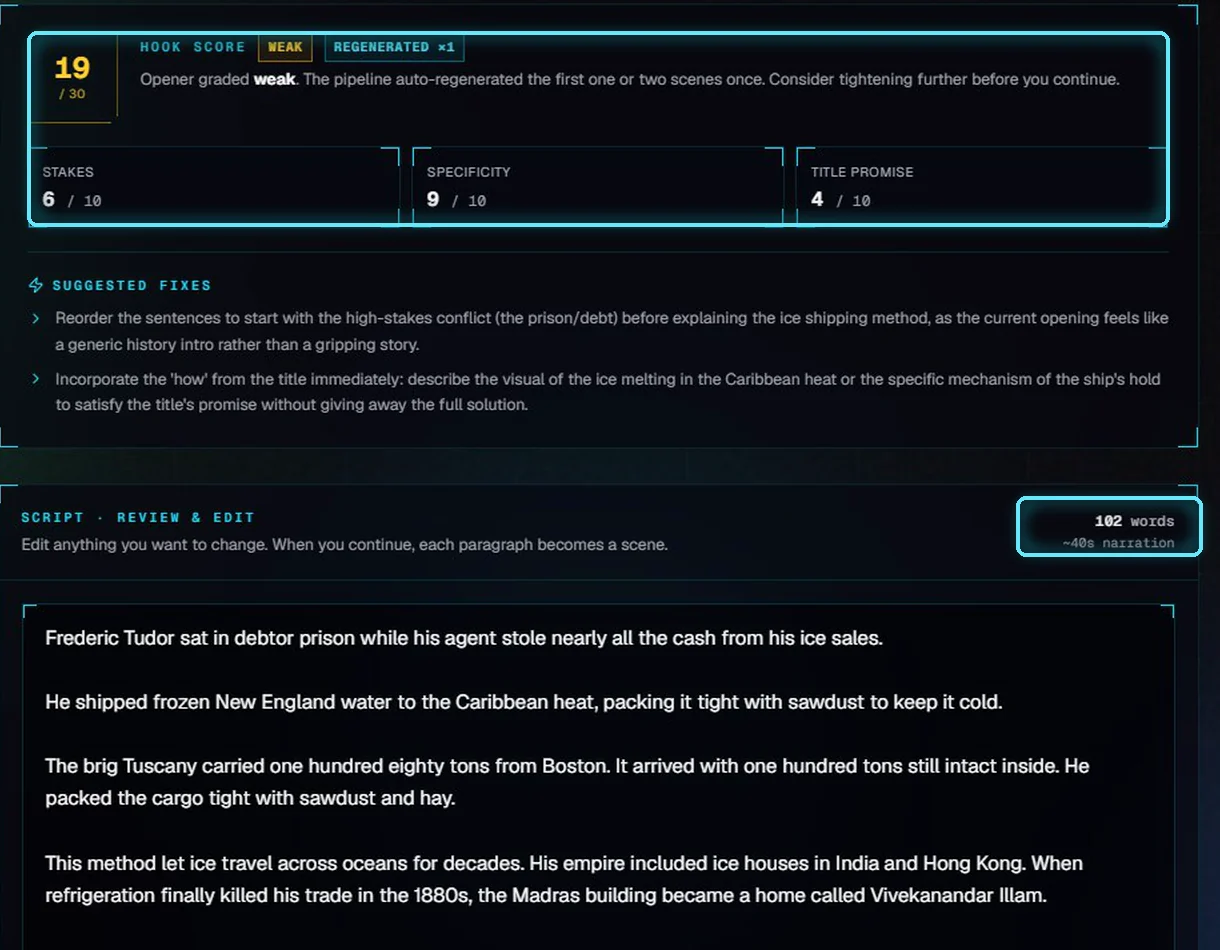
Hook score, and the script with its estimated length.
The hook score grades the opening for stakes, specificity and the title's promise. If it's weak, VidNexus rewrites the opening once and lists what to tighten.
The fact-check compares the script with the research and flags lines it couldn't confirm, each with a suggested rewrite you can apply in one click. When every claim checks out, it shows CLEAR, as it did here.

The fact-check came back clear.
Check names, dates and numbers yourself. The facts are pulled from web sources by the AI model, so a line that passes the fact-check can still be wrong. Edit anything you like in the script box; each paragraph becomes one scene. Then click Continue to voice & visuals.
5. Video settings
Video settings shows the Format (9:16 Short) and lists durations in Shorts lengths. The Creative Setup column says motion graphics are off for this video, so its settings don't change the build.
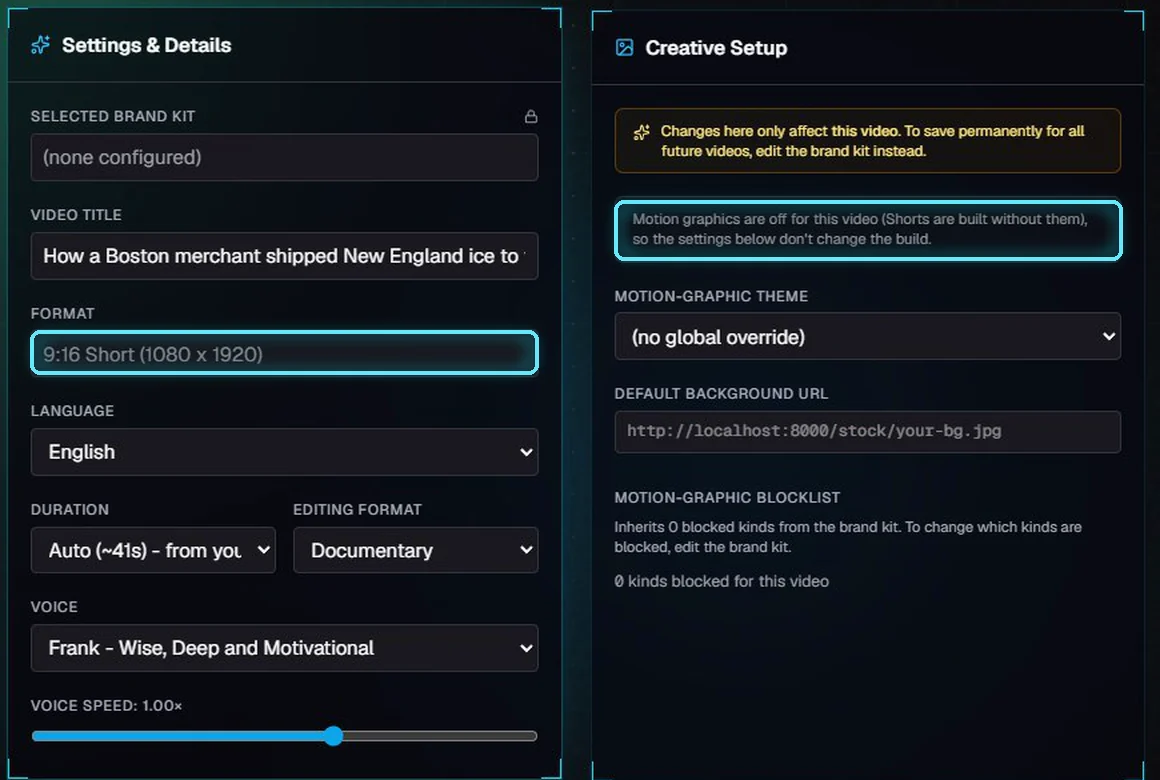
The Format field and the motion graphics note.
Check the voice and the footage sources, then click Approve & build.
6. Build the Short
The build runs the same pipeline as a long video: a voiceover for each scene, footage matched to each line, captions, and the final render. Our Short took about a minute. You can leave the page; it keeps working in the background.
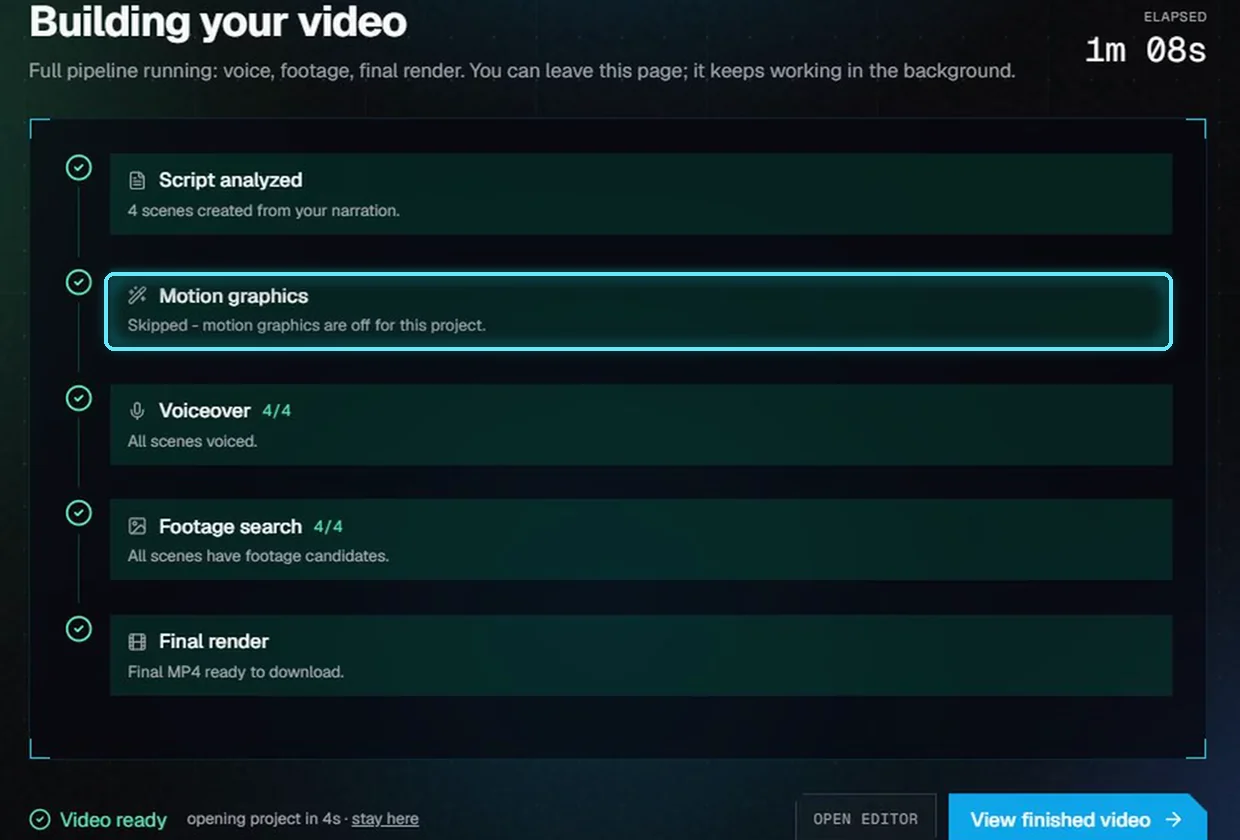
The build, with motion graphics skipped.
7. The finished Short
When it's done, the project page shows the Short in its vertical frame, ready to Download MP4 or publish to YouTube.
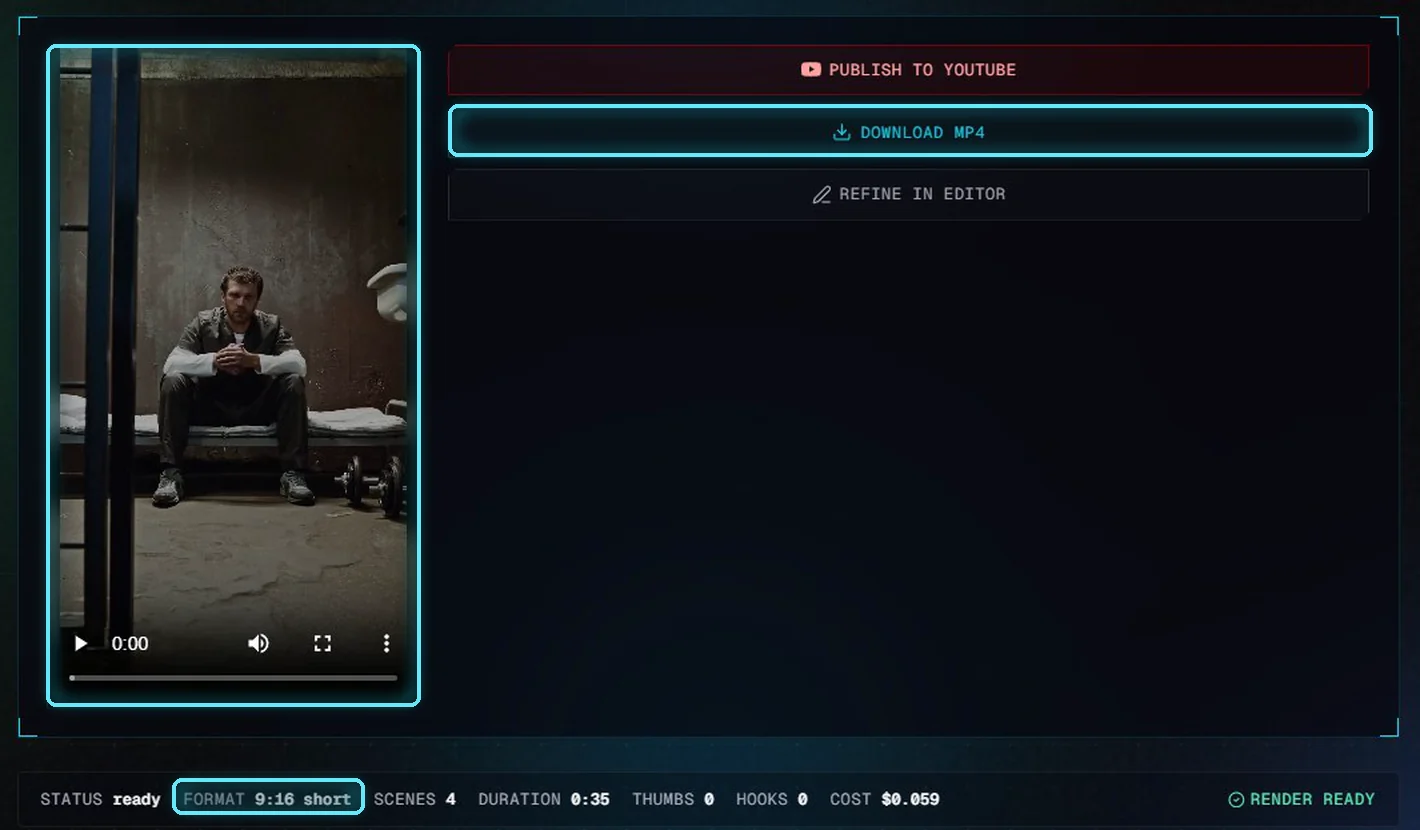
The finished Short on the project page.
To change scenes, footage or captions, click Refine in editor. The editor works the same as for any other video, and its preview is vertical too. To change the caption style, open Settings in the editor's right-hand panel and pick another style under Caption style, then click Render.
Tips for good Shorts
One story. A Short has room for one idea and one payoff.
Lead with the surprise. Put the most surprising fact in the hook angle.
Start with Standard. About a minute suits most topics. Go longer only if the story needs it.
Read the script before you build. Building uses voice credit; editing the script first is free.
Troubleshooting
The fact-check says NOT RUN. The research step came back empty, usually because the local model timed out or the web sources couldn't be reached. Click Regenerate outline to run it again.
The Short is shorter or longer than I picked. The length is an estimate. Edit the script before you build, or pick another length.
A name is spelled wrong in the captions. Captions use the script's spelling. Fix the name in the scene's narration, regenerate its voice, and render again.