
Bring your own script
Paste a script you wrote, mark where the titles, quotes and sources go, and VidNexus builds the video around your words.
A 3-minute video version of this guide will play here. Everything it shows is written out below.
Already have a script? VidNexus doesn't need to write one. Paste yours, and each paragraph becomes a scene with its own voiceover and footage. Six short markers add chapter titles, headlines, quotes, sources, name cards and bullet lists. This guide pastes a short script about the ice trade, for a food history channel, and takes it all the way to the finished video.
Before you start
Your script as plain text. Markup is optional: an unmarked script works, every paragraph becomes a narrated scene.
An ElevenLabs key in Settings for the voiceover.
For Mark it up for me, your AI model running (see AI model in the top bar).
1. Paste your script
Click New project, then Paste script.
Keep Landscape for a YouTube video. Shorts turns motion graphics off, so markup there makes plain cards.
Paste the script into the box. Leave an empty line between paragraphs: each paragraph becomes a scene.
Under the box, the counter shows how many words will be spoken and for how long. It counts only narration: card text and tags aren't spoken.
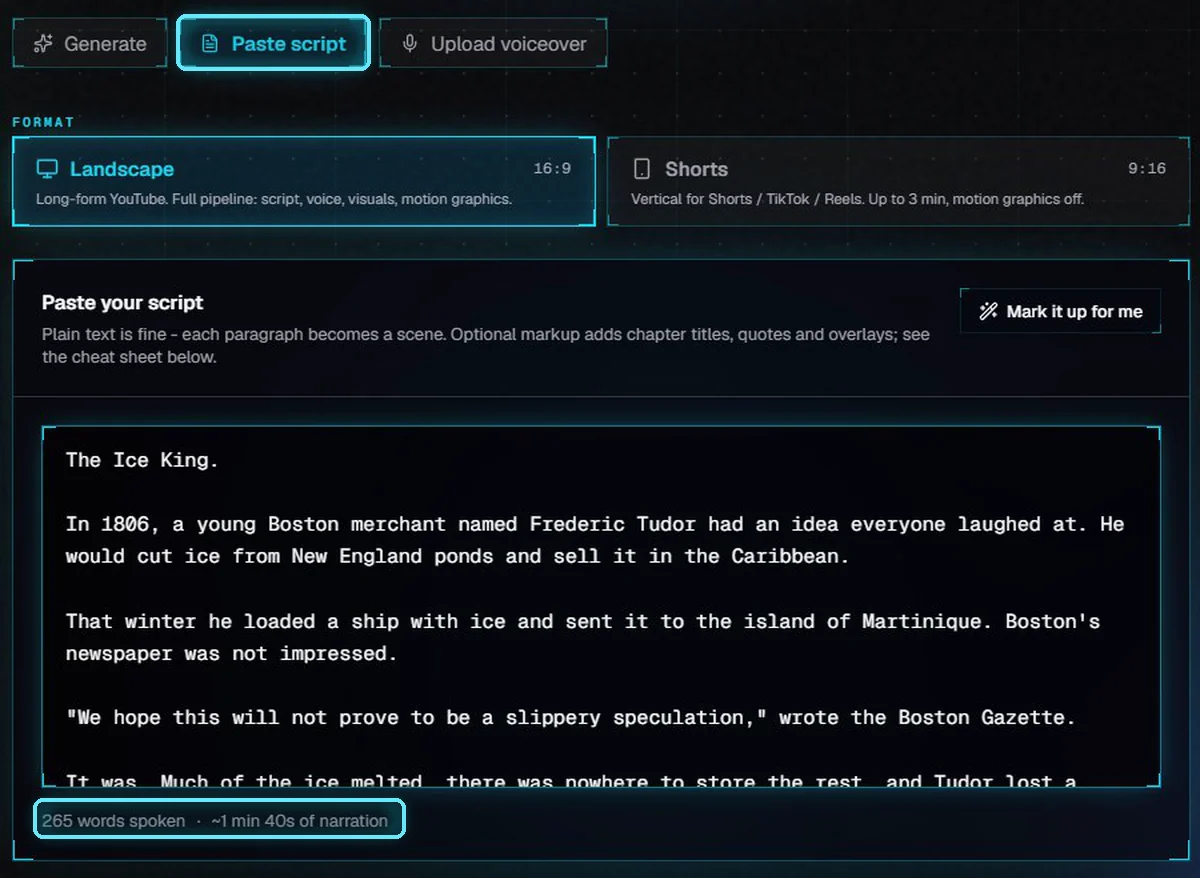
Paste script, the script, and the spoken word count.
2. Mark it up for me
Don't want to write markup by hand? Click Mark it up for me. Your AI model adds markup where the script clearly calls for it: a quote with a name, a source, a person, a list. It never changes your words. If the model rewrites a sentence instead of only adding markup, its version isn't used and your script stays as it was.
Ours took about 25 seconds and added a quote, a source, a name card and a bullet list. The note under the box says what it added; Undo puts your script back.
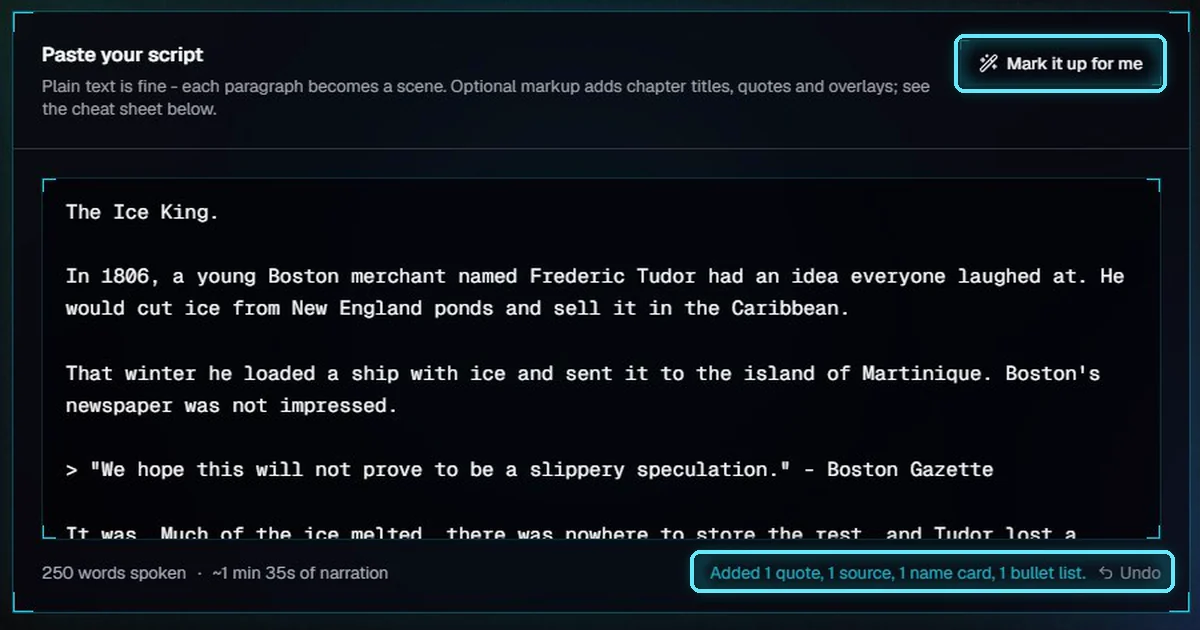
What Mark it up for me added, and Undo.
Read what it added before you go on. It is a starting point: change or remove any of it, or add your own.
3. The six markers
Open Markup cheat sheet under the box for the full list with examples.
Marker | Write | Makes | Example |
|---|---|---|---|
Chapter title |
| A numbered chapter title card, about 4 s, no voiceover. The subtitle is optional. |
|
Headline |
| A newspaper headline card, about 4.5 s, no voiceover. |
|
Quote |
| A quote card with the name and role, on screen long enough to read, no voiceover. |
|
Source |
| The source over the footage, after the sentence it follows. The detail is optional. |
|
Name card |
| A name card at the bottom left of the footage. |
|
Bullet list |
| A bullet list over the footage, one item at a time. |
|
Block markers (
#,##,>) sit on their own line and become their own scene, a card with no voiceover. If you want the line spoken too, write it again as a normal paragraph.Inline tags (
{{...}}) sit anywhere inside a paragraph and become an overlay on that scene's footage. A source shows after the sentence it follows.Write a dash with spaces (
-) between the quote and who said it.
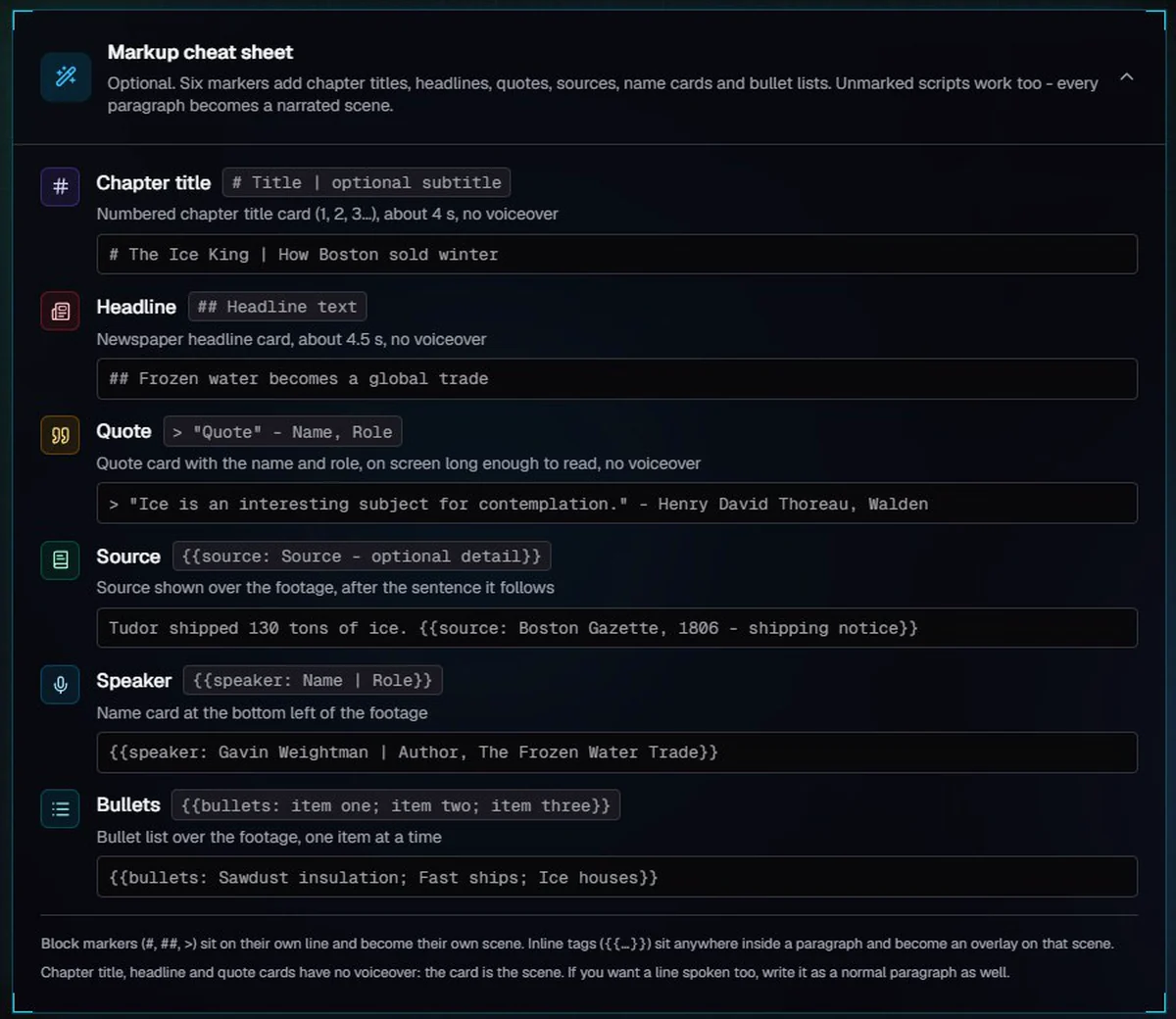
The cheat sheet: each marker, what it makes, and an example.
4. Review the scenes
Click Continue. VidNexus splits the script into scenes and opens the script review.
Each card is one scene. A badge marks cards with no voiceover: Chapter title card, Headline card, Quote card.
Chips under a scene show what its markup adds: a subtitle, who said a quote, a source, a name card, a bullet list.
The word count at the top counts only what will be spoken.
Edit any card's text here and it keeps its graphic. Empty a card to delete that scene.
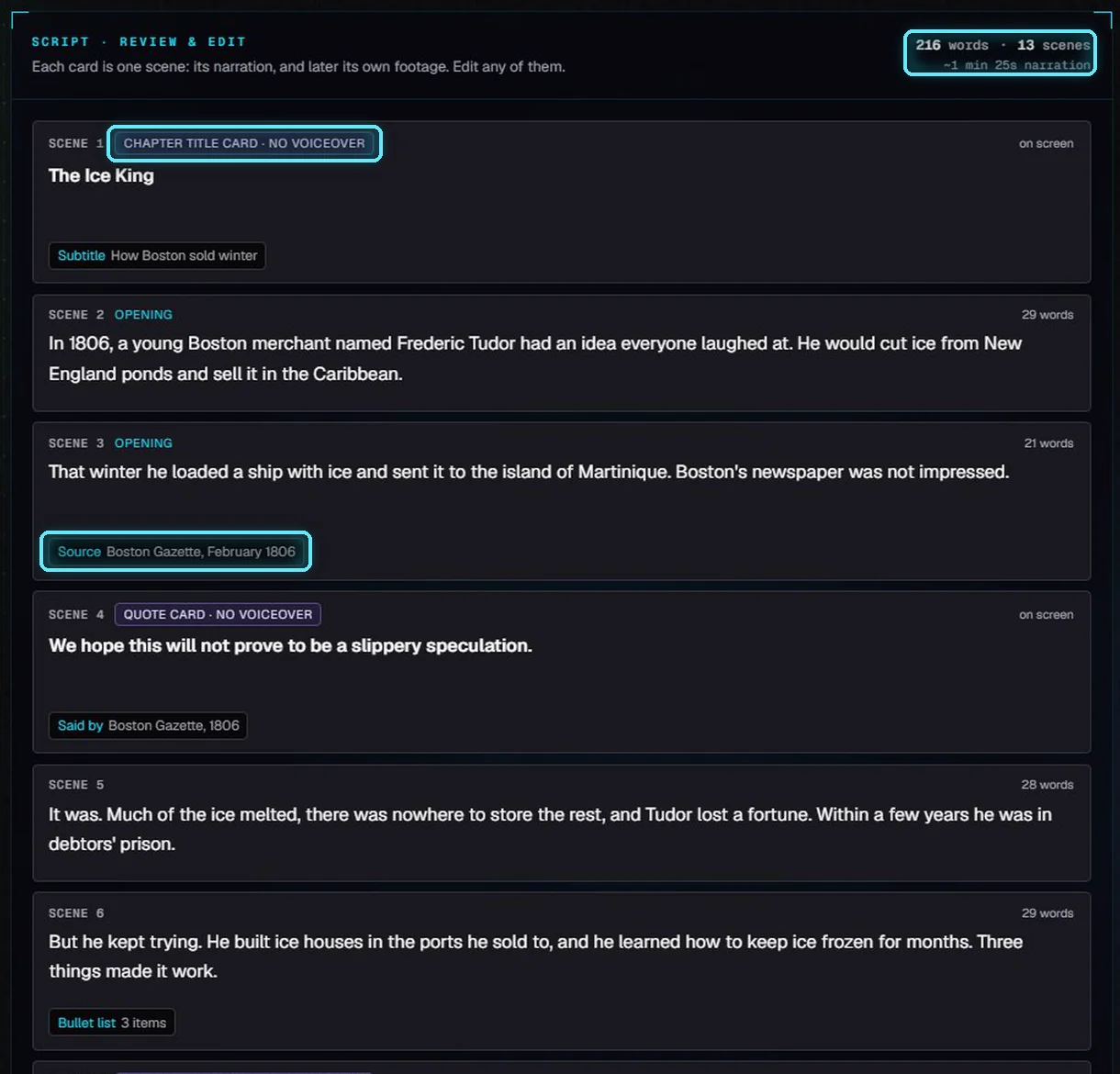
Cards, their kind, and what the markup adds.
The project also gets a title, written from your script. You can change it in Video settings.
5. Edit the whole script
To change the markup itself, click Edit the whole script under the scenes. The script comes back in one box, with all its markup. Edit it, then click Save and split into scenes.
We gave the second chapter a subtitle: # Ice goes global | Boston ice reaches India.
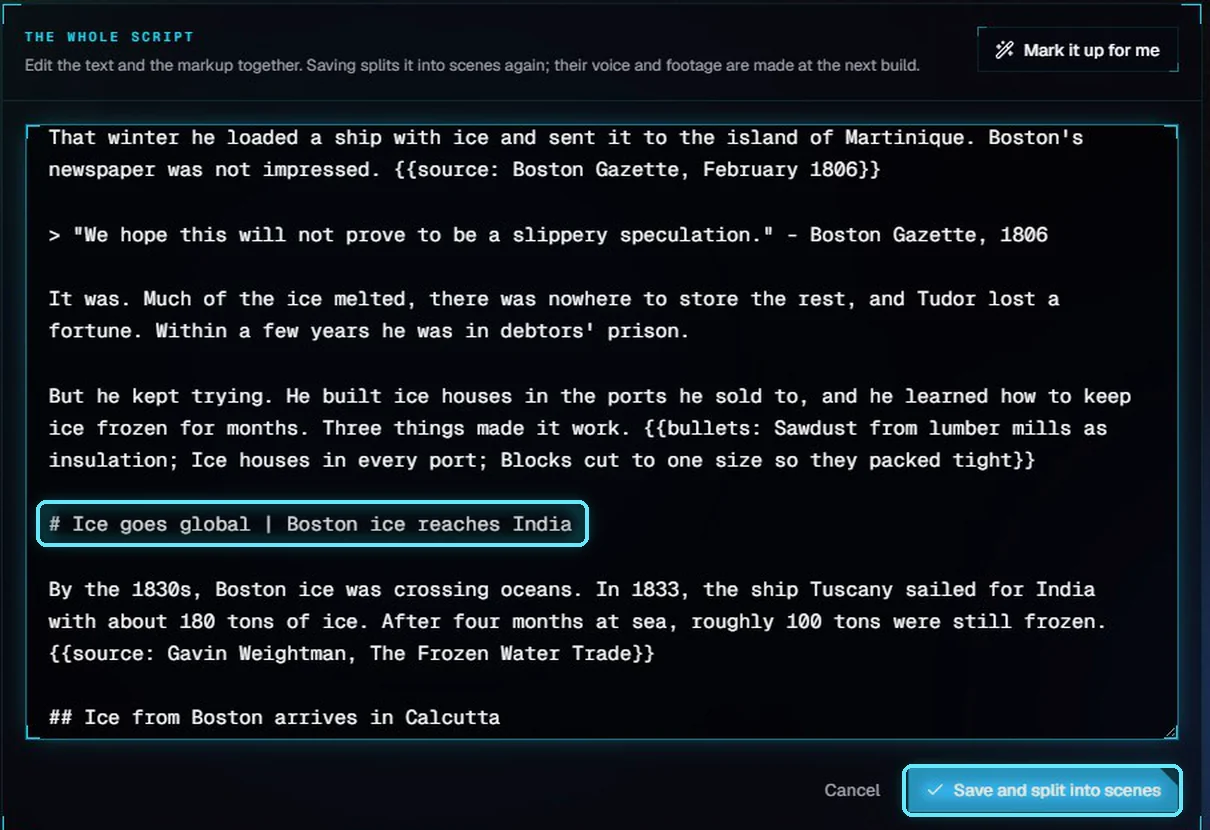
The whole script in one box, with the new subtitle.
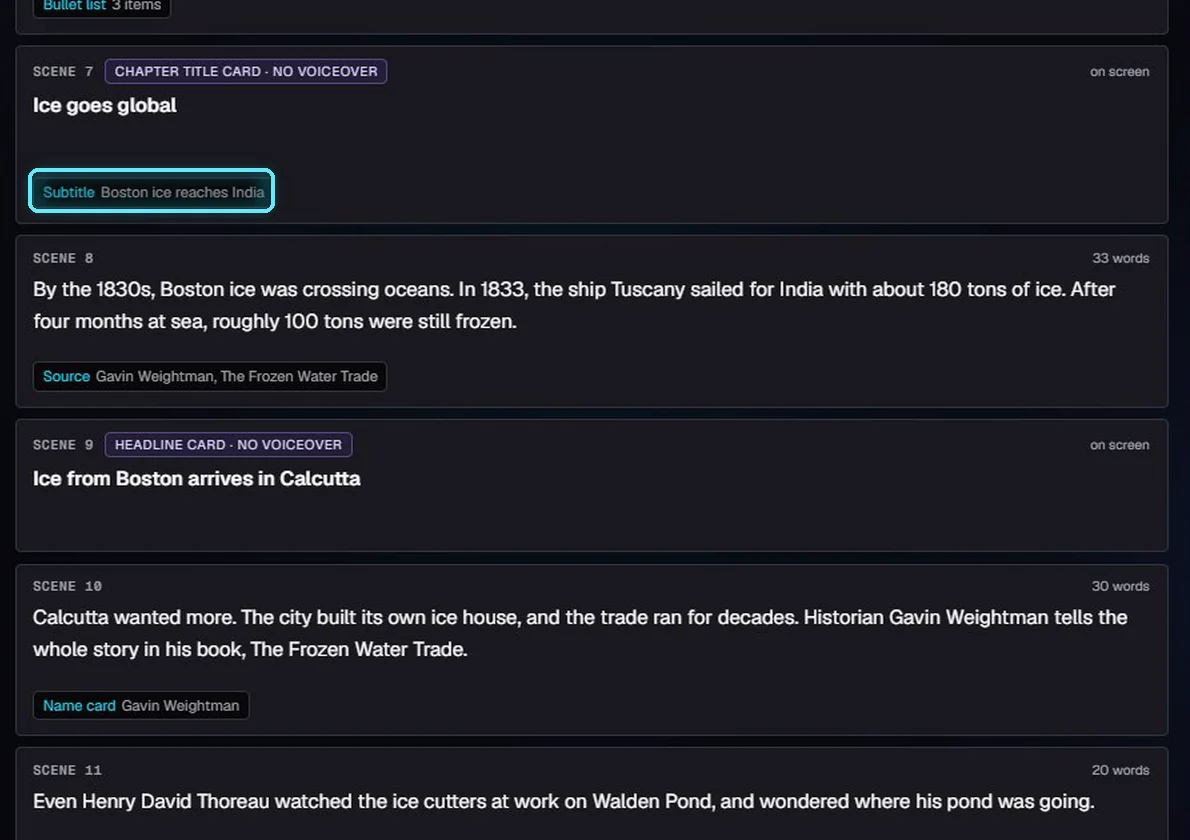
After saving, the chapter title card shows its subtitle.
Saving splits the script again. The voice and footage are made at the next build, so nothing is lost.
6. Build it
Click Continue to voice & visuals. Pick the narrator; we picked Nate the Great.
Check the cost. Only the narration is voiced, so cards cost nothing. This script cost 11 cents.
Click Approve & build. VidNexus makes the graphics, the voice and the footage, then renders the video. This one took under three minutes.
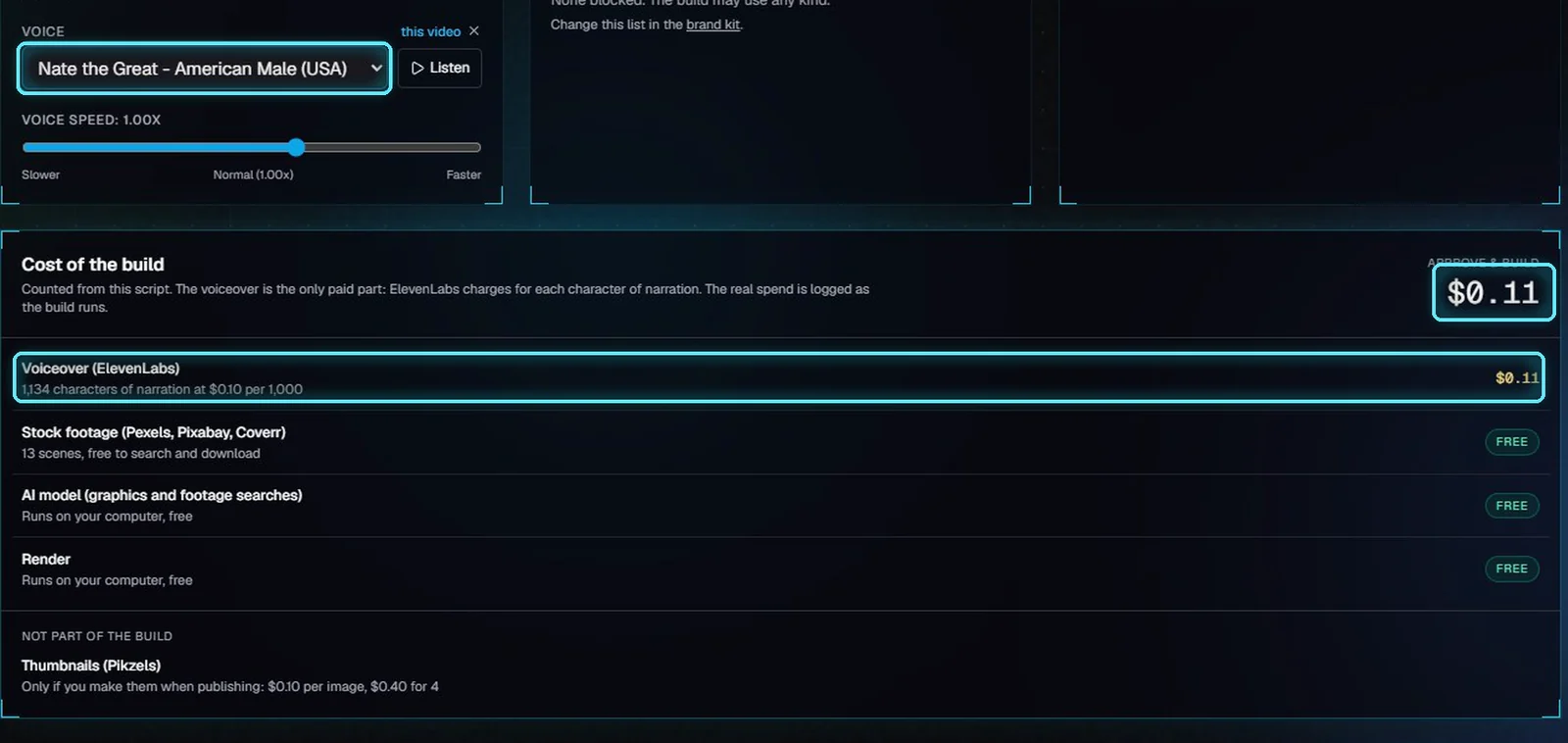
Nate the Great, and 11 cents: all of it narration.
Line | Cost | Why |
|---|---|---|
Voiceover (ElevenLabs) | $0.11 | 1,134 characters of narration at $0.10 per 1,000. Cards aren't voiced. |
Stock footage | Free | Pexels, Pixabay and Coverr have free APIs. |
AI model | Free | Runs on your computer. Mark it up for me uses it too. |
Render | Free | Runs on your computer. |
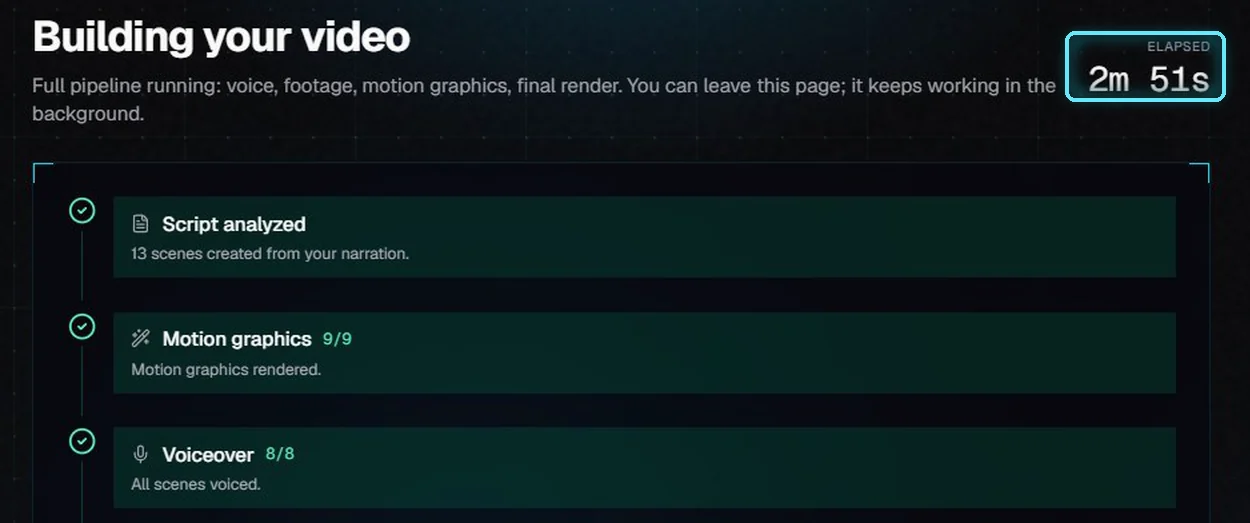
The build: graphics and voice done in under three minutes.
7. The result
Every marker becomes a motion graphic in the finished video. Titles, headlines and quotes are full-screen cards; sources, name cards and bullet lists sit over the footage.
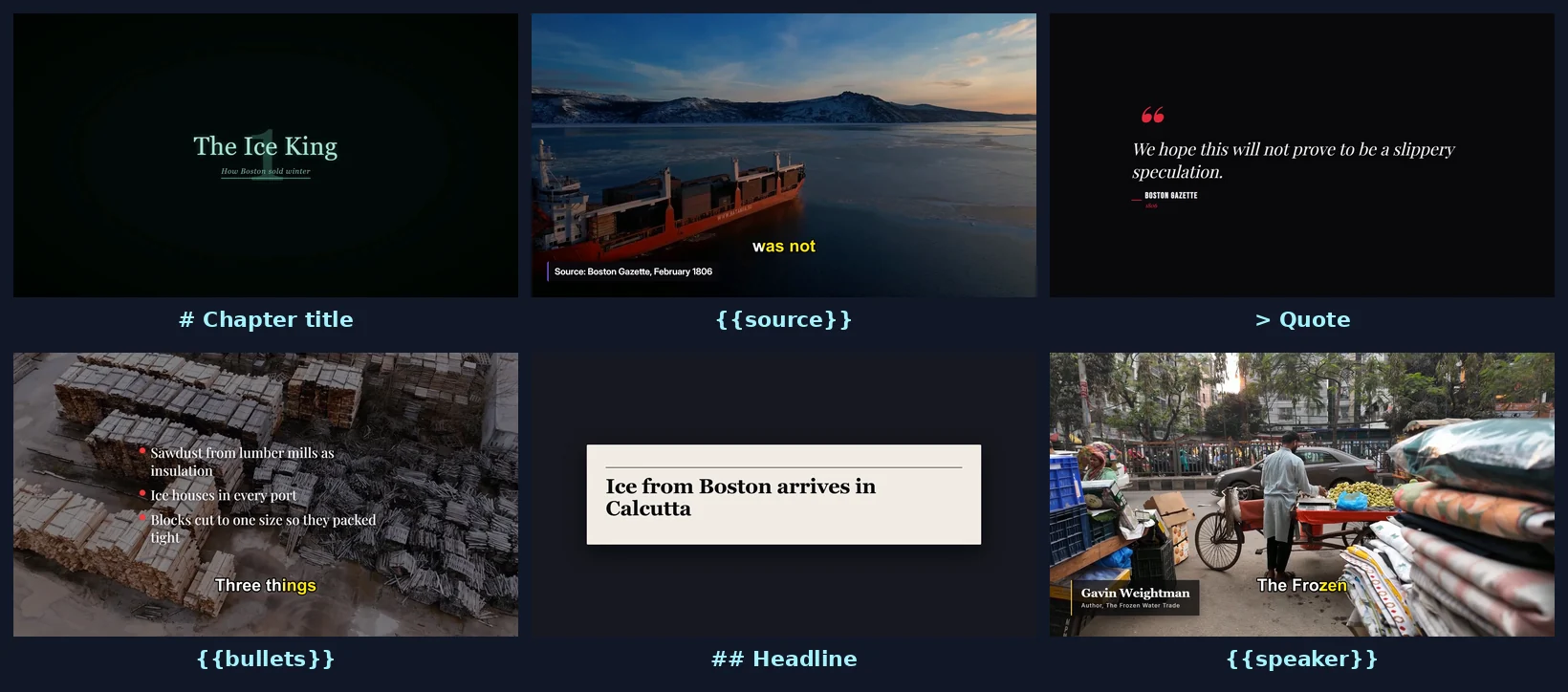
The six markers in the finished video.
Next: Thumbnails with Pikzels.
Tips
Write one idea per paragraph. Each paragraph is a scene with its own footage, so short paragraphs keep the pictures changing.
Put a source right after the sentence it backs up, inside the same paragraph.
Quotes stay on screen long enough to read, so keep them to a sentence or two.
Run Mark it up for me first, then fix what it added. It is faster than marking a long script by hand.
Troubleshooting
Mark it up for me is greyed out. It needs at least 20 spoken words in the box.
"The AI model changed some of your words..." The model rewrote a sentence, so its version wasn't used. Your script is unchanged. Try again, or mark it up by hand.
"Couldn't reach the AI model..." Check that the AI model is running (the dot in the top bar), then try again.
A marker shows as plain text. Block markers must start the line, with a space after #, ## or >. Inline tags need two braces on each side.
A card isn't spoken. That's by design: titles, headlines and quotes are cards. Write the line again as a normal paragraph to have it read out.