
A tour of the app
Where everything is, what the top bar tells you, and where to find help.
A 3-minute video version of this guide will play here. Everything it shows is written out below.
This guide walks around VidNexus once, so you know where to go for each job: the left menu, the Home page, the top bar, search, help and notifications, the Tools map, and how to run the guided setup again.
The screenshots use the demo channel The Food Archive, with two finished videos.
1. The left menu
The menu on the left is on every page. Its sections, top to bottom:
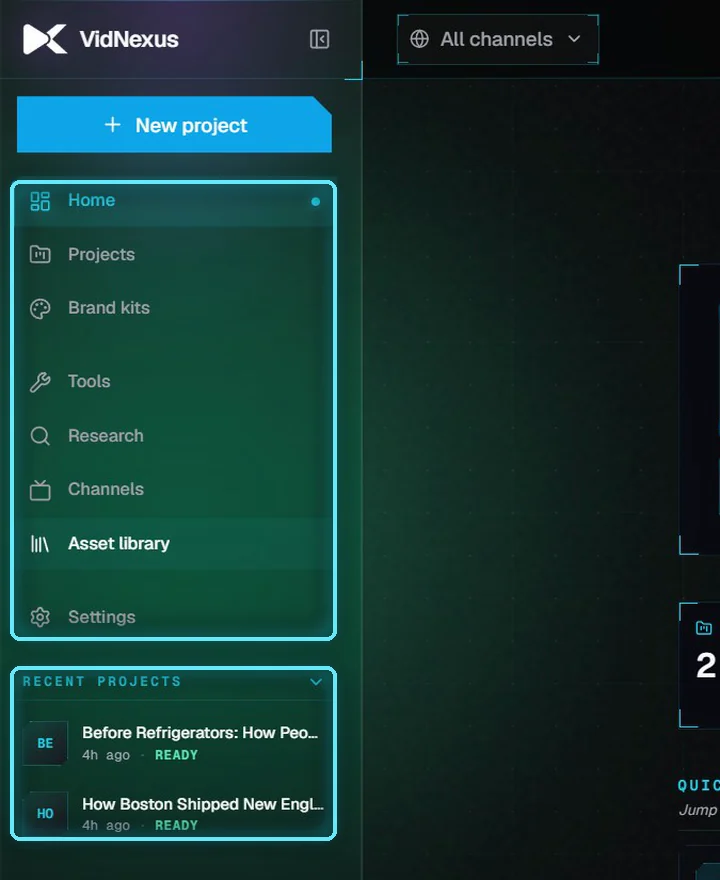
The left menu, with Recent projects underneath.
Section | What it's for |
|---|---|
Home | Starts a new video, shows what is building and opens your recent work. |
Projects | Every video you have made, filtered by status and channel. |
Brand kits | A channel's logo, voice and sourcing rules. |
Tools | Every tool on one map, grouped by what you want to do next. |
Research | Finds topics and keywords, and packages a video for YouTube. |
Channels | Your YouTube channels. Each has its own videos, voice and brand kit. |
Asset library | Searches stock footage and keeps the clips you save. |
Settings | Your AI model, API keys, storage and license. |
Under the menu, Recent projects opens your latest videos in one click. The New project button at the top goes to the Home composer from any page.
2. Start a video on Home
Home opens with the composer. Describe the video in one sentence, pick the channel it's for, and click Generate. Nothing is built straight away: you review the outline and the script first, and VidNexus makes the voice, footage and the finished video after that.
The + button next to the channel starts from your own material instead: Use my own script or Use my own voiceover.
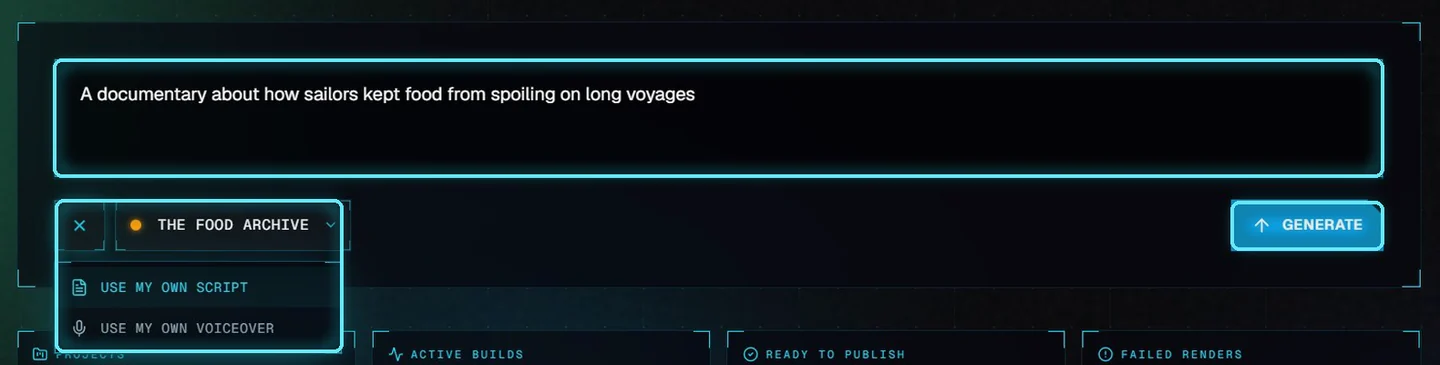
A one-sentence idea, the channel, and the + menu open.
3. Counters and Quick research
Below the composer, four counters show your projects: how many there are, how many are building, ready to publish, or failed. Quick research underneath opens a Research tool in one click.
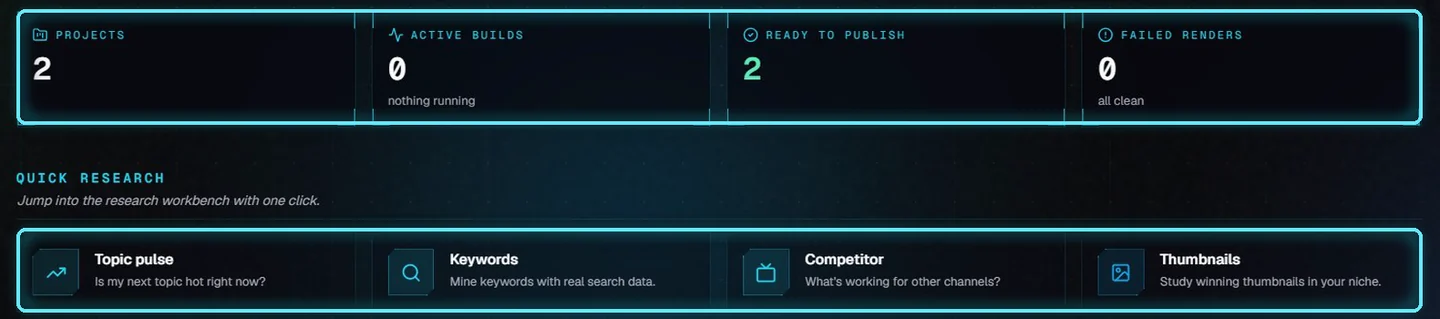
The four counters and Quick research.
Click a counter to see those videos. Ready to publish opens Projects with the Ready filter on.
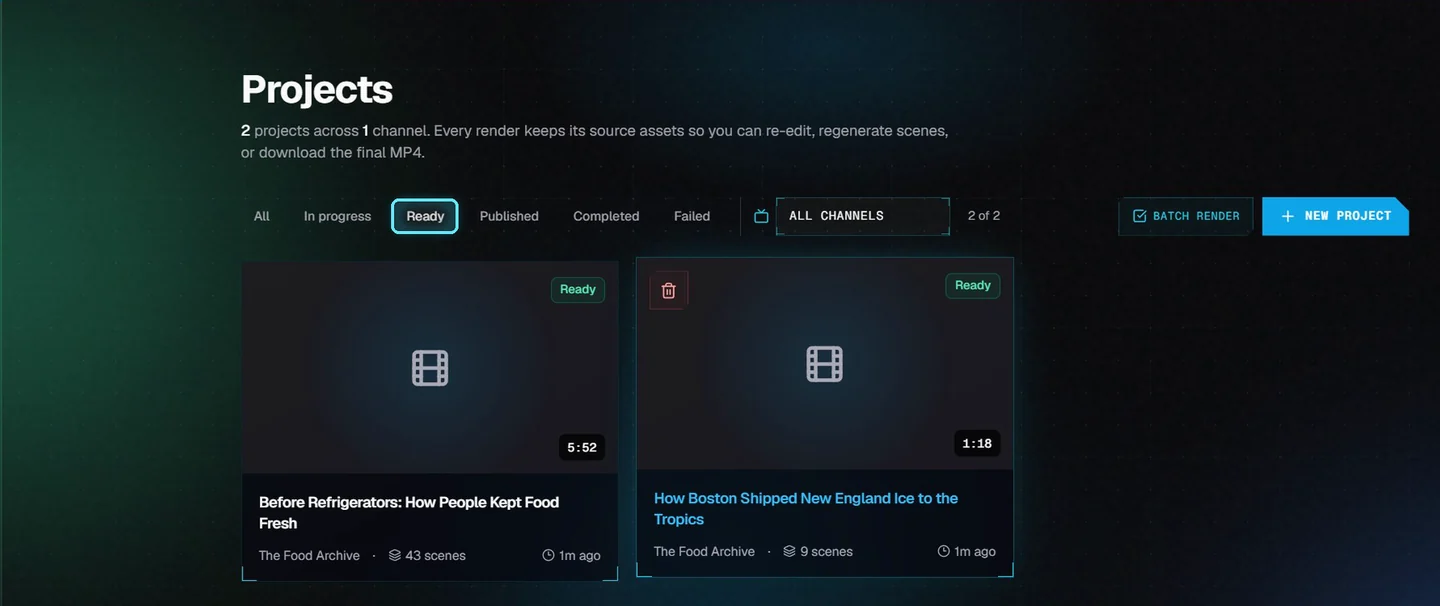
Projects, filtered to the videos that are ready.
Further down Home, Recent projects and Channels list your latest videos and your channels.
4. The top bar
The top bar is the same on every page. On the left, the channel switcher shows one channel's videos everywhere in the app, or all of them. It also links to Manage channels and New channel.
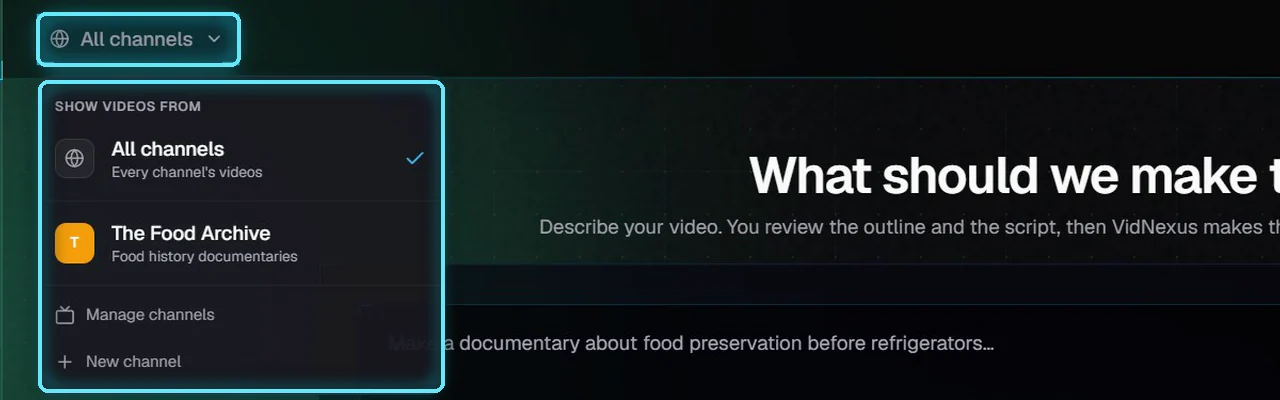
The channel switcher.
On the right, AI model shows whether the model that writes your scripts is ready. Click it to see which model is connected.
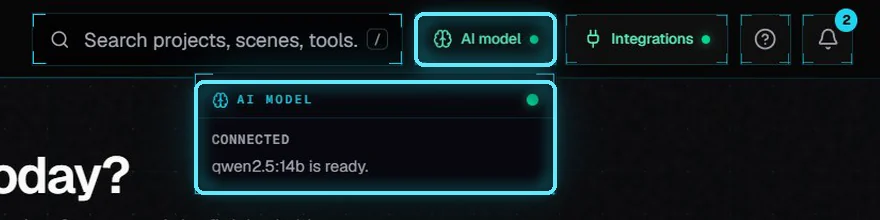
AI model: connected, qwen2.5:14b is ready.
Integrations shows which services are connected, like ElevenLabs for the voice and Pexels for footage. A green dot means it is set up; a red dot on either chip means something needs attention. Open Settings at the bottom goes to the API keys.
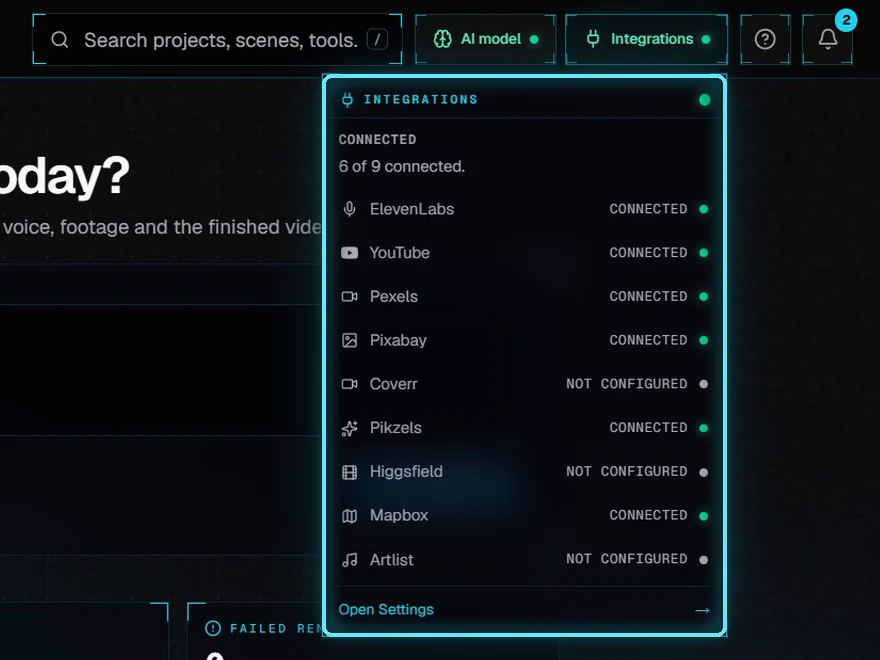
Integrations: 6 of 9 services connected.
5. Search
The search box finds projects (by title or topic), channels, brand kits, tools, and even words inside a video's narration. Press / anywhere outside a text field to jump into it, then type at least two letters. Use the arrow keys and Enter, or click a result.
Here, walden finds the two scenes that mention Walden Pond.
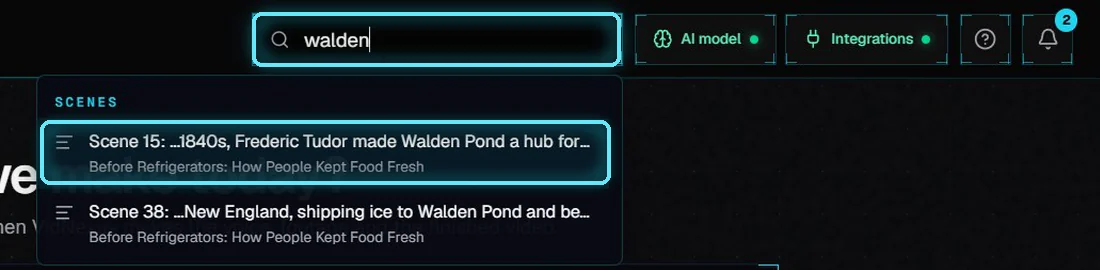
Scene results for "walden".
Click a scene result and the editor opens on that scene, already selected, with the playhead on it.
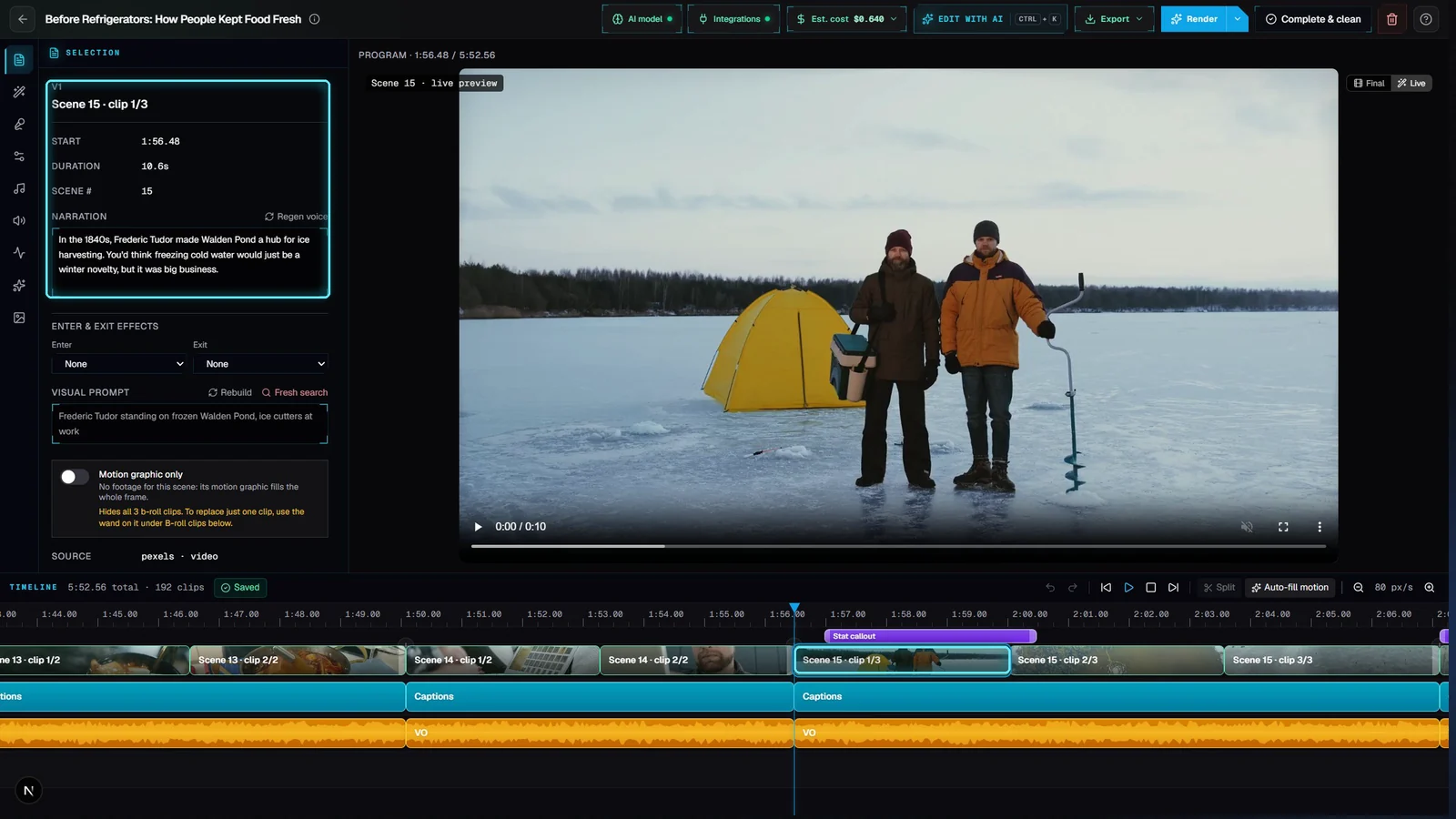
The editor opened on Scene 15.
6. Help and the bell
The ? button opens Getting around VidNexus, a one-page guide to making a video, the left menu and the top bar, with links to these tutorials and the documentation. In the editor, the same button lists the editor's shortcuts.
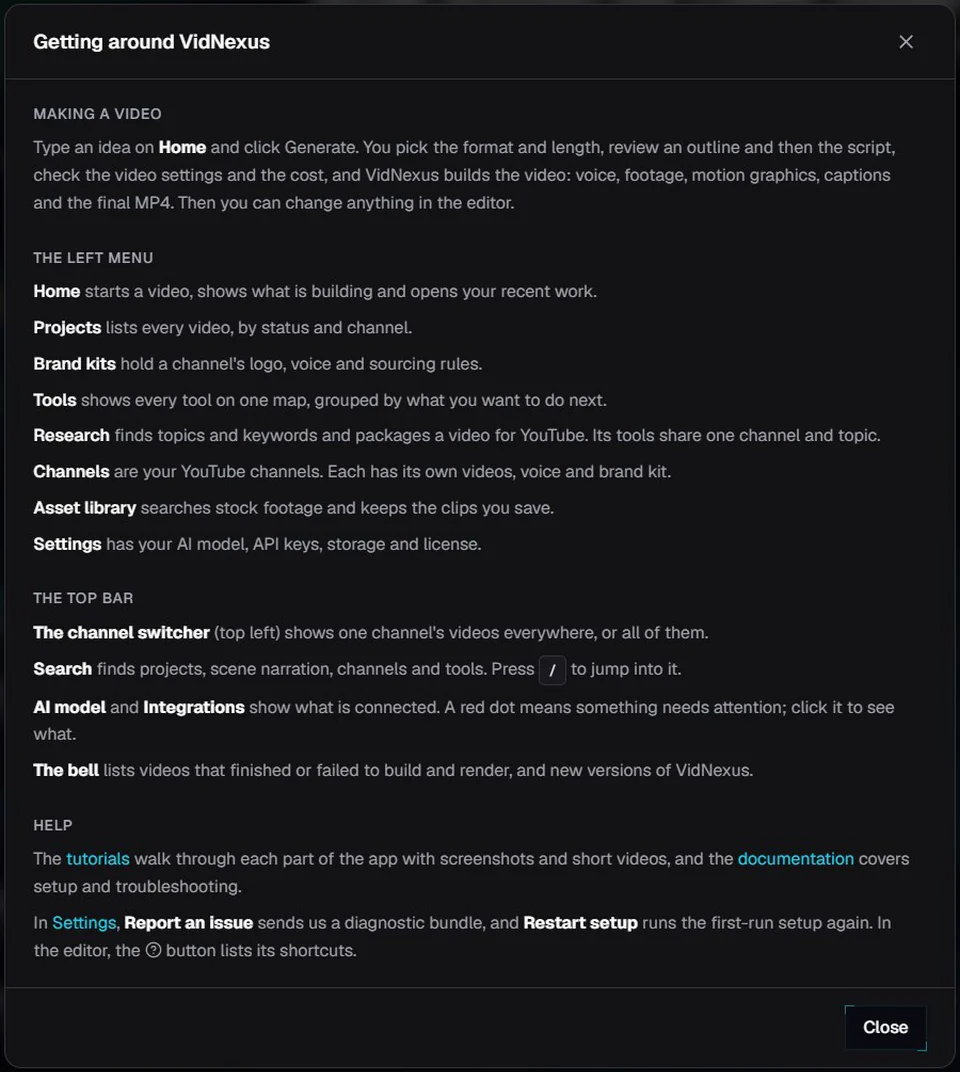
Getting around VidNexus.
The bell lists your videos from the last two weeks:
Video ready when a video finishes rendering.
Render failed or Build stopped when something went wrong, with the reason underneath.
Building while a video is still being made.
New version when a VidNexus update is ready to download.
The number on the bell counts what arrived since you last opened it. Click an item to open that video.
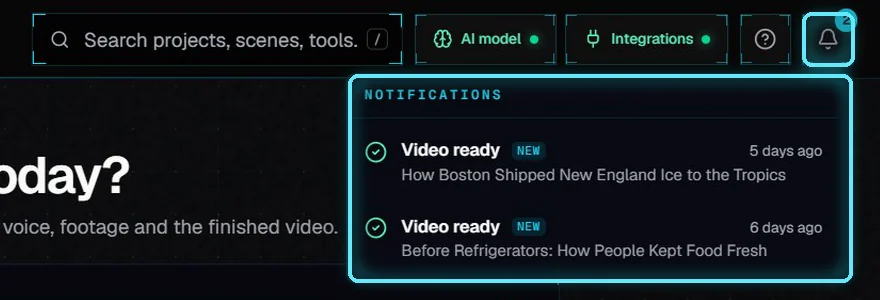
Two videos ready, both new.
7. The Tools map
Tools in the left menu puts all 19 tools on one map, grouped by what you want to do: Discover (find a topic), Strategy (frame it), Package (get it ready for YouTube), and Insights and utilities (see what's working, and everything else).
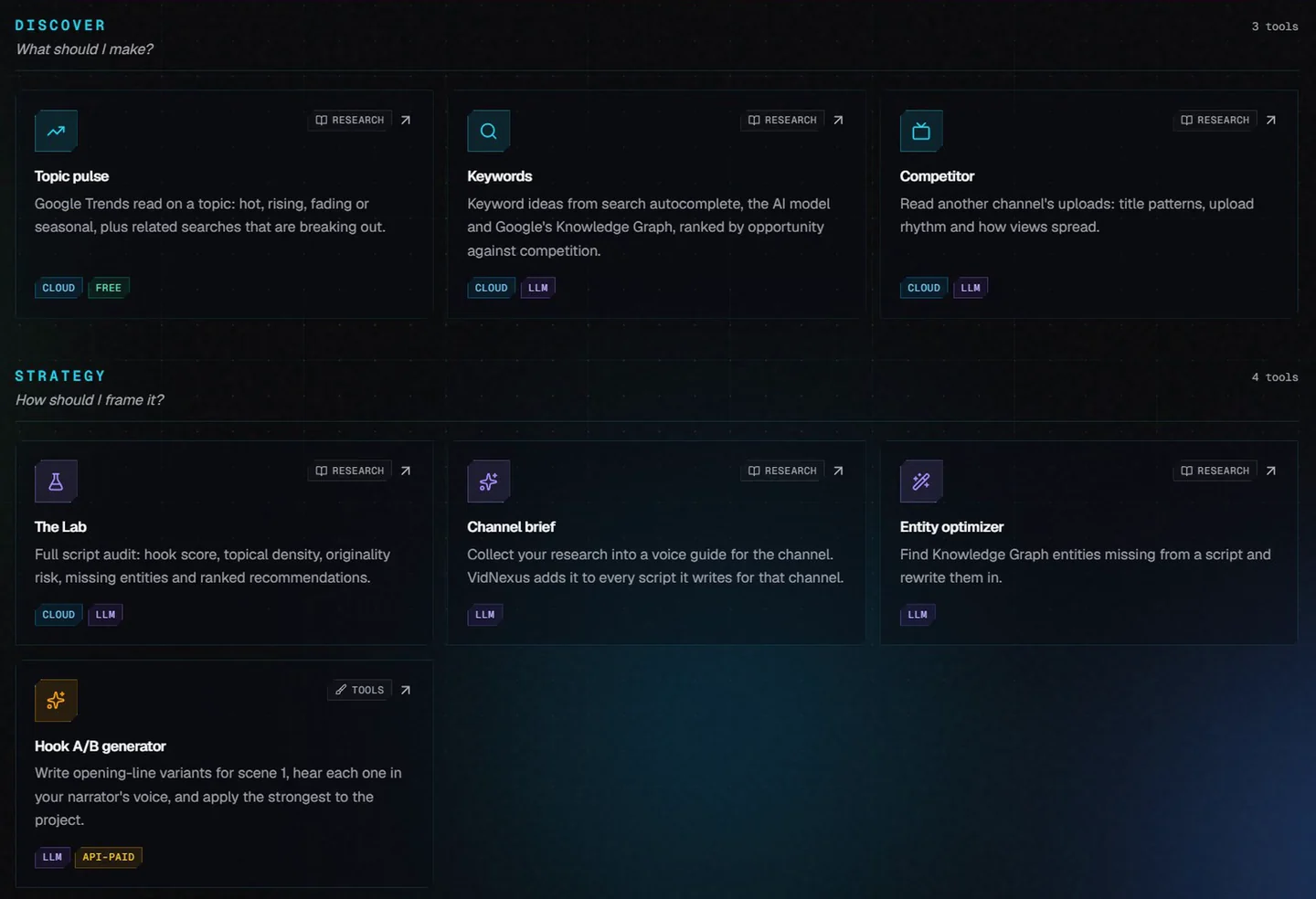
Discover and Strategy on the Tools map.
Each tile says what the tool does and where it lives, and links straight to it. Type in the box to find one, or use the chips to show only the tools from one part of the app.
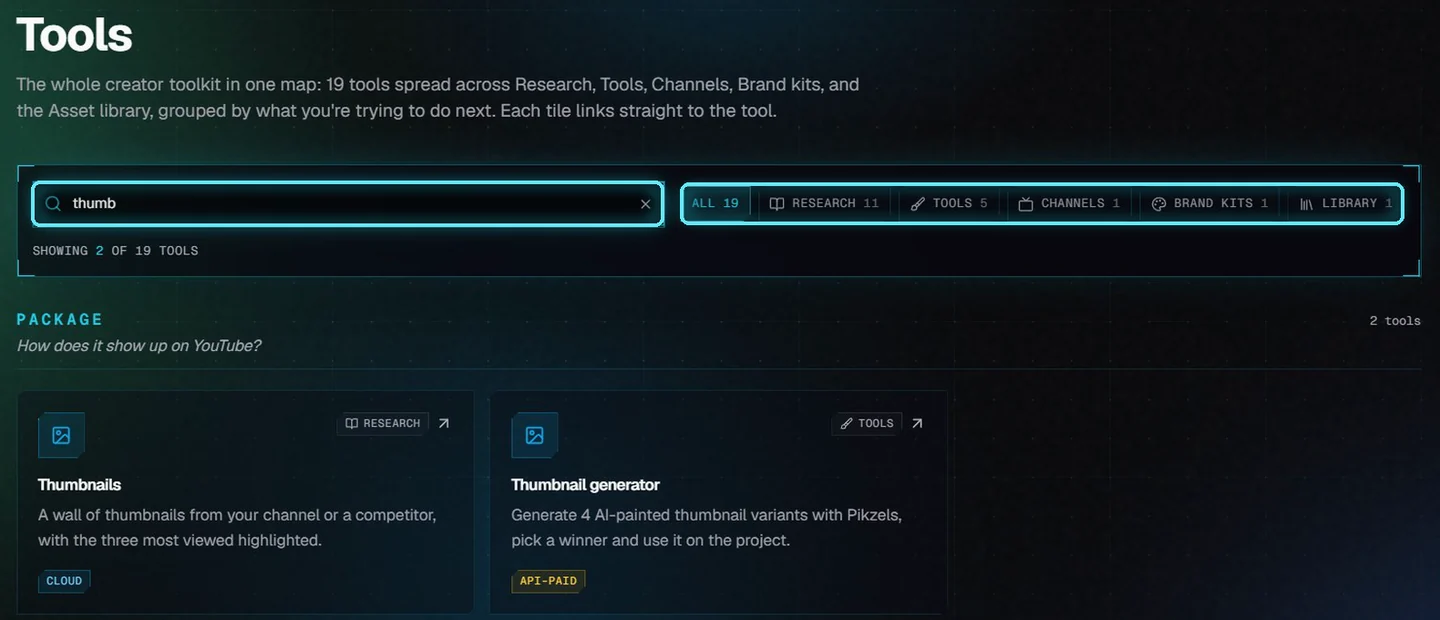
"thumb" finds the two thumbnail tools.
8. Restart setup
The first time you open VidNexus, a guided setup walks you through it. To run it again, open Settings and click Restart setup under Run the setup again.
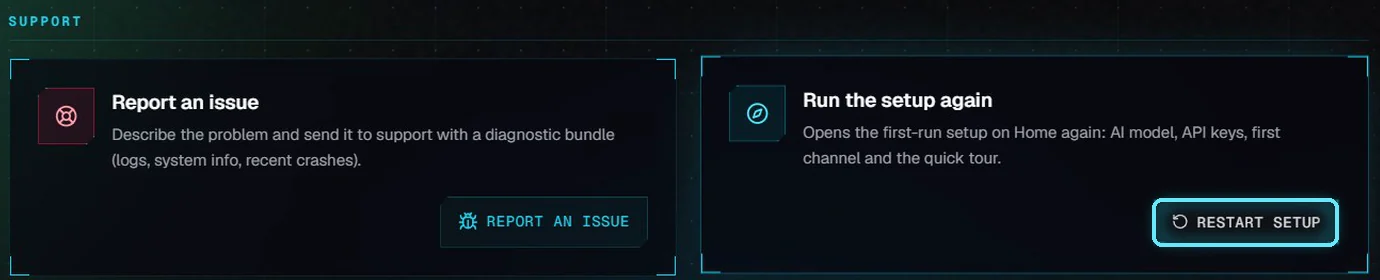
Settings: Run the setup again.
VidNexus asks first. Your channels, projects and keys stay as they are.
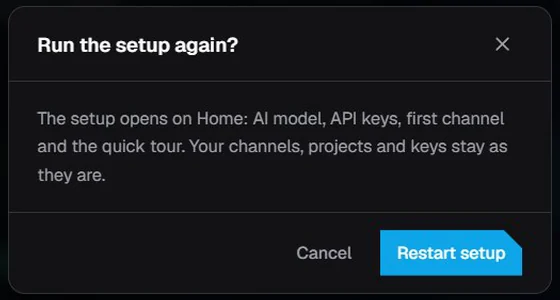
Confirm with Restart setup.
The setup opens on Home and goes through:
AI model. Checks that the model that writes your scripts answers.
API keys. The services for voice, footage and thumbnails.
First channel. You can skip this when you already have one.
Quick tour. A few tools from each group on the Tools map.
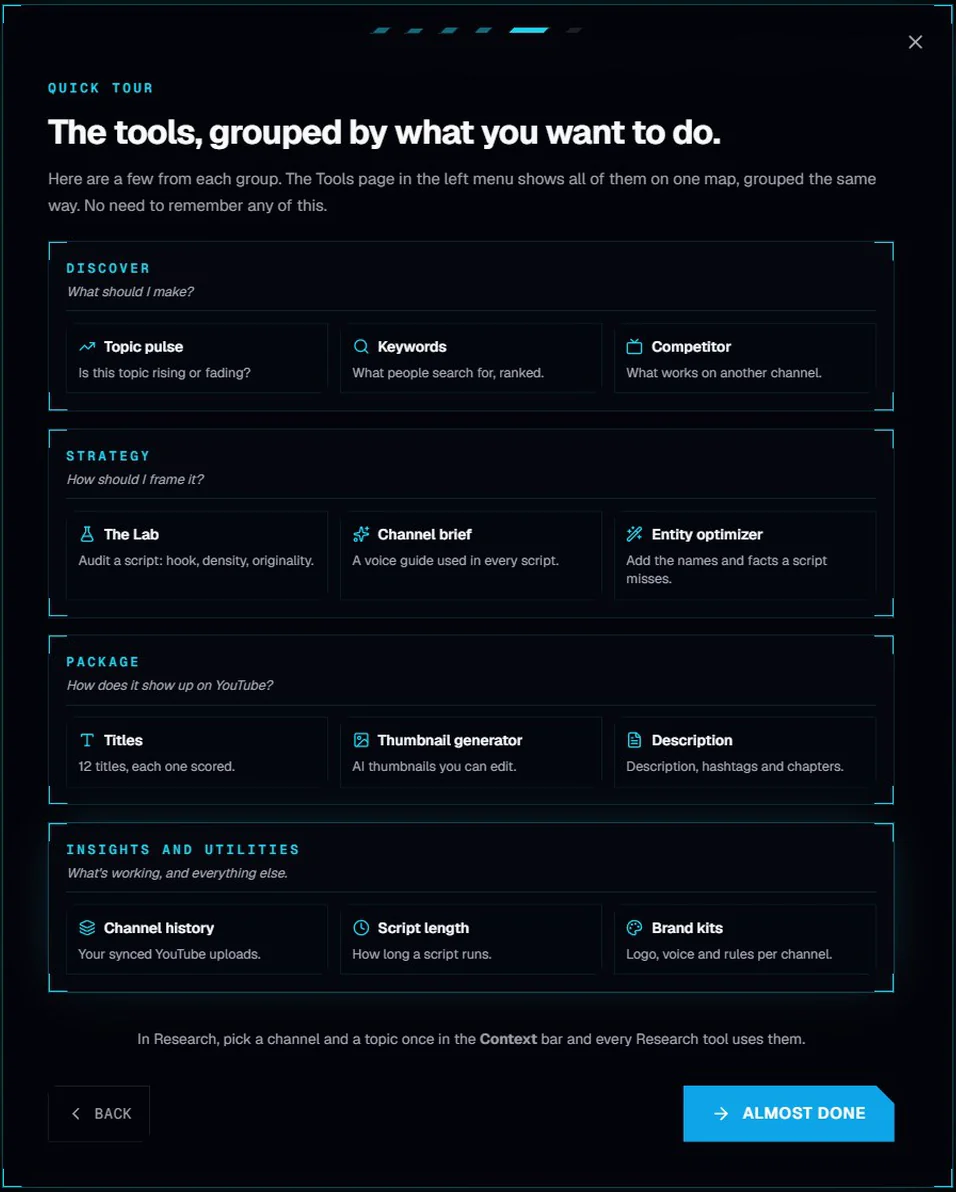
The Quick tour, grouped the same way as the Tools map.
It ends on the Home composer, ready for your next video.
Tips
Press / to search. It is the quickest way to reopen a project, find a scene by what it says, or open a tool.
Pick a channel in the switcher when you work on one channel, so Projects, Home and the counters only show its videos.
Watch the two chips. Before a long build, check that AI model and Integrations both show a green dot.
Troubleshooting
AI model shows a red dot. Click it to see the problem. For a local model, check that Ollama is running; the model is set in Settings.
Search finds nothing. Type at least two letters. Search matches the start of words, so ice finds iceboxes but not price. When you type several words, a result needs all of them.
The bell is empty. It lists videos from the last two weeks. Older videos are still in Projects.
No update notice. The New version notice comes from the desktop app's updater. It appears once a new version has been published and the app has checked for it.