
First-time setup
From a fresh install to your first video idea, in about five minutes.
A 4-minute video version of this guide will play here. Everything it shows is written out below.
This guide takes you from a fresh install of VidNexus to your first video idea typed into the composer. You'll need:
your VidNexus license key and the email address you bought it with
three API keys: Ollama web search (script research), ElevenLabs (voiceover) and Pexels (stock footage). All three have free tiers.
1. Activate your license
The first time you open VidNexus, it asks for your license key.
Paste the license key from your purchase email. It looks like
VN-XXXXX-XXXXX-XXXXX-XXXXX.Enter the email address you used at purchase.
Click Activate.
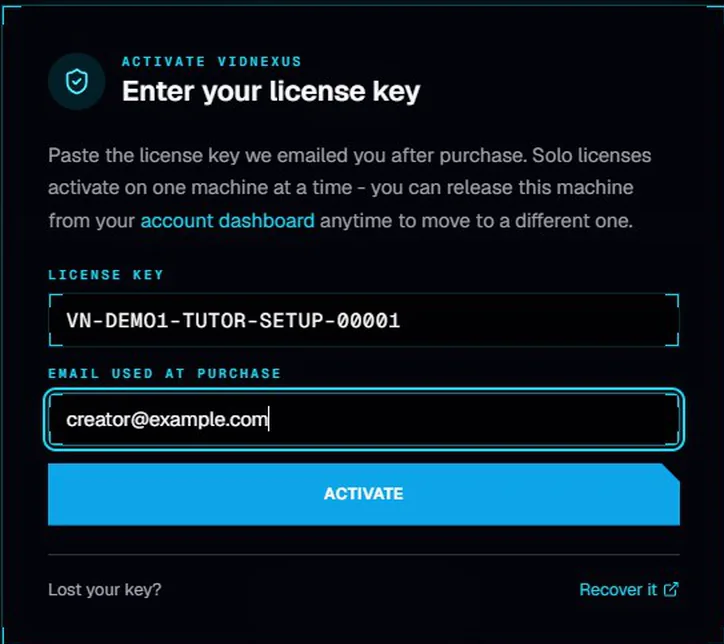
The license screen. The key shown is a demo key; use the one from your purchase email.
A Solo license runs on one computer at a time. To move it to another machine, release this one from your account dashboard at vidnexus.app/account. Lost your key? Click Recover it under the form to look it up.
2. Set up the AI model
Next comes a short setup wizard. Click Get started.
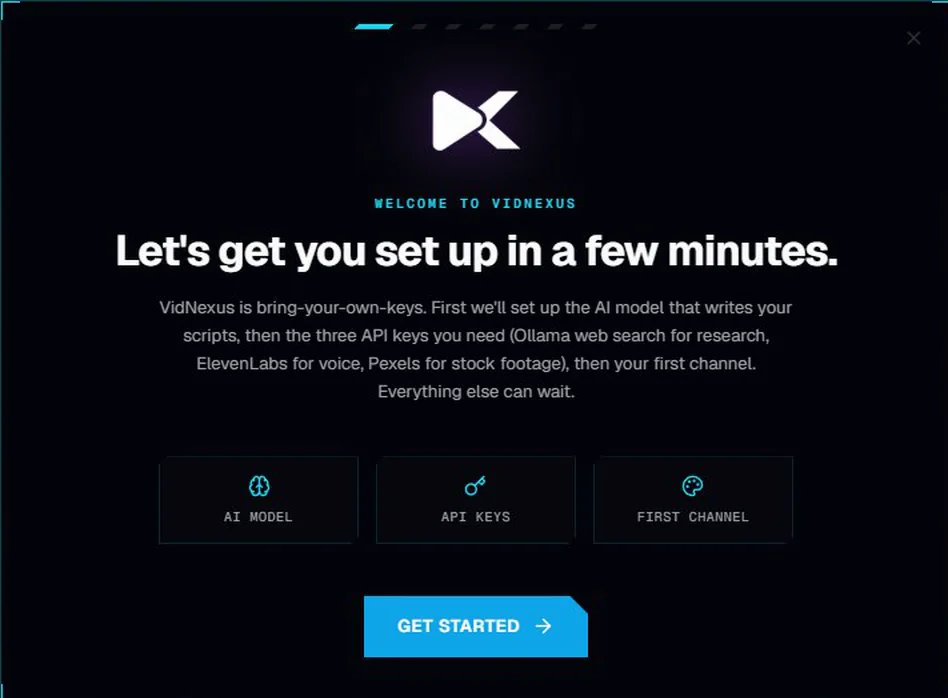
The setup wizard covers three things: the AI model, your API keys and your first channel.
VidNexus uses an AI model for scripts, research and every other AI feature, so this step is required.
Your hardware
VidNexus checks your graphics card and memory, and recommends a model that will run well on your machine. On most computers that's Qwen 3.5 9B, a 6.6 GB download that runs on an 8 GB graphics card. The recommended model is selected for you. You can pick a different one from the list, and change it later in Settings.
Install Ollama
The model runs locally through Ollama, a free app.
If you see Ollama not detected, click Download Ollama and run the installer.
You don't need to restart VidNexus. The page checks every few seconds and picks Ollama up on its own.
While Ollama isn't running, the Check that the AI model works panel shows a connection error. That's expected.
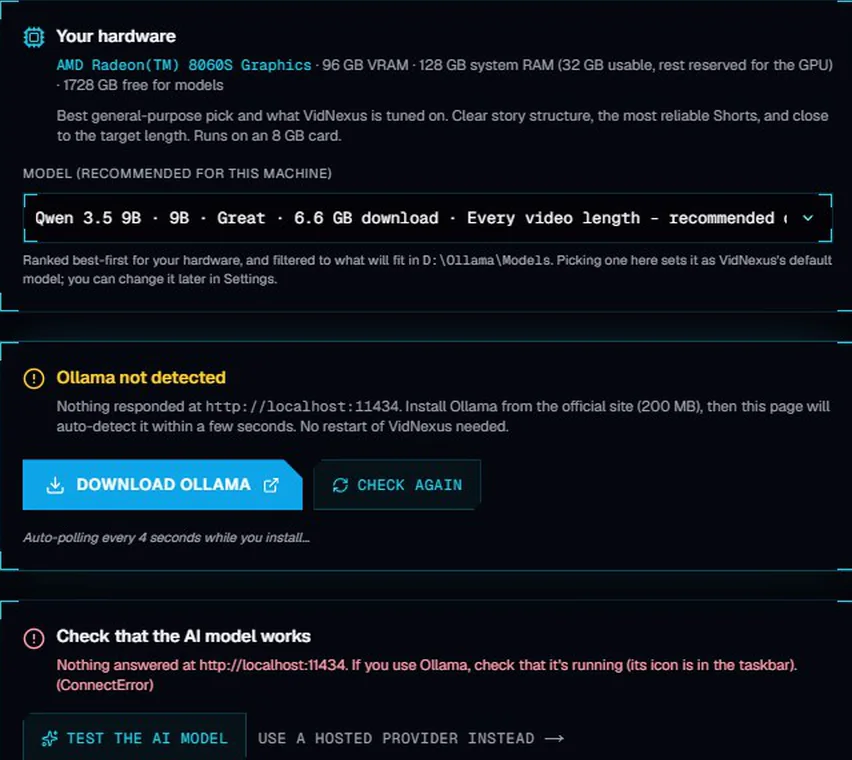
Before Ollama is installed: Download Ollama, then wait for the page to detect it.
If the recommended model isn't installed yet, VidNexus offers to install it for you. The download is several gigabytes, so the first install takes a few minutes.
Test the model
Once Ollama is running, VidNexus sends the model one short request. When you see AI model is working, click Continue.
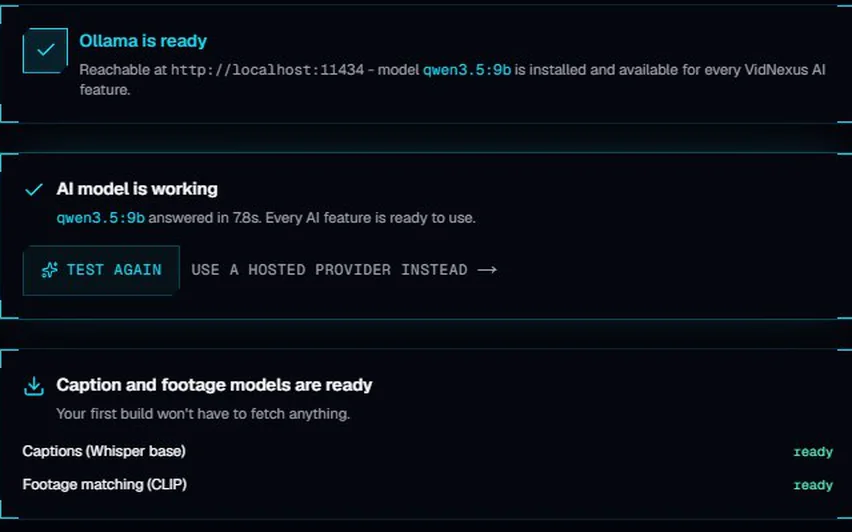
Ollama is ready and the model answered. You're set.
Prefer a hosted model?
Click Use a hosted provider instead to connect OpenAI, OpenRouter or any OpenAI-compatible endpoint. Enter the endpoint, your API key and, optionally, a model name, then Save & test.
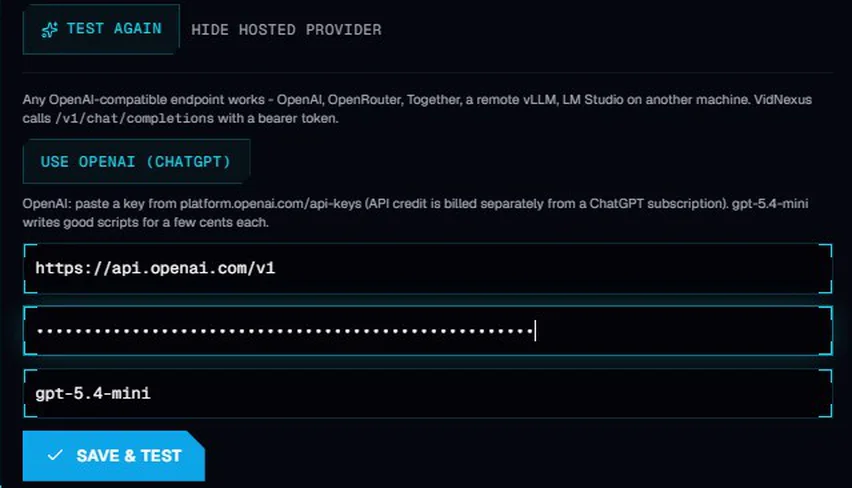
The hosted provider fields.
3. Add your API keys
VidNexus uses your own API keys. Three are needed to make videos:
Key | Used for | Where to get it |
|---|---|---|
Ollama web search | Script research from real web pages | Click Get key, or go to ollama.com/settings/keys. A free Ollama account is enough. |
ElevenLabs | Voiceover | Click Get key next to the field, or go to elevenlabs.io > Settings > API keys |
Pexels | Stock footage | Click Get key, or go to pexels.com/api |
Paste each key into its field and click Save & continue. VidNexus checks the Ollama key with one real search before moving on. Your keys are saved on your computer, in VidNexus's settings.
The Ollama key matters most: VidNexus researches every script on the live web, so it can't write a script for you without it. You can still paste your own script or upload your own voiceover.
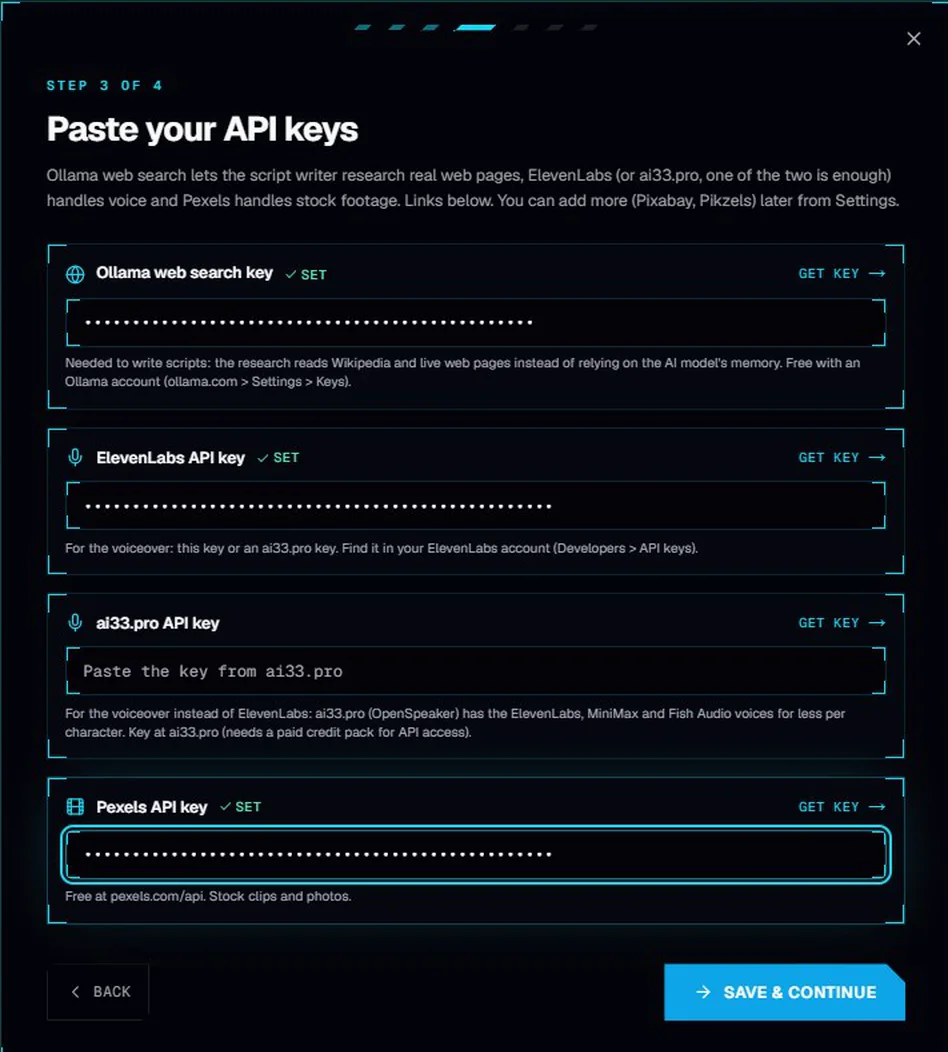
All three keys pasted. Get key opens each provider's key page, and the fields are masked once you paste.
You can skip this step and add keys later. More keys, like Pixabay and Pikzels, go in Settings > API keys.
4. Create your first channel
A channel keeps your projects, brand kits and voice settings together. You can have as many as you like.
Channel name (required)
Niche (optional), for example "Food history documentaries"
Accent color, to tell your channels apart
YouTube handle (optional). Adding it unlocks history sync and voice matching.
Click Create channel.
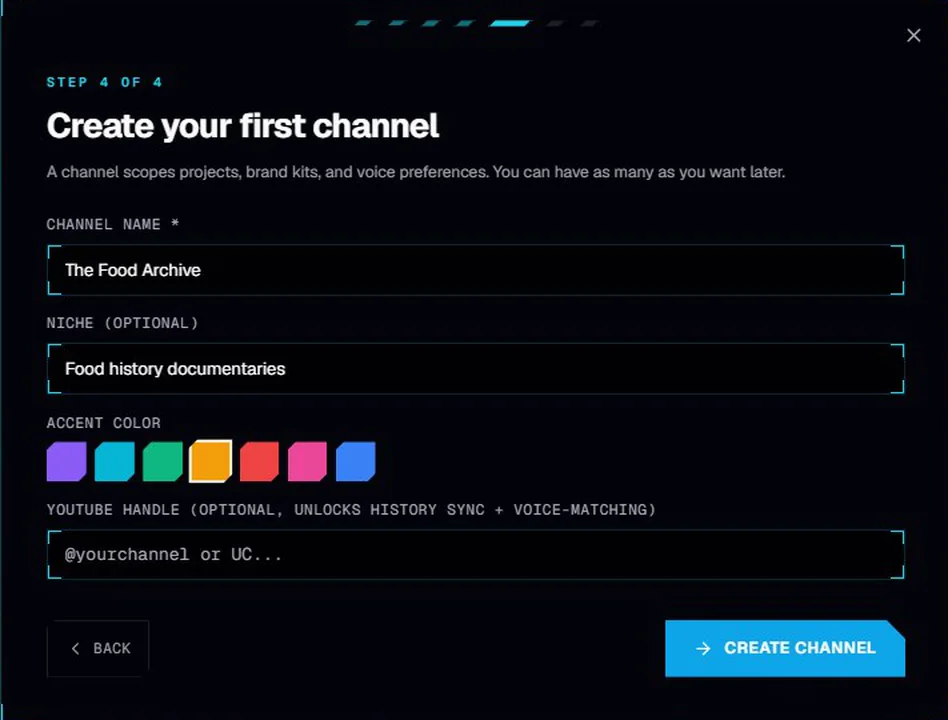
A channel named The Food Archive, with an amber accent color.
5. The tour, and your first prompt
The wizard ends with a quick tour of the tools, grouped by what you want to do: Discover, Strategy, Package, and Insights and utilities. You don't need any of them for your first video. Click Almost done.
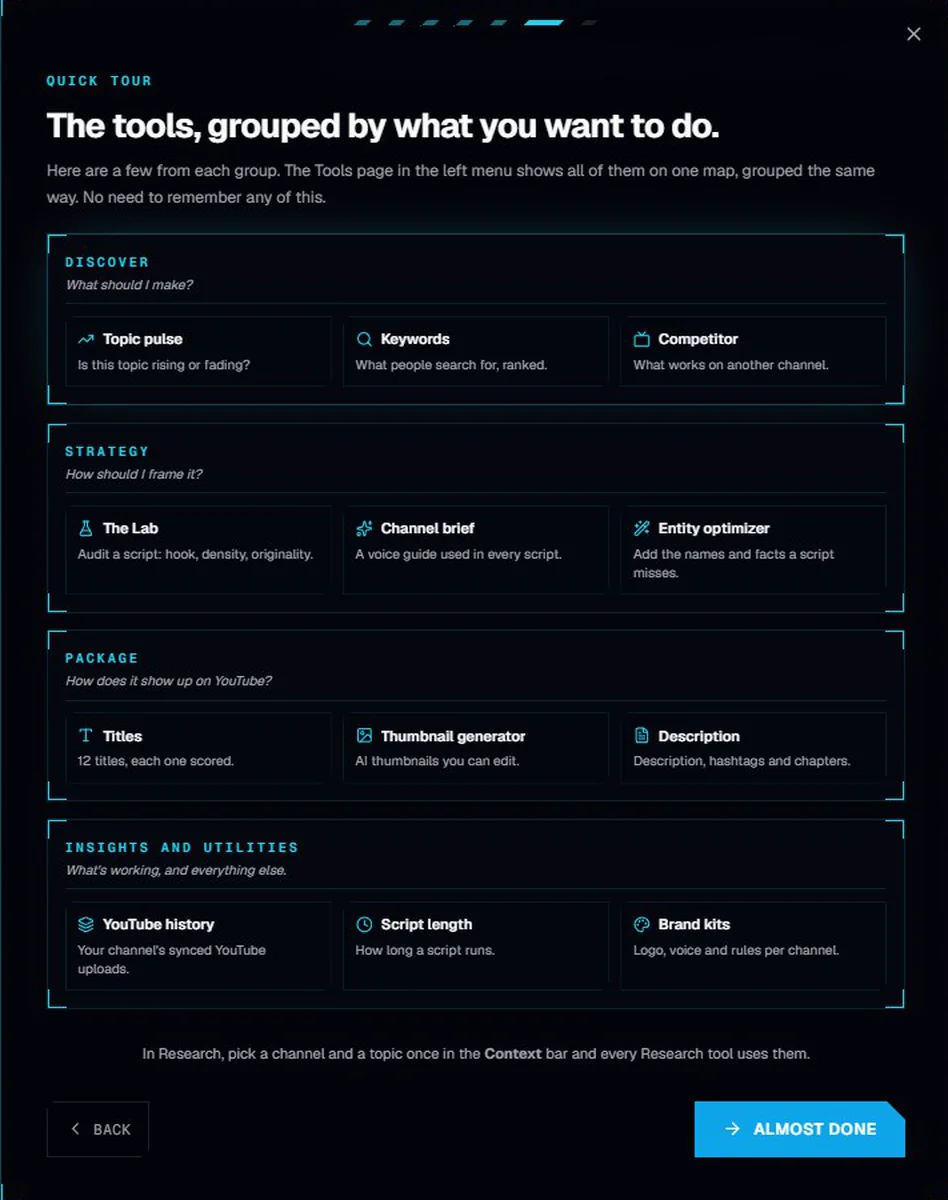
A few tools from each group. The Tools page in the left menu shows all of them.
Then click Take me to the composer.
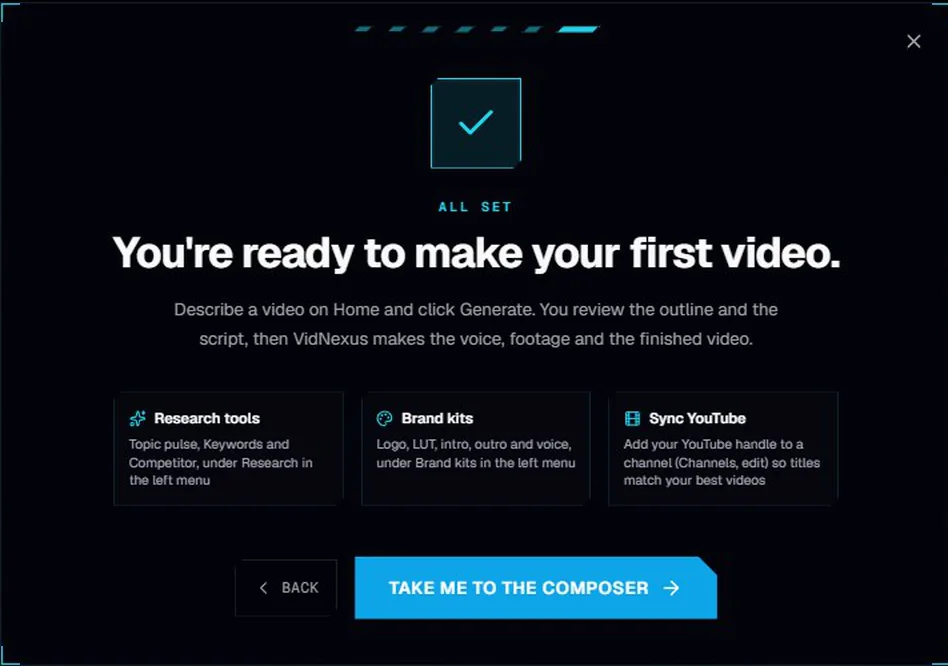
Setup complete.
You're now on the Home screen. Type your video idea into the composer, for example:
Make a documentary about how people kept food fresh before refrigerators
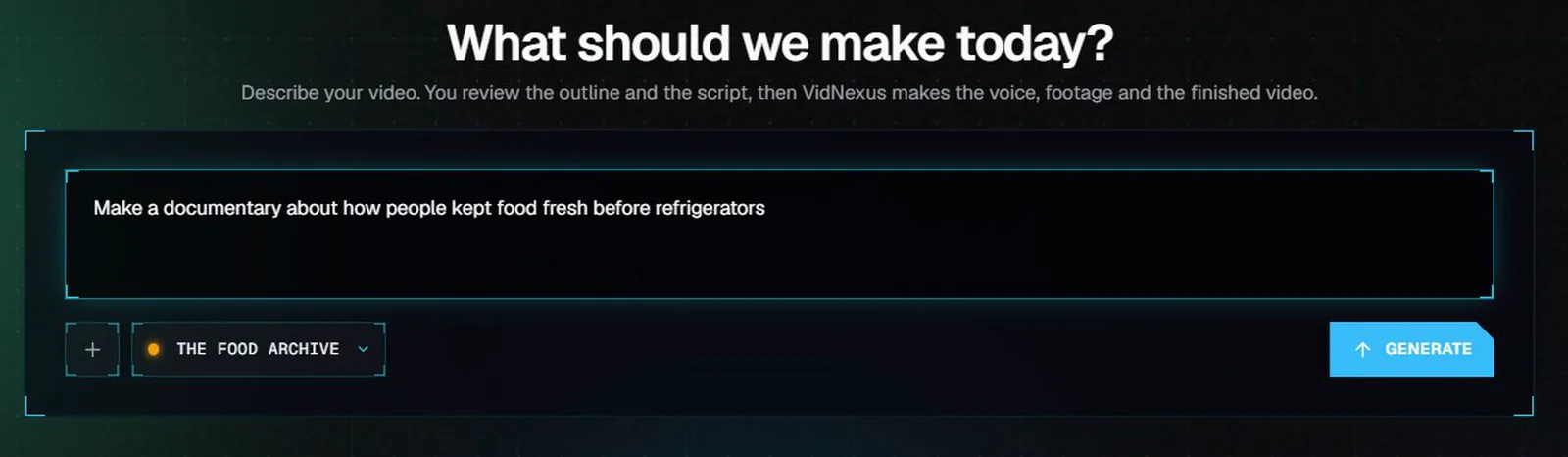
The composer on the Home screen. Generate starts your first video.
When you click Generate, VidNexus drafts an outline and a script for you to review. The next tutorial, Make your first video, walks through that.
Troubleshooting
"Ollama not detected" after installing. Make sure Ollama is running (look for the llama icon in the system tray), then click Check again.
The test fails with a connection error. Ollama isn't reachable yet. Start Ollama and wait a few seconds; the page re-tests on its own.
The Ollama key is rejected. Copy the whole key again from ollama.com/settings/keys and paste it. The key is free with an Ollama account.
"Couldn't reach the license server". Check your internet connection and try again. Activation needs to reach vidnexus.app once.