
Your first video
From one idea to a finished, captioned video.
A 4-minute video version of this guide will play here. Everything it shows is written out below.
This guide turns one idea into a finished video: research, outline, script, voiceover, stock footage, motion graphics and the final render. It takes a few clicks; most of the time is VidNexus working in the background.
Before you start, finish the first-time setup (tutorial 01): the AI model, your three API keys (Ollama web search, ElevenLabs and Pexels) and a channel.
1. Describe your idea
On the Home screen, pick the channel, then type your idea in the composer. A sentence is enough, but the more specific, the better.
Click Generate.
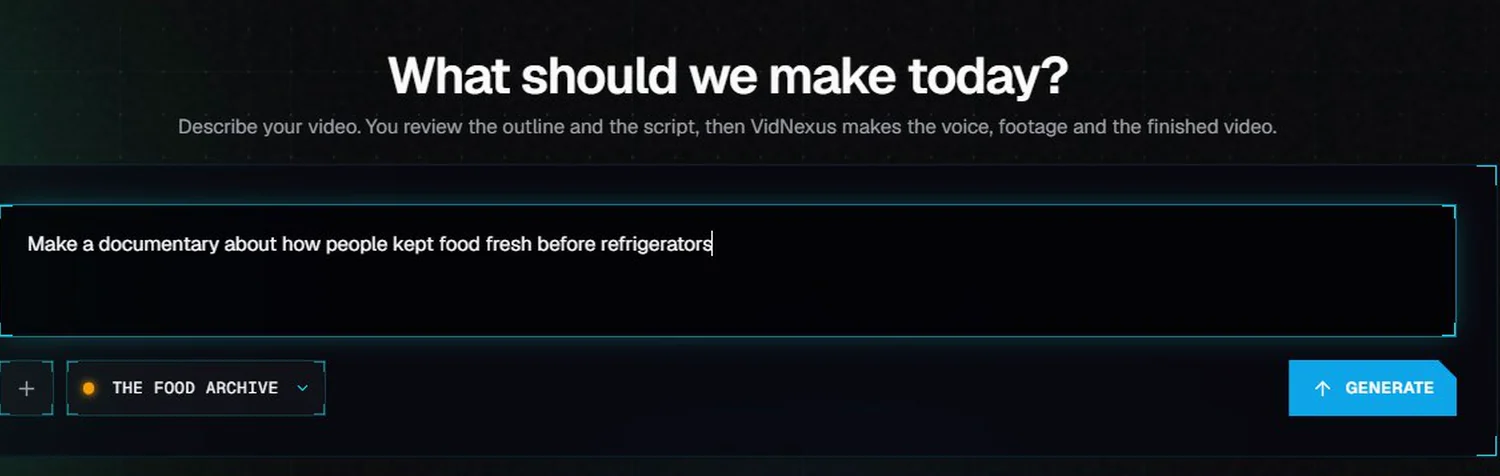
The composer on the Home screen.
2. Choose the format
You can start from an idea, paste a script you've already written, or upload your own voiceover.
Landscape is a regular 16:9 YouTube video. Shorts is vertical 9:16, up to 3 minutes.
Templates (optional) preset the length, tone and hook angle for common formats, like list videos, explainers and deep dives.
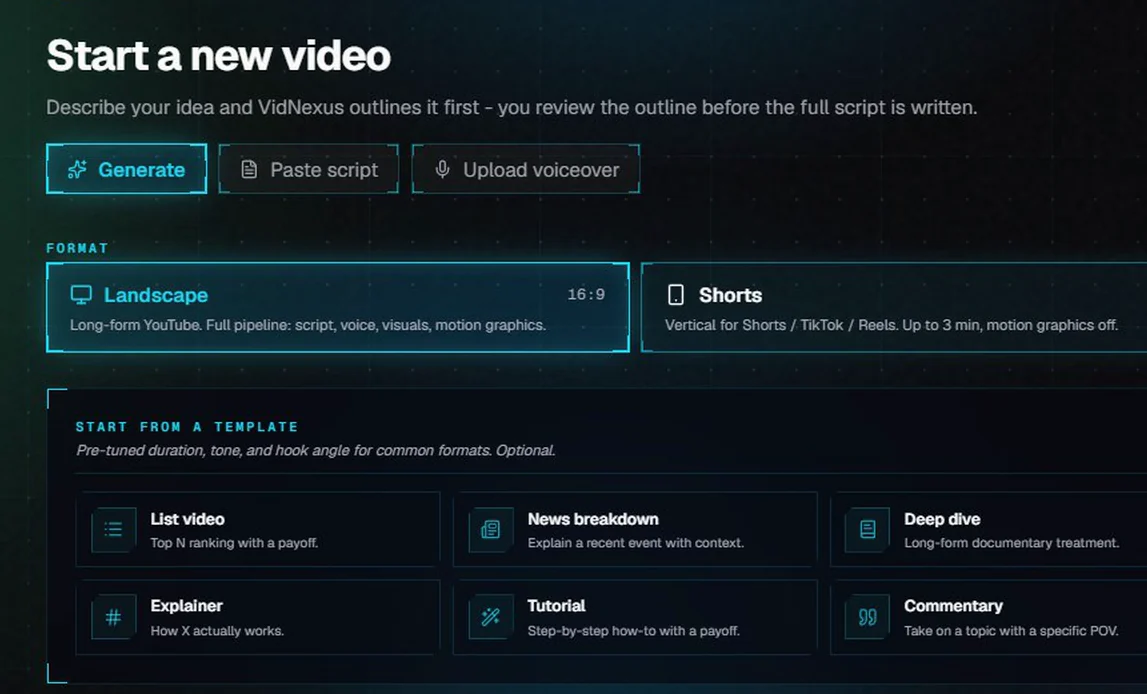
Start a new video: input mode, format and templates.
Length: Short (~1 min), Standard (~5-8 min), Long (~15-18 min) or Deep dive (~25-30 min). These are estimates; the final length depends on the script you approve.
Tone: Documentary, Investigative, Explainer, Punchy, Cinematic or Casual.
Hook angle (optional): one sentence that tells the AI how to open. It's the biggest lever on script quality.
Click Generate script.
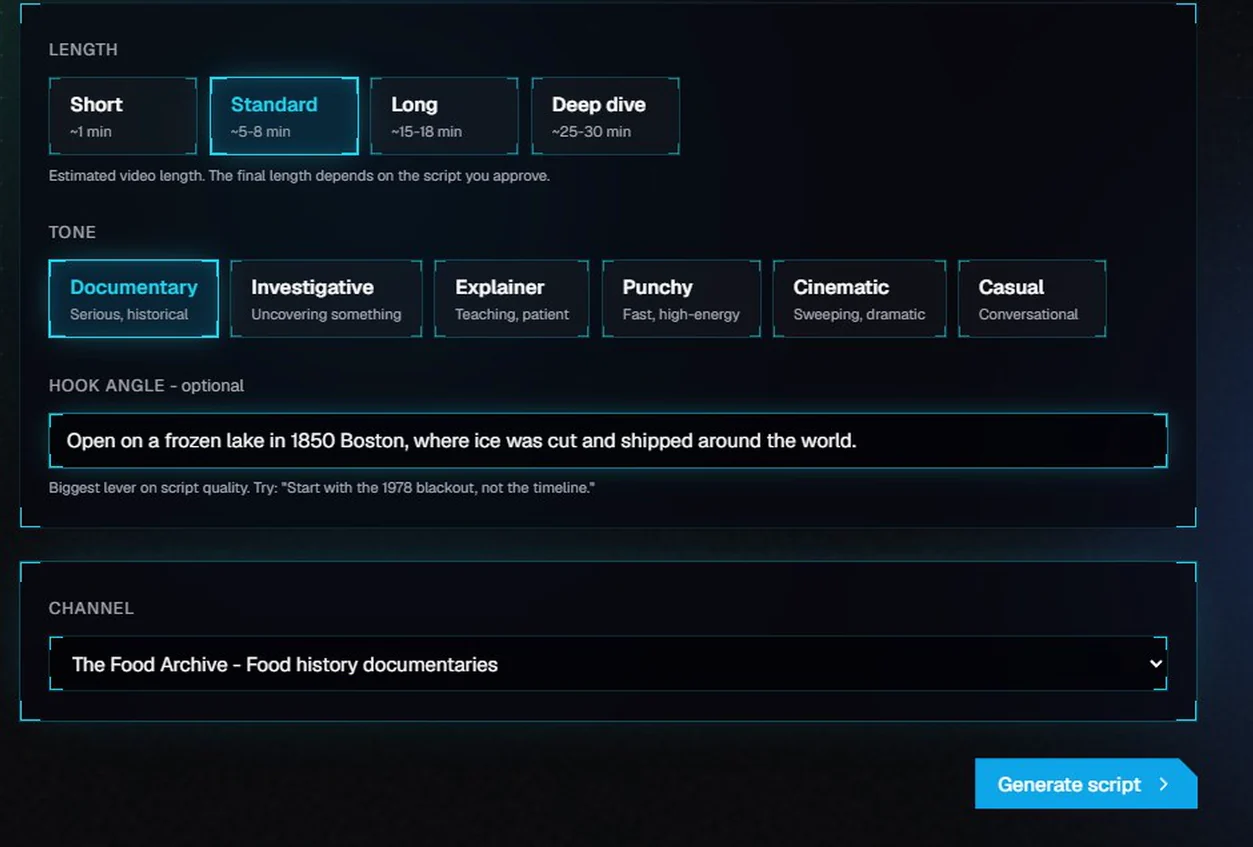
Length, tone, hook angle and channel.
3. Research and outline
First, VidNexus researches your topic on the live web. It reads Wikipedia and other web pages, and keeps a fact only if it can match it to a quote in a source, numbers included. Then it plans the story and drafts the outline. On a local model this takes two or three minutes.
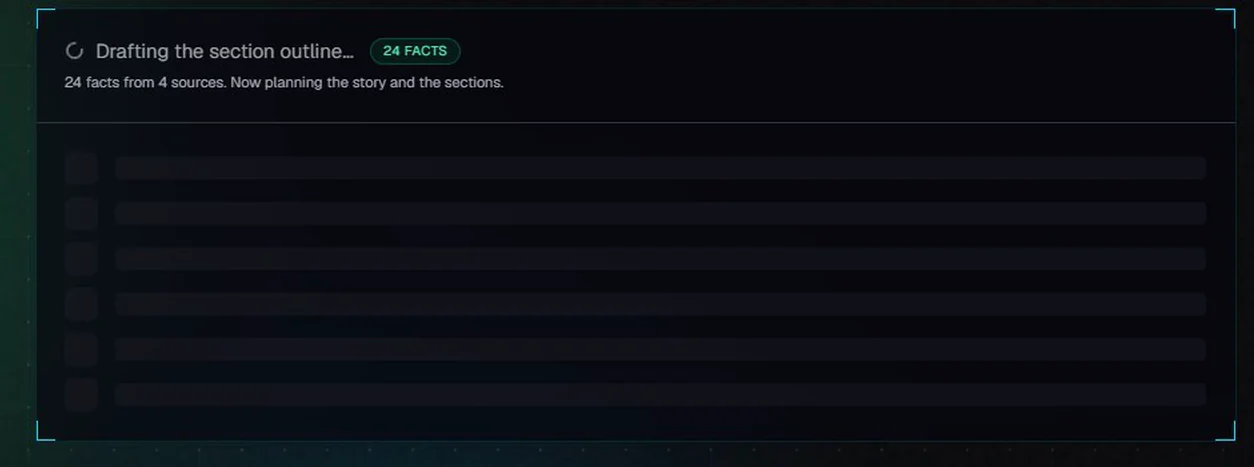
Research done: 24 facts from 4 sources, and the story is being planned.
Before any script is written, you review the outline:
Sources at the top lists the pages the research read. Click one to check it.
The story plan shows the question this video answers and the answer, saved for the ending. You can edit both; the opening raises the question, each section builds toward it, and only the last section answers it.
The Hook, Turn and Payoff tags show each section's job in the story.
Expand a section to see the angle behind it, and edit any title or angle.
Reorder sections with the arrows, or add and delete them.
Not happy with it? Click Regenerate outline.
When it looks right, click Generate sections.
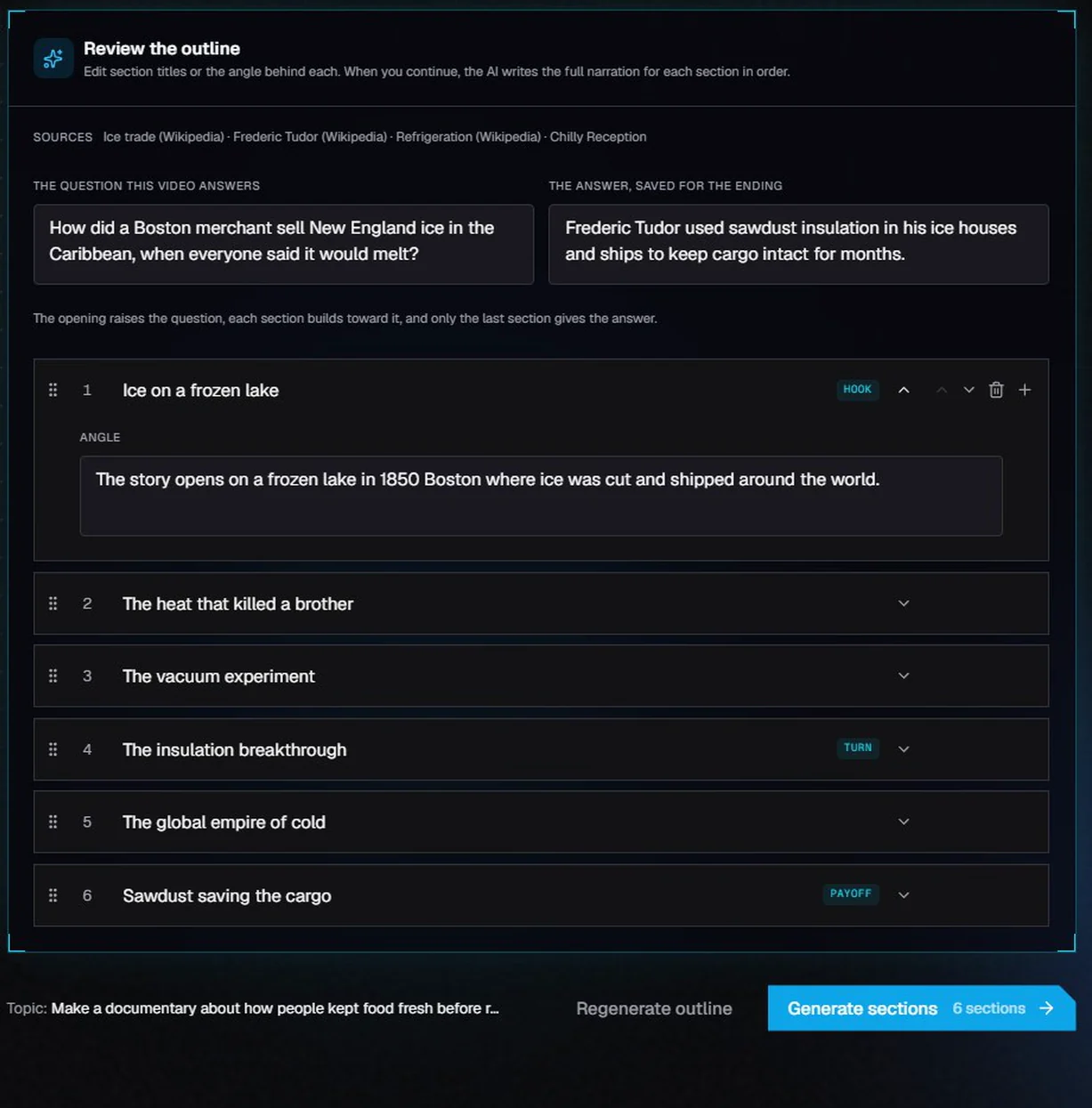
Review the outline: the sources, the story plan, and the sections. The first section is expanded to show its angle.
4. Review the script
VidNexus writes the narration section by section, and you can watch it stream in. An editing pass then rewrites any line that sounds machine-made, like stock phrases or signposting. On a local model this takes two or three minutes.
Hook score
The first seconds decide whether people keep watching, so VidNexus scores your opening on stakes, specificity and how well it delivers on the title, each out of 10. If the opening grades weak, VidNexus rewrites it once on its own, and lists suggested fixes.
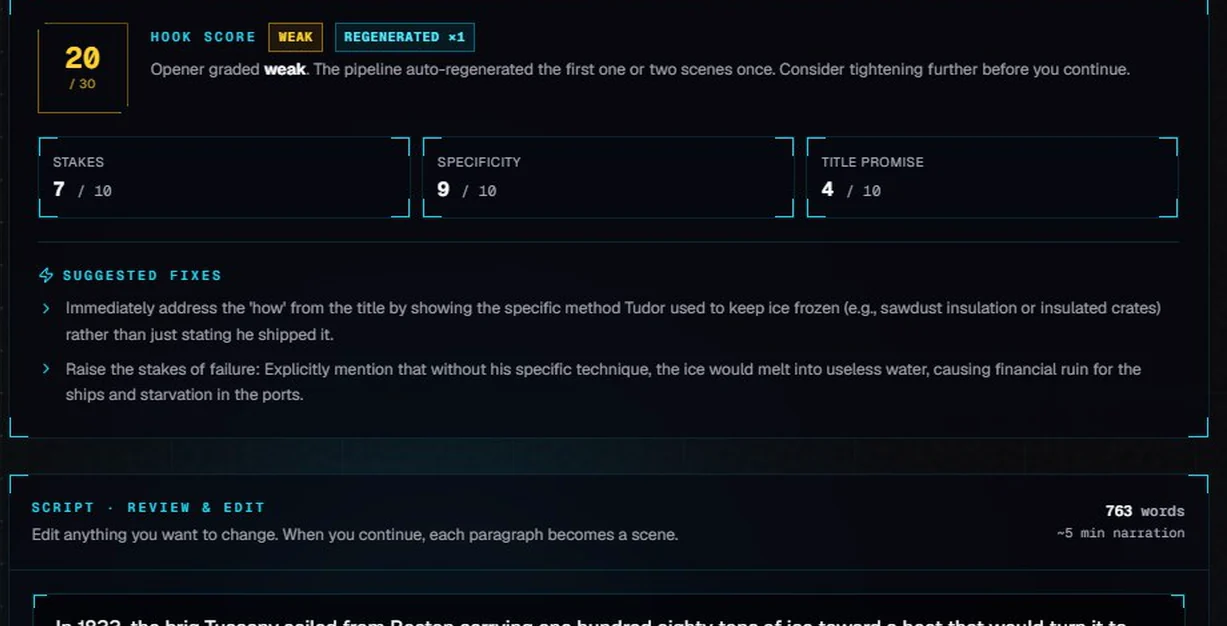
This opening scored 20 out of 30 and was already rewritten once.
Edit the script
The whole script is editable. Each paragraph becomes one scene. The word count and an estimated narration length are shown above it.
Fact-check
Fact-check compares the script with the research and its source quotes. When every claim is backed, it shows Clear. When it flags a claim, it says why, with a suggested rewrite: click Apply fix to use it, edit the script yourself, or ignore it if you trust the source.
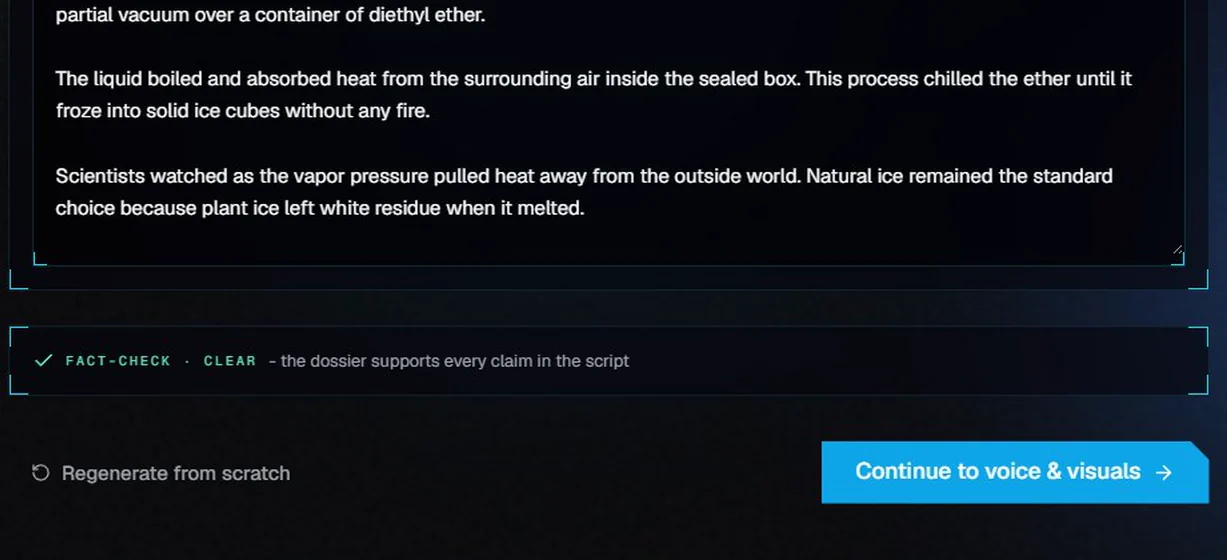
Fact-check: every claim in this script is backed by the research.
When you're happy with it, click Continue to voice & visuals. Regenerate from scratch starts the script over.
5. Video settings
Video settings shows what VidNexus picked for this video. Anything you change here applies to this video only, never to your brand kit.
Settings & Details: brand kit, title, language, duration, editing format and voice.
Creative Setup: the motion-graphic theme, a default background and any blocked motion-graphic kinds.
Compliance & Sourcing: where footage may come from.
Source | What it means |
|---|---|
Commercial stock | Pexels and Pixabay. Royalty-free, lowest risk. |
CC & Public domain | Internet Archive (Prelinger, FedFlix), Wikimedia Commons, NASA and DVIDS. Public domain, CC0 and CC BY only; the credits go in the video description. |
General web | Any other source. The most variety, but you accept the licensing responsibility. |
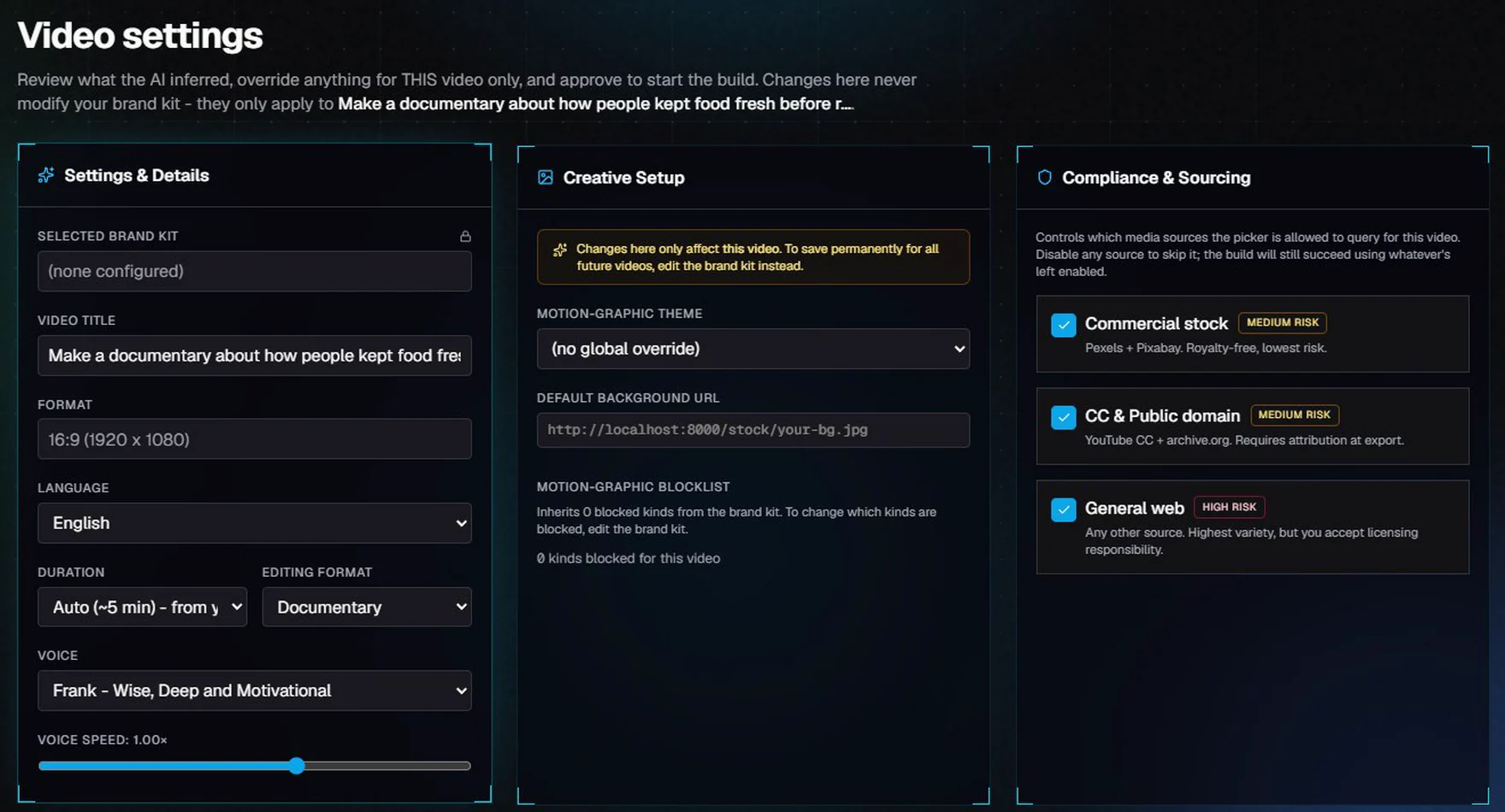
Video settings: details, creative setup and sourcing.
At the bottom, an estimate of what the hosted services (ElevenLabs, Pikzels) will cost for this video, computed from their live rates. The local AI model, stock footage from Pexels and Pixabay, and the render itself are free.
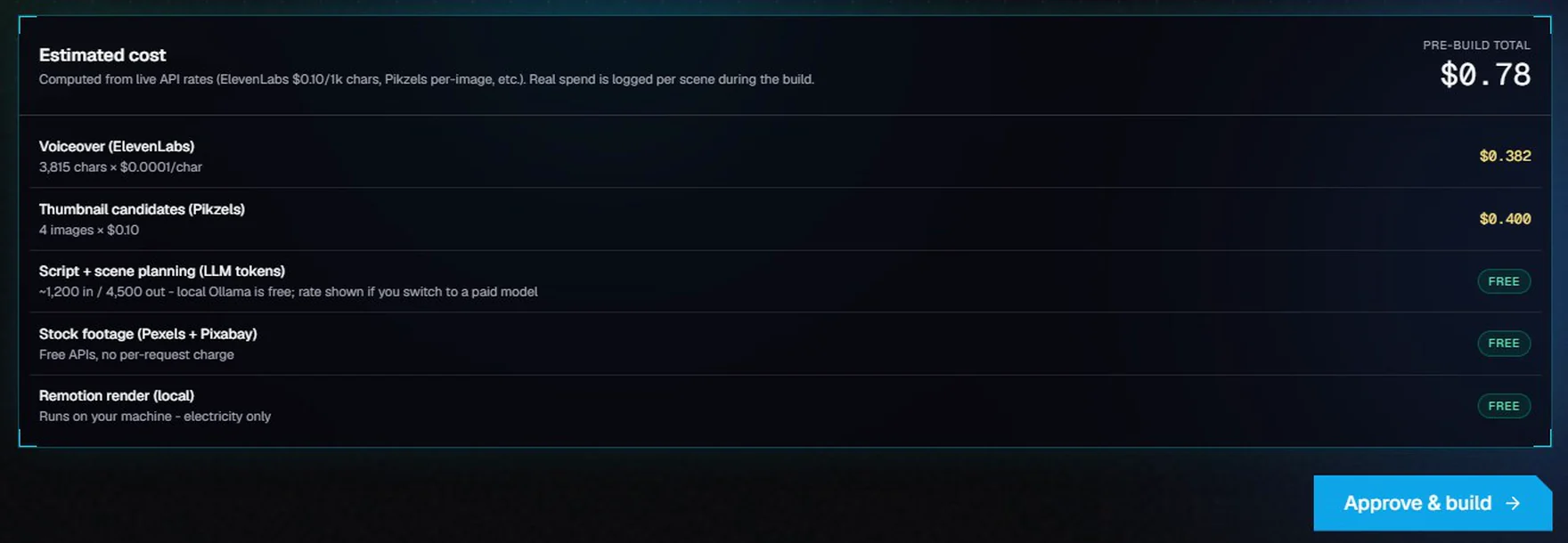
The estimated cost before you build.
Click Approve & build.
6. Build and watch
The pipeline takes over: motion graphics, a voiceover for every scene, stock footage matched to each line, and the final render. You can leave this page; it keeps working in the background. The build in this example took about six minutes.
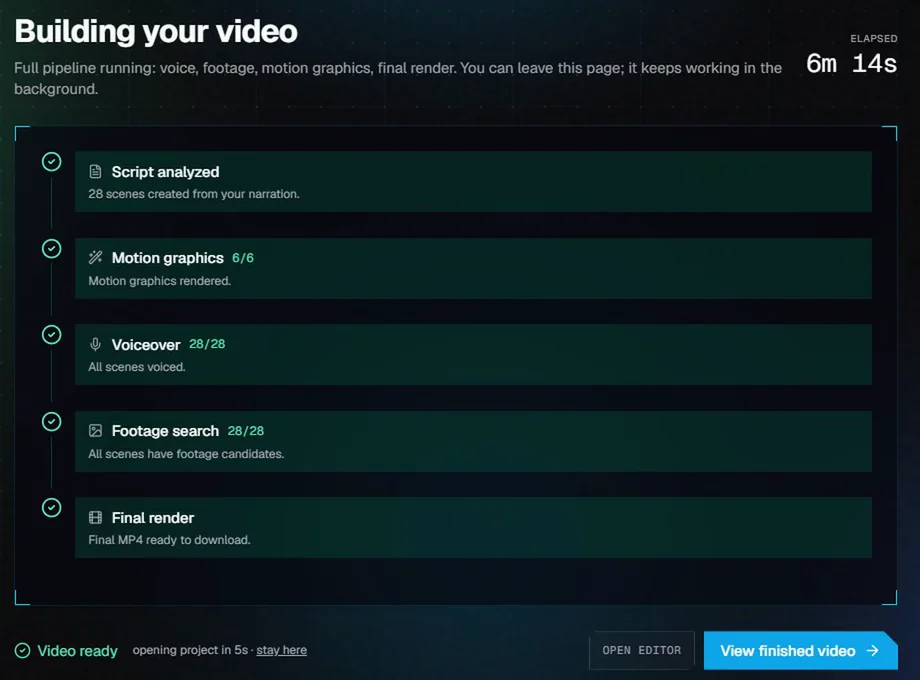
The build: each stage ticks off as it finishes.
When it's done, open the project to watch the finished video, with captions. From here you can:
Download MP4
Refine in editor to change footage, motion graphics, captions and music
Publish to YouTube, once your YouTube account is connected in Settings > Integrations
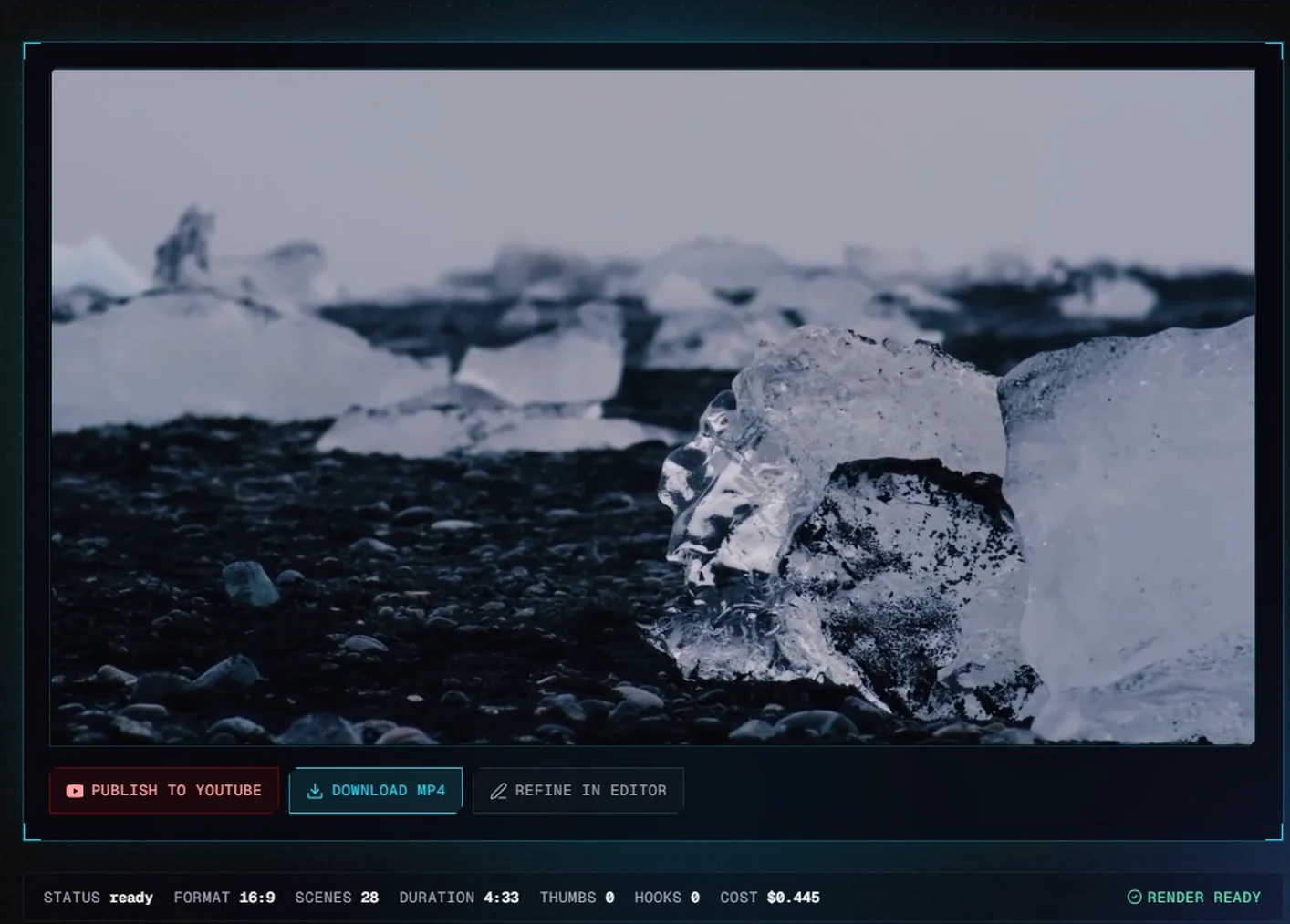
The project page with the finished video.
The next tutorial, A tour of the editor, covers changing anything in the video.
Troubleshooting
Script writing is turned off. Add your free Ollama web search key in Settings > API keys. VidNexus researches every script on the live web, so it can't write one without the key. You can still paste your own script or upload a voiceover.
The outline screen says the research came from the AI model's memory. The live research found too little (no internet, or an obscure topic). Check the facts in the script before you build.
The hook is graded weak. Add or sharpen the hook angle and generate again, or apply the suggested fixes by editing the first paragraphs.
A scene has no footage and the build stops. Open the editor, select the scene and use Fresh search, then retry the build.
The video isn't the length you picked. Length is an estimate. The approved script decides the final length; the word count on the script page tells you roughly how long the narration will be.