
Fix the b-roll
Swap weak shots, search with a better prompt, and add zoom and pan.
A 3-minute video version of this guide will play here. Everything it shows is written out below.
B-roll is the stock footage that plays behind each line of your video. VidNexus picks it for you, and most shots fit, but a few usually don't. This guide fixes the weak shots in the food-preservation video from the first-video tutorial, one tool at a time.
1. Spot a weak shot
Open the project in the editor (click Refine in editor) and play it. Look for shots that don't match the words. In our video, a line about the icebox plays over a man at a laptop.
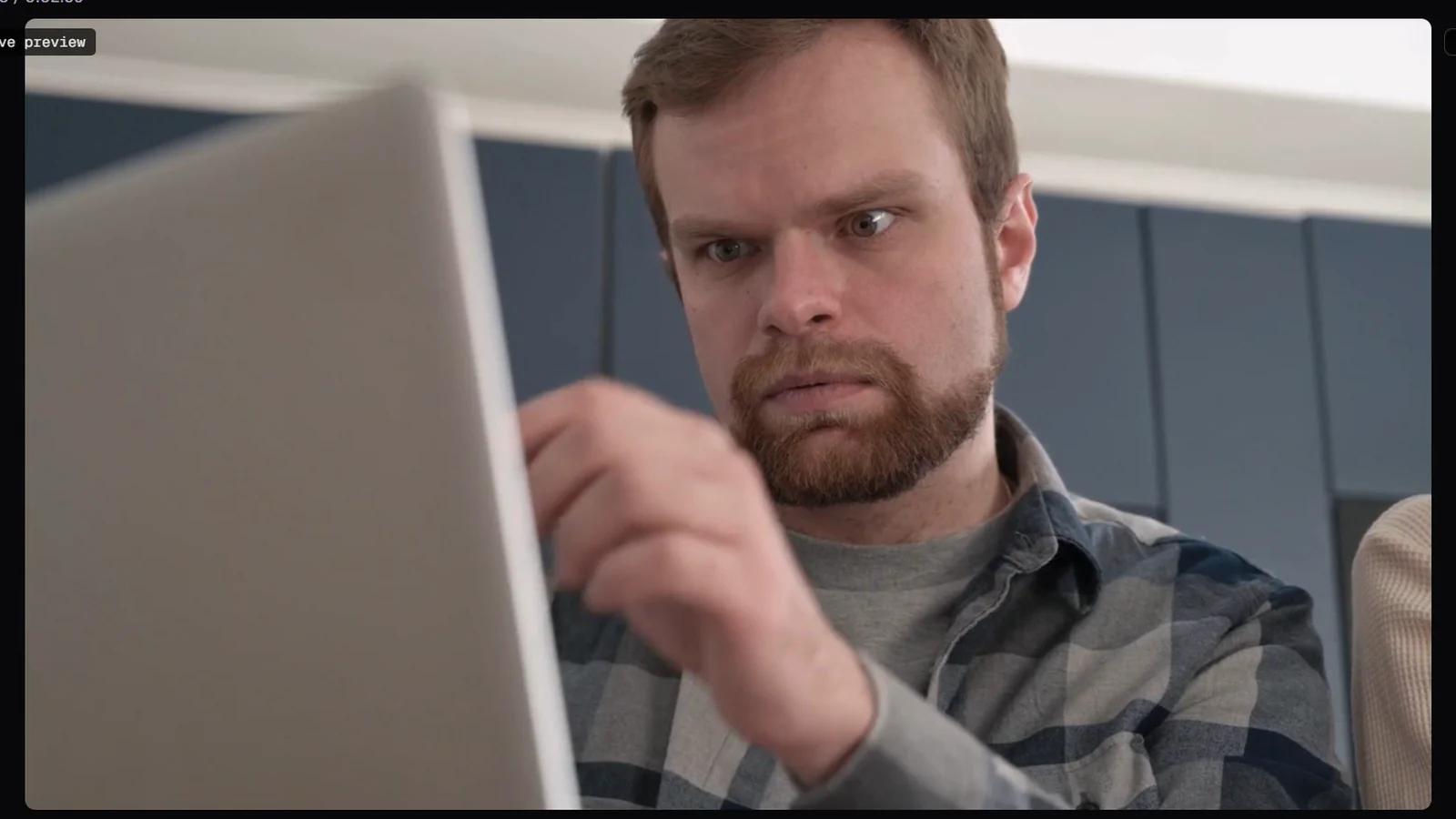
Scene 14: the line is about the icebox, the footage isn't.
2. The footage panel
Click the scene on the timeline. Its footage settings are in the panel on the left:
Visual prompt: what VidNexus searched the stock libraries for.
B-roll clips: the clips it found. The numbered ones play in this scene, in that order.
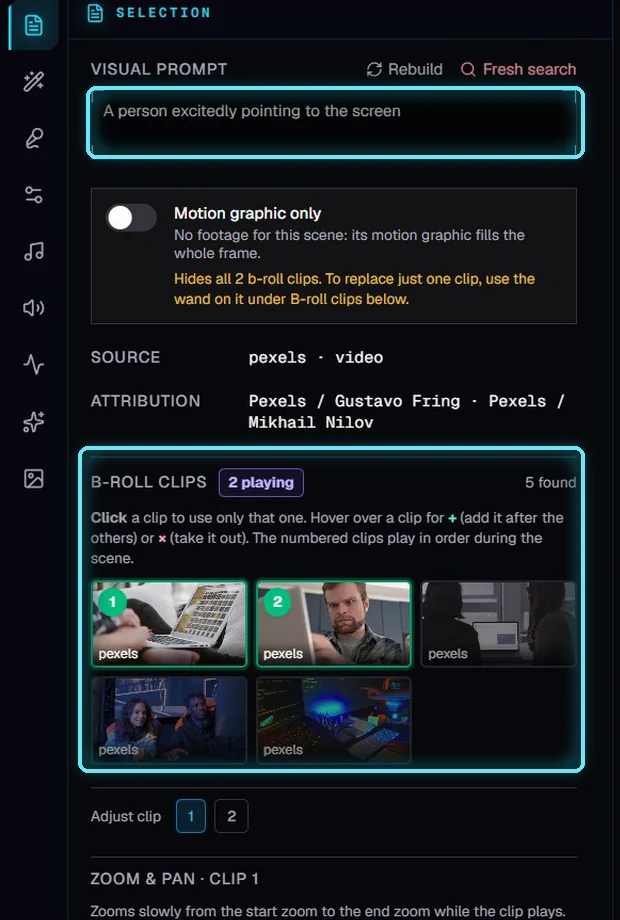
The visual prompt, and the clips it found. Clips 1 and 2 are playing.
3. Search with a better prompt
When none of the clips fit, change the visual prompt. Describe what we should see, in a few plain words, like old wooden icebox with blocks of ice. Then click Fresh search and confirm with Search. It replaces all of this scene's clips with new ones.
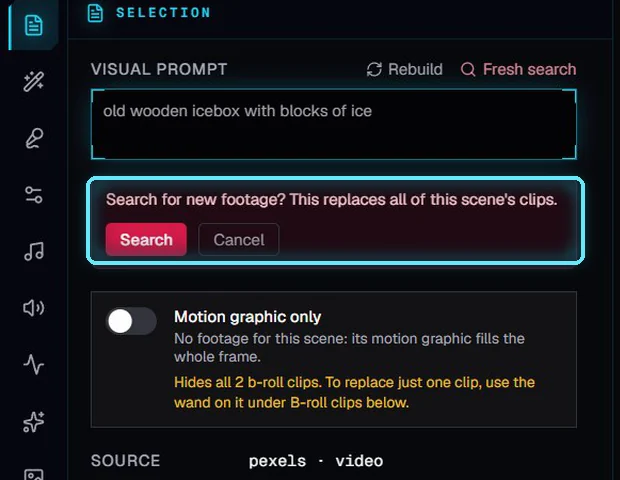
Fresh search asks before it replaces the clips.
The search takes from 30 seconds to 2 minutes. The current footage keeps playing in the meantime, and the new clips show up when they're ready.
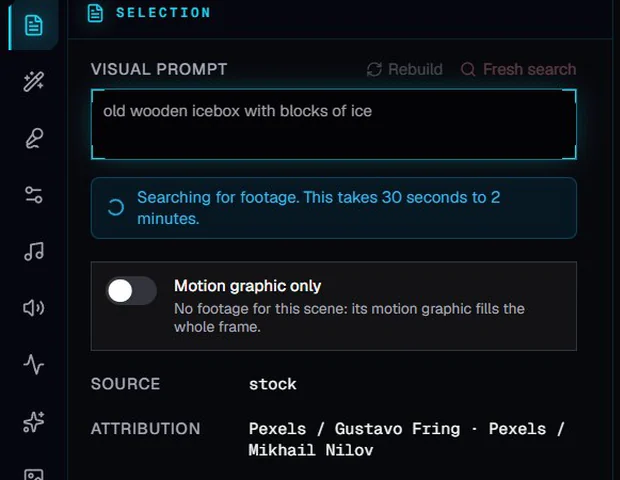
Searching for footage.
Rebuild is different: it cuts the scene again from the clips it already has, without a new search. Changing the prompt on its own doesn't change the footage: a note reminds you to click Fresh search.
4. Pick the clips
Fresh search picks the best matches for you. To choose yourself:
Click a clip to use only that one for the whole scene.
Hover over a clip and click + to add it after the others.
Hover over a playing clip and click × to take it out.
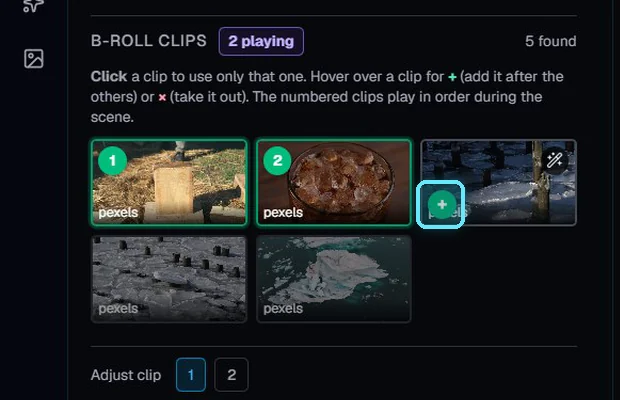
The + on a clip adds it after the numbered ones.
Each change cuts the scene again in a few seconds. The preview keeps playing the old clip until the new one is ready.
5. Zoom & pan
Some shots fit but sit still. Under Zoom & pan, pick Zoom in (or Zoom out, or Punch in for a quick push), then click the part of the picture to move toward in the Focus point grid. The camera now pushes in slowly while the clip plays. The two sliders set the start and end zoom by hand.
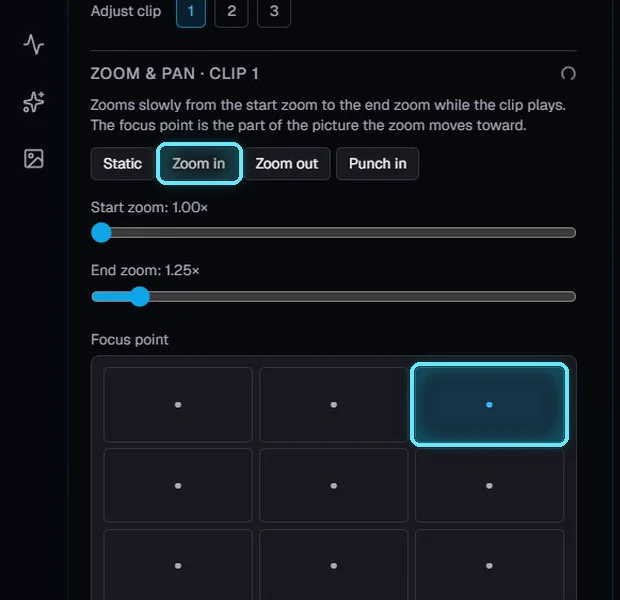
Zoom in, toward the top right.
When a scene plays several clips, the number buttons next to Adjust clip choose which one you're changing. Each clip has its own zoom.
6. Choose where a clip starts
A stock clip is often longer than its part of the scene. Drag Starts at to choose which part of the clip plays. The small preview above shows the source clip, with the part that will be used.
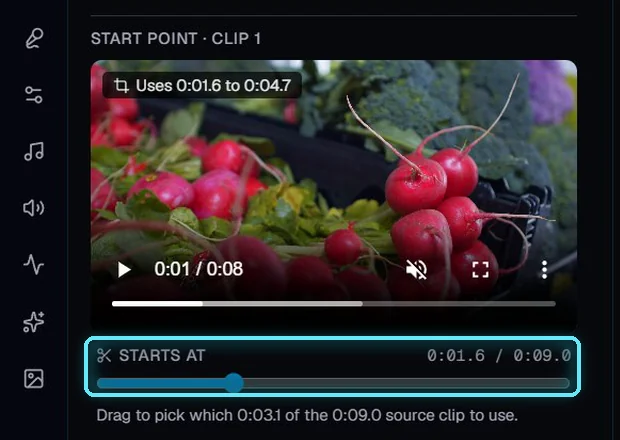
Starts at: this clip now plays from 1.6 seconds in.
7. Motion graphic only
Some scenes are carried by a motion graphic, like this temperature counter. Turn on Motion graphic only and the graphic fills the whole scene, with no footage behind it. The timeline marks the scene as motion only.
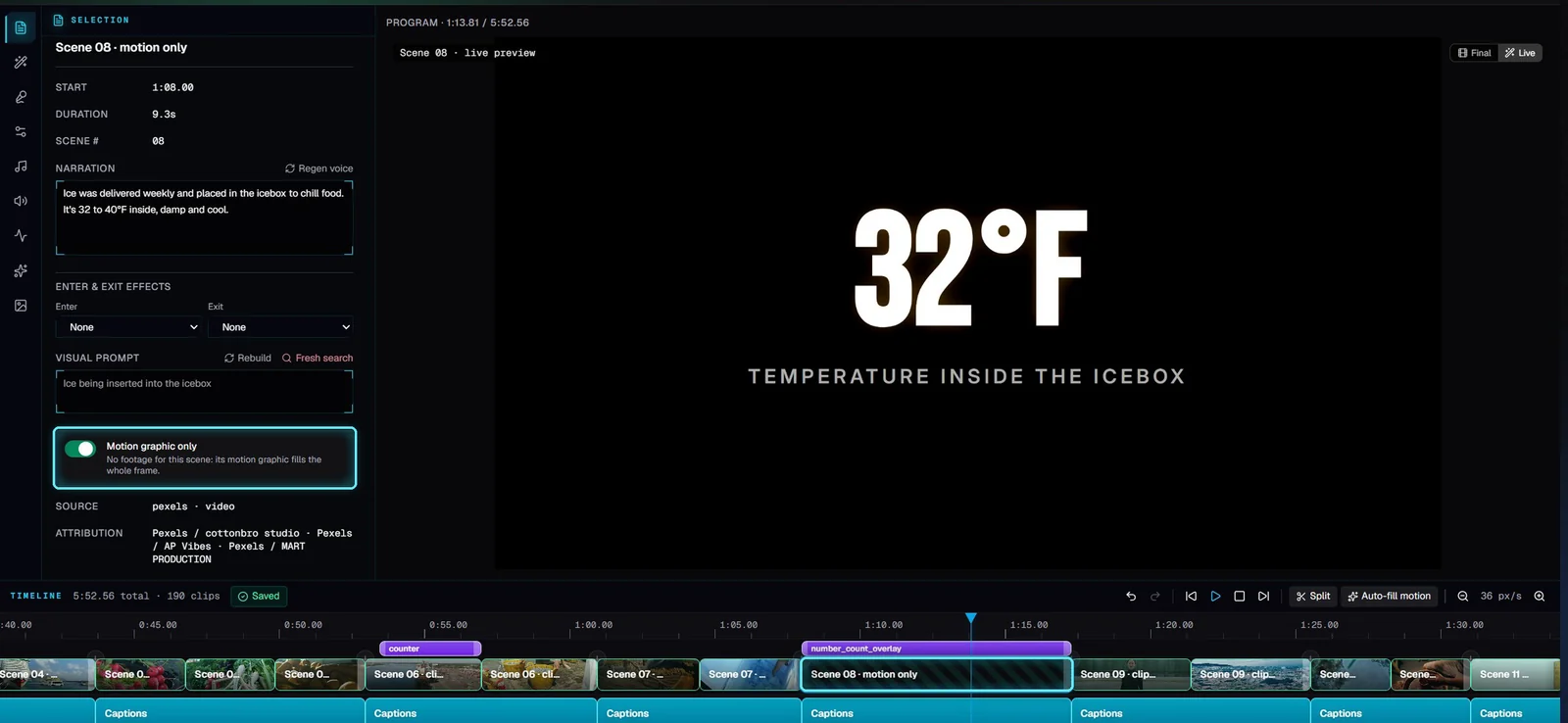
Motion graphic only on scene 8.
To replace just one clip with the graphic, hover over that clip under B-roll clips and click its wand instead. A scene with Motion graphic only and no motion graphic shows black, so add one from the Animations tab first. Ctrl+Z turns Motion graphic only off again.
8. Render the video
Footage changes update the editor's preview right away. To update the video file, click Render. Our 6-minute video took under a minute and a half.
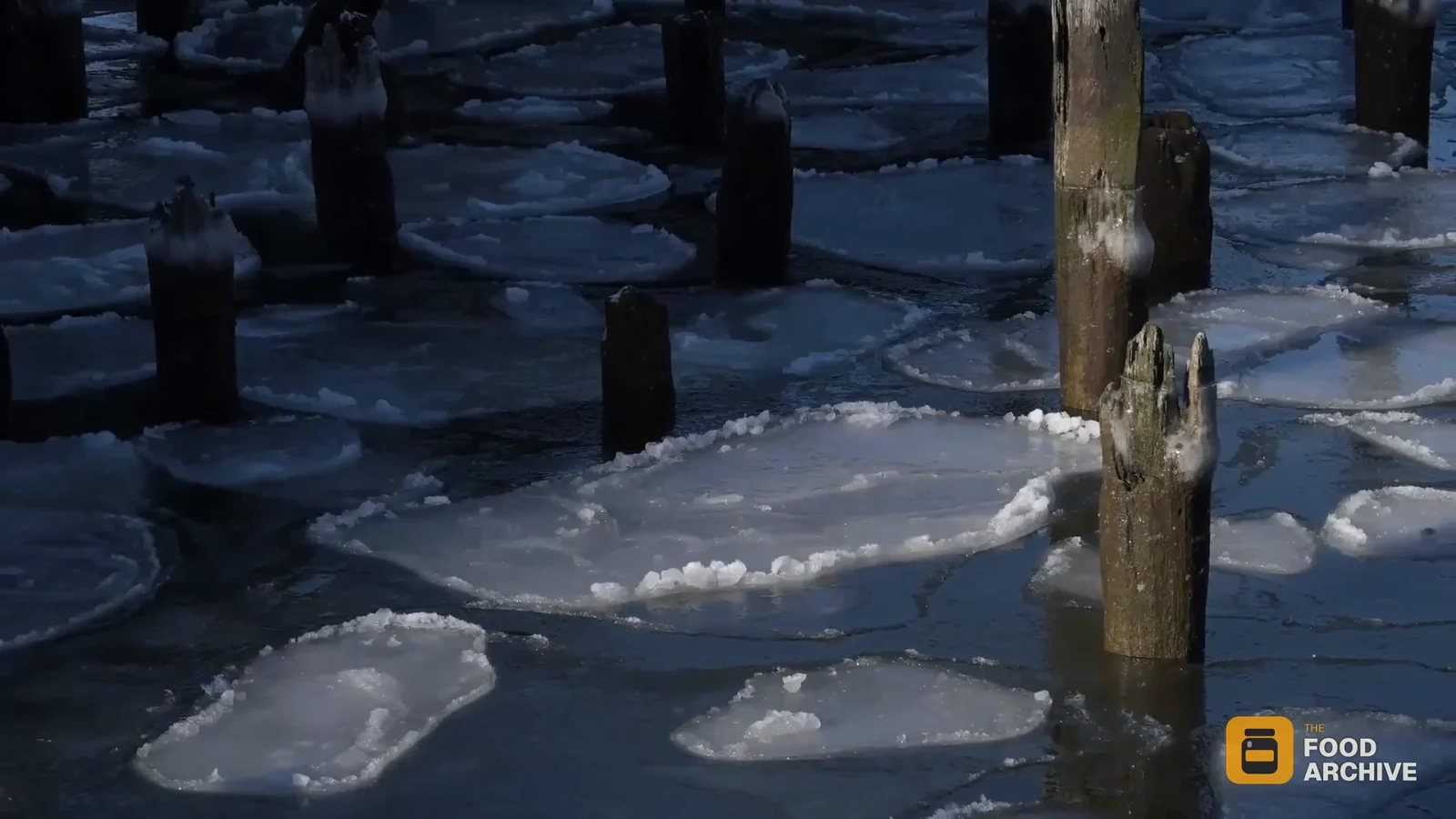
The icebox scene now shows ice, not a laptop.
Tips
Describe the picture, not the idea. “Workers sawing ice on a frozen lake” finds better footage than “the ice trade”.
Keep it short. Four to eight words work best for stock searches.
Try the other found clips first. Picking a clip takes seconds; a Fresh search replaces them all.
Troubleshooting
“No footage found for this visual prompt.” Try other words, or check your Pexels and Pixabay keys in Settings > API keys.
I changed the prompt but the footage didn't change. Click Fresh search. Rebuild keeps the clips the scene already has.
The scene is black. Motion graphic only is on and the scene has no motion graphic. Turn it off, or add a graphic from the Animations tab.