
The Asset library
Search free stock clips and photos in one place, save the ones you like, and start a cinematic shot from them.
The Asset library searches Pexels, Pixabay and Coverr at once. It is the place to look around before you need a picture: save what you like, and it shows up in the cinematic shot picker of every video.
About these pictures: we searched for the Ice King video on The Food Archive. The two items we saved for the pictures were removed afterwards; the schooner photo was already saved.
1. Search
Click Asset library in the sidebar, type what you want to see and press Enter (or Search).
Clips or Photos: what to look for. Coverr has clips only.
Wide for YouTube videos, Tall (Shorts) for Shorts. Changing either one searches again.
Results from the different sites are mixed together. Each card shows the length (clips), the title, the site and the creator. The play button opens the clip or photo in a new tab at full size.
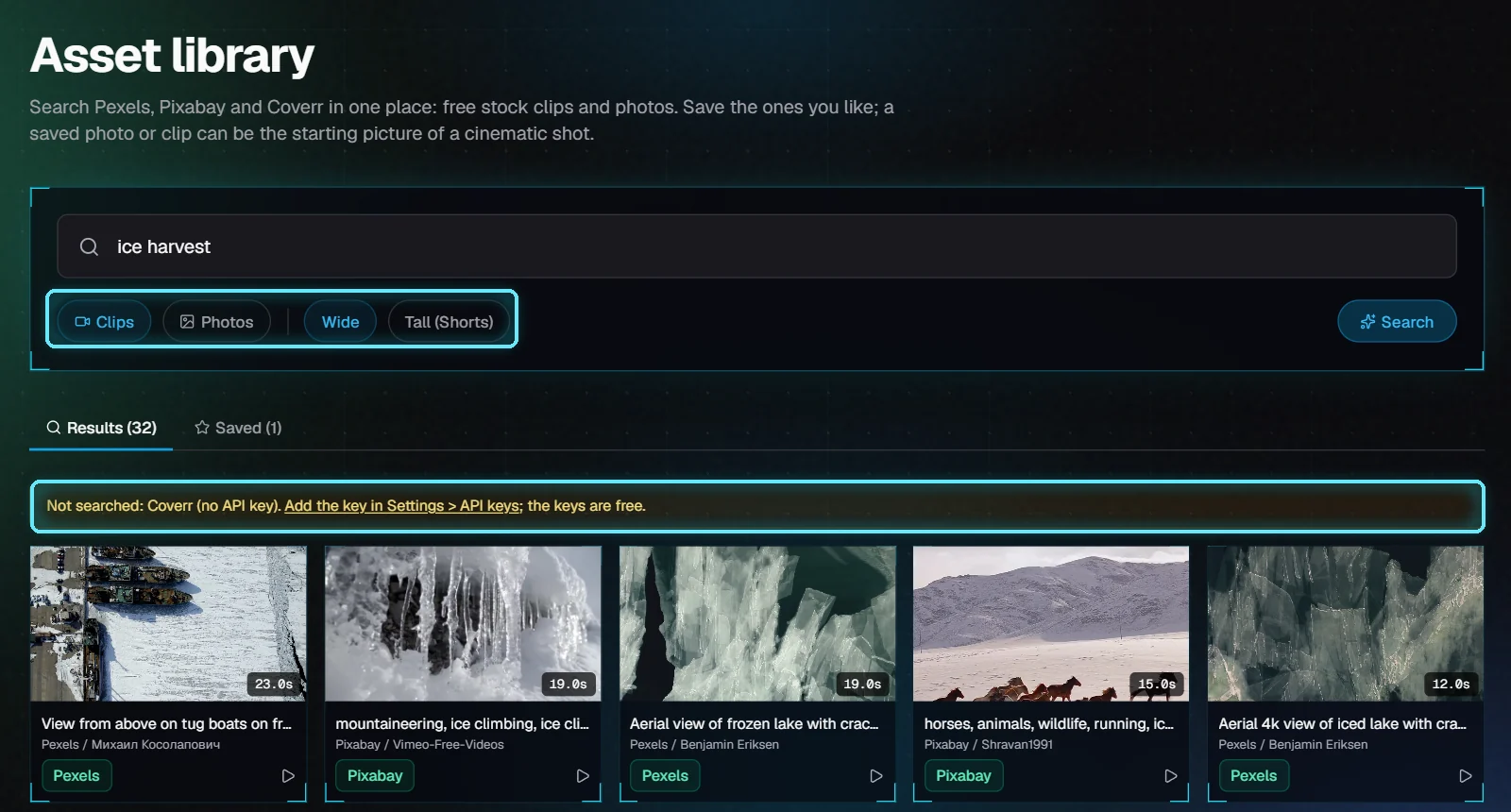
"ice harvest": 32 clips from Pexels and Pixabay. Coverr wasn't searched because it has no key yet.
A site without its API key is skipped, and the yellow note says which one. Click Add the key in Settings > API keys: the keys are free.
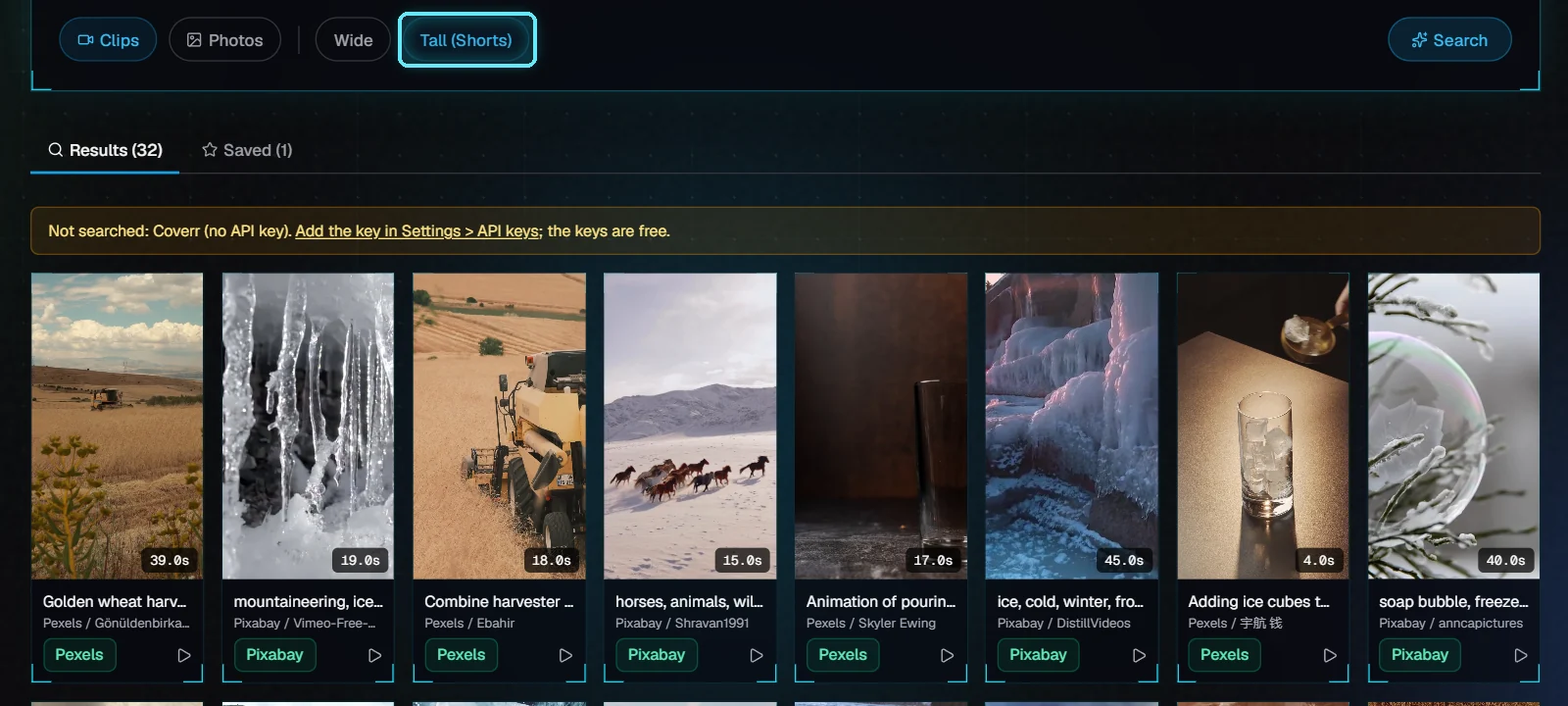
Tall (Shorts): the same search, in 9:16.
If the channel's brand kit blocks a site or a creator, their results are left out, and a note says how many were hidden. The library uses the channel picked at the top of the app.
2. Save what you like
Point at a card and click the bookmark in its corner. It turns yellow: the item is in Saved. Click it again to remove it.
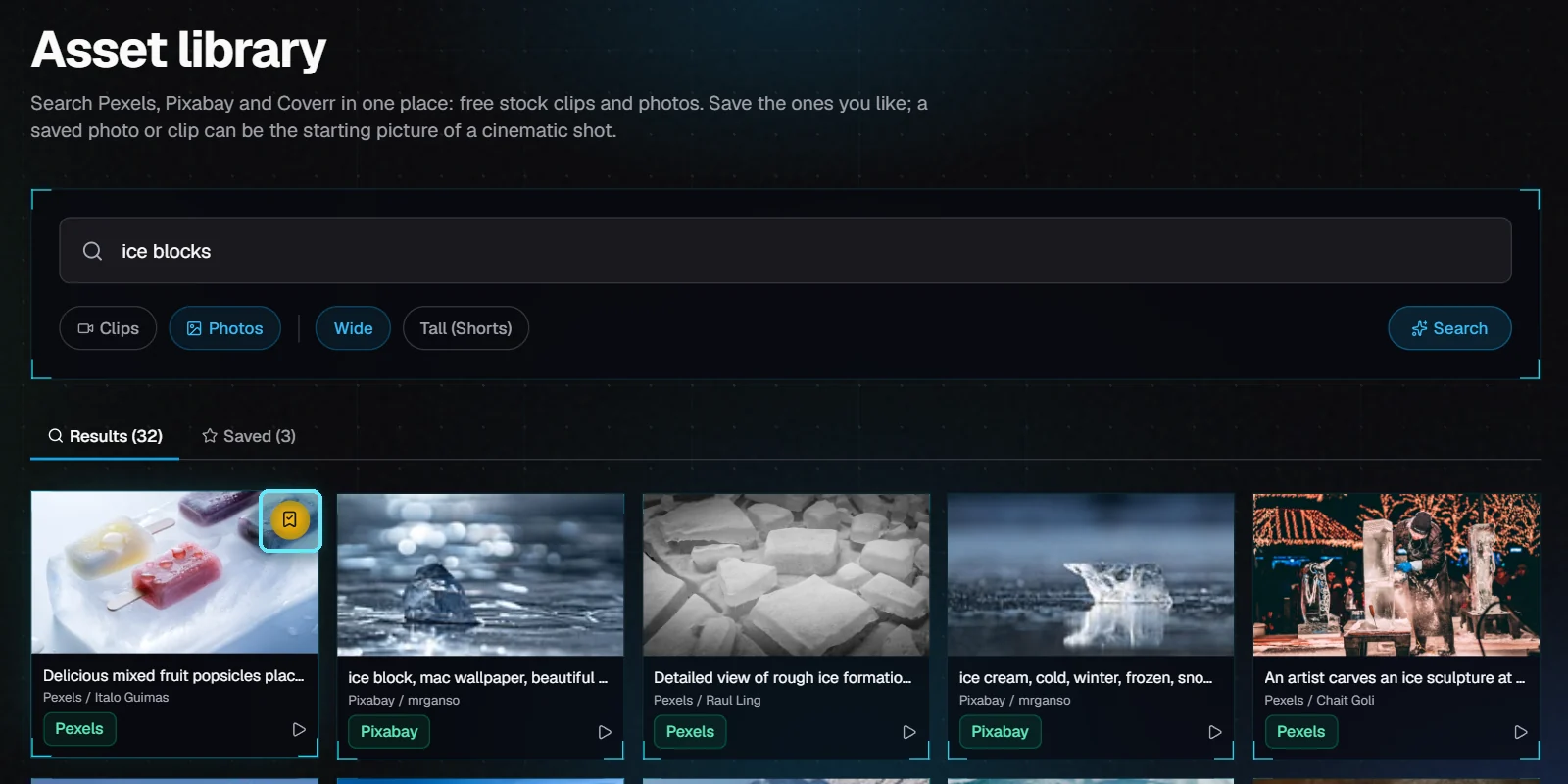
Photos, "ice blocks": the first photo is saved.
The Saved tab lists everything you saved, clips and photos, for all channels. The bookmark on a saved card removes it.
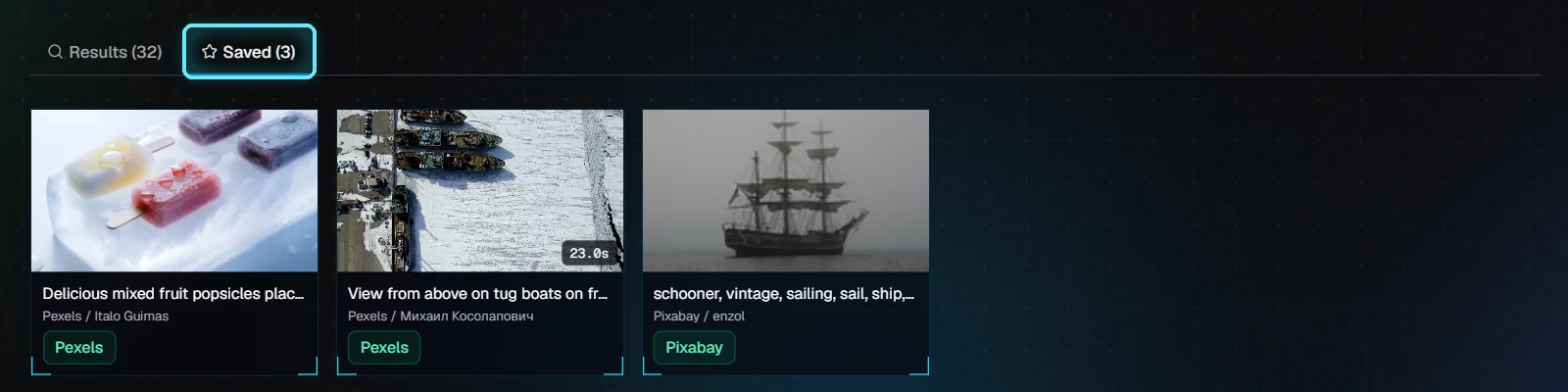
Saved: a photo, a clip and an older photo.
Saving keeps a link and a preview picture, not the file, so it takes no disk space.
3. Start a cinematic shot from it
In the editor, select a scene and open Cinematic shot. Under Picture, click Pick a picture: everything you saved is under Saved in the Asset library. A saved clip starts from its preview picture.
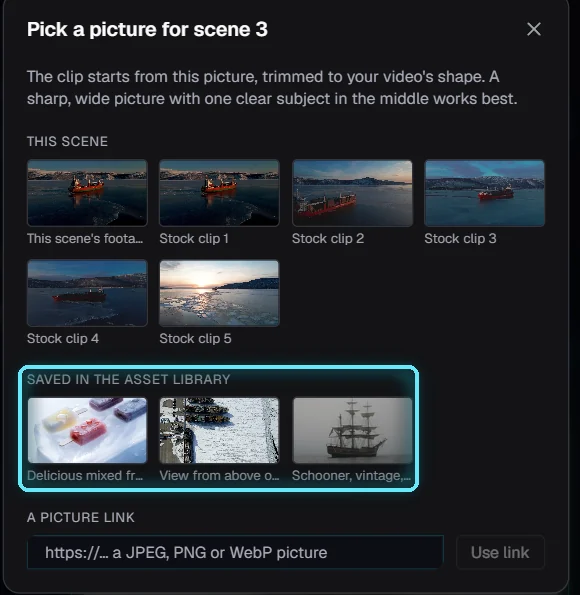
Scene 3 of the Ice King video: the three saved items, next to the scene's own clips.
The rest works as in Cinematic shots with Higgsfield: choose the camera move and the length, then make the shot. Higgsfield charges for each shot; the cost is shown before you click.
Licenses and credit
Pexels, Pixabay and Coverr let you use their clips and photos for free, in videos you earn money from, without asking. The creator's name is under each card; point at it to see the license. Giving credit isn't required, but creators appreciate it in the description.
The site's own rules still apply: don't use a photo of a person in a way that suggests they endorse something, and don't sell a clip on its own.
Tips
English searches find the most: the sites describe their clips in English.
Short, concrete searches work best: "ice blocks", not "the ice trade in the 1800s".
Pick Tall (Shorts) before you save pictures for a Short, so they fit without heavy cropping.
Troubleshooting
"Not searched: ... (no API key)". Add that site's key in Settings > API keys. It is free.
"... didn't answer in time" or "Couldn't reach ...". That site had a problem; the others still answered. Try again in a moment.
No results. Try fewer or simpler words, switch Clips and Photos, or switch Wide and Tall.
Nothing under Saved in the Asset library. Nothing has been saved yet: search in the Asset library and click the bookmark on a card.