
Cinematic shots with Higgsfield
Turn one picture into a short clip with a camera move, preview it, and use it in your video.
A 2-minute video version of this guide will play here. Everything it shows is written out below.
A cinematic shot is a 5 or 10-second video made from a single picture, with a real camera move: the camera pushes in, orbits, cranes up. VidNexus makes it with Higgsfield. The scene keeps its stock footage until you decide you like the shot.
This guide makes one for scene 3 of the Ice King video, the ship Frederic Tudor sent to Martinique in 1806. The stock footage there was a modern cargo ship; a misty sailing ship tells the story better.
Before you start
A Higgsfield API key. Create one at console.higgsfield.ai. You get a key ID and a secret: paste both, as
keyID:secret, into Settings, API keys, Higgsfield API key, and save.Credit on that Higgsfield account. API clips are paid from the balance at console.higgsfield.ai.
A video open in the editor. The shot replaces one scene's footage.
What it costs
VidNexus uses Kling 2.5 Turbo through Higgsfield. Higgsfield's list price is about 4.2 cents per second of video: about $0.21 for 5 seconds and about $0.42 for 10 seconds. Bigger Higgsfield plans pay less. The panel shows the price before you click, and every take is added to the project's costs, so Est. cost in the top bar includes it.
1. Save a picture
Any picture can start a shot, but a good one saves you takes. Find it first in the Asset library, so it's ready in every project.
Open Asset library and search. We used
tall ship sailing at sea.Click Image, then Search. Pictures come from Pexels and Pixabay.
Point at a picture and click its bookmark to save it. It shows under Saved.
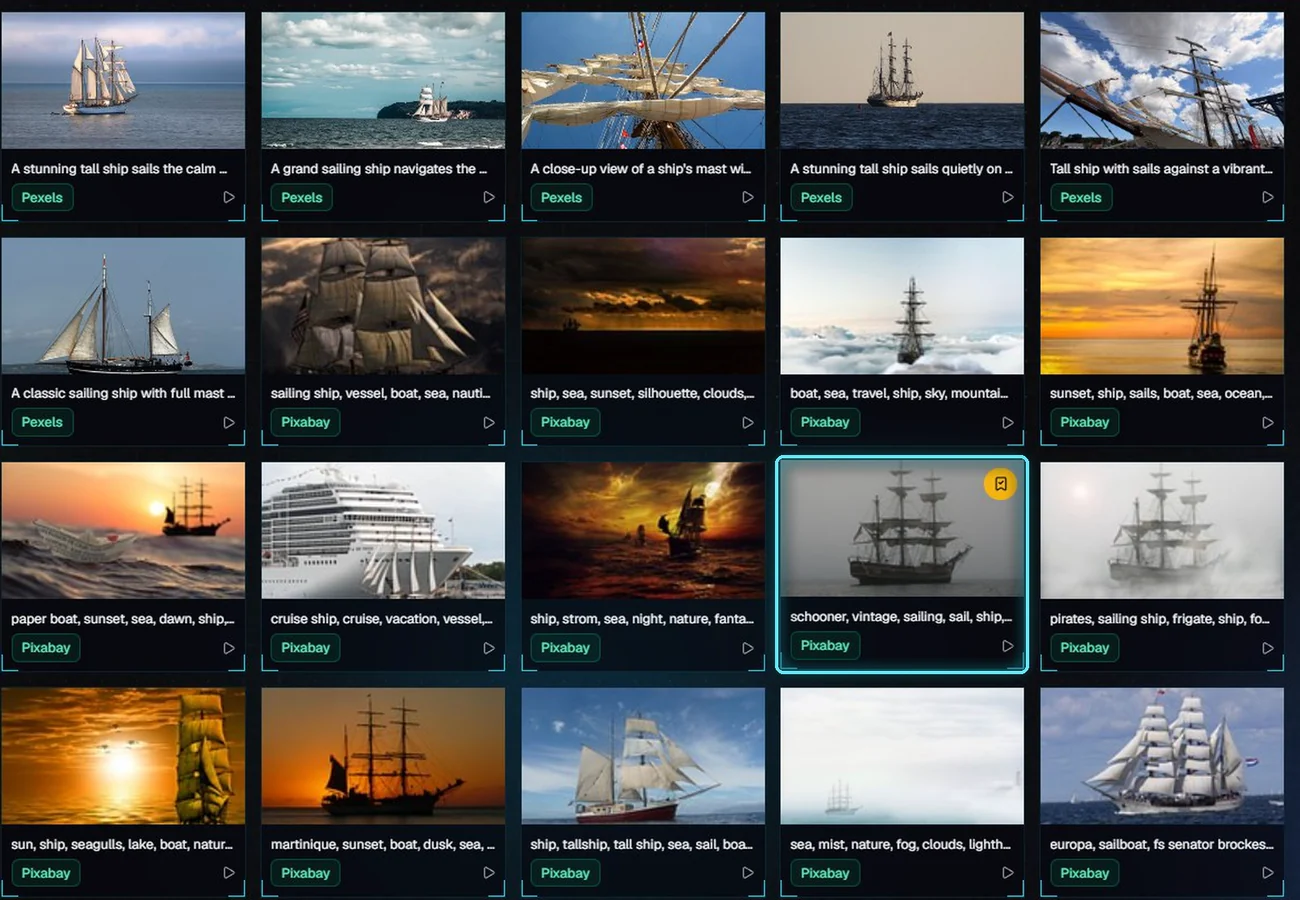
We saved a schooner in grey mist: it fits a winter voyage in 1806.
Pick a sharp, wide picture with one clear subject in the middle. Leave room around the subject: the picture is trimmed to your video's shape (16:9, or 9:16 for a Short) before the clip is made.
2. Open the Cinematic shot panel
Open the video in the editor and select the scene on the timeline. The Cinematic shot panel sits under the scene's footage in the inspector. If the key is missing or incomplete, the panel says so, with a link to Settings.
3. Make a clip
Click Pick a picture. You can start from a frame of This scene's footage, one of the scene's stock clips, a picture Saved in the Asset library, or A picture link (a JPEG, PNG or WebP address). We picked the saved schooner.
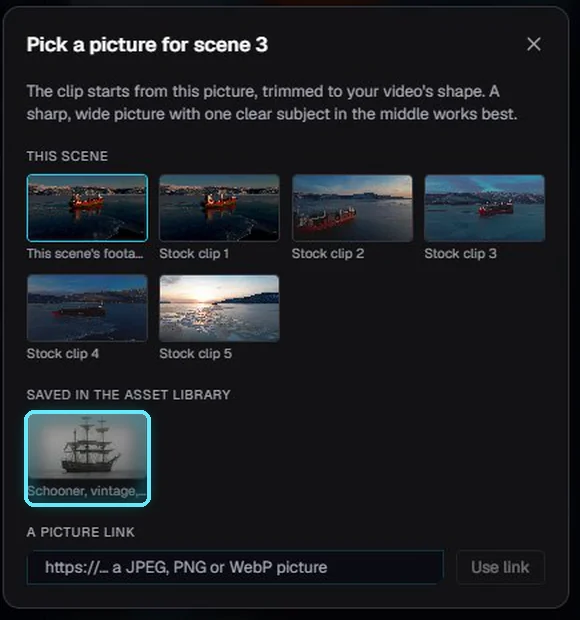
Pick a picture: the scene, its stock clips, saved pictures or a link.
Pick a Camera move (see the table below). We used Push in.
Pick the Length: 5 or 10 seconds. VidNexus starts with the shortest one that covers the scene; our scene is 7.5 seconds, so 10.
Under What happens, say in plain words what moves in the shot. We wrote:
Waves roll past the ship under a grey winter sky. It's optional.Check the price next to the button, then click Make clip.
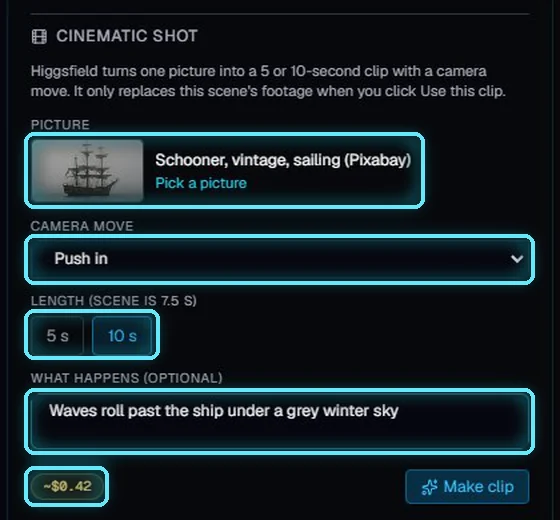
Picture, camera move, length, what happens, and the price before you click.
Higgsfield takes a minute or two. Our 10-second clip was ready in about a minute and a half. You can keep editing meanwhile; the panel updates by itself.
Camera move | What the camera does |
|---|---|
Push in / Pull back | Moves slowly toward the subject, or away from it to show more of the scene. |
Orbit left / Orbit right | Circles around the subject. |
Pan left / Pan right | Turns sideways from where it stands. |
Tilt up / Tilt down | Turns up or down from where it stands. |
Crane up / Crane down | Rises or lowers, like a crane shot. |
Dolly zoom | Moves in while the background stretches away. |
Parallax | Slides sideways, so the foreground moves faster than the background. |
Still camera | Stays put; only the scene moves a little. |
4. Check the take
The clip shows up as a take in the panel, with its move, length and price. It plays right there. Nothing in your video has changed yet.
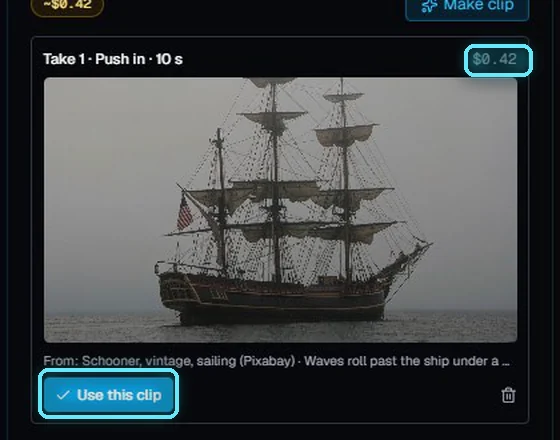
Take 1: a 10-second push in, $0.42. Use this clip puts it in the video.
Not happy with it? Change the picture, the move or the words and click Make clip again. Every take stays in the list, so you can compare them. The bin icon removes a take you don't want.
5. Use it in your video
Click Use this clip on the take you like. The take says In use.
On the timeline, the scene is now one clip, Scene 03 · cinematic shot. If the shot is shorter than the scene, its last frame holds until the next scene.
Play the scene to see it with its narration and graphics, then Render when you're ready.
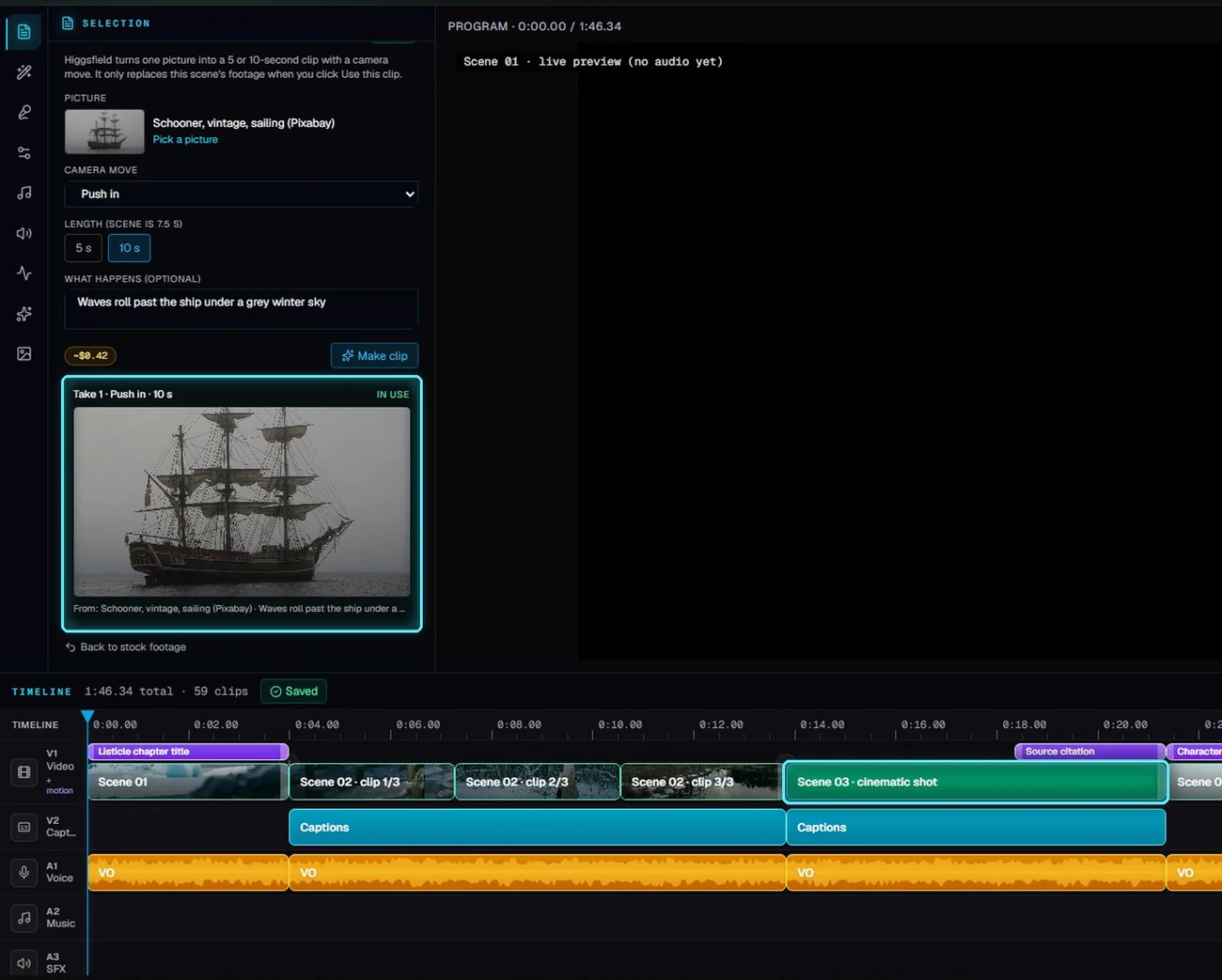
The take is In use, and scene 3 is one cinematic clip on the timeline.
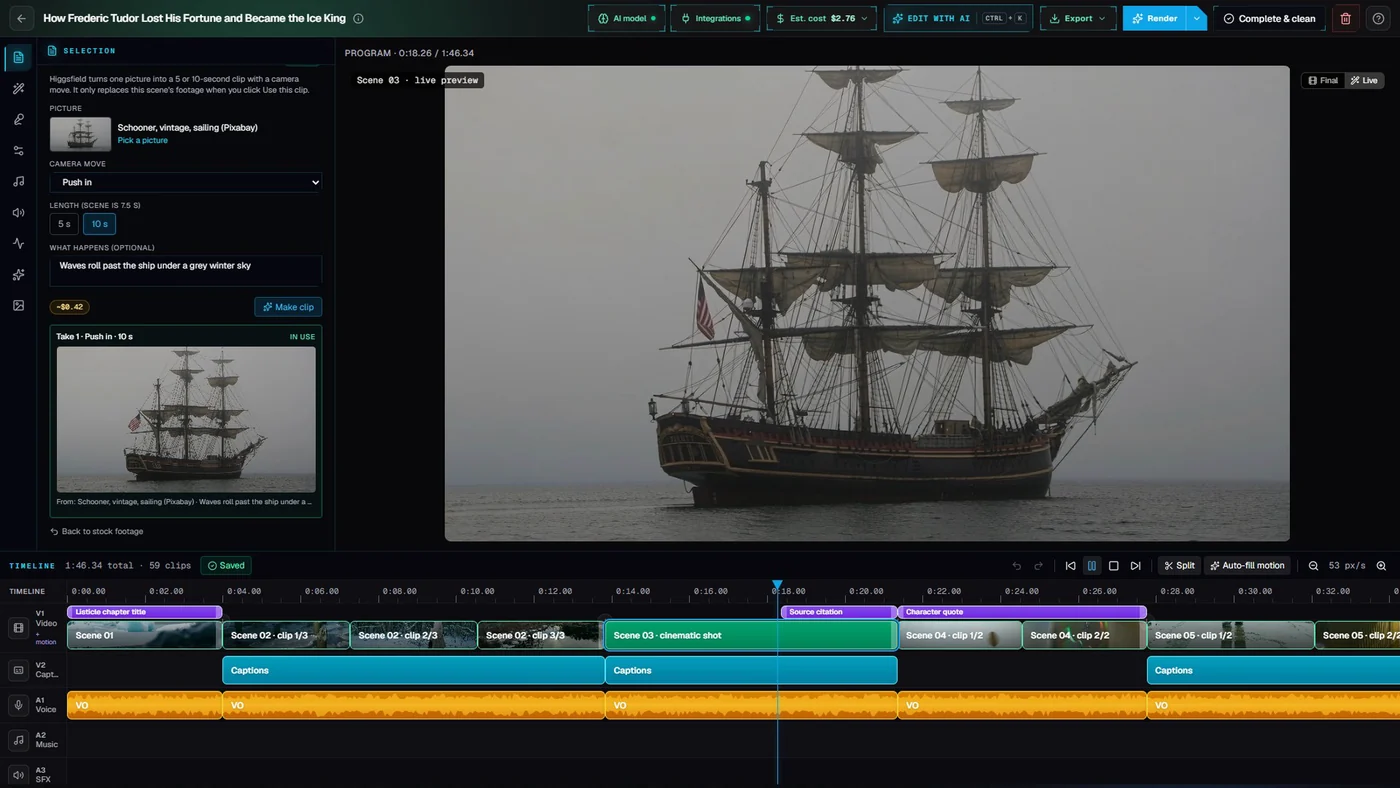
Scene 3 playing with the new shot, under its source graphic.
Changed your mind? Back to stock footage, under the takes, puts the scene's stock clips back. Your takes stay, so you can use one again later without paying twice.
Next: Motion graphics 101.
Tips
Write what moves, not what's in the picture: the picture already shows the ship. "Waves roll past" or "fog drifts across" gives the model something to animate.
Gentle moves (Push in, Pull back, Crane up) work on almost any picture. Orbit and Dolly zoom need a clear subject with space around it.
A frame of the scene's own footage keeps the look of the video; a saved picture lets you change the subject, like our sailing ship.
Use shots where they count: an opening, a turning point, a scene with no good stock footage. Ten of them in a video cost about $4.
Troubleshooting
"The Higgsfield API key needs its secret too..." Paste the key as key ID, a colon, then the secret, all in one field.
"Higgsfield didn't accept the API key." Check both parts of the key at console.higgsfield.ai, or create a new one.
"Your Higgsfield account is out of credits." Top up at console.higgsfield.ai..
"Higgsfield's content check rejected this picture or prompt." Try another picture, or reword what happens.
"Higgsfield is busy..." Too many requests at once. Wait a minute and click Make clip again.
"VidNexus was closed while this clip was being made." Keep VidNexus open until the take is ready, then make it again.