
The Research workbench
Find a video idea, decide how to frame it and package it for YouTube, with eleven tools that share one channel and topic.
Research is where a video starts, before there is a script. Its eleven tools are grouped into three phases. They share one Context bar, so you set the channel and the topic once, and Send buttons carry results from one tool to the next.
This guide tours the workbench on The Food Archive, a food history channel, starting from the topic how people kept food fresh before refrigerators. It ends with the Script length calculator, which tells you how long a script will run when the VidNexus narrator reads it.
1. Three phases, eleven tools
Click Research in the left menu. The page shows the tools in three columns, one per phase, and the same list runs down the side so you can jump between tools at any time.
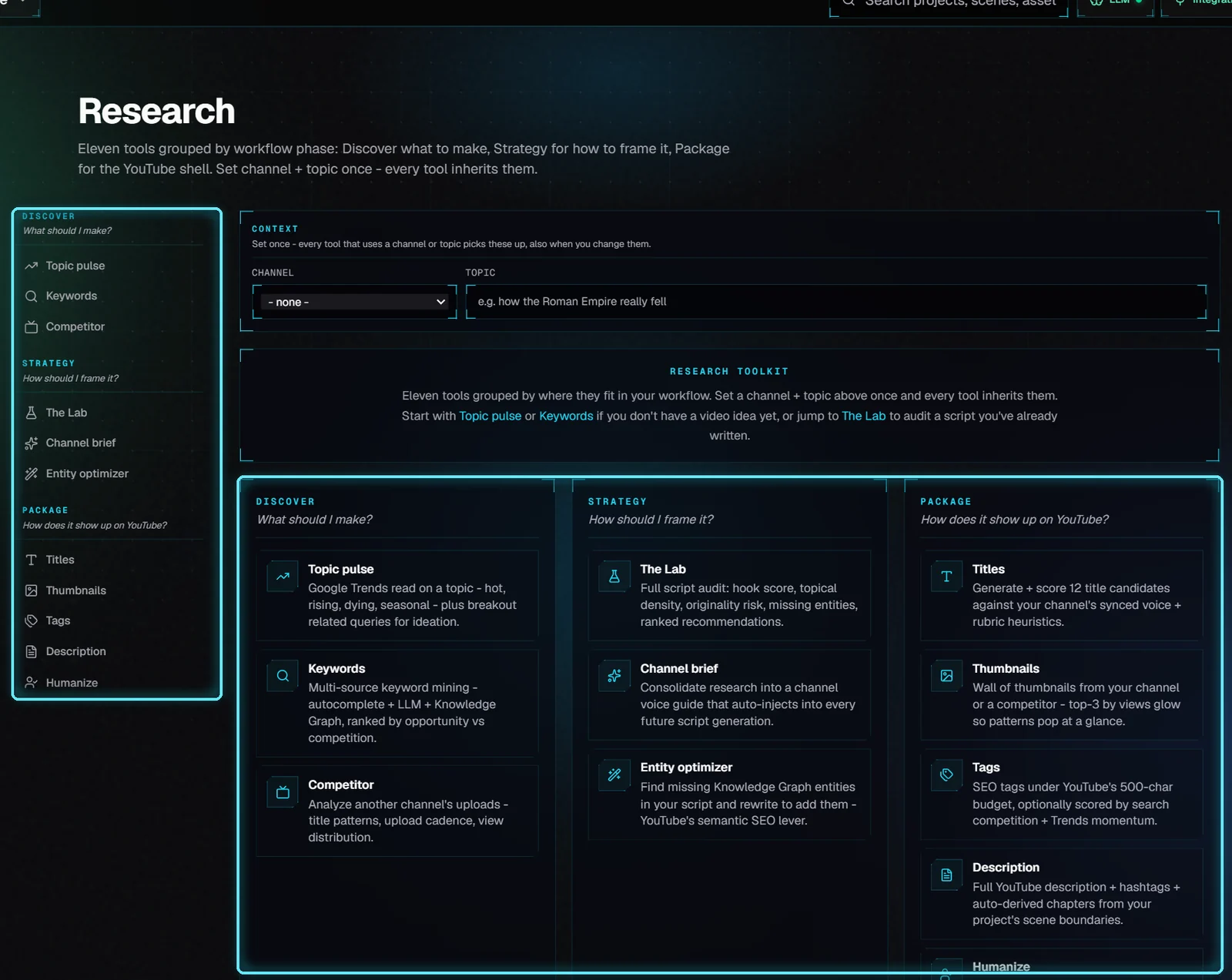
The Research page: the tool list on the side and the three phases.
Phase | Tool | What it does |
|---|---|---|
Discover | Topic pulse | Reads Google Trends for a topic: rising, fading or seasonal, plus related searches that are breaking out. |
What should I make? | Keywords | Collects keyword ideas from search autocomplete, the LLM and Google's Knowledge Graph, and ranks them by opportunity against competition. |
Competitor | Reads another channel's uploads: title patterns, upload rhythm and how views spread. | |
Strategy | The Lab | Audits a script you have written: hook, topical density, originality risk, missing entities. |
How should I frame it? | Channel brief | Collects your research into a voice guide for the channel. VidNexus adds it to every script it writes for that channel. |
Entity optimizer | Finds Knowledge Graph entities missing from a script and rewrites them in. | |
Package | Titles | Writes 12 titles and scores each one. |
How does it show up on YouTube? | Thumbnails | Shows a wall of thumbnails from your channel or a competitor, with the three most viewed highlighted. |
Tags | Builds tags that fit YouTube's 500-character limit. | |
Description | Writes the description, hashtags and chapters from the project's scenes. | |
Humanize | Rewrites a script so it reads less like AI text. |
No idea yet? Start with Topic pulse or Keywords. Already have a script? Go straight to The Lab.
2. Set the Context once
The Context bar sits at the top of every Research page. Pick the channel and type the topic.

Channel and topic set in the Context bar.
Every tool that uses a channel or a topic starts from these. Open Keywords: the search box already holds the topic, and the workspace is The Food Archive.
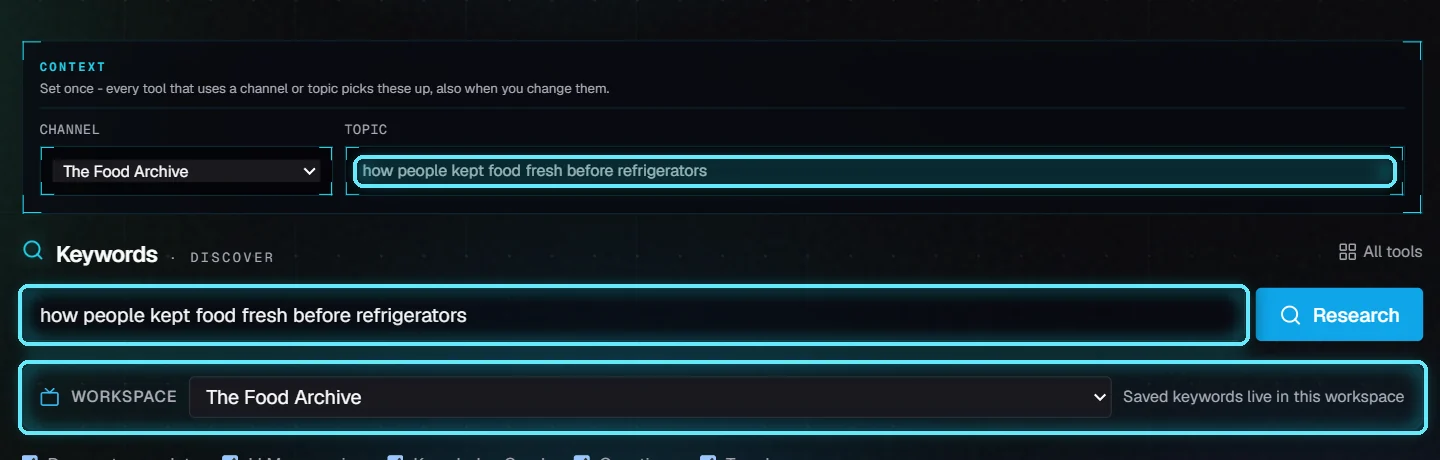
Keywords picked up the topic and the channel.
You can still change a field inside one tool, for that tool only. Change the Context bar while a tool is open and the tool follows. Here the topic changed to ice harvesting, a narrower angle on the same story, and the Keywords box changed with it.
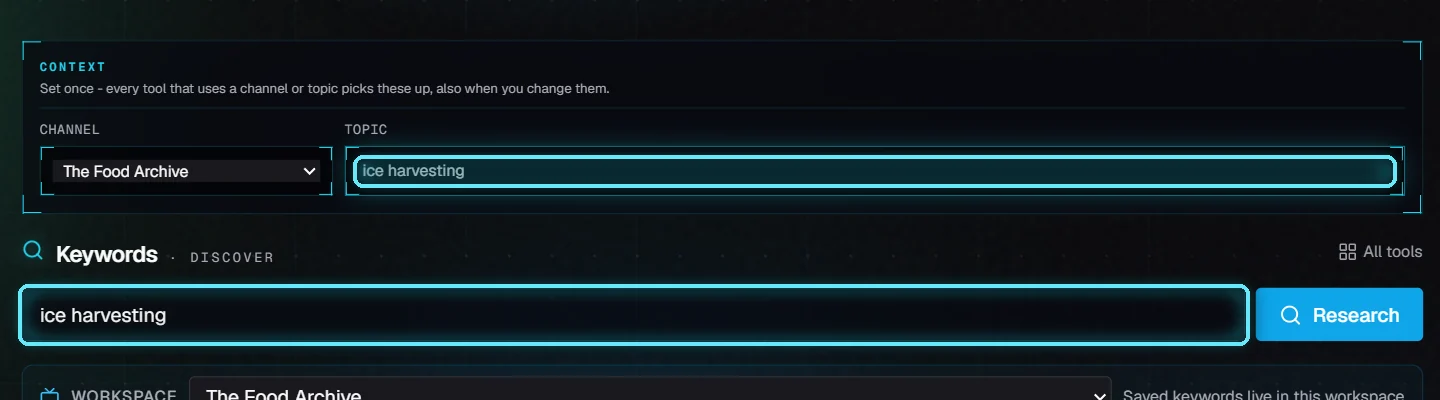
The topic changed in the Context bar, and the open tool followed.
The tool doesn't run again by itself. Click Research to search the new topic.
3. Send results to the next tool
Keywords found 79 ideas for ice harvesting. Competition is how many YouTube videos already match a keyword, and Overall scores search demand against that competition, so the least contested keywords come first.
Read the top rows before you use them. Here the first one is about a video game and the third about an ice machine. We ticked three that fit a food history video (Yakutia, in Siberia, still cuts ice from rivers and lakes), then clicked Send → Titles above the table.
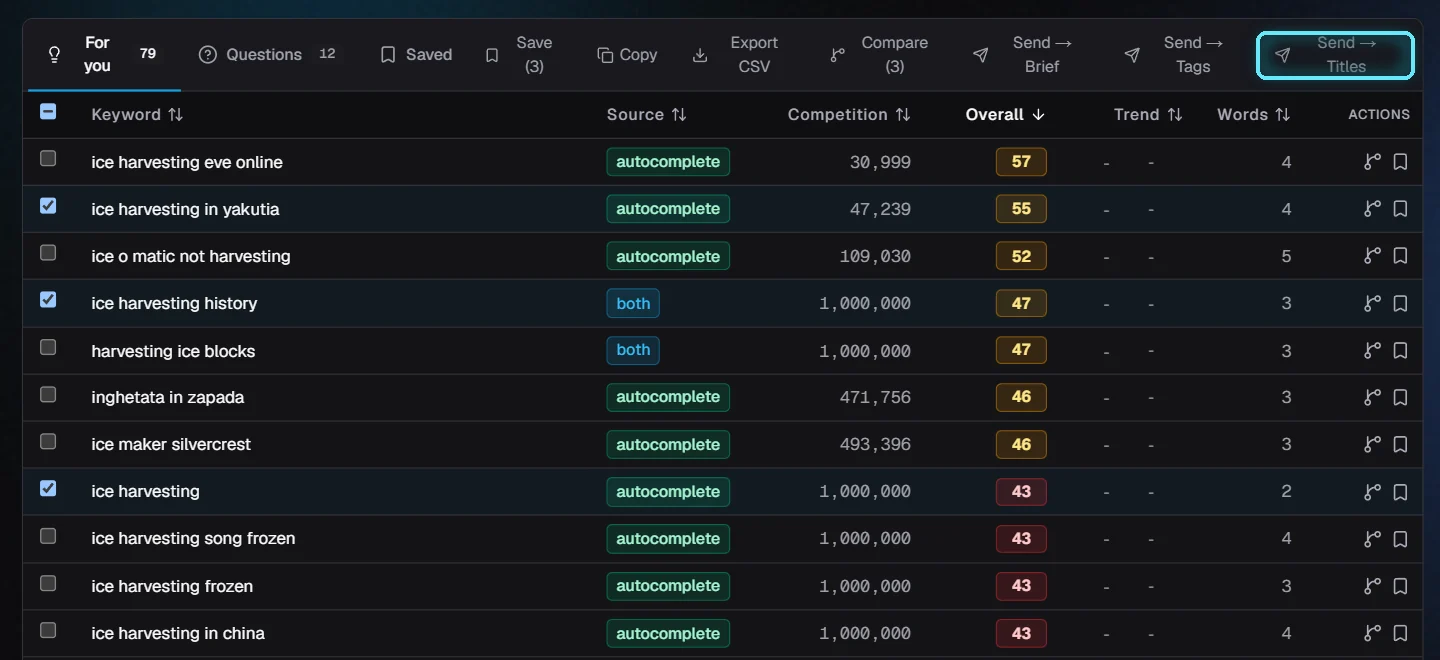
Three on-topic keywords ticked, ready to send to Titles.
Titles opens with the topic, the channel and the three keywords filled in, and a note says what arrived.
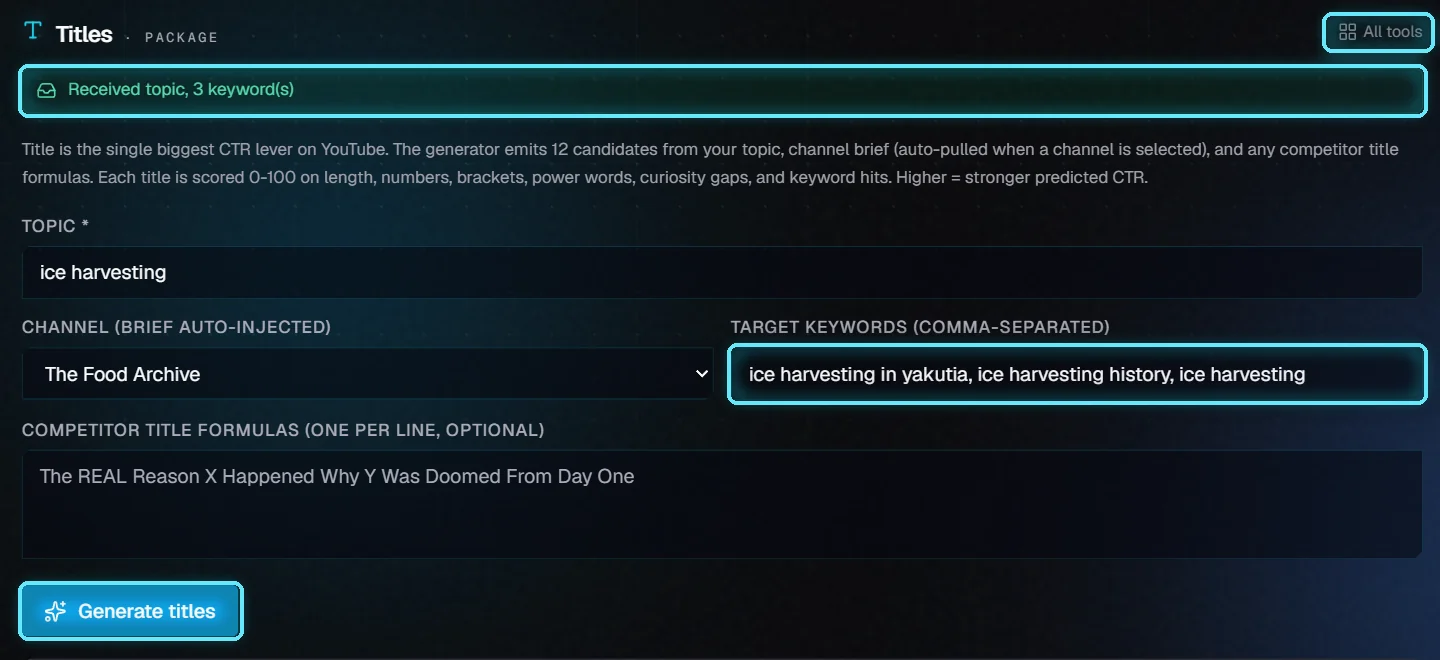
Titles received the topic and three keywords.
Click Generate titles. You get 12 titles, best first. The tags under each one show where its points came from, like length, a number, brackets and keyword hits. The copy icon on the right copies a title.
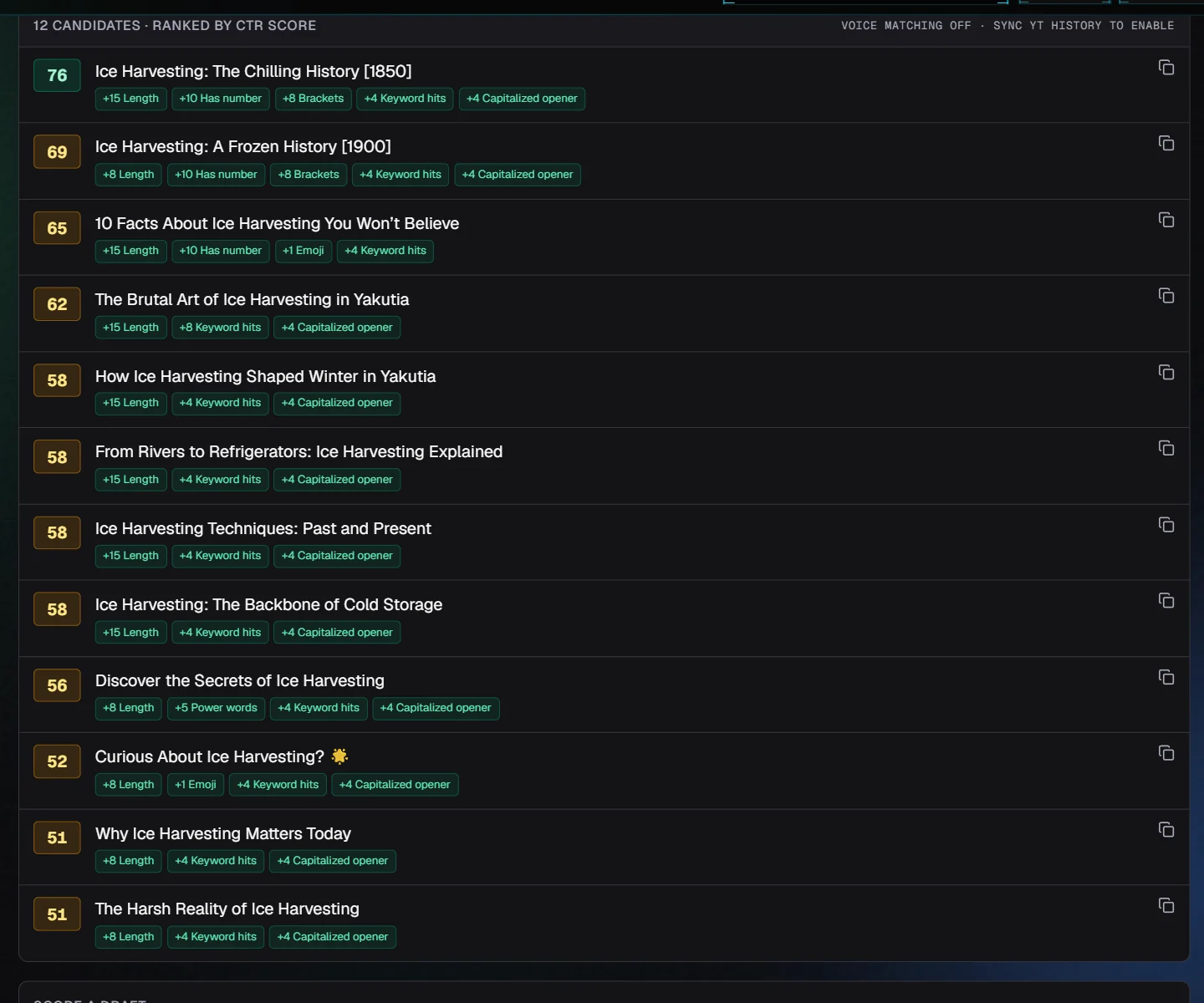
Twelve titles for ice harvesting, ranked by score.
The score is a checklist of what tends to get clicks, not a prediction from YouTube data. Use it to compare titles, and pick the one that fits your video.
These are all the Send routes:
From | Button | What arrives |
|---|---|---|
Topic pulse | → keywords (on a related search) | The search, as the Keywords seed. Keywords runs it right away. |
Keywords | Send → Brief, Send → Tags, Send → Titles | The ticked keywords (and the topic, for Titles). |
Competitor | Send → Titles | The competitor's title formulas. |
Competitor | Send → Brief | The competitor's patterns: takeaway, title formulas, topics, hooks. |
The Lab | Send → Brief | The top recommendations as style notes, and the missing entities as facts to mention. |
4. Back to the map
Next to the open tool's name, All tools (top right of the tool) goes back to the three-phase page. The Context stays as you left it, so the next tool you open starts from ice harvesting too.
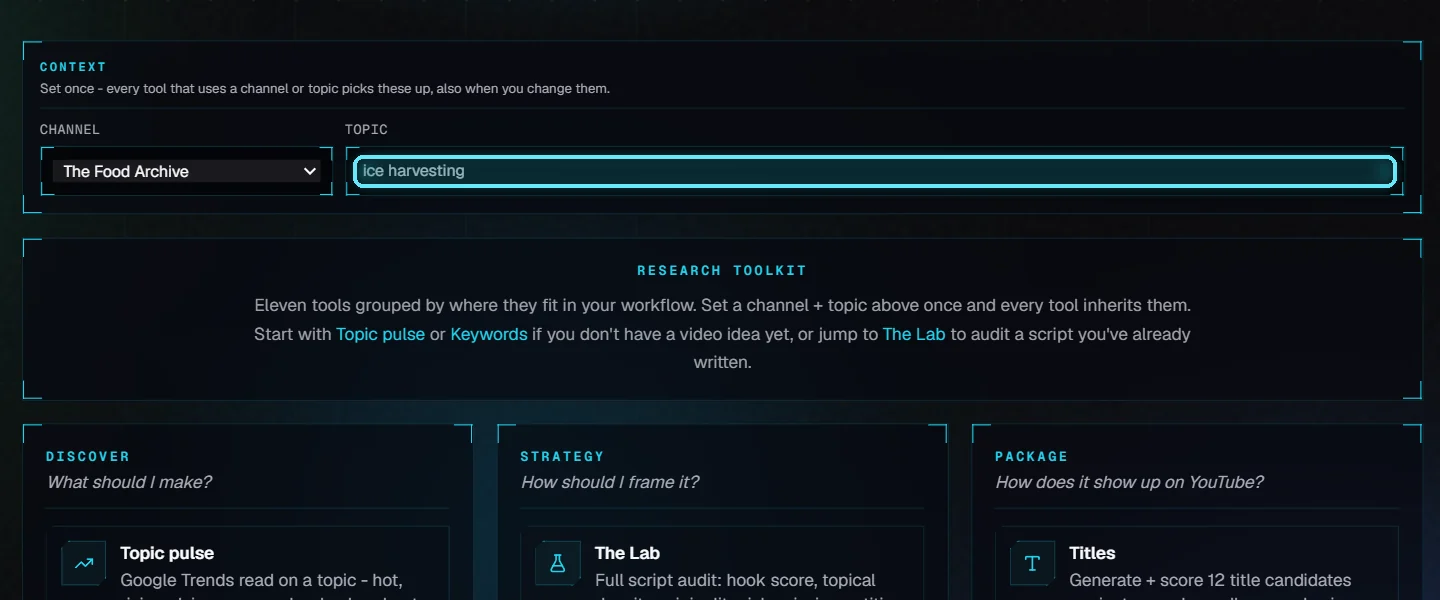
Back on the map, with the topic still set.
5. How long will the script run?
The Script length calculator is in Tools in the left menu, under the utilities. It has two modes.
Text → runtime. Paste a script and pick the delivery pace. The calculator shows the runtime, a scene count, the words and the number of retention beats, with recommendations underneath.
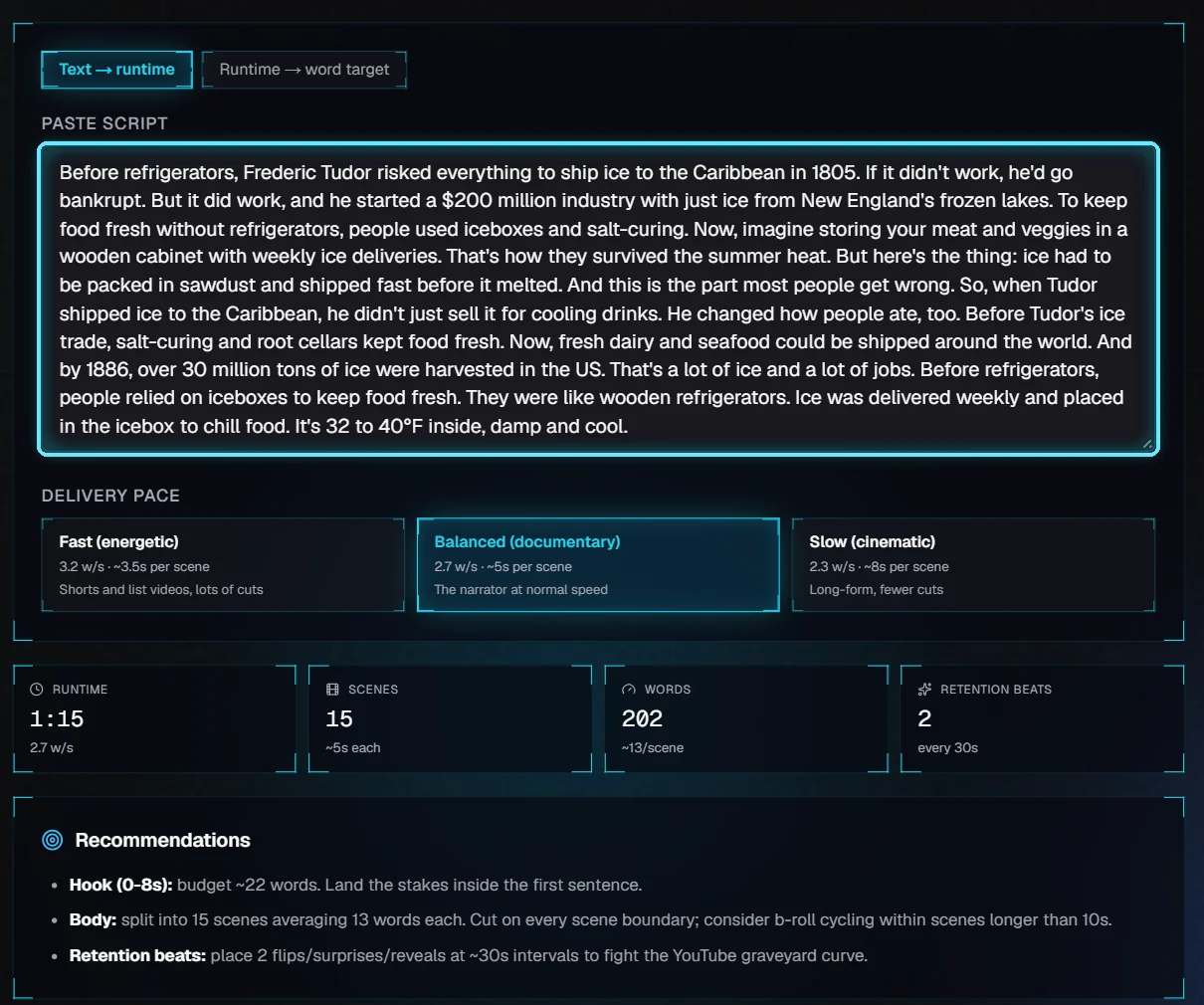
A 202-word script runs about 1:15 at the Balanced pace.
The three paces:
Pace | Words a second | Scene length | Good for |
|---|---|---|---|
Fast (energetic) | 3.2 | about 3.5 s | Shorts and list videos, lots of cuts |
Balanced (documentary) | 2.7 | about 5 s | The VidNexus narrator at normal speed |
Slow (cinematic) | 2.3 | about 8 s | Long-form, fewer cuts |
Balanced was measured on the VidNexus narrator: the 6-minute food video from the first-video tutorial reads 954 words in 5:51.
The recommendations are the same in both modes:
Hook (0 to 8 s): about 22 words at the Balanced pace. State what's at stake in the first sentence.
Body: the scene count and words per scene. Scenes longer than 10 seconds need more than one clip of footage.
Retention beats: a surprise, twist or reveal about every 30 seconds, to keep viewers watching.
Runtime → word target. Drag the slider to the length you want, and the calculator tells you how many words to write. Six minutes at Balanced is 972 words in 72 scenes.
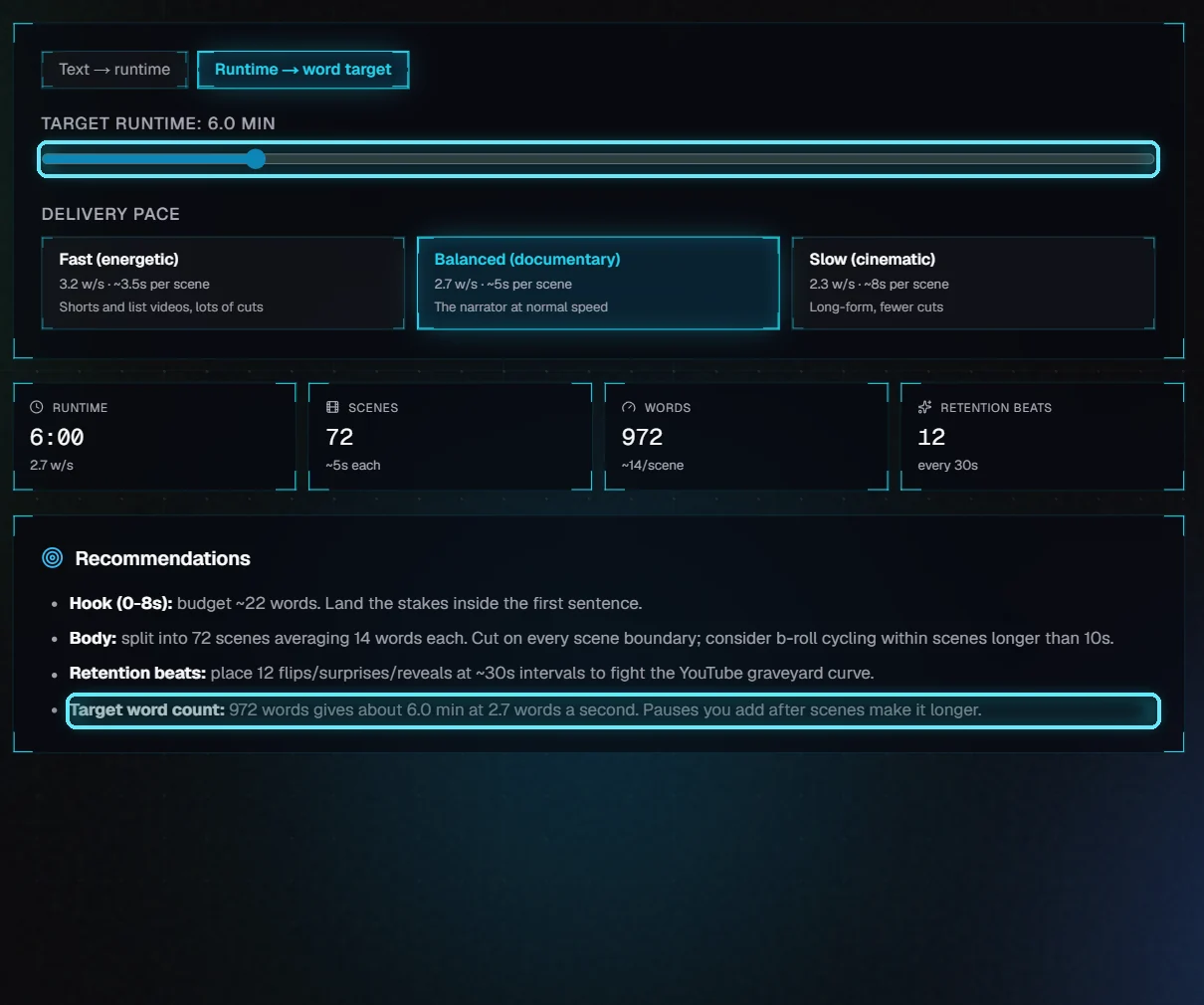
A 6-minute target: 972 words.
Pauses you add after scenes make the video longer than the word count alone.
Tips
Work left to right. Discover gives you the topic and keywords, Strategy shapes the script, Package finishes the YouTube page. Send buttons move results along.
Keep the Context current. When you settle on a narrower topic, type it in the Context bar rather than in one tool, so every tool you open next uses it.
Write to a word target. Pick the runtime first in the Script length calculator, then aim for that word count when you write or trim.
Troubleshooting
Keywords, Titles or The Lab return an error. They use the local LLM. Check that Ollama is running; the LLM light at the top of the app turns green when it's ready.
Competition shows a dash. Counting competing videos needs a YouTube Data API key (Settings, YouTube). Only 30 keywords are counted per search, to save API quota; the rest are ranked as if they had the typical competition of the counted ones.
Keywords in another language. Autocomplete suggestions can include phrases in other languages. Leave them unticked.
A tool didn't pick up the new topic. Tools follow the Context bar, not each other. Change the topic in the Context bar, or edit it in the tool itself.