
Teach VidNexus your channel's voice
Sync your YouTube channel, write a channel brief, and get titles in your channel's style.
A 2-minute video version of this guide will play here. Everything it shows is written out below.
VidNexus can learn how your channel sounds: which titles work for you, and a few rules that every script follows. This guide sets it up for The Food Archive, in five steps.
Before you start
A YouTube Data API key in Settings, API keys. It's free at console.cloud.google.com. A sync uses about 5 of the 10,000 free units a day.
Your channel's YouTube @handle or link. The Food Archive isn't on YouTube yet, so this guide uses a public food history channel as a stand-in. Use your own.
Your AI model running, for the brief and the titles (see AI model in the top bar).
1. Add your YouTube channel
Open Channels. Point at a channel and click the pencil to edit it.
In Narrator voice, pick the voice new videos on this channel use. A brand kit or a video can still pick another.
Paste the channel's @handle or link into YouTube channel. All of these work:
@WeirdHistoryFood,youtube.com/@WeirdHistoryFood, or a channel link with/channel/UC....Click Save. VidNexus keeps the @handle.
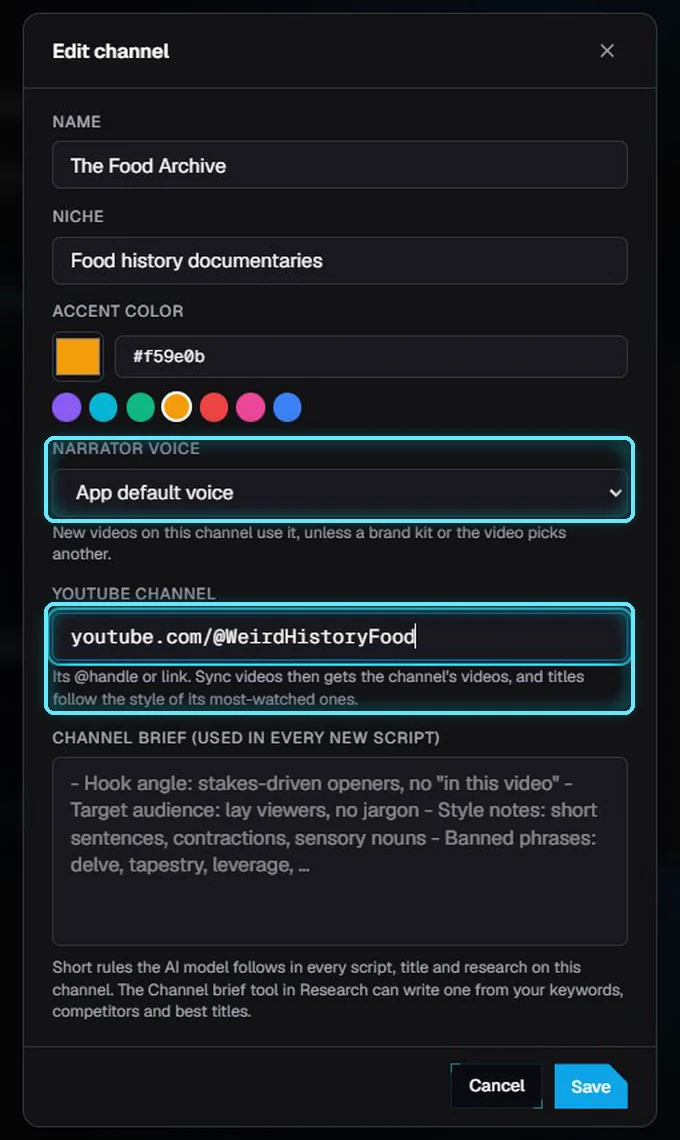
Edit channel: the narrator voice and the YouTube channel.
2. Sync its videos
Click Sync videos on the channel card. VidNexus gets up to 100 of the channel's latest videos from YouTube: titles, views, likes, comments, length and dates. Ours took a few seconds; the card then says how many came in.
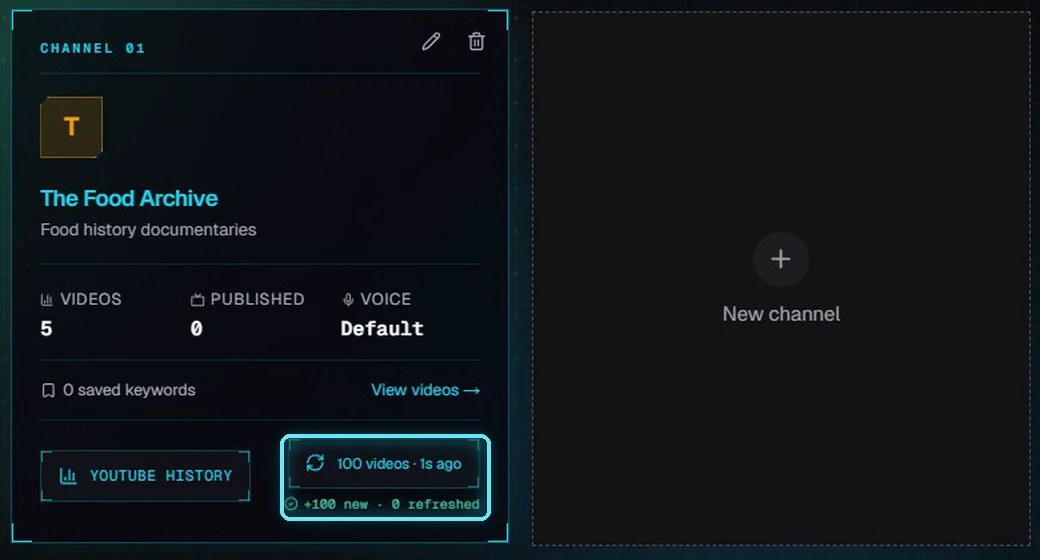
After the sync: 100 videos, all new.
Syncing again adds new videos and updates the views. Auto-sync at the top of the page does it once a day while VidNexus is open; Sync all syncs every channel that has a handle.
Click YouTube history to see what came in: the most-watched video, average views, which title lengths get the most views, when the videos went up, and every video, sorted by views. Click a column to sort by it.
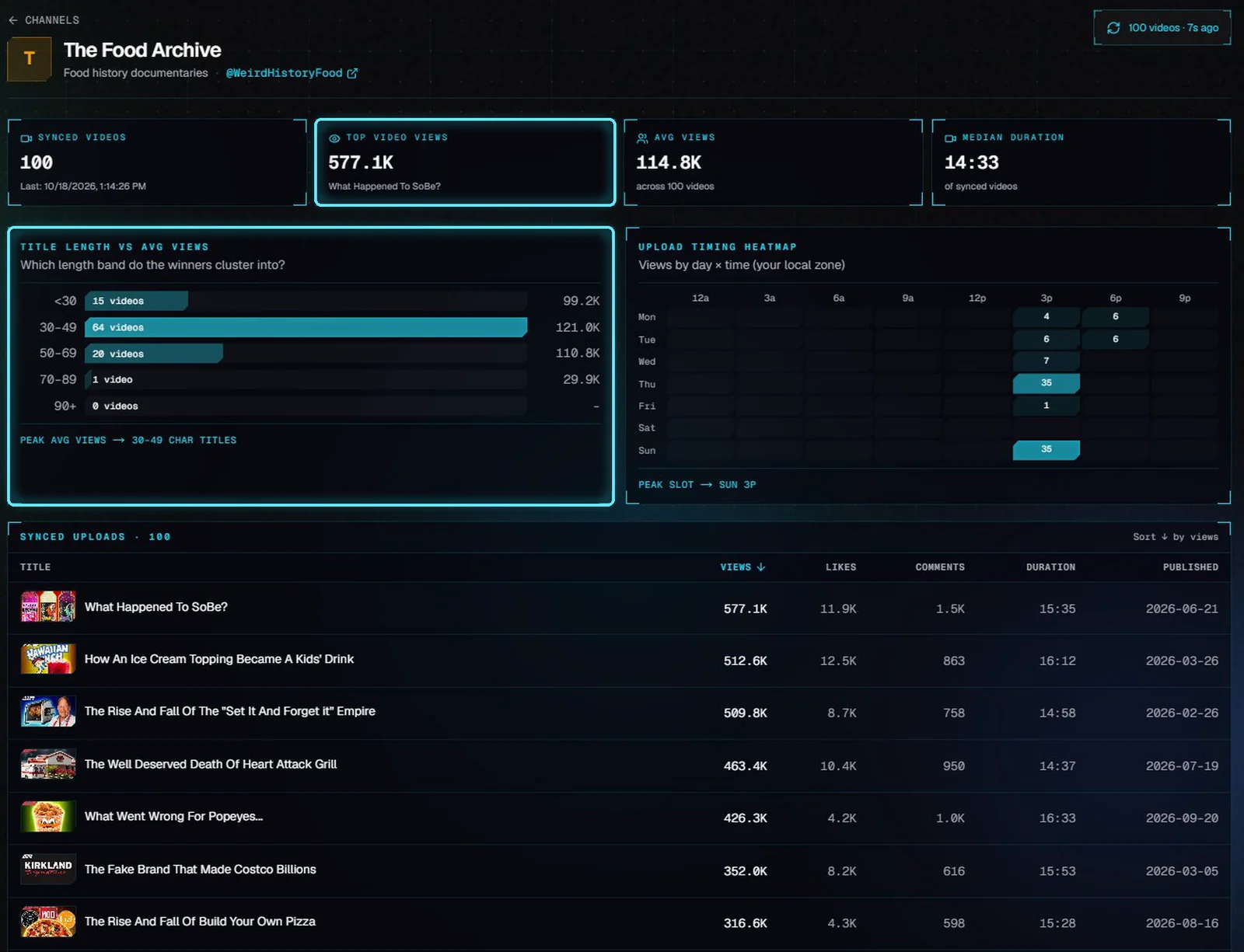
YouTube history: the numbers, the charts and the videos, most-watched first.
3. Write the channel brief
The brief is a few short rules that every script on the channel follows. Open Research, then Channel brief, and pick the channel at the top.
Fill in what you know. We wrote the Target audience: curious adults who like the stories behind everyday food.
Click Auto-assemble. It fills empty fields with the titles of the channel's most-watched videos (in Style notes), your saved keywords, and your last Competitor and Lab runs.
Click Synthesize. Your AI model turns it all into a short brief. Ours took 18 seconds.
Read it and change anything you like. Then click Save brief.
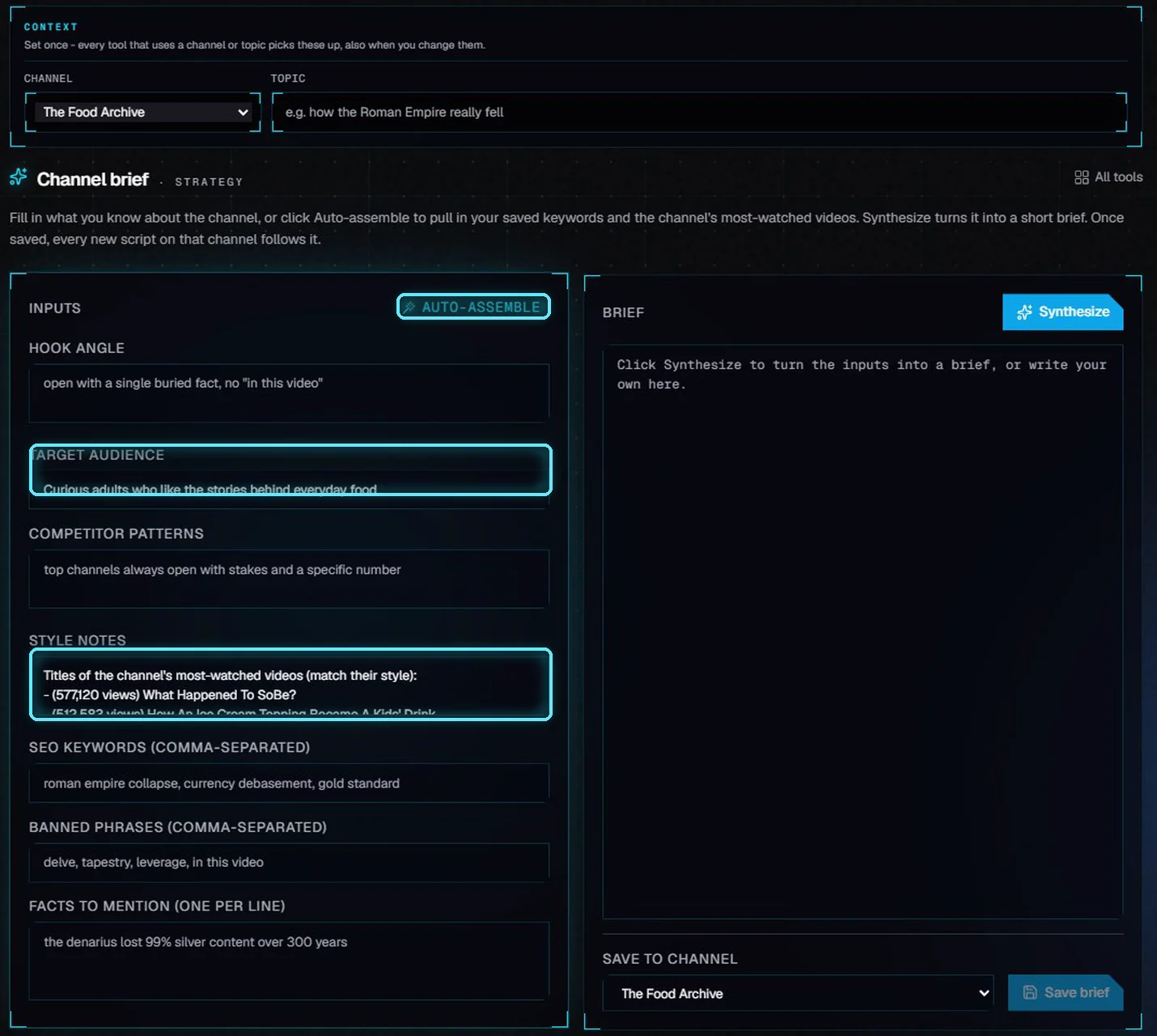
Target audience typed; the channel's best titles added by Auto-assemble.
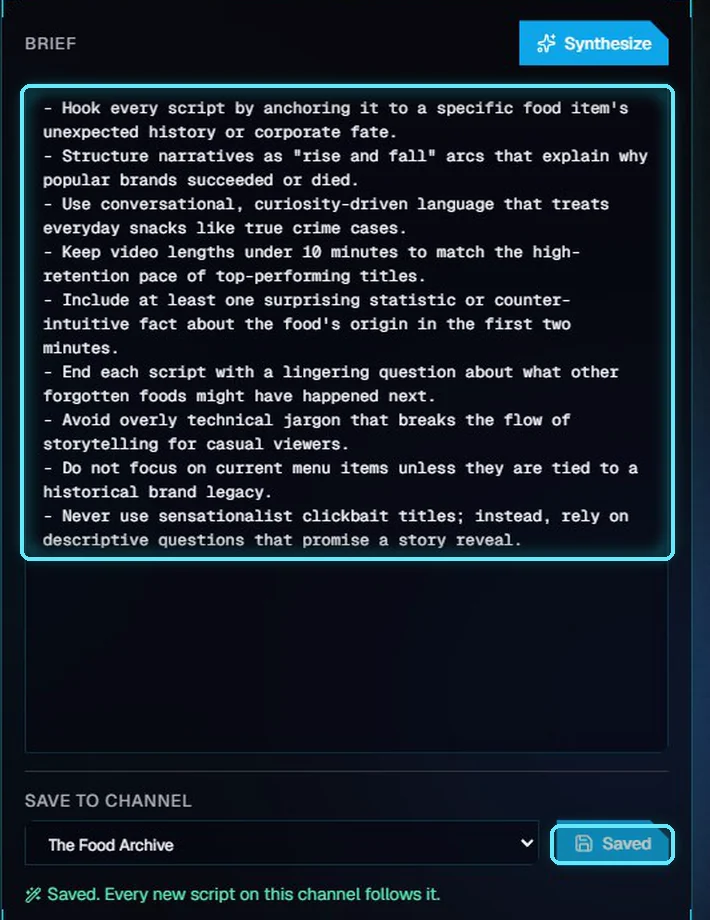
The brief our AI model wrote, saved on the channel.
The brief is only as good as what goes in. Read every line: ours said to keep videos under 10 minutes, which came from the channel's best videos, not from a rule we chose. Delete any line you don't want.
4. Titles in your channel's style
Open Titles in Research, type the video's topic, pick the channel, and click Generate titles. The note Matched to your channel · 8 best videos says the AI model followed the channel's most-watched titles and its brief.
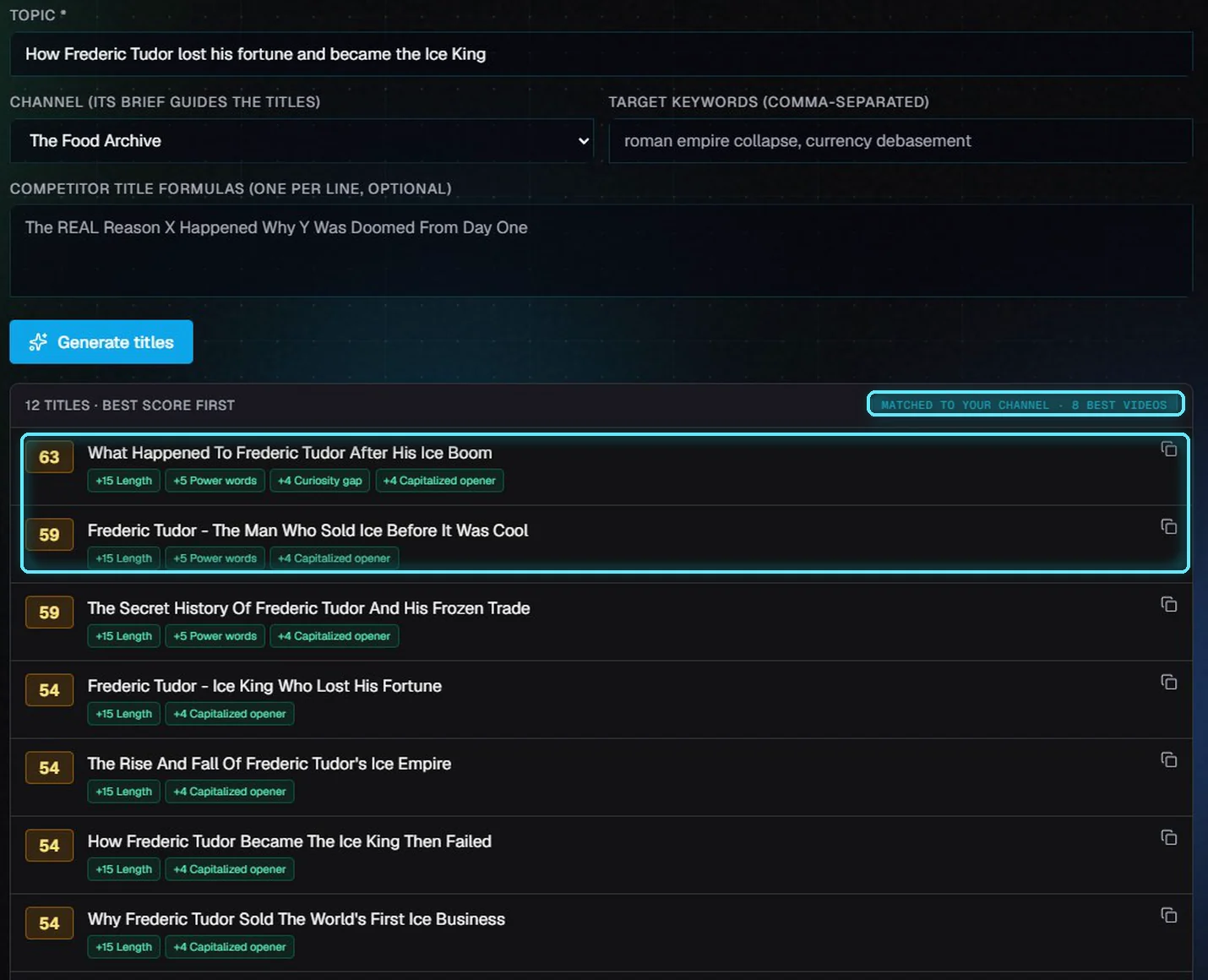
Twelve titles, matched to the channel, best score first.
Each title gets a score out of 100 for length, numbers, power words and curiosity. Click the copy icon next to the one you like. The titles copy the channel's style, not its videos: a title that repeats one of the channel's own titles is dropped.
Where | What it uses |
|---|---|
New scripts | The brief: the outline, the research and every section follow it. |
The title VidNexus writes from a script | The brief and the channel's most-watched titles. |
Titles (Research) | The brief and the 8 most-watched titles. The note "Matched to your channel" says they were used. |
Humanize (Research) | The most-watched titles and their descriptions, so the rewrite sounds like the channel. |
5. Where the brief lives
The brief is saved on the channel itself. Click the pencil on the channel: it's in Channel brief, and you can change it there any time. A new script on the channel uses the brief as it is when the script is written.
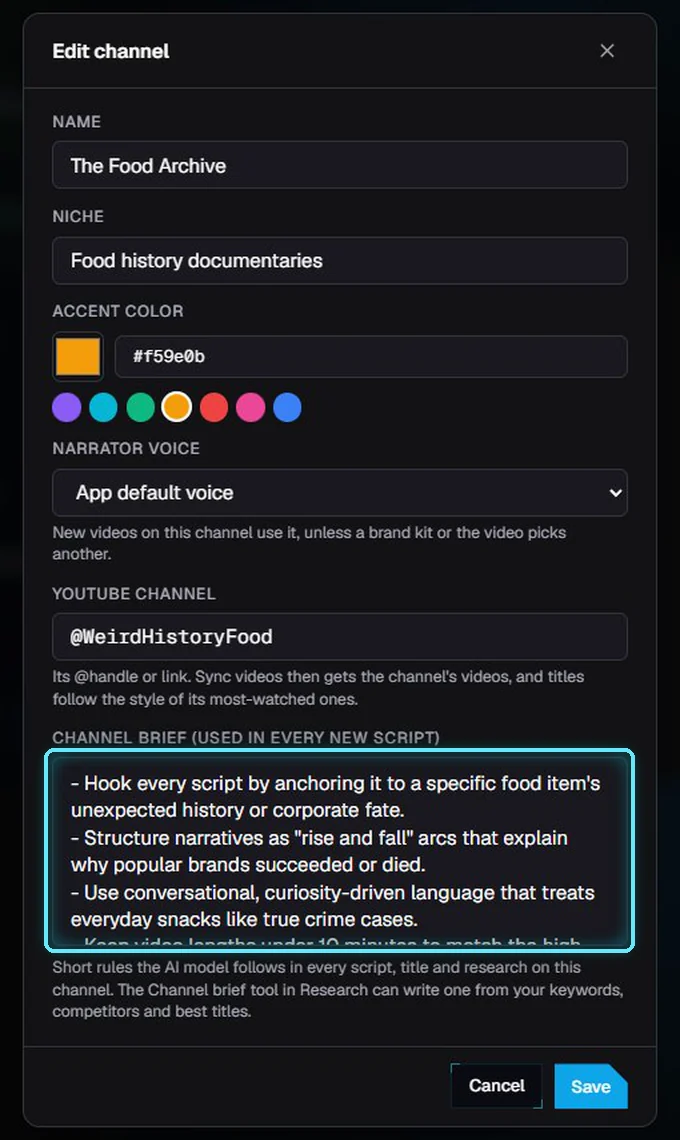
Edit channel shows the saved brief.
Next: Cinematic shots with Higgsfield.
Tips
Sync before you write the brief, so Auto-assemble has your best titles.
Keep the brief short: 6 to 10 rules. A long brief makes every rule weaker.
A new channel with few videos teaches little. Write the brief yourself, and sync again once you have 10 or more videos.
Shorts under a minute don't count as examples for titles: only longer videos do.
Troubleshooting
"Add a YouTube Data API key in Settings > API keys..." The sync needs the key. Add it, then click Sync videos again.
"YouTube has no channel..." Check the handle: open the channel on YouTube and copy the @name from its page.
"This channel has no public videos to sync." Only public videos are synced. Private and unlisted ones aren't.
Titles say "Not matched to your channel's style". The channel has no synced videos yet. Sync them on the Channels page.
Synthesize does nothing, or shows an error. Check that the AI model is running (the dot in the top bar), then try again.