
The AI editor
Describe a change in plain words, and let the AI edit your video.
A 3-minute video version of this guide will play here. Everything it shows is written out below.
The AI editor is a chat panel that can read and change your project for you: rewrite a scene, record the new line, add a motion graphic, and more. This guide uses it on the video from tutorial 02, then renders the result.
1. Choose the AI
Open Settings, go to the Integrations tab and find the AI Editor card.
Claude runs the AI editor when you paste an Anthropic API key there (get one at console.anthropic.com/settings/keys). The key stays on your computer and is only sent to Anthropic when you use the panel. Each request costs a few cents; the panel shows the running total.
Ollama (your local model) takes over when no key is set. It's free and handles questions, rewrites, tone changes, undo, and swapping or deleting motion graphics. Adding new motion graphics needs Claude.
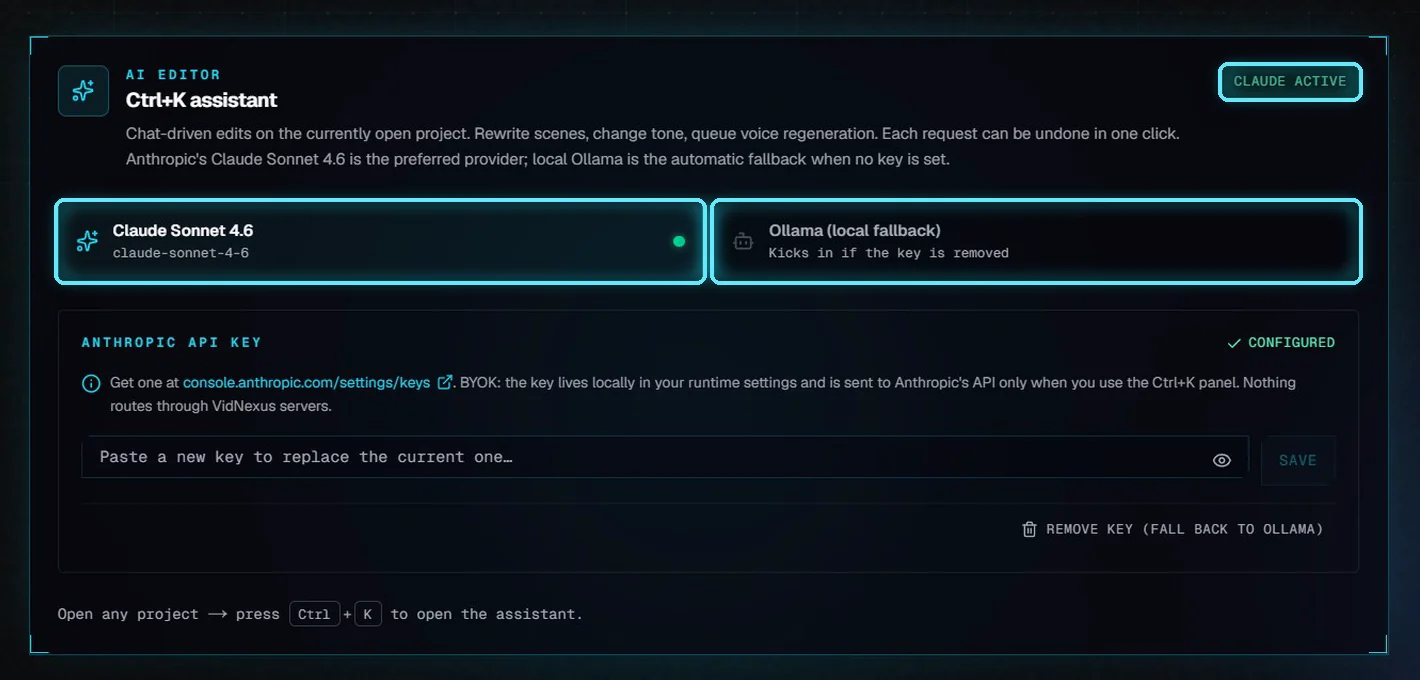
The AI Editor card: Claude is active, Ollama is the fallback.
2. Open the AI editor
Open a project and click Edit with AI at the top, or press Ctrl+K anywhere in the project. Press Esc to close it.
The panel opens on the right. Click one of the examples to put it in the request box, or type your own request and press Enter.
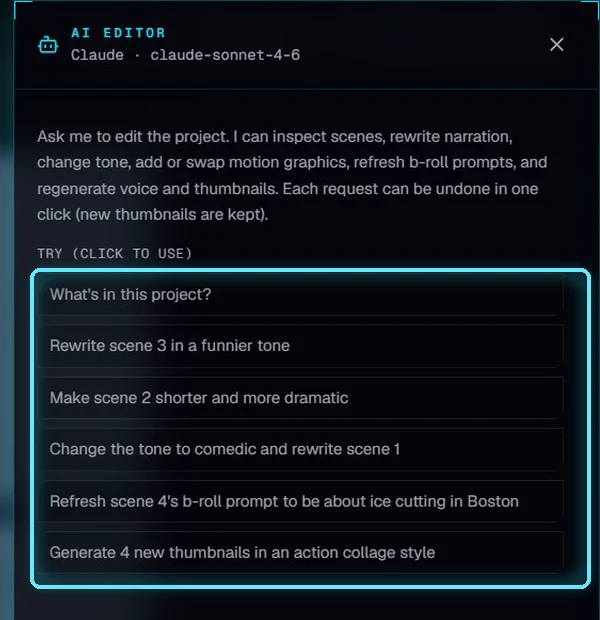
The AI editor, with example requests.
3. Ask about your project
Start with a question, like What's in this project? Each card in the reply shows a step the AI took. Here it read the project, then summed it up.
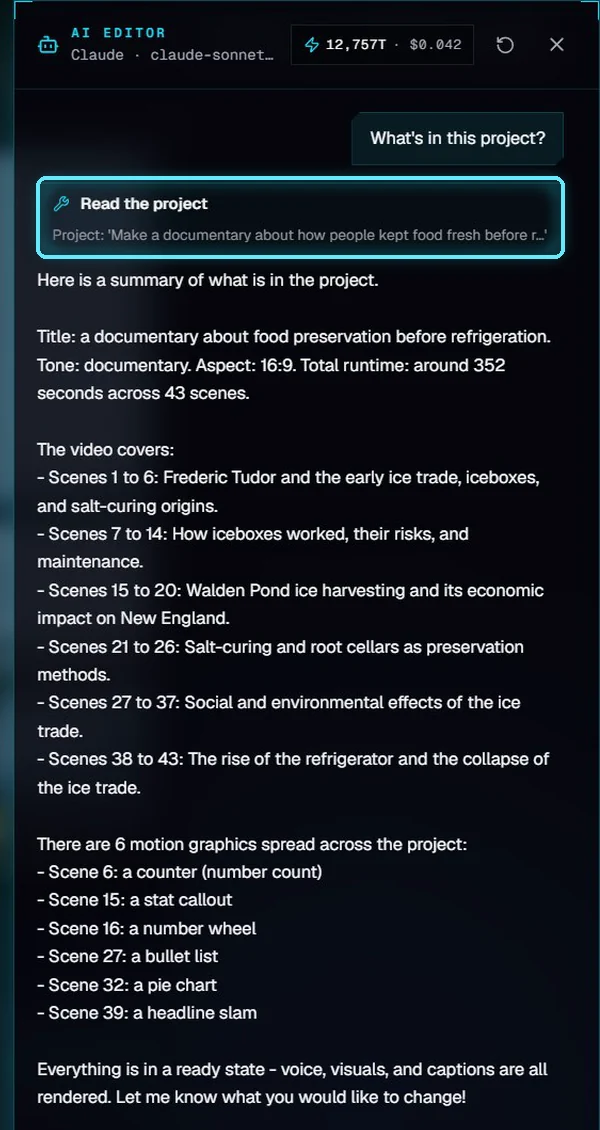
The AI reads the project and summarizes it.
Questions don't change anything, so they never use voice credit.
These are the cards you'll see as the AI works:
Card in the panel | What the AI did |
|---|---|
Read the project | Looked at every scene, its narration and its motion graphics. |
Rewrite narration | Changed one scene's narration. |
Regenerate voice | Recorded the new narration with ElevenLabs and re-made its captions. |
Change tone | Changed the project's tone label (documentary, dramatic, comedic...). |
New b-roll prompt | Changed what footage a scene searches for. Click Fresh search in the editor to fetch it. |
Add / Swap / Delete motion graphic | Added, changed or removed a chart, counter, map or title. Adding needs Claude. |
New thumbnails | Generated thumbnail variants with Pikzels. |
4. Rewrite a scene
Hover over a scene on the project page and click its AI chip. The panel opens with that scene already filled in. Add what you want and press Enter, for example make it more dramatic, about the same length.

The AI chip on scene 3.
The AI rewrites the narration, then records the new line in the same voice. The recording uses a little ElevenLabs credit and runs in the background; its captions are re-made too.
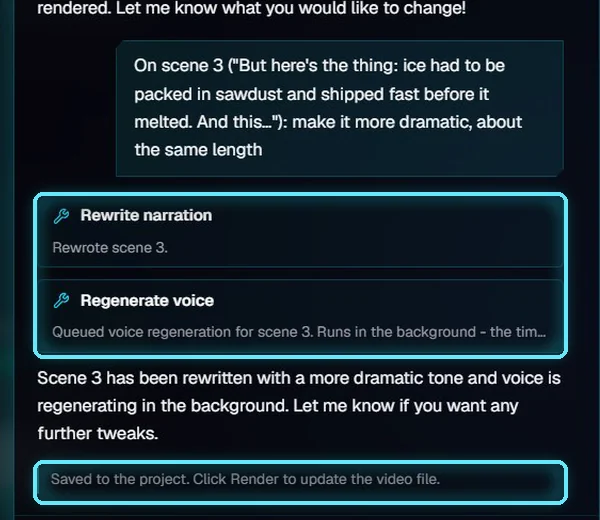
Rewrite narration, then Regenerate voice.
Every change is saved to the project straight away. The panel reminds you: Click Render to update the video file.
5. Undo a request
Click Undo at the top of the panel. One click undoes the whole request: the narration and the voice line that went with it. No new voice credit is used, because the old recording is put back.

Undo, and the arrow with earlier requests.
The arrow next to Undo lists your earlier requests, newest first, so you can go back further. Going back to one request also undoes every request after it.
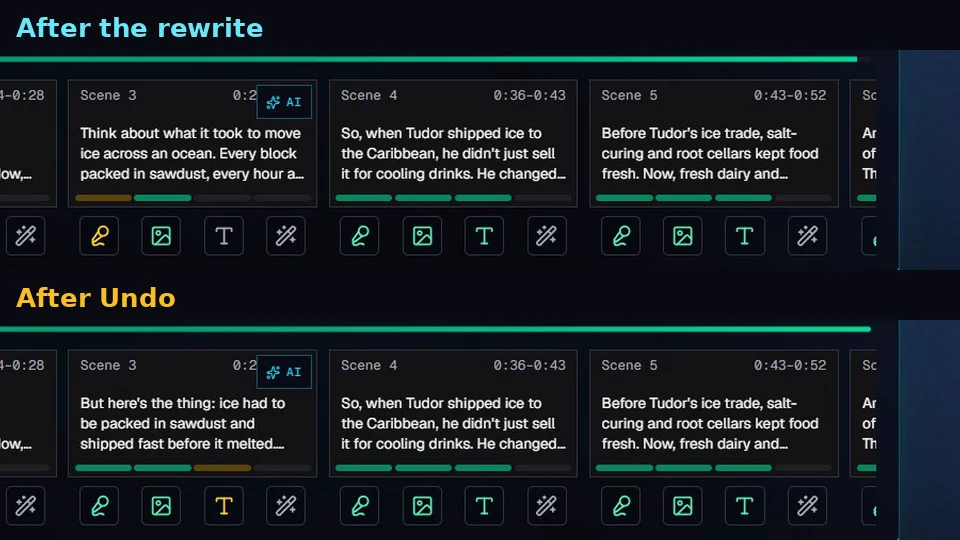
Scene 3 after the rewrite, and after Undo.
Good to know: Undo history is kept until VidNexus restarts, up to 20 requests per project. New thumbnails aren't removed by Undo.
6. Add a motion graphic
Describe the graphic in plain words, for example Add a counter to scene 8 for 32 degrees. The AI looks up the right kind of graphic, fills in the details and renders it in the background. Background work at the bottom of the panel shows the render.
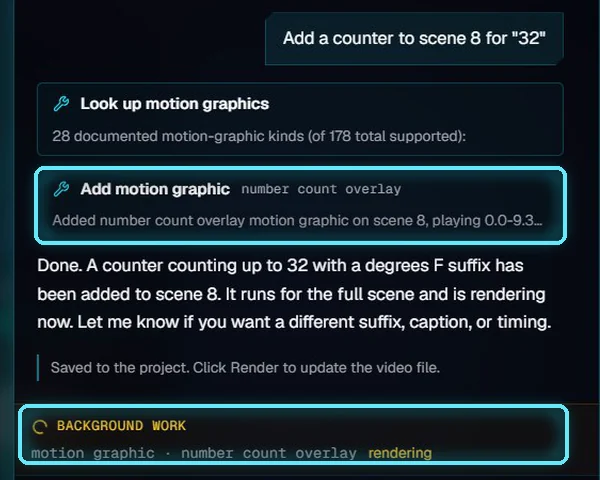
The AI adds a number counter to scene 8.
Adding new motion graphics needs Claude. To fine-tune one afterwards (the number, the caption, the timing), select its strip on the timeline in the editor and change it under Selection, then click Save & render.
7. Render the video
AI edits are saved to the project straight away, and the Live preview shows them. To put them in the video file, open the editor and click Render. Render rebuilds the video from what you already have, so it doesn't use API credit. It took under a minute and a half on our test machine.
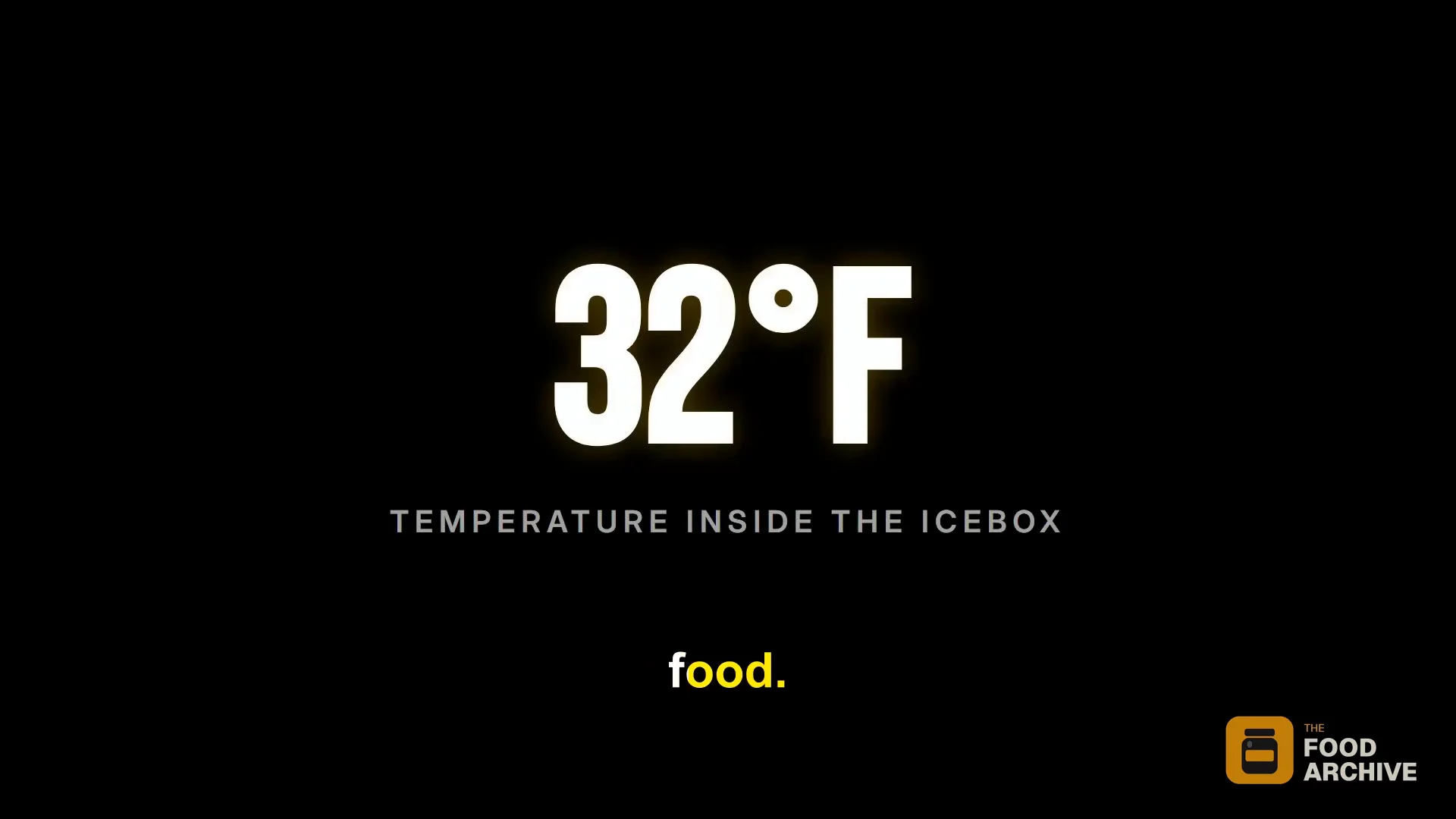
The new counter in the finished video.
Tips for good requests
Name the scene by number. "Scene 3" is clearer than "the part about sawdust". The AI chip fills it in for you.
Say what to keep. "About the same length" keeps the timing; big changes in length change the scene's duration.
One change per request. Each request is one Undo step, so smaller requests are easier to undo.
Ask first if you're unsure. A question never changes anything.
Troubleshooting
The panel says "Claude 401". The Anthropic key is wrong or was revoked. Paste a new one in Settings, Integrations, AI Editor.
Ollama edits the wrong scene. Local models are less precise. Name the scene by number, or use the AI chip on the scene.
My change isn't in the downloaded video. AI edits change the project, not the file. Click Render in the editor.
Undo is gone. Undo history resets when VidNexus restarts. You can still change things back by hand in the editor.